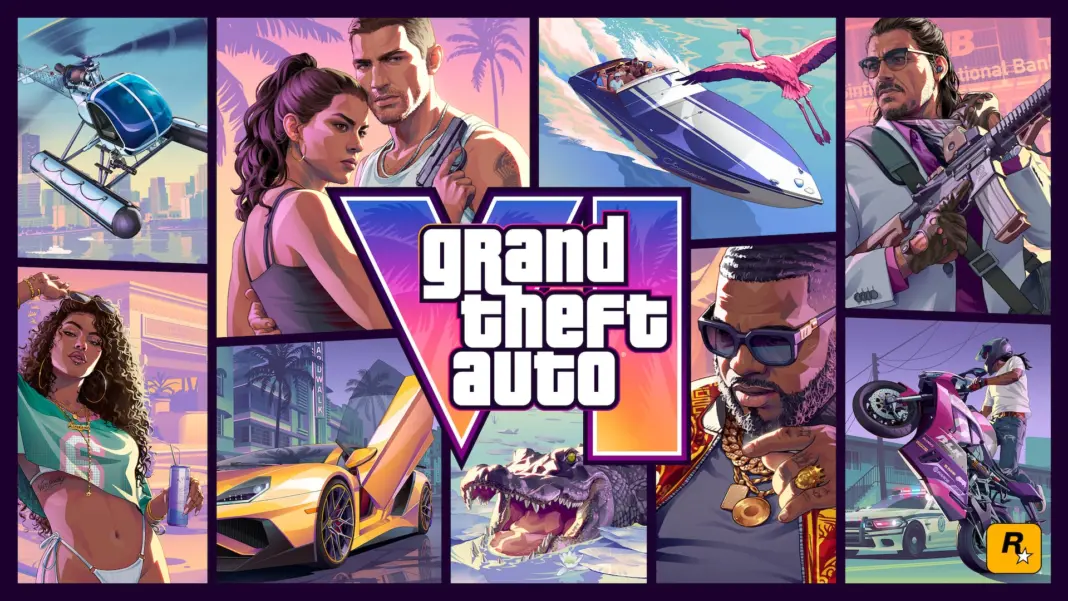
You can free up PS5 storage without deleting a single game. Remove add-ons and finished parts of games you still play, move games you’re not playing to a USB drive, and clear out old captures. All three are built into the PS5’s Settings menu, and with GTA 6 preloading from November 12, now’s the time to do it.
Here’s the problem most of us are about to hit. GTA 6 is reportedly around 210GB on PS5. Rockstar hasn’t confirmed that figure, but it’s the number every report points to. Add a Call of Duty install that can easily run past 150GB, and a few other favourites, and the PS5’s built-in SSD fills up fast.
The good news is that you don’t have to pick a game to sacrifice.
How much space do I need for GTA 6 on PS5?
Plan for at least 210GB free, and ideally a bit more. That’s the reported download size, not an official one, and launch patches usually add more on top.
Rockstar has confirmed that digital copies can start preloading on November 12 at midnight local time, a week before the game launches on November 19. If you want GTA 6 ready the moment it unlocks, the space needs to be there by the 12th. For the full timeline, see our GTA 6 preload guide.
Physical buyers may not escape the download either. Forbes reported that GTA 6’s physical edition ships without a disc, with a download code in the box instead. If that holds, everyone needs the space.
How do I check how much PS5 storage I have left?
Go to Settings > Storage from the home screen. The PS5 shows how much of the console storage is used and how much is free, broken down by games and apps, media and other data.
Check this first. It tells you how far you are from that 210GB mark, so you know whether a quick trim will do or you need to move whole games.
How do I remove add-ons without deleting the whole game?
This is the trick most players don’t know about. Some games let you delete only parts of their data, such as add-ons, extra modes or sections you’ve already finished, while keeping the rest playable.
- Go to Settings > Storage > Console Storage > Games and Apps.
- Look for games with Customize next to them.
- Select Customize and choose the parts you don’t need.
- Confirm to delete them.
Sony says you can delete unused add-ons or completed sections and still play the rest of the game. Call of Duty is the classic example: if you only play multiplayer, the campaign and other modes take up space you’ll never use. Not every game offers this, so you’ll only see Customize on games built to support it.
There’s a second route from the home screen. Highlight a game, press the Options button on your DualSense, and pick Manage Game Content. Supported games list their add-ons there, and you can remove the ones you don’t use. You can download them again later.
Can I move PS5 games to an external drive instead of deleting them?
Yes. Move them to a USB drive set up as USB extended storage. There’s one catch you need to know: you can’t play PS5 games from a USB drive. Sony’s guide says PS5 game data on USB extended storage has to be moved back to console storage or an M.2 SSD before you can play it.
That still beats deleting. Copying a game back from a USB drive is much faster than downloading it all over again, especially on slower home internet. And PS4 games can be stored and played straight from USB extended storage, so your PS4 backlog is the first thing to move off the internal drive.
Should I just add an M.2 SSD?
If you’re running out of space every few months, yes. The PS5 has a slot for a commercially available M.2 SSD, and games installed there run just like they do on the built-in drive. The drive has to meet Sony’s required specifications, so check the list on PlayStation’s support site before you buy.
What else is taking up space on my PS5?
Captures. Every trophy you unlock can save a screenshot or video clip automatically, and over a year that adds up to a surprising amount.
Open the Media Gallery, select the clips and screenshots you don’t need, and delete them. To keep any, copy them to a USB drive formatted as FAT or exFAT first, or send them to your phone through the PlayStation App. Sony notes that media copied to a USB drive can’t be copied back to the console, so keep the USB copy safe.
If you never watch your trophy clips, turn auto-captures for trophies off in Settings > Captures and Broadcasts so they stop piling up.
Which method frees up space fastest?
Here’s our quick comparison, based on what each option costs you:
| Method | What you keep | Time to get it back | Best for |
|---|---|---|---|
| Remove add-ons or parts (Customize) | The game itself | Re-download only the part you removed | Big games you only play one mode of |
| Move to USB extended storage | Everything | Fast copy back to the console | Games you’ll return to later |
| Delete captures | Nothing you want, if you copy it first | Can’t be restored to the console | Quick wins in a few minutes |
| Add an M.2 SSD | Everything, all playable | No waiting | Anyone who keeps running out of space |
| Delete the game | Saves and purchase stay in your library | Full re-download | Games you’ve finished for good |
Our suggestion: start with Customize on your biggest game, then move the games you haven’t touched in a month to USB, then clear captures. For most players that’s enough room for GTA 6 without deleting anything.
If you’re still counting down, our GTA 6 release date update has everything about the November 19 launch.