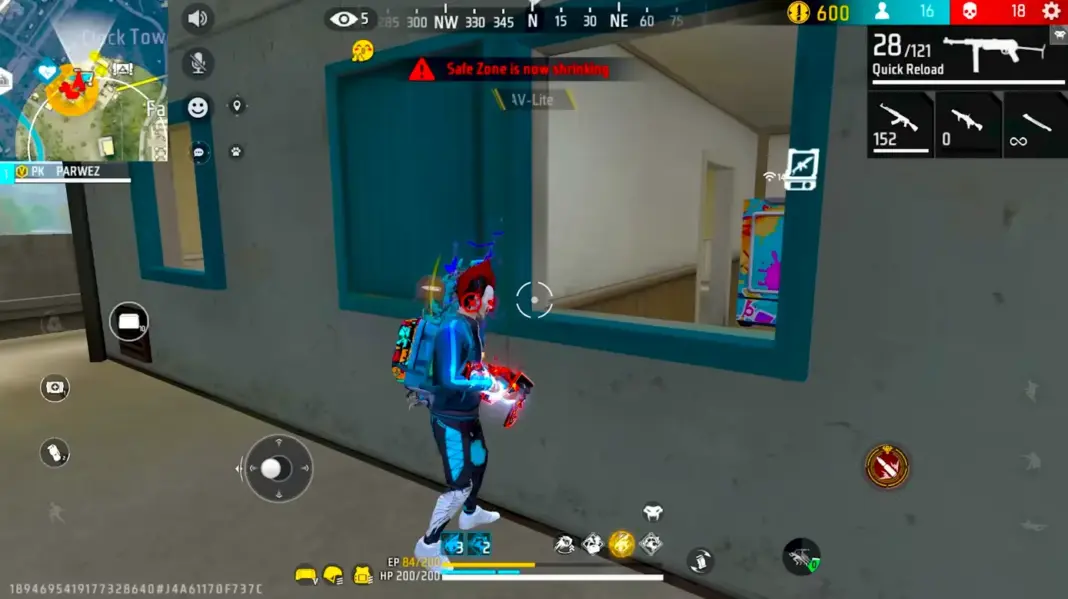
To set Free Fire sensitivity for your phone, start with numbers matched to your device. Then fine-tune one slider at a time in the Training Ground before you play ranked.
The calculator below gives you those starting numbers in about 30 seconds. The 15-minute test after it turns them into settings that fit your thumbs.
Copying a pro’s sensitivity rarely works. Their phone, screen size and grip are different from yours, so the same numbers behave differently in your hands.
Free Fire Sensitivity Calculator: Get Your Starting Numbers
Pick your phone, your playstyle and how many fingers you use. The tool returns all six values: General, Red Dot, 2x Scope, 4x Scope, Sniper Scope and Free Look.
Everything runs in your browser and nothing is sent to TalkEsport. If your phone isn’t listed, enter its screen size and refresh rate manually.
For a quick look at popular models, the full phone-by-phone sensitivity table lists values for Samsung, iPhone, Redmi, POCO, iQOO, realme and more.
Treat the result as a starting point. The real tuning happens in the steps below.
Where to Find Sensitivity Settings in Free Fire MAX
Open Free Fire MAX and tap the gear icon at the top right. Go to the In-Match tab, then open Sensitivity.
Garena moved sensitivity into this tab in its February 2025 settings revamp. The same update added small buttons beside each slider that move the value by exactly 1.
Use those buttons. Dragging a slider by hand often lands 3 or 4 points away from the number you wanted.
What Each Free Fire Sensitivity Slider Controls
Each slider controls the camera in one situation. Raising one won’t change the others.
| Slider | What it moves | Raise it if | Lower it if |
|---|---|---|---|
| General | Camera when you are not aiming | You turn too slowly in close fights | Your view jerks past enemies |
| Red Dot | Camera with red dot or holo sight | You can’t drag up to the head in time | The crosshair flies over the head |
| 2x Scope | Camera with a 2x scope | Tracking a running enemy feels slow | The scope shakes while spraying |
| 4x Scope | Camera with a 4x scope | Mid-range targets escape your aim | Small adjustments overshoot |
| Sniper Scope | Camera with AWM or other sniper scopes | You can’t follow a moving target | Your flick misses past the head |
| Free Look | Camera when looking around without turning | Checking behind you feels sluggish | The view swings while you run |
Most headshot problems come from General and Red Dot. Start there before you touch the scopes.
Why Your Phone Changes the Right Free Fire Sensitivity
The same number feels different on different phones. For a balanced three-finger player, the calculator suggests General 190 on an iPhone 16 but 175 on a Galaxy S25 Ultra.
The TalkEsport calculator adjusts for four things. Here is how each one shifts your numbers.
Screen Size
A bigger screen gives your thumb a longer swipe. That extra distance means you can turn the same amount with a lower value, so large phones and tablets get slightly lower numbers.
Small phones work the other way. Your thumb runs out of glass sooner, so a slightly higher value helps you finish the turn.
Refresh Rate and Frame Rate
On a 60 Hz phone, the screen updates less often, and fast drags can feel a step behind. The calculator adds a few points for 60 Hz screens and trims a few for 144 Hz screens.
Budget phones that drop frames get a small boost too. Flagships get a slight cut, because their smooth output already makes control easier.
Grip: 2 Thumbs, 3 Fingers or Claw
Two-thumb players aim and move with the same two digits. Higher values help them turn without lifting the aiming thumb.
Three-finger and four-finger claw players have a dedicated aiming finger. They can usually run lower values and still turn in time.
Playstyle
Rushers need fast General and Red Dot values for close fights. Snipers want slower, steadier scopes for long shots. Balanced players sit between the two.
How to Test Free Fire Sensitivity in the Training Ground
This routine takes about 15 minutes. Do it once with your new numbers, then repeat it only when something feels off.
- Stabilise your FPS first. Go to graphics settings and turn on High FPS only if the game stays smooth. Garena added an experimental frame rate boost in OB52, but switch it off if your phone heats up.
- Enter the calculator values. Use the plus and minus buttons to set each number exactly.
- Open the Training Ground. Go to the Target Range and pick an AR or SMG with a red dot.
- Run the drag drill. Aim at a dummy’s chest from about 10 metres, fire and drag up in one motion. Do it 20 times and note where your crosshair stops.
- Fix one slider. Use the table below, change only that slider by 5 and run the drill again.
- Check your scopes. Repeat the drill with 2x and 4x, then try a few flicks with a sniper.
- Confirm in real matches. Play two or three Clash Squad rounds before you change anything else.
Since the OB50 update, the Target Range has its own settings panel for shooting sensitivity. You can tweak values there without leaving the range, which speeds up steps 5 and 6.
Quick Fix Table
| What you see | Slider to change | Change |
|---|---|---|
| Crosshair goes over the head | Red Dot | Lower by 5 |
| Crosshair stops at the neck | Red Dot, then General | Raise by 5 |
| 2x or 4x scope shakes during spray | That scope | Lower by 5 to 10 |
| Sniper flick misses past the target | Sniper Scope | Lower by 5 |
| Turning around feels slow | General | Raise by 5 |
| View swings while you look around | Free Look | Lower by 10 |
Once you’re close, switch to steps of 1 or 2. Big jumps at this stage undo the work you just did.
Should You Use Pro Player Sensitivity Share Codes?
Free Fire lets you import HUD presets from top players under Settings > HUD. Since OB52, these share codes can include the player’s sensitivity, and you choose whether to sync it.
Import the HUD if you like the layout. Skip the sensitivity sync unless you play on the same phone with the same grip.
A pro tuned those numbers for their own screen and fingers. On your phone, they’re just someone else’s guess.
Why Old Free Fire Sensitivity Guides Don’t Work Anymore
Garena raised the sensitivity cap to 200 in its 16 April 2024 patch. Guides written before that use the old 0 to 100 scale.
So a 2021 guide that says “General 100” meant the maximum back then. On today’s scale, 100 sits at the midpoint.
Ignore any guide that doesn’t mention the 200 cap. Pull fresh numbers from the calculator above or from our headshot and one-tap sensitivity presets.
Settings and Habits That Matter as Much as Sensitivity
Close background apps before a match. Low RAM and heat cause frame drops, and frame drops make good settings feel bad.
Make the fire button big enough to hit without looking. Keep one HUD layout for at least a week, because moving buttons resets your muscle memory.
Spend five minutes on drag drills before ranked. Our free browser aim trainer works well for warming up flick speed off the phone too.
Stay away from “auto headshot” tools. Unofficial headshot panel apps can carry malware, and getting caught with one can mean a permanent ban.
Frequently Asked Questions
What is the best sensitivity for Free Fire?
There is no single best number for every phone. A Redmi Note 14 player using three fingers and a balanced style might start at 180 / 170 / 160 / 150 / 80 / 110, while an iPhone 16 player gets 190 / 180 / 167 / 157 / 85 / 120. Use the calculator for your phone, then tune it.
Is 200 sensitivity good for headshots?
Maxing every slider at 200 makes most players overshoot. High General and Red Dot values help drag-up headshots, but scopes and Free Look work better lower.
Does DPI matter for Free Fire sensitivity?
DPI is an Android display setting, separate from the in-game sliders. Changing it in Developer Options rescales your whole phone interface. You don’t need it to set sensitivity.
How often should I change my sensitivity?
Retest when you change phones, switch grip or notice a big update changing how the game feels. Otherwise, keep your numbers for at least a week before judging them.
Can I adjust sensitivity during a match?
Yes. Open settings mid-match, go to In-Match and then Sensitivity. Make small changes only, because a big jump mid-fight throws off your aim.
Final Word
Start with phone-based numbers, fix your FPS first, and run the drag drill until your crosshair stops on the head instead of the neck.
Keep an eye on the OB55 update changes and future patch notes. If Garena touches sensitivity again, rerun the calculator and the 15-minute test.