Free Fire best sensitivity settings can make a big difference when you are trying to land headshots, one-tap enemies, or win close-range fights. With the sensitivity scale now reaching 0-200, older settings may no longer feel the same after recent updates. There is also no single sensitivity that guarantees headshots, as your phone’s touch response, refresh rate, screen size, FPS and playstyle all affect aim. In this guide, we cover recommended Free Fire sensitivity settings for low-end, mid-range and high-end devices, along with separate setups for headshots, one-taps and close-range combat.
Free Fire Best Sensitivity Settings for Headshots
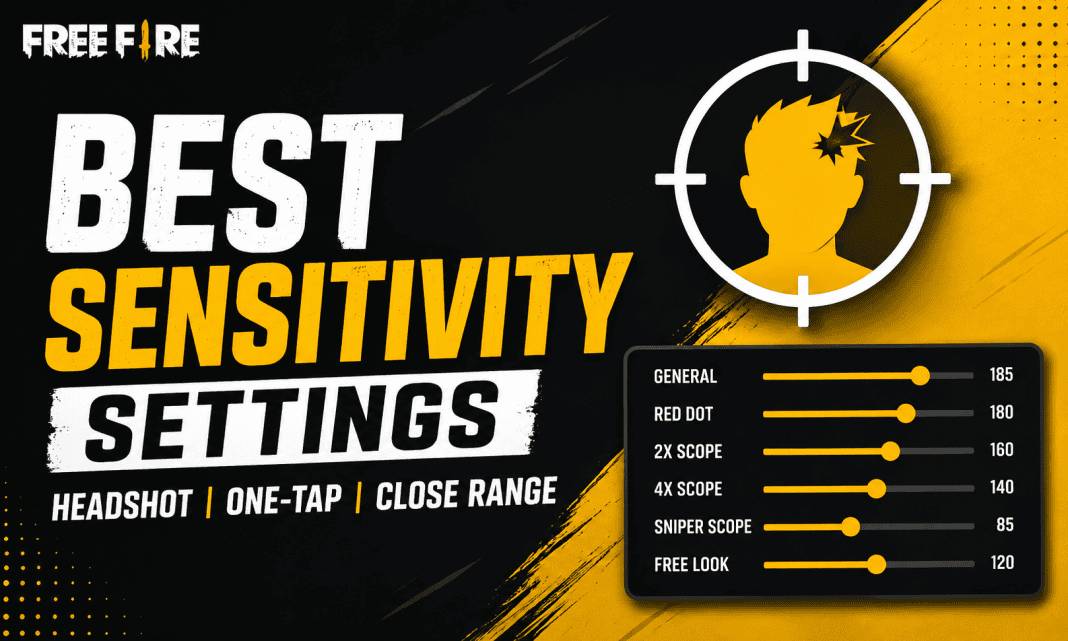
The Free Fire best sensitivity settings for headshots should make it easy to move your crosshair from the body toward the head without losing control. A good starting point on the current 0-200 scale is General 185, Red Dot 180, 2x Scope 160, 4x Scope 140, Sniper Scope 85 and Free Look 120. These values favor quick drag movements while keeping scoped aim relatively stable.
| Setting | Recommended Value |
|---|---|
| General | 185 |
| Red Dot | 180 |
| 2x Scope | 160 |
| 4x Scope | 140 |
| Sniper Scope | 85 |
| Free Look | 120 |
General sensitivity has the biggest effect on how quickly your aim moves. Red Dot sensitivity is especially important for close and medium-range fights where players frequently use drag shots.
If your crosshair consistently goes above the enemy’s head, lower General and Red Dot by around 3-5 points. If your crosshair stops around the chest and does not reach the head, increase them gradually.
Free Fire Sensitivity for One-Tap Headshots
One-tap headshots require fast but controlled crosshair movement. You should avoid simply putting every setting at 200 because extremely high sensitivity can make your aim overshoot the target.
For one-tap gameplay, try:
| Setting | One-Tap Value |
|---|---|
| General | 185 |
| Red Dot | 180 |
| 2x Scope | 160 |
| 4x Scope | 138 |
| Sniper Scope | 85 |
| Free Look | 120 |
This setup works well as a starting point for weapons that rely on quick flicks and short upward drags.
The most important part is your General and Red Dot sensitivity. Keep your crosshair around the upper chest area, then make a short upward movement while firing. Do not make an extremely long drag, as this can send the crosshair above the target.
There is no guaranteed “100% headshot” sensitivity. Community discussions also point out that players often need to adjust their settings based on their individual phone and touch response.
Free Fire Sensitivity for Close-Range Fights
Close-range combat requires faster camera movement because enemies can move across your screen very quickly. A slightly higher General and Red Dot sensitivity can help with quick turns and drag shots.
Try these Free Fire close-range sensitivity settings:
| Setting | Close-Range Value |
|---|---|
| General | 188 |
| Red Dot | 182 |
| 2x Scope | 155 |
| 4x Scope | 140 |
| Sniper Scope | 85 |
| Free Look | 120 |
General sensitivity should remain high enough for quick 180-degree turns and close-range tracking. Red Dot should also be high because many close-range fights involve rapid aim adjustments.
For weapons such as shotguns and SMGs, focus on short, controlled movements instead of trying to drag the crosshair across the entire screen.
Free Fire Sensitivity for Low-End Devices
Low-end phones can have lower frame rates and slower touch response, especially when the device heats up. Higher sensitivity can help compensate for some of that slower-feeling input, but it should not be pushed to the maximum automatically.
For devices with around 2GB-3GB RAM, start with:
| Setting | Low-End Device |
|---|---|
| General | 195 |
| Red Dot | 190 |
| 2x Scope | 180 |
| 4x Scope | 165 |
| Sniper Scope | 95 |
| Free Look | 155 |
These settings are a starting point rather than a universal configuration. Current 0-200 sensitivity guides similarly recommend higher General and Red Dot values for lower-end devices.
If your aim feels too fast, reduce General first instead of changing every setting at once.
Free Fire Sensitivity for Mid-Range Devices
Phones with 4GB-6GB RAM generally provide a good balance between performance and touch response. You can use slightly lower values than a low-end phone while maintaining quick movement.
Try:
| Setting | Mid-Range Device |
|---|---|
| General | 185 |
| Red Dot | 175 |
| 2x Scope | 160 |
| 4x Scope | 145 |
| Sniper Scope | 90 |
| Free Look | 130 |
This setup is suitable for players who regularly switch between close-range fights, AR sprays and medium-range engagements.
If your device has a high refresh-rate display, you may find that slightly lower sensitivity gives you better control.
Free Fire Sensitivity for High-End Devices
High-end phones generally have faster processors, higher frame rates and better touch response. Because your input can feel more responsive, extremely high sensitivity may make precise aiming harder.
A good starting setup for 6GB+ flagship devices is:
| Setting | High-End Device |
|---|---|
| General | 170 |
| Red Dot | 165 |
| 2x Scope | 150 |
| 4x Scope | 130 |
| Sniper Scope | 80 |
| Free Look | 110 |
Recent 0-200 sensitivity recommendations also suggest moderating sensitivity on higher-end and high-refresh-rate devices rather than automatically using maximum values.
If you play on a 90Hz or 120Hz phone, start with these lower values and increase them only when your aim feels too slow.
Free Fire Sensitivity for iPhone
iPhone players should not blindly copy Android sensitivity settings. Different display sizes, refresh rates and touch responses can change how a particular sensitivity value feels.
A good starting point for iPhone is:
| Setting | iPhone Starting Value |
|---|---|
| General | 175 |
| Red Dot | 170 |
| 2x Scope | 150 |
| 4x Scope | 130 |
| Sniper Scope | 80 |
| Free Look | 105 |
Use these values as a baseline and test them in Training Grounds. Current device-specific guides also recommend higher General and Red Dot sensitivity with lower scoped values for steadier long-range aim.
Older iPhones may need a different setup because hardware performance and touch response can vary significantly between generations.
How to Find the Best Free Fire Sensitivity for Your Device
Instead of changing all 6 sensitivity settings together, adjust them one at a time. This makes it easier to understand which setting is affecting your aim.
Follow these steps:
- Open Free Fire and enter Training Grounds.
- Start with the recommended settings for your device.
- Use the same weapon for several tests.
- Aim around the enemy’s upper chest.
- Fire while making a short upward drag.
- If the crosshair goes over the head, lower General by 3-5 points.
- If it stays around the chest, increase General by 3-5 points.
- Test Red Dot separately for close-range fights.
- Repeat until your movement feels consistent.
Small changes are better than completely changing your sensitivity every match. Community players commonly recommend testing and adjusting sensitivity gradually because the best value varies from device to device.
Best Free Fire Sensitivity for Headshot, One-Tap and Close Range
If you want a quick setup, use these three presets:
| Playstyle | General | Red Dot | 2x | 4x | Sniper |
|---|---|---|---|---|---|
| Headshot | 185 | 180 | 160 | 140 | 85 |
| One-Tap | 185 | 180 | 160 | 138 | 85 |
| Close Range | 188 | 182 | 155 | 140 | 85 |
The Headshot preset provides a balanced setup for drag shots. The One-Tap preset focuses on quick crosshair movement, while the Close-Range preset gives General and Red Dot slightly more speed.
You can use any of these as your starting point and then make small adjustments based on your device.
Does DPI Matter for Free Fire Sensitivity?
DPI can change how touch movement feels on some Android devices, but changing DPI is not necessary to get good headshots. Players should avoid blindly using extreme DPI values just because a sensitivity guide recommends them.
Your first priority should be the in-game sensitivity, HUD and your own aim control. If your phone already feels responsive, there is little reason to make aggressive system-level changes.
A stable FPS and comfortable touch response are more useful than constantly switching between DPI and sensitivity combinations.
Tips to Improve Headshots in Free Fire
Sensitivity alone will not make every shot a headshot. Use these tips along with your preferred settings:
- Keep your crosshair near the upper chest before firing.
- Use short upward drags instead of large movements.
- Practice the same weapon repeatedly in Training Grounds.
- Do not change sensitivity after every bad match.
- Lower General if your aim repeatedly goes above the head.
- Increase General slightly if your drag stops below the head.
- Use lower scope sensitivity for better long-range control.
- Keep your HUD comfortable so your fire button is easy to reach.
- Prioritize stable FPS and avoid playing while the phone is heavily overheating.
The goal is to build muscle memory. Once your sensitivity feels comfortable, keep it unchanged for several sessions so your hand can adapt.
The Free Fire best sensitivity settings depend on your device, refresh rate, touch response and playstyle. For most players using the current 0-200 scale, General 185 and Red Dot 180 are strong starting points for headshots and one-tap gameplay. Close-range players can increase General and Red Dot slightly, while high-end or high-refresh-rate phones may perform better with more controlled values.
Most importantly, do not expect one setting to work perfectly on every phone. Use the recommended values as a baseline, test them in Training Grounds and make small 3-5 point adjustments until your aim feels natural.
FAQs
What is the best Free Fire sensitivity for headshots?
A strong starting point is General 185, Red Dot 180, 2x Scope 160, 4x Scope 140, Sniper Scope 85 and Free Look 120 on the current 0-200 scale.
What sensitivity is best for one-tap headshots?
Try General 185 and Red Dot 180 first. If the crosshair goes above the head, reduce the values gradually.
What is the best sensitivity for close-range fights?
For close-range combat, start with General 188 and Red Dot 182. Higher values can help with fast turns and short drag movements.
Should I set every Free Fire sensitivity option to 200?
No. Maximum sensitivity is not automatically the best sensitivity. It can make aiming too fast and reduce control, particularly on responsive high-end devices.
Is there a 100% headshot sensitivity in Free Fire?
No. There is no universal sensitivity that guarantees headshots. Your device, touch response, FPS, HUD and aiming technique all affect performance.