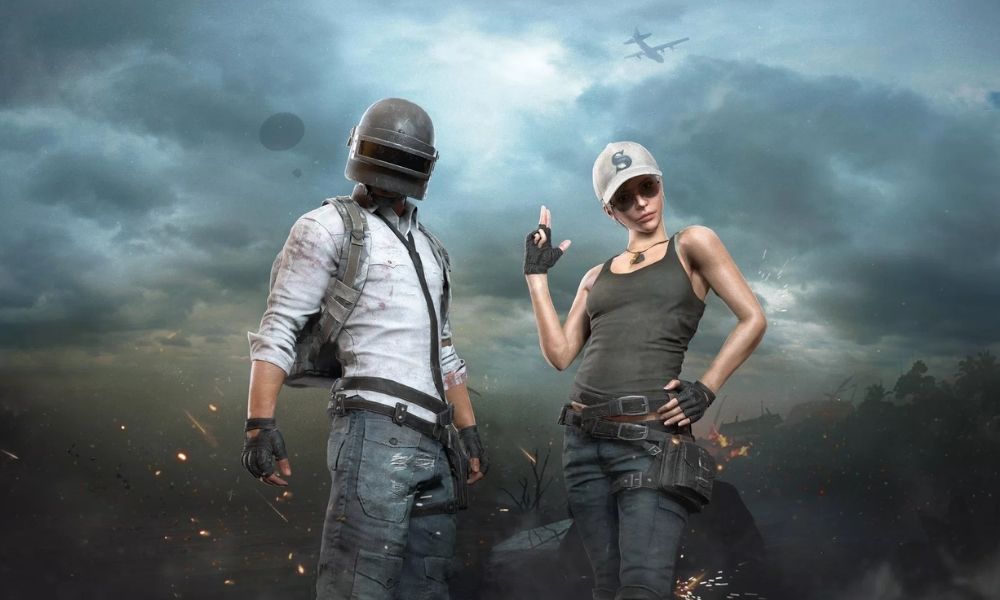
Playing BGMI for laptop is completely possible in 2026, even though the game is officially only available on Android and iOS. You need an Android emulator to run the game on Windows or macOS, and the process takes less than 15 minutes if you follow the right steps.
Why Play BGMI on Laptop?
A laptop gives you advantages that a phone simply cannot. The bigger screen improves your field of view, keyboard and mouse controls allow faster and more precise aiming, and your laptop’s cooling system handles long gaming sessions better than a phone. Many competitive BGMI players prefer emulators for ranked grinding and practice because of these reasons.
BGMI also supports up to 120 FPS on supported devices, and on a capable laptop, you can achieve that smoothness consistently without throttling.
System Requirements
Before downloading anything, check if your laptop meets the minimum requirements. Running BGMI below these specs will result in lag and crashes.
If you are using BlueStacks as your emulator, the absolute minimum is 4 GB RAM with at least 10 GB free disk space, though gameplay at those specs will not be smooth.
Best Emulators for BGMI for Laptop
There is no single “best” emulator for every laptop. The right choice depends on your hardware. Here are the top five options in 2026:
1. LDPlayer 9
LDPlayer is the most popular emulator for BGMI on laptop right now. It supports up to 120 FPS, offers detailed key mapping customization, and works well on both mid-range and high-end laptops. You can allocate CPU cores and RAM directly from the emulator’s settings panel for optimal performance.
2. BlueStacks 5
BlueStacks is one of the oldest and most trusted Android emulators available. It supports keyboard mapping, high-definition graphics, and a multi-instance feature. The trade-off is that BlueStacks is resource-heavy, so it may lag on entry-level laptops.
3. GameLoop (64-bit)
GameLoop is developed by Tencent and has native support for BGMI and PUBG Mobile. It uses DirectX+ rendering and lets you allocate dedicated GPU resources, making it a strong choice for laptops with a discrete graphics card. For best results, set rendering mode to DirectX+, assign 4 CPU cores, and set memory to 4096 MB or 50% of your system RAM.
4. NoxPlayer
NoxPlayer is lightweight and easy to set up, making it a solid option for older laptops. It supports both keyboard/mouse and gamepad controls for BGMI.
5. MEmu Play
MEmu Play supports Android 9 and offers smooth compatibility with BGMI. It is a good fallback option if LDPlayer or BlueStacks causes issues on your specific laptop configuration.
How to Install BGMI on Laptop
Follow these steps using LDPlayer 9 as the example, since it is currently the most recommended emulator for BGMI.
- Go to ldplayer.net and click Download LDPlayer 9 (approximately 724 MB).
- Run the installer and click Yes when prompted for permissions, then click Install.
- Open LDPlayer once installation is complete and sign in with your Google account.
- Open the Google Play Store within LDPlayer, search for Battlegrounds Mobile India, and click Install.
- Wait for the initial download (approximately 745 MB) plus any additional in-game resource files to download automatically.
- Launch the game, log in with your existing BGMI account, and configure your key mapping from the emulator’s control editor.
The total installation time is around 20 to 30 minutes depending on your internet speed.
Performance Tips for Smooth Gameplay
Getting BGMI for laptop to run smoothly requires a few tweaks beyond the default settings. Apply these after installation:
- Allocate maximum CPU cores in LDPlayer or GameLoop settings to reduce frame drops during intense fights.
- Set DPI to 240 inside the emulator display settings. Using a DPI value that is too high or too low can prevent you from logging into BGMI.
- Set FPS cap to 120 in the emulator and match it with Extreme frame rate inside BGMI’s in-game graphics settings.
- Disable anti-aliasing in both emulator and in-game settings on low to mid-range laptops. This alone can recover 10 to 20 FPS.
- Use a wired internet connection instead of Wi-Fi to reduce ping and packet loss during matches.
- Set the device model in your emulator to a high-end phone like Samsung S24 Ultra or ROG Phone 5. This unlocks higher graphics tiers within BGMI.
- Close background apps before launching the emulator to free up RAM and prevent stuttering.
For more BGMI tips and sensitivity guides tailored for emulator players, visit TalkEsport’s BGMI section.
Is Playing BGMI on Laptop Allowed?
Krafton has not officially banned emulator use for BGMI the way some other games have. However, using third-party tools, macros, or scripts alongside emulators to gain an unfair advantage violates the terms of service and can result in a ban. Stick to clean emulator setups and legitimate in-game settings to stay safe.