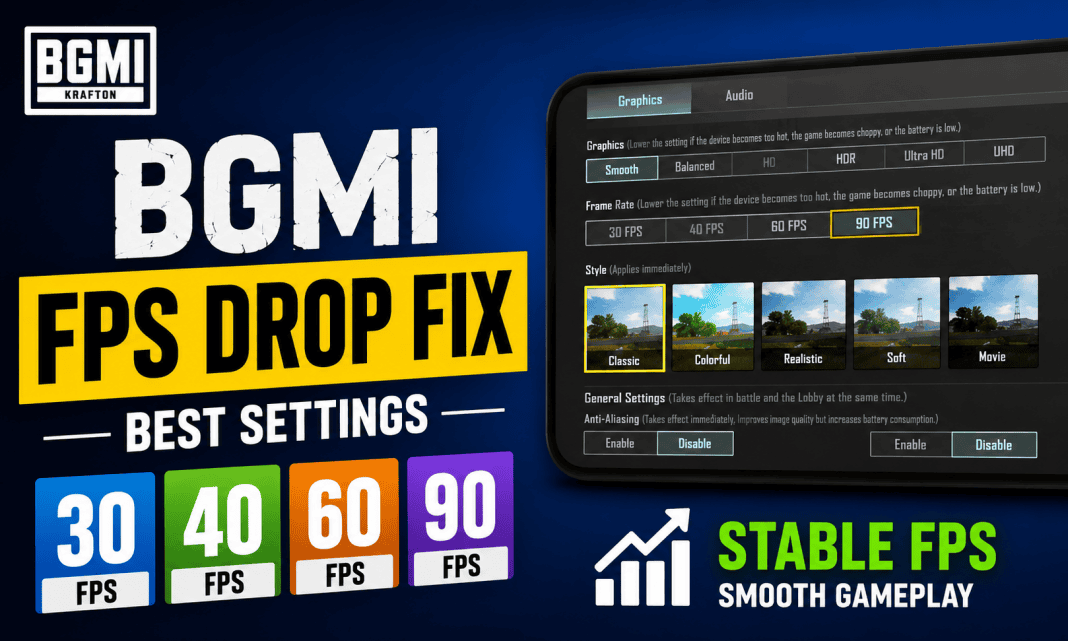
BGMI FPS Drop Fix is important if your game becomes choppy during fights, drops frames after extended sessions, or struggles to maintain a stable FPS. The best solution is not always to select the highest FPS option available. Instead, you should match your graphics and frame rate settings with your phone’s actual performance. In this guide, we explain the best BGMI settings for 30 FPS, 40 FPS, 60 FPS, and 90 FPS phones, along with practical ways to reduce heating, background load, and sudden frame drops without using third-party FPS unlocker apps.
BGMI FPS Drop Fix: Best Settings for Every Phone
The most reliable BGMI FPS setup is to prioritize stable frame rates over high graphics quality. A consistent 40 FPS experience is usually better than a 60 FPS setting that constantly falls during fights.
KRAFTON also confirms that higher FPS options depend on device support. For example, 90 FPS can only be selected when the option is available under BGMI’s Graphics settings on a supported device.
| Phone Performance | Graphics | Recommended FPS | Anti-Aliasing | Shadows |
|---|---|---|---|---|
| 30 FPS phones | Smooth | 30 FPS | Off | Off |
| 40 FPS phones | Smooth | 40 FPS | Off | Off |
| 60 FPS phones | Smooth | 60 FPS | Off | Off |
| 90 FPS phones | Smooth | 90 FPS | Off | Off |
The names of FPS options can vary between devices and BGMI versions. If your phone does not show a particular option, you cannot force it through normal in-game settings.
BGMI Settings for 30 FPS Phones
If your phone normally runs BGMI around 30 FPS, use Smooth graphics with the highest stable 30 FPS option available.
Avoid HD, HDR, or other heavier graphics presets if they cause the frame rate to fluctuate. Turn off Anti-Aliasing and Shadows where those options are available.
The goal on a 30 FPS phone should be stability. Do not try to force a higher frame rate through unofficial tools, as the result can be unstable gameplay, overheating, or other problems.
For low-end devices, also close unnecessary background apps before launching BGMI. This frees system resources and can help reduce stutters.
BGMI Settings for 40 FPS Phones
For phones capable of maintaining around 40 FPS, Smooth + 40 FPS is the recommended starting point.
Keep Anti-Aliasing and Shadows off if you are experiencing frame drops. You can increase visual settings later if the phone maintains a stable frame rate during Classic matches and close-range fights.
A stable 40 FPS setup is especially useful for players whose phones struggle to hold 60 FPS. Dropping to a lower but consistent frame rate can make gameplay feel more predictable.
BGMI Settings for 60 FPS Phones
For a phone that can consistently maintain 60 FPS, use Smooth + 60 FPS and keep unnecessary visual effects disabled.
This setup provides a good balance between responsiveness and device temperature. If your phone starts at 60 FPS but drops heavily during TDM fights or late-game situations, reducing graphics quality is more useful than simply selecting a higher FPS mode.
Background apps should also be closed before playing. Avoid battery-saving modes while gaming if they reduce your phone’s performance.
If the device becomes very hot, allow it to cool down before another long session. Heat can reduce sustained performance, which can lead to FPS drops even when the phone initially runs the game smoothly.
BGMI Settings for 90 FPS Phones
For supported high-end devices, the best competitive setup is generally Smooth + 90 FPS.
KRAFTON’s official guide says players should go to Settings > Graphics & Audio > Smooth > 90 FPS, but the 90 FPS option only appears on supported devices.
Your phone’s display refresh rate also matters. KRAFTON’s guide provides device-specific instructions for enabling higher refresh rates on brands including Samsung, Xiaomi, OnePlus, iQOO, ASUS, Vivo, Realme and others.
If your phone supports 90 FPS but the game still does not apply it, check the device’s refresh-rate setting first. If the option is available in BGMI but the actual FPS remains lower, the issue may be related to the device or game software rather than your graphics settings.
How to Stop BGMI FPS Drops During Fights
Changing graphics settings is only one part of a proper BGMI FPS Drop Fix. Follow these steps before playing:
- Close unnecessary background applications.
- Turn off battery-saving mode while gaming.
- Use the phone’s gaming or performance mode if available.
- Keep enough free storage space on the device.
- Avoid playing while the phone is extremely hot.
- Do not play with heavy background downloads running.
- Restart the phone if FPS problems continue after long usage.
- Keep BGMI updated through the official app store.
- Use Smooth graphics when FPS stability is more important than visual quality.
A 2026 gaming optimization guide from TalkEsport also recommends reducing background load and managing device performance to help maintain stable 60–90 FPS gameplay.
What to Do If BGMI Still Drops FPS
If FPS continues to fall after applying the recommended settings, first identify when the drop happens.
And if FPS drops immediately after launching the game, check background apps, battery settings, and available storage. If it happens after 15–30 minutes, overheating may be the bigger problem.
If the issue started after a BGMI or phone update, check whether other players with the same device are reporting the problem. Recent community reports have also highlighted cases where BGMI displays higher FPS options but the actual frame rate does not match the selected setting.
Most importantly, do not assume that selecting 90 FPS guarantees 90 FPS throughout a match. Actual performance depends on the phone’s hardware, temperature, software and the workload during gameplay.
Best BGMI FPS Settings: Quick Recommendation
For most players, the simplest setup is:
30 FPS phone: Smooth + 30 FPS + Anti-Aliasing Off + Shadows Off
40 FPS phone: Smooth + 40 FPS + Anti-Aliasing Off + Shadows Off
60 FPS phone: Smooth + 60 FPS + Anti-Aliasing Off + Shadows Off
90 FPS phone: Smooth + 90 FPS + Anti-Aliasing Off + Shadows Off
Start with these settings and test them in actual matches. If the FPS remains stable, you can gradually increase visual quality. If the FPS drops, go back to Smooth graphics and reduce demanding effects.
Final Words
The best BGMI FPS Drop Fix is to find the highest frame rate your phone can maintain consistently rather than simply choosing the highest option available. Smooth graphics with a stable 30, 40, 60, or 90 FPS can provide a better experience than demanding graphics that cause frequent drops. Keep your device cool, reduce background activity, avoid battery-saving restrictions during gameplay, and use only FPS options officially supported by BGMI and your phone.
Also read: BGMI Lag & Ping Fix: Reduce 100ms+ Ping, Packet Loss and Stutters
FAQs
Which graphics setting is best for FPS in BGMI?
Smooth graphics are the best starting point when FPS stability is the priority. Lower visual effects can reduce the workload on the device.
How do I get 90 FPS in BGMI?
If your device supports it, open Settings > Graphics & Audio > Smooth and select 90 FPS. KRAFTON says the 90 FPS option is only available on supported devices.
Why does BGMI FPS drop after playing for a long time?
Device heating is one possible reason. Sustained gaming can increase temperature and reduce performance. Taking breaks and keeping the phone cool can help maintain more stable FPS.
Is 40 FPS better than unstable 60 FPS?
Yes. If your phone cannot consistently maintain 60 FPS, a stable 40 FPS setting can provide a smoother and more predictable experience during gameplay.