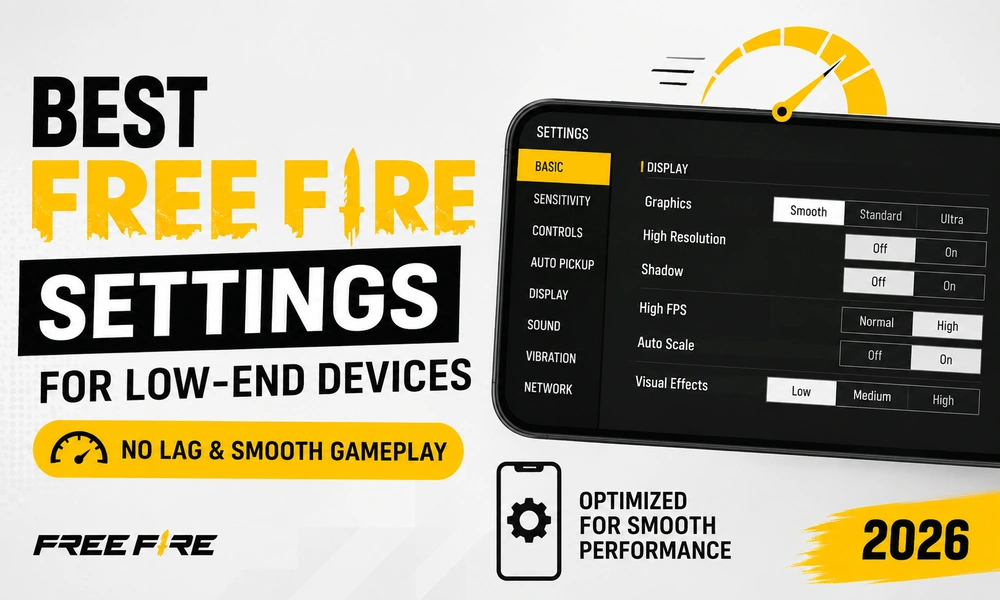
Best Free Fire settings for low-end devices can significantly improve your gaming experience by reducing lag, increasing frame rates, and making gameplay feel much smoother. While Garena has optimized Free Fire for a wide range of smartphones, many players still use entry-level or older Android devices that struggle to maintain consistent performance. Thankfully, a few in-game setting adjustments can make a noticeable difference. In this guide, we’ll cover the best graphics, sensitivity, control, and performance settings to help you enjoy smoother gameplay in Free Fire in 2026.
Best Free Fire Settings for Low-End Devices in 2026
If you’re experiencing frame drops, stuttering, or overheating, the first thing you should do is optimize your in-game settings. Lower graphics reduce the load on your phone’s GPU, while the right sensitivity settings help maintain accurate aim without sacrificing performance.
These settings are ideal for devices with 2GB to 6GB RAM, entry-level processors, or older smartphones.
Recommended Graphics Settings
| Setting | Recommended Option |
|---|---|
| Graphics | Smooth |
| High Resolution | Off |
| Shadow | Off |
| High FPS | On (if supported) |
| Auto Scale | On |
| Visual Effects | Low |
The Smooth graphics preset offers the best balance between visibility and performance. Disabling shadows and high-resolution textures frees up system resources, allowing your phone to maintain a more stable frame rate.
If your device supports High FPS, enable it. Even if your graphics quality is low, a higher frame rate makes aiming and movement feel much smoother.
Best Free Fire Sensitivity Settings
Alongside Free Fire graphics settings, adjusting sensitivity improves your aiming consistency, especially on lower-end phones.
| Sensitivity Option | Value |
|---|---|
| General | 100 |
| Red Dot | 90 |
| 2x Scope | 80 |
| 4x Scope | 70 |
| Sniper Scope | 50 |
| Free Look | 65 |
These values provide fast camera movement while keeping recoil under control. However, sensitivity is also a matter of personal preference, so you can make small adjustments based on your playstyle.
Best Control Settings
Optimizing controls also contributes to smoother gameplay.
Recommended settings include:
- Aim Precision: Default
- Left Fire Button: Always On
- Quick Weapon Switch: On
- Quick Reload: On
- Auto Pickup: On
- Auto Switch Gun: Off
Keeping the left fire button enabled provides better movement while shooting, which is especially useful during close-range fights.
Additional Free Fire Lag Fix Tips
Even the best Free Fire FPS settings won’t completely eliminate lag if your phone is overloaded. Here are some extra optimization tips:
- Close all background apps before launching Free Fire.
- Restart your phone before long gaming sessions.
- Keep at least 5GB of free storage available.
- Use a stable Wi-Fi connection whenever possible.
- Disable Battery Saver mode while gaming.
- Avoid charging your phone while playing to reduce overheating.
- Clear Free Fire cache regularly from your device settings.
These small changes often improve stability and reduce sudden frame drops during intense matches.
Device Optimization Tips
Besides changing in-game settings, optimizing your smartphone can also improve performance.
Enable Game Mode
Many Android manufacturers include a dedicated Game Mode that prioritizes CPU and RAM resources for gaming. If your phone has this feature, enable it before launching Free Fire.
Reduce Background Activity
Disable automatic app updates and unnecessary notifications while gaming. This prevents background processes from consuming system resources.
Update the Game
Garena frequently releases optimization patches that improve performance across different devices. Keeping Free Fire updated ensures you benefit from the latest improvements and bug fixes.
Why These Settings Work
Low-end devices usually struggle because of limited processing power and RAM. High graphics settings require more GPU resources, while background apps consume valuable memory.
By lowering visual quality and optimizing sensitivity, your device can dedicate more resources to maintaining a stable frame rate. As a result, gameplay feels more responsive, enemies appear more smoothly, and aiming becomes easier.
While these settings won’t magically transform an older phone into a flagship device, they can noticeably improve your overall experience.
Also read: Best Free Fire Sensitivity Settings for Headshots (2026)
Finding the Best Free Fire Settings for Low-End Devices is one of the easiest ways to improve gameplay without upgrading your smartphone. Lower graphics, optimized Free Fire sensitivity settings, and proper device maintenance can significantly reduce lag and provide smoother performance.
If you’re playing on an entry-level Android device in 2026, the settings listed above offer an excellent starting point. You can further fine-tune sensitivity based on your preferences, but keeping graphics low and reducing background activity will deliver the biggest performance improvements.
Frequently Asked Questions
What are the best graphics settings for low-end devices in Free Fire?
Use Smooth graphics, disable High Resolution and Shadows, and enable High FPS if your phone supports it.
Does High FPS improve gameplay?
Yes. A higher frame rate makes movement, aiming, and camera rotation much smoother, provided your device supports the option.
Which sensitivity setting is best for Free Fire?
A General sensitivity of 100 and Red Dot sensitivity of 90 work well for most players, though you can adjust them based on personal preference.
How can I reduce lag in Free Fire?
Lower graphics settings, close background apps, free up storage, disable Battery Saver, and use a stable internet connection for the best results.