This article covers the best video settings, game settings, pro settings, and other factors to optimize your gameplay experience. From resolution and aspect ratio to sensitivity and mouse acceleration, we have you covered. Whether you are a casual player or a competitive gamer, these tips will help you achieve smoother gameplay and a competitive edge. Dive in and adjust your settings just right!
Key Takeaways:
- Optimize video settings for high FPS: adjust resolution, refresh rate, and brightness to improve gameplay performance.
- Customize game settings to your preference: personalize HUD, team and communication options, and utilize spectator/scoreboard features for better gameplay experience.
- Utilize pro settings for competitive advantage: adjust sensitivity, mouse acceleration, DPI and eDPI, and mouse polling rate to match your playstyle and improve accuracy.
Video Settings
The Video Settings in Counter-Strike 2 cover various aspects like resolution, aspect ratio, Global Shadow Quality, Ambient Occlusion, FidelityFX Super Resolution, and NVIDIA Reflex Low Latency.
Resolution in video settings determines the clarity of images displayed during gameplay. Opting for a higher resolution can deliver sharper visuals but may impact performance.
Aspect ratio influences the width-to-height ratio of the screen, affecting how the game is displayed. Global Shadow Quality impacts the level of detail in shadows, enhancing the overall visual experience. For the best Counter Strike 2 settings for high FPS, check out this guide.
Ambient Occlusion enhances the realism by simulating how light interacts with the environment. FidelityFX Super Resolution boosts image quality by upscaling lower resolutions. NVIDIA Reflex Low Latency minimizes input lag for smoother gameplay.
Resolution and Aspect Ratio
Selecting the appropriate Resolution and Aspect Ratio in Counter-Strike 2 is essential to align with your system requirements and gaming preferences. Optimizing your resolution and aspect ratio can have a significant impact on the visual quality and gameplay advantages in CS2.
Having a higher resolution and wider aspect ratio can enhance visual clarity and improve visibility of enemies at a distance. It is crucial to find a balance to ensure smooth performance, especially if your system may struggle with higher settings.
Adjusting these settings can also impact your field of view and the rendering of objects on the screen, influencing your overall gaming experience. Discovering the optimal settings that suit your system capabilities while enhancing gameplay can make a noticeable difference in your CS2 performance.
Refresh Rate
The Refresh Rate setting in Counter-Strike 2 determines how frequently the display updates with new images. A higher refresh rate can lead to smoother gameplay and improved performance, particularly when paired with optimized frame rates.
This setting plays a critical role in enhancing visual quality and optimizing gameplay smoothness. By increasing the Best Counter Strike 2 Settings For High FPS, players can reduce motion blur and screen tearing, creating a more immersive gaming environment. A higher refresh rate enables faster response times, providing players with a competitive advantage in fast-paced situations. Synchronizing the refresh rate with the frame rate can result in seamless gameplay, devoid of lag spikes and visual distortions. Tweaking performance through these settings can significantly impact the overall gaming experience.
Brightness
Adjusting the Brightness setting in Counter-Strike 2 can enhance visual improvements and create a more immersive gaming experience. Finding the right balance of brightness is key to optimizing visibility and ensuring a competitive advantage.
Different environments and gaming scenarios may require varying brightness settings to achieve optimal visual clarity. For instance, playing in a dimly lit room may necessitate higher brightness levels to illuminate dark areas effectively, while a well-lit environment might benefit from lower brightness for better contrast.
Experimenting with brightness levels and adjusting accordingly can help enhance details in shadows or brightly lit areas, ultimately improving gameplay visibility and immersion. Understanding how brightness impacts visual enhancements can give players an edge in spotting enemies, deciphering intricate details in the game world, and overall gameplay performance.
Game Settings
The game settings in Counter-Strike 2 include various elements like HUD (Heads-Up Display), Radar customization, Input lag optimizations, and other custom settings provided by Valve.
These settings are essential in shaping the player’s experience and impacting their performance in the game. For instance, having control over the HUD allows players to tailor the display to their preferences, which can improve visibility and streamline information during intense gameplay moments. Customizing the radar settings can offer a strategic advantage by refining the player’s awareness of their surroundings in the virtual battlefield. Optimizing input lag helps in reducing delays between a player’s actions and the game’s response, ultimately enhancing reflexes and increasing accuracy in gameplay. The range of settings provided by Valve caters to both casual players seeking a personalized experience and serious competitors aiming for a competitive edge.
HUD
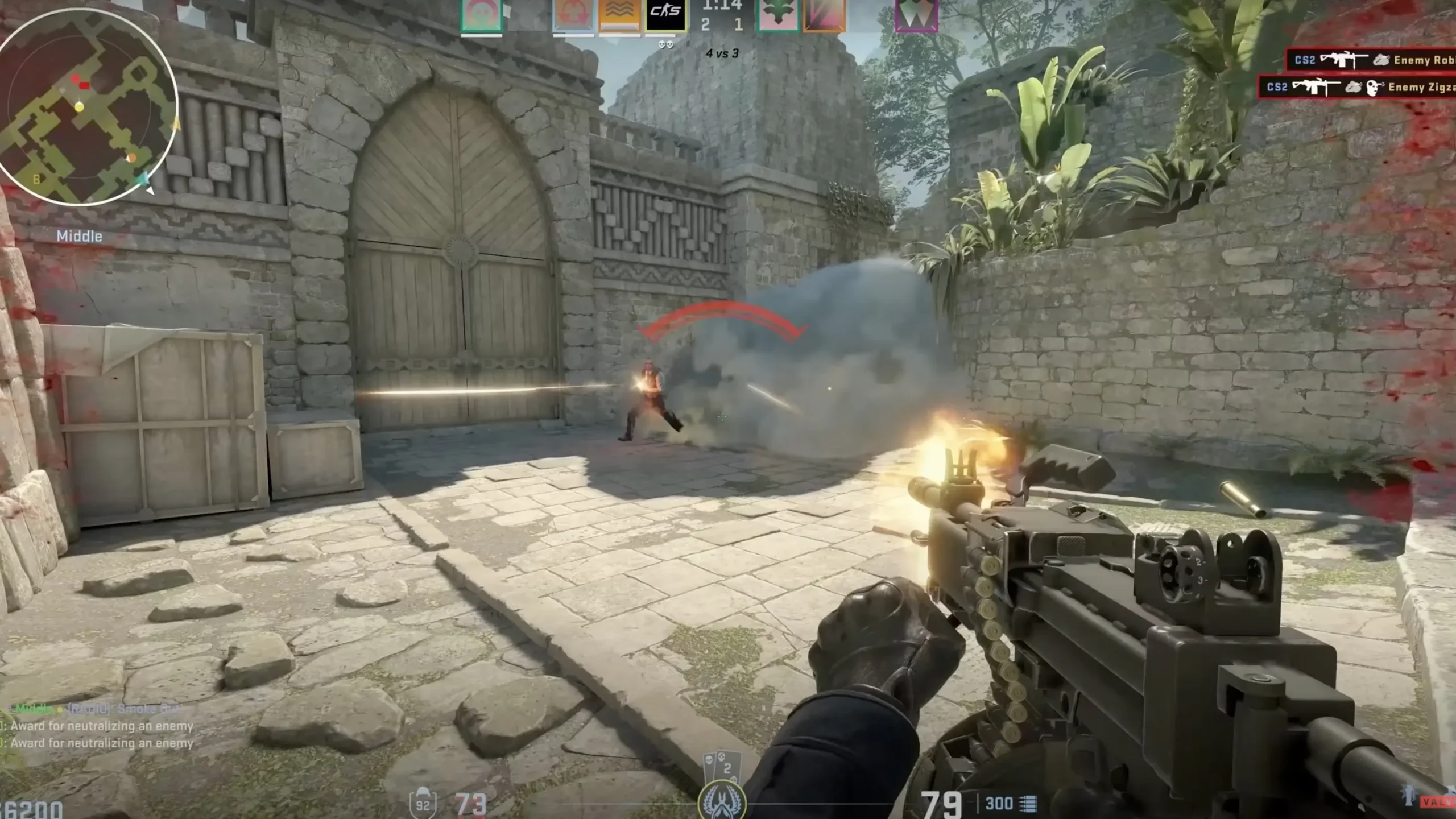
The Heads-Up Display (HUD) in Counter-Strike 2 is designed to provide important information to players during gameplay, giving them a competitive edge by showing details such as health, ammo, and map location.
Players have the option to customize the HUD in CS2 to suit their preferences and playstyle. By making adjustments to the layout, size, color, and transparency of the HUD elements, players can optimize their visual interface to enhance focus and decision-making. For example, giving priority to specific information like ammo count or teammate locations can improve player performance in challenging situations. This customization level not only boosts gameplay efficiency but also adds a personal element to the overall gaming experience in Counter-Strike 2.
Team
Team settings in Counter-Strike 2 are crucial for efficient communication and coordination during competitive play. Setting up the Radar display and team communication tools can greatly impact team performance and strategy execution.
Utilizing the Radar effectively enables teammates to gather essential information about enemy positions, movements, and potential threats, facilitating quick decision-making and coordinated attacks.
Clear and concise communication within the team is also essential for sharing information, coordinating strategies, and alerting others about enemy activity in real-time.
In high-stakes competitive gaming, where split-second decisions can determine the outcome of a match, the ability to collaborate as a team through effective communication and Radar usage can be the key to success.
Communication
Effective communication settings in Counter-Strike 2, including the use of Developer Console commands and EQ Profiles, play a vital role in team coordination, strategy implementation, and overall gameplay experience.
By leveraging these communication tools, players can efficiently relay information, such as enemy positions, upcoming strategies, and resource allocations. Developer Console commands allow for quick access to game settings, performance statistics, and in-depth server controls, enabling teams to tweak gameplay elements on the fly. EQ Profiles enhance the auditory experience by fine-tuning sound cues, footsteps, and weapon noises, thereby increasing situational awareness and creating a more immersive gaming environment for all team members.
Spectator / Scoreboard
The Spectator and Scoreboard settings in Counter-Strike 2 contribute to a comprehensive gaming experience, allowing players to track match progress, analyze performance metrics, and adjust settings such as Master Volume for an immersive gameplay environment.
Spectator mode allows observation of ongoing matches from different player perspectives, providing insights into strategies and tactics employed by top players. The Scoreboard feature displays crucial information such as player scores, kills, deaths, and assists in real-time, enabling assessment of individual and team performance instantly. These options not only enhance the competitive aspect of CS2 but also give the power to players to make informed decisions and improve their gameplay by learning from others.
Item
Customizable item settings in Counter-Strike 2 have an impact on the game’s visual aesthetics, giving players the option to personalize their perspective and gaming experience with features like Perspective Correction.
These settings allow players to modify visual aspects such as brightness, contrast, and color schemes to tailor their gaming environment to their liking.
Perspective Correction is crucial for enhancing the immersive experience by ensuring that objects and environments appear visually accurate and realistic. Additional visual customization choices like depth of field effects and texture filtering further enhance the game’s visual appeal, resulting in a more captivating and visually pleasing gameplay experience in CS2. For the best settings to achieve high FPS in Counter Strike 2, check out this Best Counter Strike 2 Settings For High FPS.
Radar / Tablet
The Radar and Tablet settings in Counter-Strike 2 offer players necessary information and alerts, supporting team coordination, map awareness, and community notifications for a more immersive gaming experience.
Players have the option to personalize their Radar settings to modify the display of enemy locations, bomb sites, and teammate positions, enabling quick decision-making and strategic movements in intense matches.
Tablet settings allow real-time communication with teammates, aiding in creating effective strategies and coordinating simultaneous actions for a unified approach to objectives. These settings are crucial in improving player communication, promoting teamwork, and enhancing community engagement within the dynamic game environment of CS2.
Pro Settings
Professional players often adjust their Counter-Strike 2 settings to optimize their performance, paying attention to important factors like Sensitivity, Mouse Acceleration, and Mouse settings to gain a competitive advantage.
They recognize that fine-tuning their sensitivity, which dictates how their in-game actions correspond to their physical mouse movements, can have a significant impact on their aiming accuracy and reaction time. By finding the right equilibrium, they can achieve precise and smooth targeting, which is vital in intense gaming situations.
Making changes to mouse acceleration, which determines how quickly the cursor moves based on mouse movement speed, enables players to maintain consistent and predictable aiming. These seemingly minor modifications can be pivotal in the competitive world of professional gaming.
Sensitivity
Setting the appropriate sensitivity levels, such as DPI (Dots Per Inch) and eDPI (Effective Dots Per Inch), plays a crucial role in Counter-Strike 2 to ensure accurate aiming, swift reactions, and a gameplay advantage.
Properly adjusting these settings can have a significant impact on a player’s performance in the virtual battlefield. DPI settings determine the mouse’s sensitivity to movement, influencing the speed of the crosshair’s movement. Conversely, eDPI combines DPI with in-game sensitivity settings to establish a comprehensive sensitivity profile. By striking the right balance between DPI and eDPI, players can improve their aiming precision, responsiveness, and ultimately gain a competitive edge over opponents.
Mouse Acceleration
Mouse Acceleration settings are crucial for adjusting mouse responsiveness and movement precision in Counter-Strike 2, impacting gameplay performance and GPU utilization during intense gaming sessions. These settings determine how the on-screen cursor reacts to physical mouse movements, influencing the speed and distance the cursor moves in relation to the mouse’s movement.
For CS2 players, mastering mouse acceleration is vital for achieving accurate aim and quick responses in fast-paced gameplay. By optimizing these settings, players can improve their control over in-game actions, leading to enhanced performance and efficiency.
Achieving the right balance in mouse acceleration not only enhances gameplay precision but can also reduce strain on the GPU, resulting in smoother graphics rendering and an improved gaming experience.
DPI and eDPI
Adjusting the DPI (Dots Per Inch) and calculating the effective DPI (eDPI) through sensitivity settings is a common practice for Counter-Strike 2 players seeking to optimize their aim, responsiveness, and frame time efficiency during gameplay.
By fine-tuning DPI, players can tailor their mouse movements to match their individual preferences, allowing for more precise crosshair placement and smoother tracking. This adjustment impacts eDPI, which combines DPI and in-game sensitivity to determine the overall sensitivity level. Managing eDPI can enhance player performance by finding the optimal balance between accuracy and speed. Adjusting these settings not only boosts aiming precision but also contributes to frame time optimization, ensuring smoother gameplay experiences even in intense combat situations.
Mouse Polling Rate
The Mouse Polling Rate setting in Counter-Strike 2 determines how often the mouse reports its position to the computer, affecting responsiveness and input accuracy. Optimizing the Polling Rate can enhance mouse performance and gameplay precision.
Players often overlook the importance of this setting, but fine-tuning it can make a significant difference in competitive gaming. A higher Polling Rate means more frequent updates, resulting in smoother cursor movements and faster response times. To optimize this setting, accessing your mouse’s software or driver settings is crucial. Typically, adjusting the Polling Rate to a higher value, such as 1000Hz, can provide a more responsive experience. Experimenting with different Polling Rates and finding the one that suits your playstyle best can lead to improved in-game accuracy and overall performance.
Other Important Settings
Along with video and game settings, audio settings, CPU utilization, GPU performance, and frame rate optimization play crucial roles in enhancing the overall gaming experience and competitive advantage in Counter-Strike 2.
Audio settings significantly impact the immersive nature of the gameplay – from the sound of footsteps approaching to the distant gunfire echoing in the background, every detail adds to the thrill of the experience.
Optimal CPU utilization ensures smooth gameplay without lags or delays, allowing for quick reflexes and precise shots.
Similarly, GPU performance dictates the visual quality and smooth rendering of graphics, contributing to a seamless gaming experience.
Effective frame rate optimization is key to maintaining fluid motion and responsiveness, crucial in fast-paced action like in CS2.
Fine-tuning these settings can significantly enhance both performance and immersion, making the gameplay truly captivating.
Audio
Configuring Audio settings in Counter-Strike 2, including adjusting volume levels, spatial sound, and MSAA (Multi-Sample Anti-Aliasing) options, is important for gameplay immersion, clear communication, and a competitive edge.
Properly tuning the volume settings helps players differentiate important in-game sounds like footsteps, gunfire, and environmental cues accurately, providing them with a strategic advantage. Adjusting spatial sound improves the perception of directional audio cues, allowing players to locate the source of sounds precisely. Optimizing MSAA not only enhances visual quality by reducing aliasing effects but also contributes to smoother gameplay, especially in fast-paced scenarios, supporting overall gaming performance and improving collaborative communication efficiency among team members.
Windows Graphics Settings
Optimizing Windows Graphics settings is important for achieving visual appeal and optimizing performance in Counter-Strike 2. Fine-tuning these settings can greatly enhance the overall gaming experience and competitive advantage.
By adjusting graphics settings such as resolution, texture quality, anti-aliasing, and shadow details, players can find a balance between visual quality and smooth performance. Higher resolutions and texture quality can create more immersive in-game environments, while lowering settings like shadows can boost frame rates for better gameplay. Discovering the optimal combination of settings that suit your system specifications is essential for maximizing both aesthetics and performance in CS2.
Steam Settings
Customizing Steam settings can have a significant impact on the gaming experience in Counter-Strike 2. This includes features such as Community Notifications, Developer Console access, and EQ Profiles that enhance game interaction and community engagement.
When players explore the Steam settings within CS2, they can adjust various aspects of their gaming setup to suit their preferences. This could involve tweaking graphic settings for better visuals, customizing keybindings for smoother gameplay, or enabling communication features for improved team coordination. The range of options available allows for a high level of customization that not only enhances the overall gaming experience but also promotes deeper engagement with the player community, facilitating smoother interactions and the sharing of experiences. Accessing developer tools through Steam settings provides players with a wealth of possibilities to explore and customize their gaming environment at a deeper level.
Frequently Asked Questions
What are the best Counter Strike 2 settings for achieving high FPS?
The best settings for achieving high FPS in Counter Strike 2 include lowering your in-game resolution, turning off vertical sync, disabling anti-aliasing, and lowering your graphics quality to low or medium.
How can I optimize my computer for maximum FPS in Counter Strike 2?
To optimize your computer for maximum FPS in Counter Strike 2, make sure your graphics card drivers are up-to-date, close any background programs or applications, and consider upgrading your hardware if necessary.
Will using these settings affect my gameplay experience in any way?
Lowering your graphics settings may decrease the visual quality of the game, but it will significantly improve your FPS. However, for competitive gameplay, having a higher FPS is crucial, so it is recommended to prioritize FPS over graphics quality.
Are there any console commands that can help improve FPS in Counter Strike 2?
Yes, there are several console commands that can help improve FPS in Counter Strike 2, such as “mat_queue_mode 2” and “cl_forcepreload 1”. You can also try using the “-high” launch option to prioritize the game’s processor usage.
Will these settings work for all computers?
These settings may work differently for each computer depending on its hardware specifications. It is recommended to test out different settings and find the ones that work best for your specific computer.
What other tips can you give for achieving high FPS in Counter Strike 2?
In addition to adjusting your in-game settings, make sure to close any unnecessary background programs and keep your computer clean of dust and debris. You can also try overclocking your hardware if you are familiar with the process.