

Friday, June 12, 2026
Home Blog Page 755

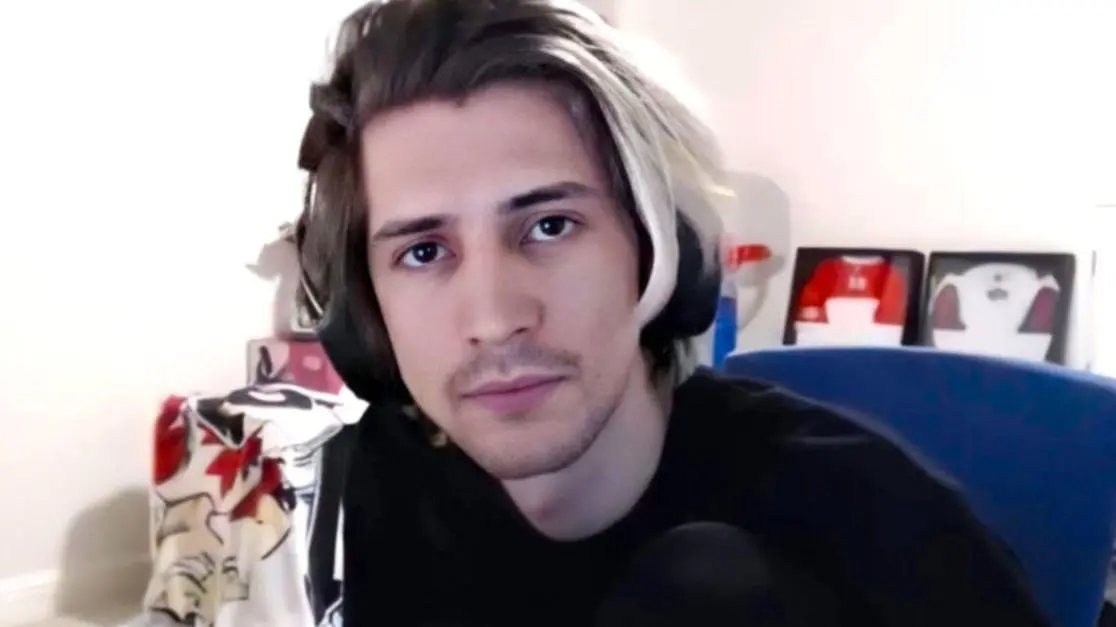
Twitch Recommendations Spark Outrage Amongst xQc and Other Streamers

Popular streamers including xQc, have expressed their fury over Twitch’s controversial content recommendations. The platform’s suggestion algorithm allegedly promoted explicit broadcasts, leading to an uproar within the streaming community.

Twitch’s recommendation system unintentionally suggested explicit content to users, catching the attention of some well-known streamers. Among them, xQc was particularly vocal in expressing their discontent with the situation.

The incident has raised concerns about the effectiveness and appropriateness of Twitch’s recommendation algorithm, which plays a crucial role in guiding viewers towards relevant and suitable content. Streamers and their fans have emphasized the importance of maintaining a safe and welcoming environment on the platform.

As the situation unfolds, many are eagerly awaiting Twitch’s response to address the issue and implement measures to prevent such incidents from recurring. The platform’s reputation and the trust of its user base may hang in the balance, urging Twitch to take swift action in rectifying the matter.

Stay updated with the latest news in gaming and esports by signing up for early access to TalkEsport’s Mobile App. Follow us on Twitter and Google News to ensure you never miss the exciting updates.

Esports Awards 2023: All Nominees, Categories, & Dates

0

The Esports Awards 2023 is only a few months away, and the first set of the list of nominees and award categories have already been unveiled by the organizers of the event.

For the uninitiated, the Esports Awards is one of the biggest annual award shows in the world of esports. The event celebrates organizations, content creators, streamers and industry professionals in the fast-growing world of competitive gaming. With the unveiling of the nominees and award categories, anticipation and excitement are running high among fans, gamers, and industry insiders as they eagerly await the grand spectacle.

The Esports Awards 2023 is scheduled to take place in Las Vegas, USA, on the 29th and 30th of November. The highly anticipated event will feature 31 different award categories across Entertainment, Industry, and Creative.

In this article, we’re gonna take a look at everything you need to know about the Esports Awards 2023, including its award categories, nominees, and more.

Esports Awards 2023: Nominees & Award Categories

Entertainment

Esports Content Creator of the Year

  1. Seth “Scump” Abner
  2. One True King (OTK)
  3. Tribo Gaules
  4. S8UL Esports
  5. Juan “Hungrybox” Debiedma
  6. Christian “IWDominate” Rivera
  7. LOUD
  8. TheScore Esports
  9. Judo Sloth

Esports Personality of the Year

  1. Seth “Scump” Abner
  2. Hector “Hecz” Rodriguez
  3. Alexandre “Gaules” Borba
  4. Naman “MortaL” Mathur
  5. Charles “MoistCr1TiKaL” White Jr
  6. Bruno “Nobru” Goes
  7. Ludwig “Ludwig” Ahgren
  8. Jeremy “Disguised Toast” Wang
  9. Victor “Coringa” Augusto

Streamer of the Year

  1. Seth “Scump” Abner
  2. Alexandre “Gaules” Borba
  3. Ibai Llanos
  4. Tarik “tarik” Celik
  5. QTCinderella
  6. Félix “xQc” Lengyel
  7. Kai Cenat
  8. Paulinho o LOKO
  9. Samy “Riversgg” Rivera
  10. Chikara “FPS_SHAKA” Kawakami

Industry

Esports Game of the Year

  1. League of Legends
  2. Valorant
  3. CS:GO
  4. Rocket League
  5. Dota 2
  6. Fortnite
  7. PUBG Mobile
  8. Mobile Legends: Bang Bang
  9. Call of Duty Modern Warfare II

Esports Mobile Game of the Year

  1. Free Fire
  2. PUBG Mobile
  3. Pokemon Unite
  4. Arena of Valor
  5. Mobile Legends: Bang Bang
  6. COD: Mobile
  7. Brawl Stars
  8. Honor of Kings
  9. Clash Royale

Esports Commercial Partner of the Year

  1. Logitech G
  2. Red Bull
  3. Intel
  4. Monster Energy
  5. Gucci
  6. Prime Gaming
  7. Gillette
  8. Chipotle
  9. State Farm

Esports Coverage Platform of the Year

  1. Sports Business Journal
  2. HLTV.org
  3. Dot Esports
  4. Liquipedia
  5. Dexerto
  6. Esports Insider
  7. Esports Charts

Esports Hardware Piece of the Year

  1. AMD Ryzen™ 9 7950X
  2. Logitech G Pro X 2 Lightspeed
  3. Asus ROG Ally
  4. Stream Deck MK.2
  5. Higround: Street Fighter x Higround
  6. Razer Viper Mini Signature Edition
  7. Samsung Odyssey OLED G8
  8. Corsair Xeneon Flex
  9. SteelSeries Nova Pro

Esports Publisher of the Year

  1. Riot Games
  2. Valve
  3. Psyonix
  4. EA
  5. Moonton
  6. Supercell
  7. The Pokemon Company

Creative

Esports Supporting Service of the Year

  1. Esports Engine
  2. ESG Law
  3. Character Select Agency
  4. New LVL Recruiting
  5. Paper Crowns
  6. Evolved Talent Agency
  7. GRID
  8. OP.GG
  9. Bad Moon Talent

Esports Broadcast/Production Team of the Year

  1. Riot Games
  2. Psyonix
  3. Esports Engine
  4. BLAST
  5. ESL FACEIT Group

Esports Content of the Year

  1. GG Legends (Gucci)
  2. Join The New Era | 2023 VCT LOCK//IN | Cinematic Trailer
  3. Ralph Lauren x G2 Limited Collection (G2 Esports)
  4. Counter-Strike: Its In Our DNA
  5. Faker: A Decade Of Greatness
  6. The Breakdown
  7. Greatest Comeback In Dota 2 History: The Return Of Ceb (Red Bull)
  8. Risking It All: The Tale Of Gen.G
  9. FURIA: Behind The Game
  10. Valorant Roster Announcement 2023 | Team Liquid

Esports Cosplay of the Year

  1. LittleJem
  2. Inaste
  3. Kinpatsu Cosplay
  4. Larissa Rochefort
  5. Annjelife
  6. Akemikun Cosplay
  7. Bec of Hearts

Esports Creative of the Year

  1. Tiago “Liquid Enigma” Paixao
  2. Gregory “SesoHQ” Ortiz
  3. Ovilee May
  4. Kvindsgn
  5. Thorsten Denk
  6. Sydneycreates

Esports Creative Team of the Year

  1. LOUD
  2. Paper Crowns
  3. Team Liquid
  4. FlyQuest
  5. G2 Esports
  6. Team Vitality
  7. Sentinels
  8. North Studio
  9. NMBRS Studio

Besides the above-mentioned categories, there are also some categories for which the nominees haven’t been announced at the time of writing. These include:

  • Esports Journalist of the Year
  • Esports Colour Caster of the Year
  • Esports Desk Analyst of the Year
  • Collegiate Program of the Year
  • Esports Host of the Year presented by 5GRV
  • Esports Play By Play Caster of the Year
  • Esports Coach of the Year
  • Esports Controller Player of the Year
  • Esports Mobile Player of the Year
  • Esports Organisation of the Year
  • Esports PC Player of the Year
  • Esports Team of the Year
  • Breakthrough Player of the Year
  • Esports Play of the Year
  • Lifetime Achievement in Esports
  • Panel’s Choice Award

Esports Awards 2023: Important Dates & Schedule

Here are the important dates that you need to keep in mind for the Esports Awards 2023:

  • 20th September: Second set of nominees reveal
  • 13th – 20th November: Turbo voting period – votes are worth double
  • 20th November: Voting closes on all categories but three
  • 25th November: Voting closes for Esports PC Player, Esports Organization, and Esports Team of the Year
  • 27th – 28th November: Inaugural Scholars
  • 29th – 30th November: Esports Awards 2023

That’s everything you need to know about the Esports Awards 2023.

Stay updated with the latest news in gaming and esports by signing up for early access to TalkEsport’s Mobile App. Follow us on Twitter and Google News to ensure you never miss the exciting updates.
How to Fix Red Dead Redemption 2 Crash on PC?

0

Red Dead Redemption 2, a masterpiece from Rockstar Games, has been widely admired by players. However, some players are experiencing frequent crashes on their PC, which can be quite frustrating. This guide aims to provide solutions to this issue.

Before diving into the solutions, it’s crucial to ensure that your PC meets the game’s requirements. The game demands a certain level of hardware specifications, and if your PC falls short, it may lead to crashes. The minimum and recommended requirements are detailed on the game’s official site.

How to Fix Red Dead Redemption 2 Crash on PC?

Reverting Back to Vulkan

If your game is crashing with DirectX 12, you might want to revert it back to Vulkan. This can be done by editing the system.xml file in the game’s settings folder.

Performing a Clean Boot

Sometimes, third-party programs can interfere with the game, causing it to crash. Performing a clean boot can help resolve this issue by disabling all non-Microsoft services.

Managing Paging File Size in Virtual Memory

If your virtual memory is not set to be managed automatically by Windows, it could lead to performance issues and crashes. You can change this setting in the System Properties.

Setting Priority to High

Setting the game’s priority to high in the Task Manager can also help prevent crashes by ensuring the game gets enough CPU and memory resources.

Updating GPU Driver

An outdated GPU driver can cause various issues, including crashes. Make sure your graphics driver is up-to-date.

Verifying Integrity of Game Files

The game may crash if some game files are damaged or missing. Through the Steam client, you can check the game files’ integrity.

Reinstalling the Game

Reinstalling the game could be necessary if none of the previously mentioned fixes work. This can fix problems brought on by corrupted game files or outdated game versions.

Running SFC and DISM

The System File Checker (SFC) and Deployment Image Servicing and Management (DISM) are Windows utilities that can help fix corrupted or missing system files, which might be causing the game to crash.

Disabling Antivirus Program

Sometimes, an antivirus program can prevent the game files from running properly, leading to crashes. Try disabling your antivirus program to see if it resolves the issue.

Stay updated with the latest news in gaming and esports by signing up for early access to TalkEsport’s Mobile App. Follow us on Twitter and Google News to ensure you never miss the exciting updates.
How To Get Nicki Minaj Skin In Call of Duty MW2 Season 5?

0

Call of Duty: Warzone and Modern Warfare 2 are set to welcome hip-hop icons Nicki Minaj, Snoop Dogg, and 21 Savage as playable characters in the upcoming Season 5. This unexpected crossover marks a significant milestone in AAA titles, blending the worlds of music and gaming in an exciting new way.

How To Unlock Nicki Minaj Skin In Call of Duty: MW2 Season 5?

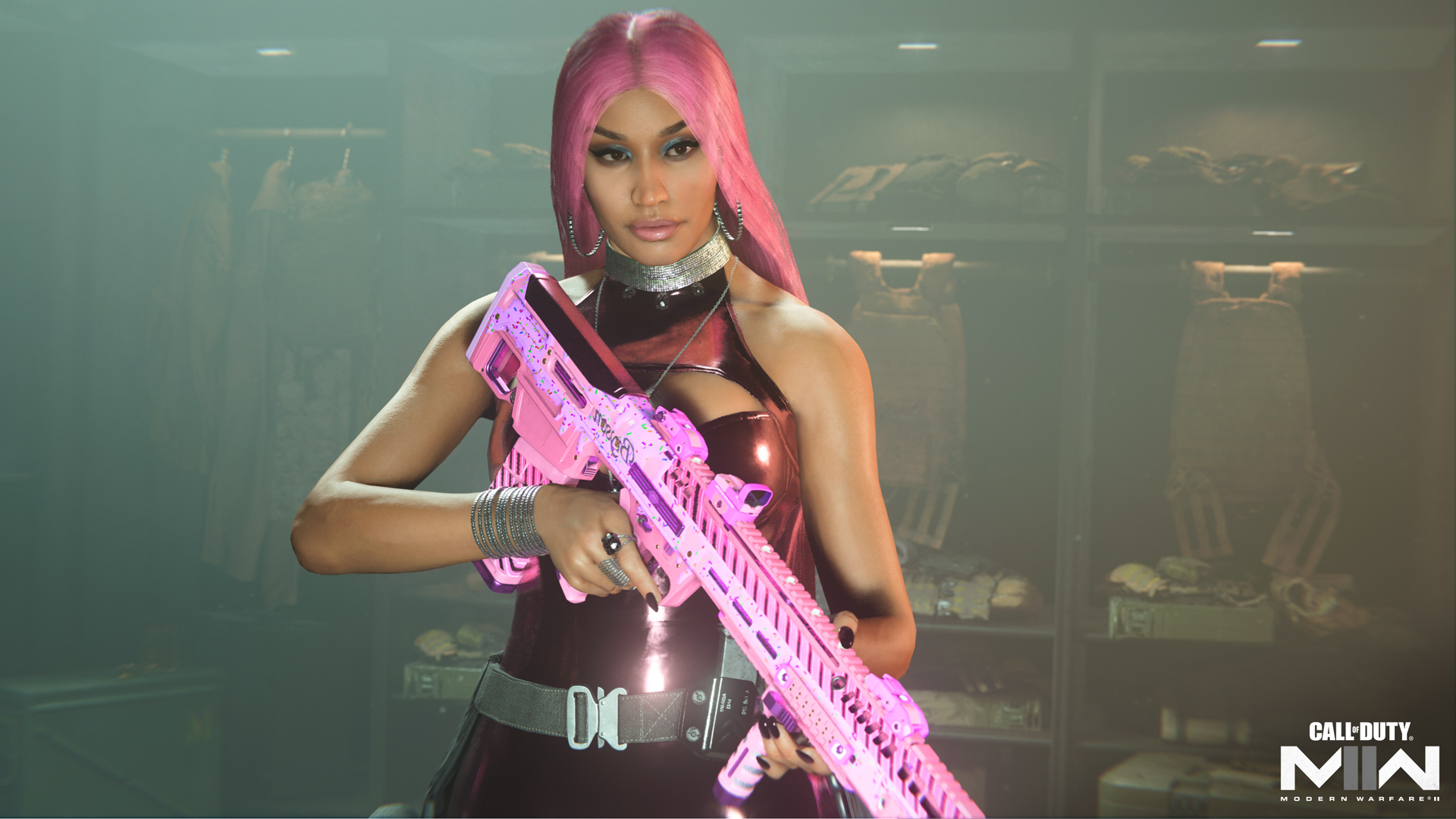
Nicki Minaj, the trailblazing rapper, will become the first self-named female Operator in Warzone and Modern Warfare 2. Her skin will be available as part of a purchasable bundle in the in-game store. While the exact price is yet to be confirmed, similar bundles have typically been priced at 2,400 CoD Points. The bundle is expected to include various Nicki-inspired cosmetics, adding a touch of ‘Barbie World’ to the game.

Snoop Dogg, a veteran in the Call of Duty series, will also be featured as an Operator. His skin, like Nicki’s, will be part of a store bundle, likely priced at 2,400 CoD Points. The bundle will include a range of Snoop-inspired cosmetics, allowing players to channel the D-O-DOUBLE G’s unique style.

21 Savage, the London-born and Atlanta-raised rapper will join the Call of Duty roster with the mid-season Reloaded update. His skin will also be part of a purchasable operator bundle, expected to be priced at 2,400 CoD Points and featuring a host of 21 Savage-inspired content.

The introduction of these hip-hop icons signals a new era for Call of Duty, blending popular culture with gaming in a unique and exciting way. As we await the release of these new Operator skins, fans can look forward to a wealth of new content in the upcoming Season 5.

Stay updated with the latest news in gaming and esports by signing up for early access to TalkEsport’s Mobile App. Follow us on Twitter and Google News to ensure you never miss the exciting updates.
Nicki Minaj is the latest celebrity to join Call of Duty

Nicki Minaj, the renowned rapper, is set to make her debut in Call of Duty: Warzone and Modern Warfare 2 as an Operator. This marks a significant milestone as she becomes the franchise’s first “self-named female Operator,” as announced by publisher Activision.

Nicki Minaj’s introduction is part of the game’s “50 Years of Hip Hop Celebration,” where she will join the ranks alongside Snoop Dogg and 21 Savage as Operators. However, fans should expect a fiery performance, as Minaj’s in-game persona is not ‘Chill Nicki’ but ‘Red Ruby Da Sleeze’, an alter ego from her recent music video.

During Season 5 of Warzone and Modern Warfare 2, Minaj will have her own store bundle, which is anticipated to include a Barbie-pink assault rifle, a fitting tribute to ‘The Harajuku Barbie’, another of Nicki’s personas.

The news of Nicki’s arrival in Call of Duty was teased in a promo video released last year before the launch of Modern Warfare 2. The video, titled ‘Squad Up’, featured the rapper alongside other artists, athletes, and actors, sparking hope for more celebrity appearances in the game.

Snoop Dogg’s new Operator in Warzone and Modern Warfare 2 marks his third appearance in the shooter series, having previously featured in Call of Duty: Ghosts and Call of Duty: Vanguard. Season 5 of Call of Duty will also reveal the upcoming game, Call of Duty 2023, also known as Call of Duty: Modern Warfare 3.

This article provides all the essential information about Nicki Minaj’s debut in Call of Duty. Stay tuned for more updates and similar content.

Stay updated with the latest news in gaming and esports by signing up for early access to TalkEsport’s Mobile App. Follow us on Twitter and Google News to ensure you never miss the exciting updates.
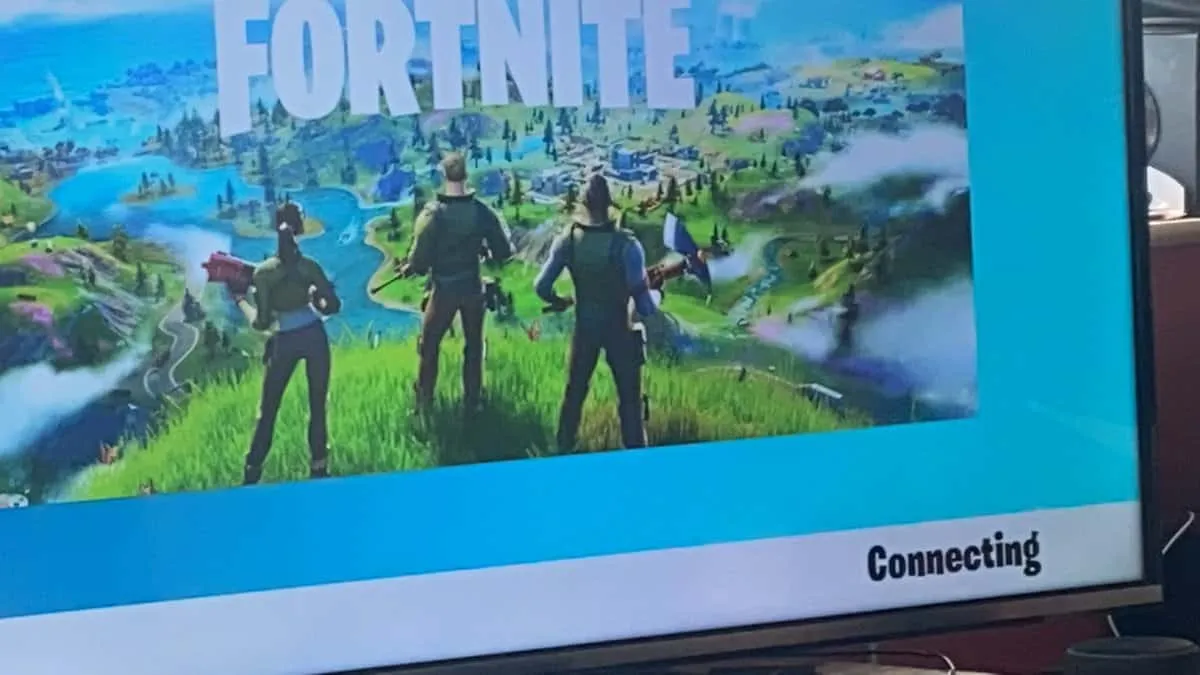
Fortnite Stuck on Connecting Screen Bug: How to Fix?

0

Fortnite, the globally acclaimed battle royale game, is known for its immersive gameplay and regular content updates. However, like any online game, it’s not immune to technical glitches. One such issue that has been plaguing players is the ‘stuck on connecting screen’ bug. This article provides a step-by-step guide on how to resolve this bug across all devices.

The ‘stuck on connecting screen’ bug in Fortnite is a common issue that players encounter, often following a game update. This bug leaves players stuck on the loading screen, unable to join the battle royale action. While the occurrence of this bug can seem random, several solutions have proven effective in resolving it.

How to Fix Fortnite Stuck on Connecting Screen Bug?

  • Check Server Status: The first step in resolving this issue is to check the status of the Fortnite servers. You can do this by visiting the Epic Games status website. If any of the game services are not operational, you may need to wait until they’re restored.
  • Wait it Out: Sometimes, patience is key. If you’re stuck on the loading screen, try waiting for a few minutes. You might find that the game eventually loads, albeit later than usual.
  • Restart Fortnite: The age-old tech solution of ‘turning it off and on again’ can often work wonders. Try closing Fortnite and restarting it to see if this resolves the issue.
  • Restart Your Device: If restarting the game doesn’t work, try rebooting your device. Whether you’re playing on a PC or console, a full system restart can often resolve various technical issues.
  • Reinstall Fortnite: If all else fails, consider uninstalling and reinstalling Fortnite. While this is a more time-consuming solution, it can often resolve issues that occur after a game update.

Contact the Epic Games support staff if none of the aforementioned fixes work. The best method to deal with any lingering problems is to use this process, even if it can take longer than the other options.

Stay updated with the latest news in gaming and esports by signing up for early access to TalkEsport’s Mobile App. Follow us on Twitter and Google News to ensure you never miss the exciting updates.
How Long Will the Futurama Skins Stay In Fortnite?

0

Fortnite, the globally acclaimed battle royale game, is known for its exciting collaborations with various franchises. One such collaboration that has caught the attention of players worldwide is the integration of Futurama, the popular animated TV show, into the Fortnite universe. This article will guide you on how to acquire the Futurama skins in Fortnite and enhance your gaming experience.

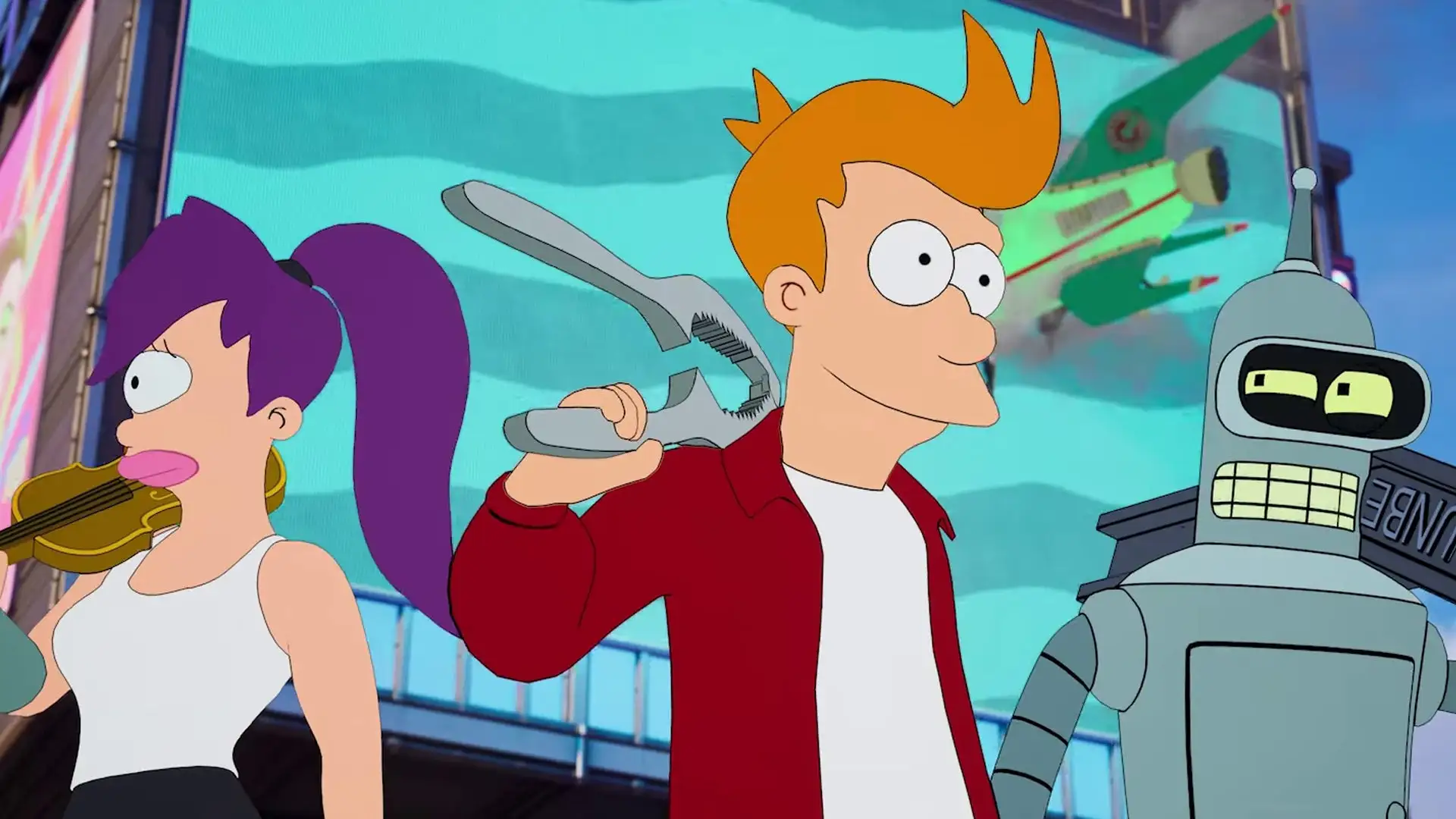
The collaboration between Futurama and Fortnite has brought a delightful blend of futuristic humor and popular characters from the animated show into the action-packed battle royale game. This unique partnership allows players to embody their favorite Futurama characters – Fry, Leela, and Bender – and even glide through the Fortnite skies in the iconic Planet Express ship.

How to get the Futurama Skins In Fortnite?

  • Access the Fortnite Item Shop: Launch Fortnite and navigate to the Item Shop from the main menu.
  • Check Availability: Ensure that the Futurama skins are currently available in the Item Shop. Collaborations are time-limited, so it’s crucial to check if the skins are still in stock.
  • Purchase V-Bucks (if needed): If you don’t have enough V-Bucks to buy the Futurama skins, you’ll need to purchase them through the in-game store or platform-specific store.
  • Choose the Skin: Select the desired Futurama skin from the Item Shop. There are three skins available: Philip J. Fry, Turanga Leela, and Bender Bending Rodriguez.
  • Complete the Purchase: Once you’ve chosen the skin you want, proceed to purchase it using the required amount of V-Bucks (1,500 V-Bucks per skin).

In addition to the character skins, the Futurama collaboration also includes unique back blings related to each character. When you buy a specific skin, you’ll also receive its corresponding back bling. For those interested in acquiring all three Futurama skins and their back blings, you can opt for the Futurama Bundle, priced at 2,800 V-Bucks, which will save you 1,700 V-Bucks compared to buying them individually.

The Futurama Gear Bundle, available for 1,800 V-Bucks, includes various items related to the Futurama lore, such as pickaxes, the Zoidberg Scuttle emote, and the Planet Express Ship glider. Each item in the Futurama Gear Bundle can also be bought separately at varying prices: 800 V-Bucks for most items, while the Zoidberg Scuttle emote costs 500 V-Bucks.

How to Thank the Bus Driver in Fortnite?

0

Fortnite, the globally popular battle royale game, offers players a unique feature to express their gratitude towards the game’s bus driver. This seemingly small gesture has become a fun ritual for many players, adding a touch of politeness to the competitive environment. This article will guide you on how to thank the bus driver in Fortnite across different platforms.

In every Fortnite match, players are transported over the game map by an unseen character – the bus driver. Despite being invisible, the bus driver plays a crucial role in each game, making it only fitting for players to express their appreciation. The game allows players to thank the bus driver, a feature added by Epic Games in 2018 in response to a community meme.

How to Thank the Bus Driver in Fortnite?

The method to thank the bus driver varies depending on the platform you’re playing on. Here’s how you can do it:

  • PC Players: Press ‘B’ or your usual emote button.
  • Xbox Players: Press down on the D-pad.
  • PS4 Players: Press down on the gamepad.
  • Switch Players: Press down on the D-pad.
  • Mobile Players: Tap the emote button.

Remember, you can only thank the bus driver at the beginning of the game when you’re on the bus before dropping off.

While thanking the bus driver is a fun and polite gesture, it also has an in-game impact. When a player thanks the bus driver, it is displayed in the kill feed as “Username has thanked the bus driver.” This visibility can help you gauge the competition in your game, especially if you see many gold names (players with a crown) thanking the bus driver.

Stay updated with the latest news in gaming and esports by signing up for early access to TalkEsport’s Mobile App. Follow us on Twitter and Google News to ensure you never miss the exciting updates.
How to Turn Off Parental Controls in Fortnite?

0

With the rise of digital gaming, parental controls have become a crucial feature for many parents. Fortnite, one of the most popular games worldwide, offers a robust parental control system to ensure a safe gaming environment for younger players. However, these controls can sometimes interfere with the gameplay experience, leading players to seek ways to disable them. This article will guide you through the process of turning off parental controls in Fortnite.

Parental controls in Fortnite allow parents to manage various aspects of the game, such as mature language visibility, friend requests acceptance, name visibility, voice chat, weekly playtime reports, and text chat access. While these controls are designed to protect younger players, they can sometimes hinder the gaming experience, especially for those who play with friends and rely on voice chat for communication.

How to Turn Off Parental Controls in Fortnite?

Disabling parental controls in Fortnite is a straightforward process. After launching the game and reaching the main menu, click on the three stacked stripes located in the top right corner of your screen. From there, select “Parental Controls,” the third option from the bottom. You’ll be prompted to enter a six-digit PIN to disable the controls. If you’re setting up parental controls for the first time, you’ll need to create a PIN and activate the controls before you can disable them.

If you’ve forgotten your parental PIN, resetting it is relatively easy, provided you have access to the email address associated with your account. To reset the PIN, log into your account on the Epic Games official webpage, navigate to the “Parental Controls” section, and click on “Manage Store Settings.” A pop-up will appear asking for your PIN, with an option saying “Forgot Your PIN?” Click on this, and instructions for resetting your PIN will be sent to your account’s associated email address.

It’s important to note that Fortnite’s parental controls only affect in-game settings. If you wish to set purchasing limits or apply controls to all games in your library, you’ll need to set up parental controls for your entire gaming device. This process varies depending on the device, with different procedures for Windows 10, Nintendo, Apple, Google, Sony, and Xbox.

Stay updated with the latest news in gaming and esports by signing up for early access to TalkEsport’s Mobile App. Follow us on Twitter and Google News to ensure you never miss the exciting updates.

What Is Hip Fire In COD Mobile?

Since its release in 2019, Call of Duty Mobile has become a global sensation, boasting over 500 million downloads. This free-to-play game continues to captivate millions of active players with its dynamic gameplay. One aspect that often piques players’ interest is the movement mechanics, particularly the concept of hip fire. This article will demystify what hip fire in COD Mobile is and how you can leverage it to enhance your performance.

For those unfamiliar with shooter games, the term ‘hip fire’ might be new. In the realm of Call of Duty, hip fire refers to the act of firing your weapon from the hip without aiming down the sight. This tactic can lead to quicker and more efficient victories, especially in COD Mobile, where controls can be a bit tricky for some players. The beauty of hip fire lies in its speed – you simply turn, spot your target, and open fire, saving those precious fractions of a second.

Fortunately, COD Mobile offers various attachments that can enhance your hip fire accuracy, a crucial factor in winning gunfights. Players who prefer fast-paced weapons like SMGs and shotguns often favor hip fire over traditional, ADS-based shooting. At close range, aiming becomes less critical, and aim assist can make hip fire even more effective.

Activating hip fire in COD Mobile is a straightforward process. You need to navigate to the in-game settings, find the ‘Controls’ tab, and select ‘Advanced Mode’. This action unlocks hip fire in COD Mobile. Now, when you enter a game, you’ll notice that shooting automatically triggers hip fire, though a small button still allows for aiming down the sights of your weapon.

Knowing how to hip fire is one thing, but doing it efficiently and effectively is another. Various weapon attachments can improve your hip fire accuracy. For instance, a flash guard or compensator can reduce recoil, a barrel can decrease spread, perks like ‘Wild Hip Fire’ can enhance hip fire, and a laser attachment can improve accuracy. A larger magazine can also be beneficial, as hip firing tends to consume more ammo.

Stay updated with the latest news in gaming and esports by signing up for early access to TalkEsport’s Mobile App. Follow us on Twitter and Google News to ensure you never miss the exciting updates.