Wednesday, May 6, 2026
Home Blog Page 420

How to Activate Dolby Atmos in BGMI?

0

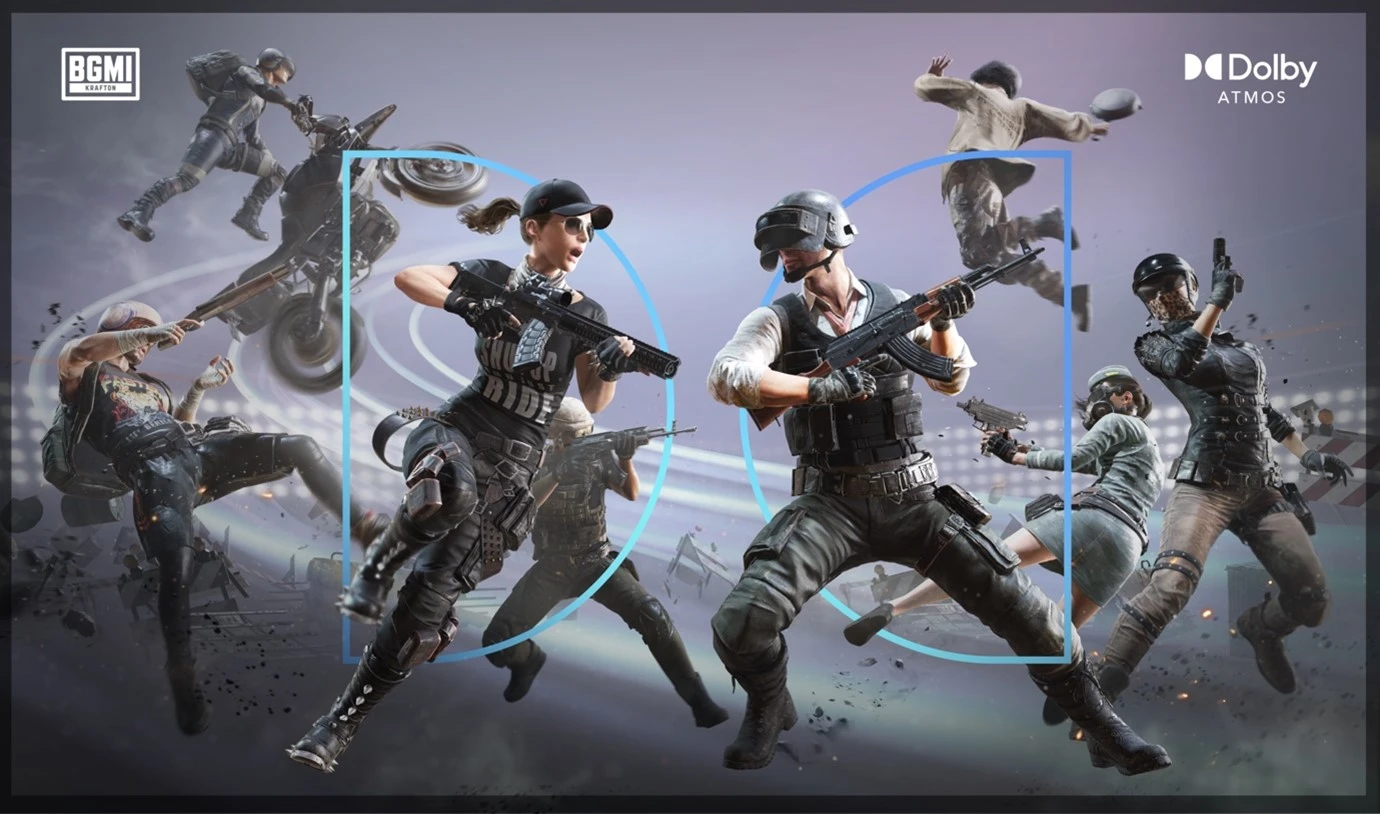
This new collaboration between Krafton and Dolby Atmos will make the overall Battlegrounds Mobile India experience beyond comprehension. It will further introduce this game to immersive surround sound, making the gaming atmosphere more realistic and competitive.

In this article, we will find out how to activate the Dolby Atmos sound in BGMI.

How to Enable Dolby Atmos in BGMI

This feature can be enabled by following some simple steps as mentioned below:

  • Check for Device Compatibility: First, check if your device supports the Dolby Atmos feature.
  • Enable Dolby Atmos: Go to device settings, find the audio, and enable Dolby Atmos.
  • In-Game Settings: Launch BGMI, open the settings menu, and click on the graphics and audio tab.
  • Dolby Atmos: In the audio settings of the game, enable Dolby Atmos.

Dolby Atmos provides a big advantage in BGMI, especially in the Arena modes. The immersive sound lets gamers pinpoint exactly where the enemies are coming from, thus being able to act upon it much quicker and more strategically. This feature is very handy for pinpointing enemy footsteps, reloads of weapons, and other important auditory cues.

Dolby Atmos gives BGMI a leap ahead into the league of the increasing number of games that have surround sound technology integrated into their framework, thus allowing players to experience even more immersive interaction. More importantly, this feature has become priceless for genres like first-person shooters and sports games, where audio cues can make all the difference between victory and defeat.
How to Activate Dolby Atmos in BGMI?

0

This new collaboration between Krafton and Dolby Atmos will make the overall Battlegrounds Mobile India experience beyond comprehension. It will further introduce this game to immersive surround sound, making the gaming atmosphere more realistic and competitive.

In this article, we will find out how to activate the Dolby Atmos sound in BGMI.

How to Enable Dolby Atmos in BGMI

This feature can be enabled by following some simple steps as mentioned below:

  • Check for Device Compatibility: First, check if your device supports the Dolby Atmos feature.
  • Enable Dolby Atmos: Go to device settings, find the audio, and enable Dolby Atmos.
  • In-Game Settings: Launch BGMI, open the settings menu, and click on the graphics and audio tab.
  • Dolby Atmos: In the audio settings of the game, enable Dolby Atmos.

Dolby Atmos provides a big advantage in BGMI, especially in the Arena modes. The immersive sound lets gamers pinpoint exactly where the enemies are coming from, thus being able to act upon it much quicker and more strategically. This feature is very handy for pinpointing enemy footsteps, reloads of weapons, and other important auditory cues.

Dolby Atmos gives BGMI a leap ahead into the league of the increasing number of games that have surround sound technology integrated into their framework, thus allowing players to experience even more immersive interaction. More importantly, this feature has become priceless for genres like first-person shooters and sports games, where audio cues can make all the difference between victory and defeat.
How To Get Better At CS2?

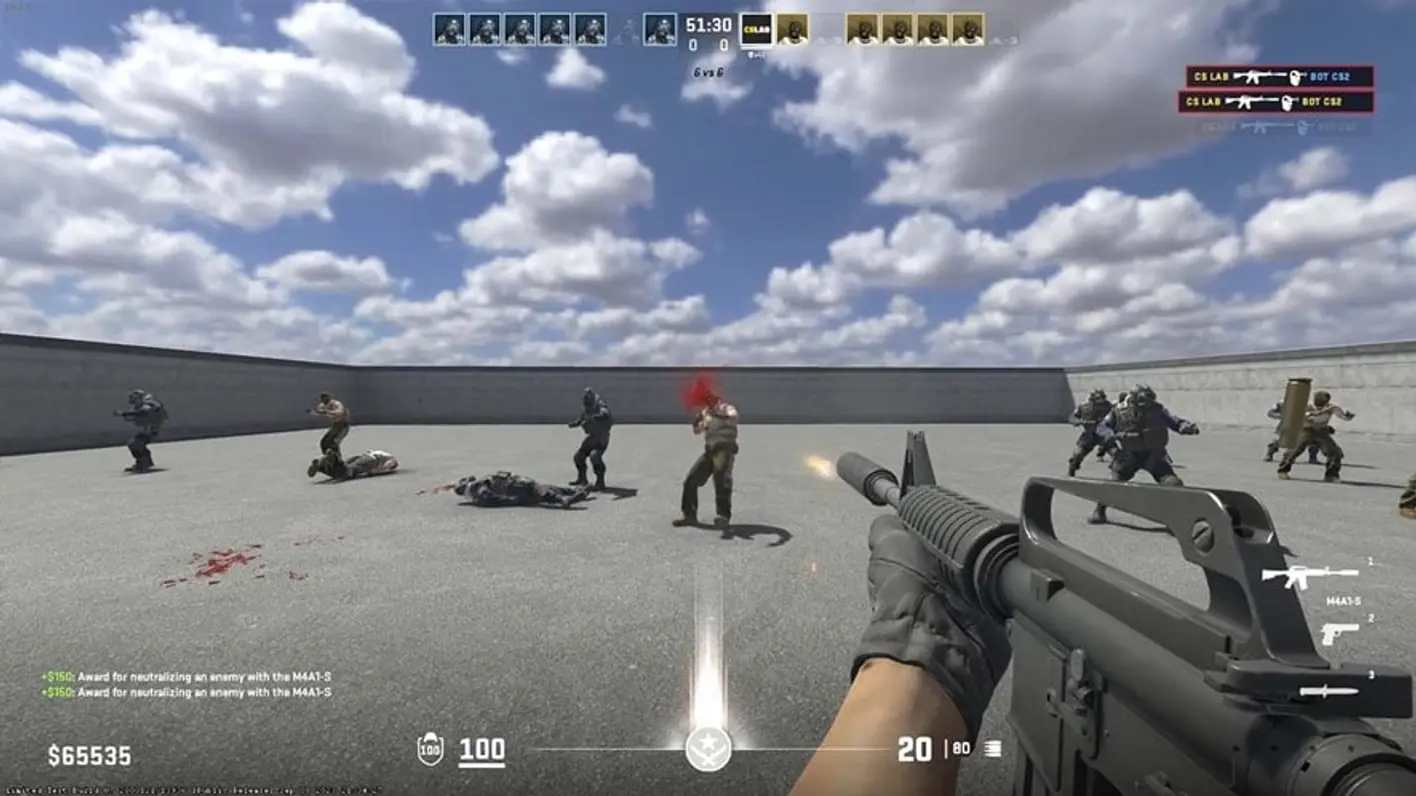
Counter-Strike 2 is an extremely competitive game, with players from throughout the world looking to improve their skills and climb up the ranking spectrum of the tactical shooter.

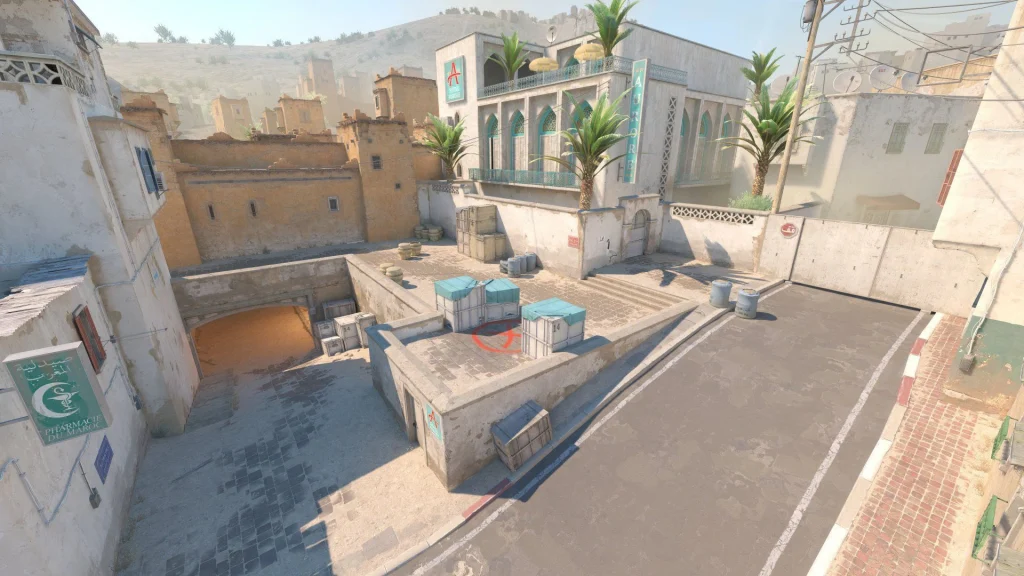
However, reaching the top ranks of the CS2 competitive leaderboard is no easy feat, and requires years of dedicated practice and constant training. Alongside having good mechanical skills, you’ll need to improve your map knowledge, utility usage, and overall game sense if you’re aiming for the top ranks of the premier leaderboard in CS2.

Even if you’re not looking to reach the top ranks of CS2 anytime soon, investing time into learning the aforementioned skills can help you get out of your current rank and impress your friends.

In this article, we will take a look at how you can get better at CS2 fast and reach your desired rank.

How To Get Better At CS2: Improve Fast

get better CS2

Let’s take a look at some of the best tips that you can use to improve fast in CS2 and rapidly increase your Premier MMR.

  • Warm-Up: Have a warm-up routine for CS2 and never jump straight into a competitive match without doing it. The quick 1-minute warmup time that you get before your game isn’t enough for your muscle memory to fully activate. Spend time in Deathmatch or custom maps before queuing to ensure you’re sharp and ready to react quickly in high-pressure situations.
  • Learn Utility Usage: In tactical shooters like CS2, mastering the use of utility can be a game-changer. Take the time to learn effective lineups, watch strategy guides, and practice regularly. Never hesitate to use your utility before taking a gunfight—using it at the right moment can give you a crucial advantage in combat.
  • Consistency is Key: To climb the ranks in CS2’s current system, consistency is crucial. Rather than having one standout game followed by a poor performance, aim for steady contributions across every match. Consistent play will give you a better shot at increasing your MMR and ranking up over time.
  • Never Surrender: Never give up when you’re playing CS2. Even if you’re down 12-0, don’t count yourself out—every game in CS2 is winnable. Avoid surrendering in premier or competitive modes, as every round you win can help minimize MMR loss and keep you in the fight.
  • Find a Duo: Teaming up with a friend in CS2 is one of the quickest ways to climb the ranks. With one less random teammate, you can coordinate better, execute boosts, and trade kills more effectively—giving you a significant edge in competitive play.

Following the tips listed in this guide, you’ll be able to glide through the competitive spectrum of CS2 and find yourself reaching your dream rank in no time. Note that the key to improving CS2 is consistent and effective practice. If you’re not willing to improve yourself, you’ll have a much tougher time achieving the rank you want in the game.

CS2 Missing File Error: How To Fix

The CS2 missing file error is one of the most annoying issues you can face when trying to play the game. Not only will it prevent you from launching Counter-Strike 2, but it can also often be extremely annoying to resolve if you don’t know what you’re doing.

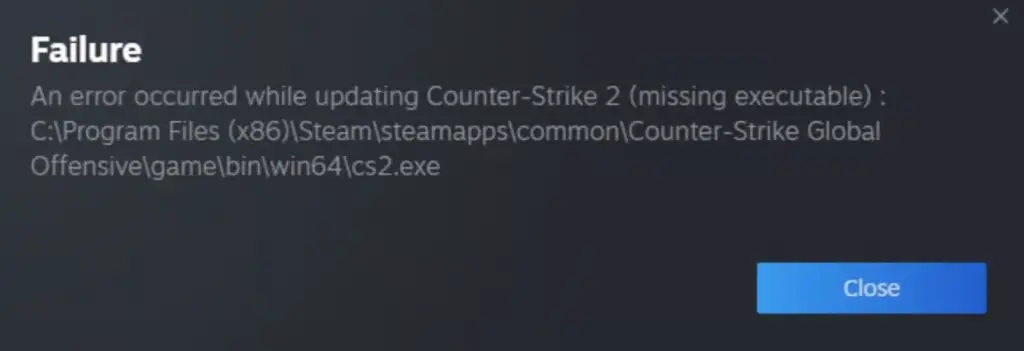
Upon encountering the missing file error in CS2, you’ll be prompted with the message “An error occurred while updating Counter-Strike 2 (missing executable)” when trying to launch the title. While this problem is mostly prevalent in CS2, you can also encounter the missing executable error when attempting to play other games on Steam.

If you’re looking to solve the missing executable file error in CS2, look no further.

How To Fix the Missing Executable Error in CS2

missing file error cs2

Below, we have listed a number of steps that you can take to solve the missing file error in CS2.

  • Verify Game Integrity: The first thing you should do if you find yourself facing the missing file error in CS2 is verify your game integrity. To verify your game files for CS2, launch Steam, right-click ‘Counter-Strike 2’ on your Steam library, go to Properties > Installed files, and click on ‘Verify Integrity of Game Files’ to start the verification process.
  • Delete Appcache Folder: Go to the Program Files (x86) > Steam folder on your PC. Find the folder named ‘Appcache’ and delete it. Once done, relaunch CS2.
  • Clear Download Cache: Clearing your Steam download cache might also fix the missing executable error in CS2. To delete your Steam cache, go to your Steam settings, click on the ‘Downloads’ tab, and select ‘Clear Cache’.
  • Reinstall CS2: If none of the other options worked, then your only option is to uninstall CS2 and reinstall a fresh copy of the game. You can uninstall CS2 by going to your Steam library, right-clicking ‘Counter-Strike 2’, and heading to Manage > Uninstall.

That’s everything you need to know about solving the missing file error in CS2.

How To Change Crosshair in CS2?

In a tactical shooter like Counter-Strike 2, having a good crosshair can often be the difference between winning and losing a gunfight. While no crosshair in the world will be able to improve your mechanical aim, they can have a significant impact on helping you control your sprays and manage your bursts.

If you’re unhappy with your current crosshair, you might be wondering about how you can change your crosshair in CS2.

In this article, we take a look at everything you need to know about how to change your crosshair in CS2. We will also provide you with some of the best CS2 crosshairs used by pros that you can immediately copy to get an edge over your opponents on the battlefield.

How To Change Crosshair in CS2: Explained

There are multiple methods of changing your crosshair in CS2. You can either change your crosshair directly from the in-game settings menu, import a crosshair code that you already have, or change the finer details of your crosshair via the developer console.

Changing Your CS2 Crosshair

change crosshair CS2

The easiest way to change your CS2 crosshair is to do so from the in-game settings.

To change your crosshair in CS2 to your liking, follow these steps:

  • Launch CS2
  • From the main menu, click on the settings cog on the top left of your screen.
  • Click on ‘Game’
  • Head over to the ‘Crosshair’ section.

From there, you can change various aspects of your CS2 crosshair including its size, color, and much more.

How To Import Crosshair in CS2

Towards the top of the crosshair section in your game settings, you can click on ‘Share or Import Code’ to import a crosshair code directly to CS2. Once you’ve pasted the crosshair code in the box, hit ‘Import’ and you’ll automatically copy the crosshair.

Below, we have listed some of the best crosshair codes in CS2 that are used by professional players.

Pro CS2 Crosshair Codes

  • S1mple: CSGO-MQfzY-jnHyz-Whzv3-USwcf-2pFKO
  • NiKo: CSGO-OFKZZ-mZp9n-KXx4x-2SmEp-jcYHK
  • m0NESY: CSGO-wAD3c-ykt5L-zvZ98-vBisR-6sWPA
  • Donk: CSGO-u7YVf-HNksQ-QsF6B-V3E7j-WphrM
  • Dev1ce: CSGO-MQYLm-nK5pN-DtXZW-KkmSV-OP3ED
  • Sh1ro: CSGO-AZQd3-kDODr-psst2-hWv7L-TpNkO
  • blameF: CSGO-E2GWC-au35u-MiOFy-4EGr3-2vn6J

CS2 Binds Generator: How to Generate Keybinds?

Binds are an important part of Counter-Strike and while assigning a bind might involve a plethora of commands, there is a bind generator that produces readymade commands for you to directly input in your CS2 console.

Players assign different binds to accomplish different things and suffice it to say that binds make your life a lot easier. Having binds assigned to repetitive tasks saves valuable time and is generally a great quality-of-life improvement in the game. Following is a CS2 bind generator that you can use to generate any bind, customized to your liking.

Once you have generated a bind to your liking, make sure to enable the in-game console and paste the command into it and now you can use it across different game modes.

Several binds are often considered illegal in tournaments so make sure to double-check on what binds you are generating as they are highly habit-forming.

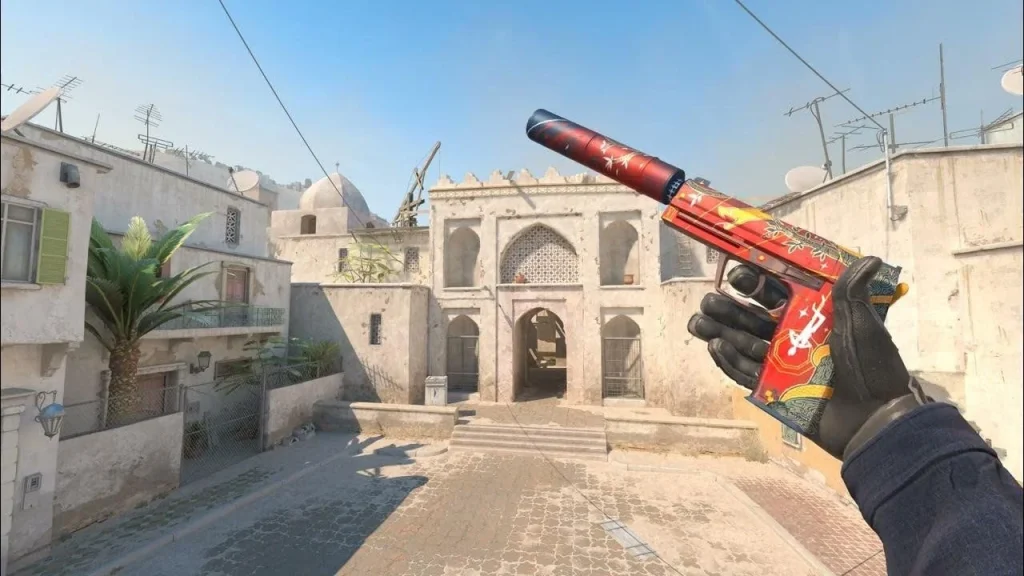
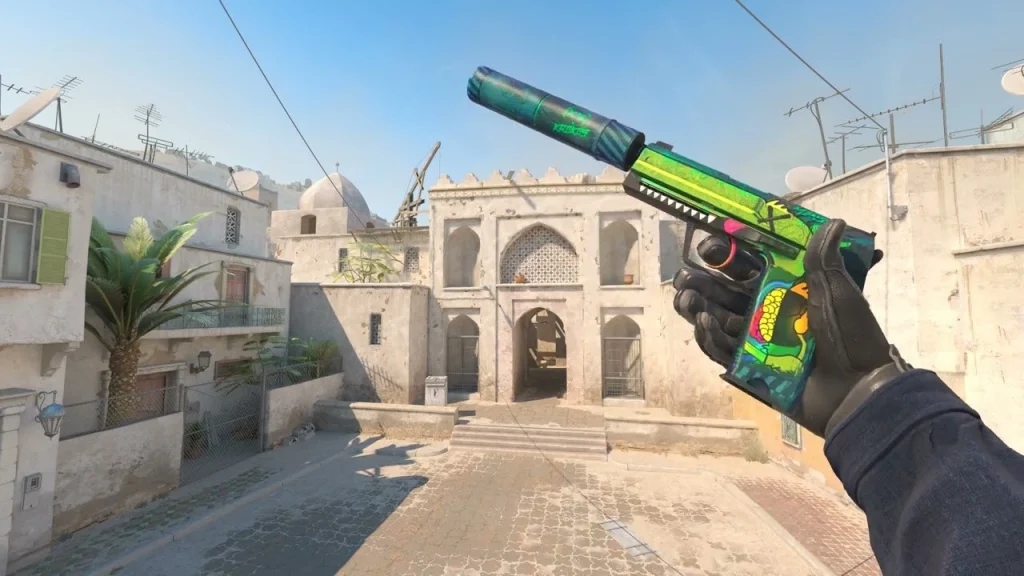
Best USPS Skins in CS2

Despite being a free weapon for the CT side in Counter-Strike 2, the USP-S is undoubtedly one of the strongest guns for the pistol round in the game. Capable of finishing off enemies with a single headshot, the USP-S is your key to winning the CT-side pistol round and getting an early lead over your opposition.

If you’re looking to get good at CS2 and climb the competitive ladder of the shooter, mastering the USP-S is non-optional. Having a good aim and mastery over this weapon will enable you to skyrocket your CS2 win rate and reach your dream rank.

While you’re refining your skills with the USP-S, it might also be a good idea to get some skins for the weapon to give yourself a confidence boost. The UPS-S has some of the most gorgeous cosmetic finishes that you can find in the entire game, and as a result, most CS2 players find themselves buying one skin or another for the default CT pistol.

Best USP-S Skins in CS2 List

If you’re looking to purchase a weapon skin for the USP-S in CS2, we have you covered.

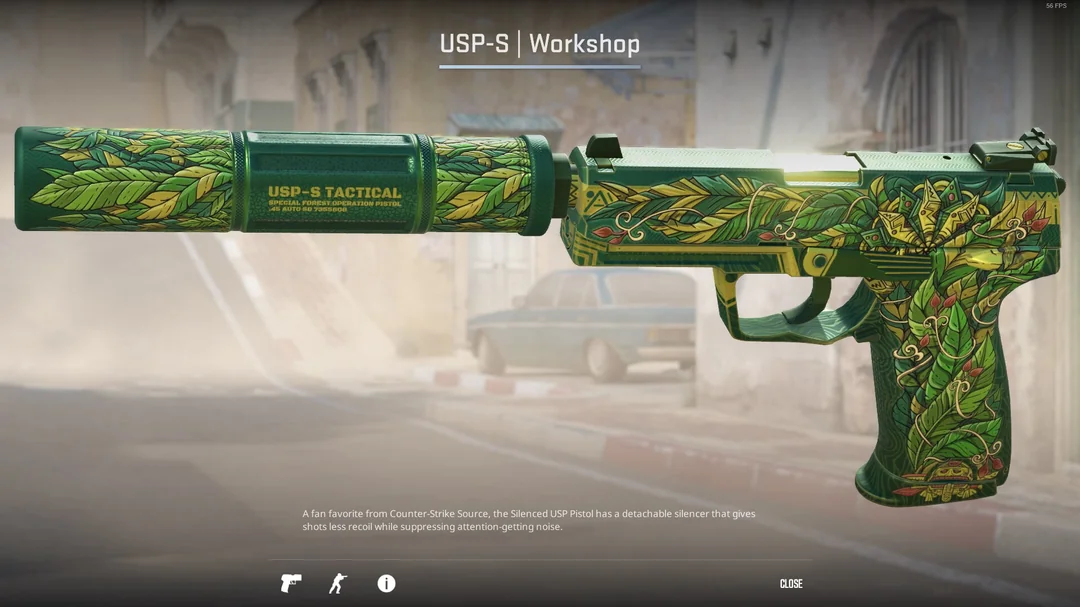
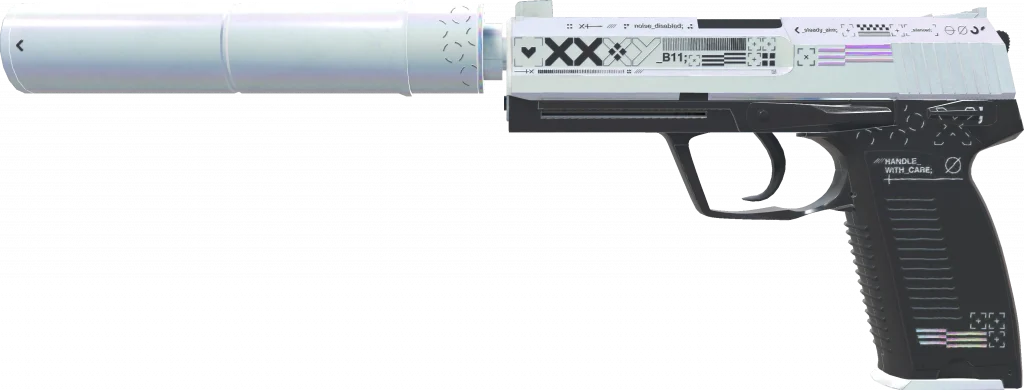
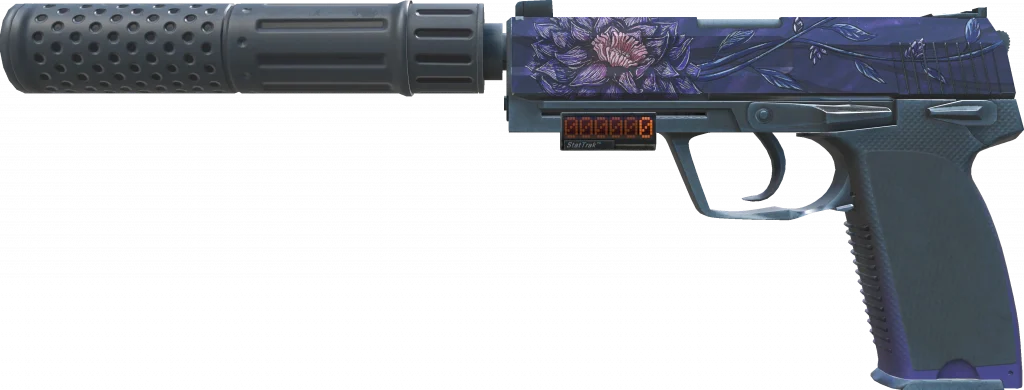
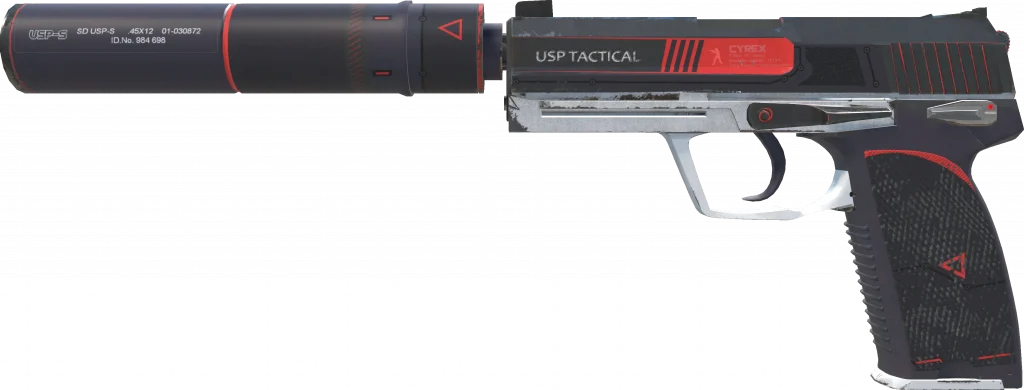
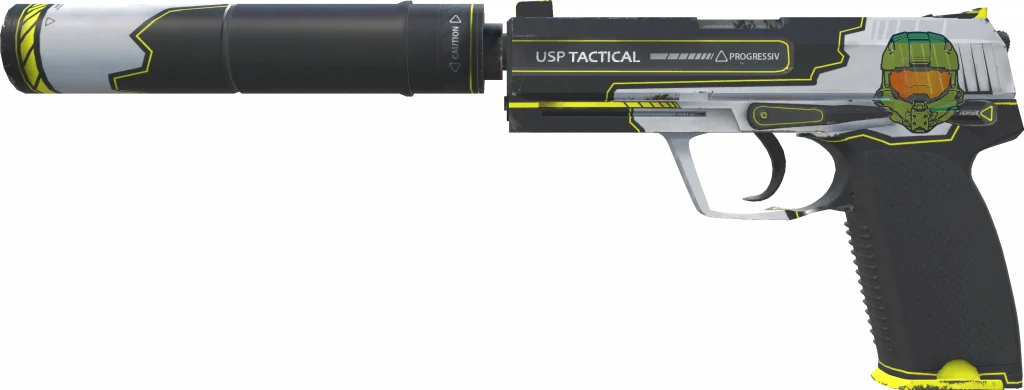
Below, we’ve included a list of the best USP-S skins for you to take a look at alongside their images. Feel free to take your time browsing through the list and make your pick when you’re ready.

USP-S Neo-Noir

USP-S Neo-Noir

USP-S Kill Confirmed 

USP-S Kill Confirmed 

USP-S Printstream 

USP-S Printstream 

USP-S Jawbreaker 

USP-S Jawbreaker 

USP-S Black Lotus

USP-S Black Lotus

USP-S The Traitor

USP-S The Traitor

USP-S Cortex

USP-S Cortex

USP-S Cyrex

USP-S Cyrex

USP-S Torque 

USP-S Torque 

USP-S Monster Mashup

USP-S Monster Mashup

Now that you have your list of the best USP-S skins in CS2, what are you waiting for? Find the one that works best for you and visit the Steam market to get yourself a USP-S skin right away!

Best CS2 Video Settings for Increasing FPS & Better Visibility

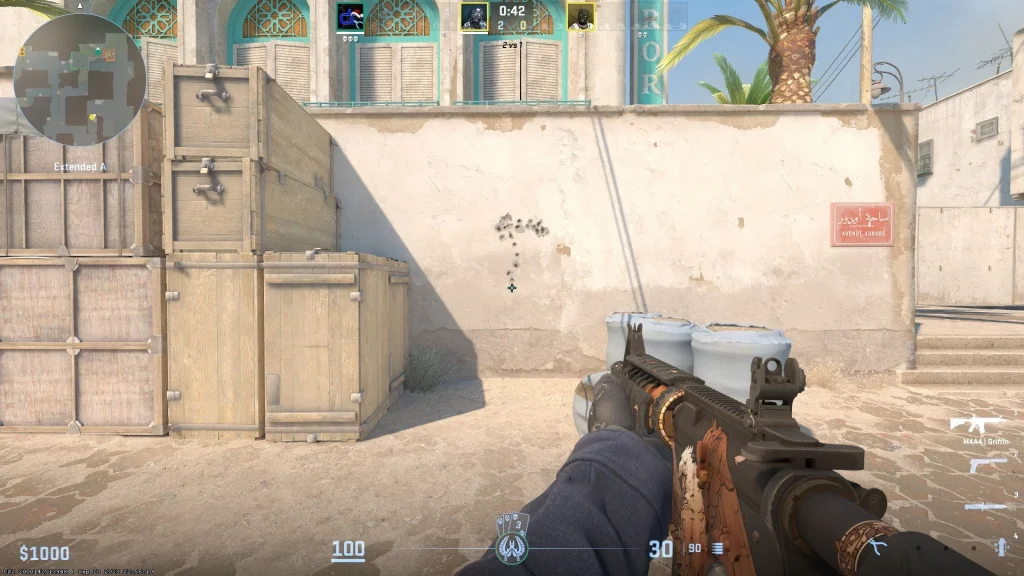
Counter-Strike 2 is a highly competitive game, with players looking to get whatever advantage they can to get the edge over their opponents on the battlefield. Using the right CS2 video settings can not only help you improve your overall performance, but it will also make your gameplay experience much smoother by increasing your FPS.

The first thing you should keep in mind when adjusting your CS2 video settings is the FPS you’re getting in the game. Having a high FPS count is crucial when playing fast-paced tactical shooters like CS2 where a few milliseconds are enough to change the outcome of a gunfight.

In addition to increasing your CS2 FPS, you have to ensure that the visibility of your game is good. If you’re not using the right video settings in CS2, you may have a tough time distinguishing your enemies from the environment, which can easily result in you losing gunfights that you otherwise should have won.

Best CS2 Video Settings Explained

CS2 Video Settings

Finding the right blend between getting good performance and having proper visibility is crucial when you’re adjusting your video settings in CS2.

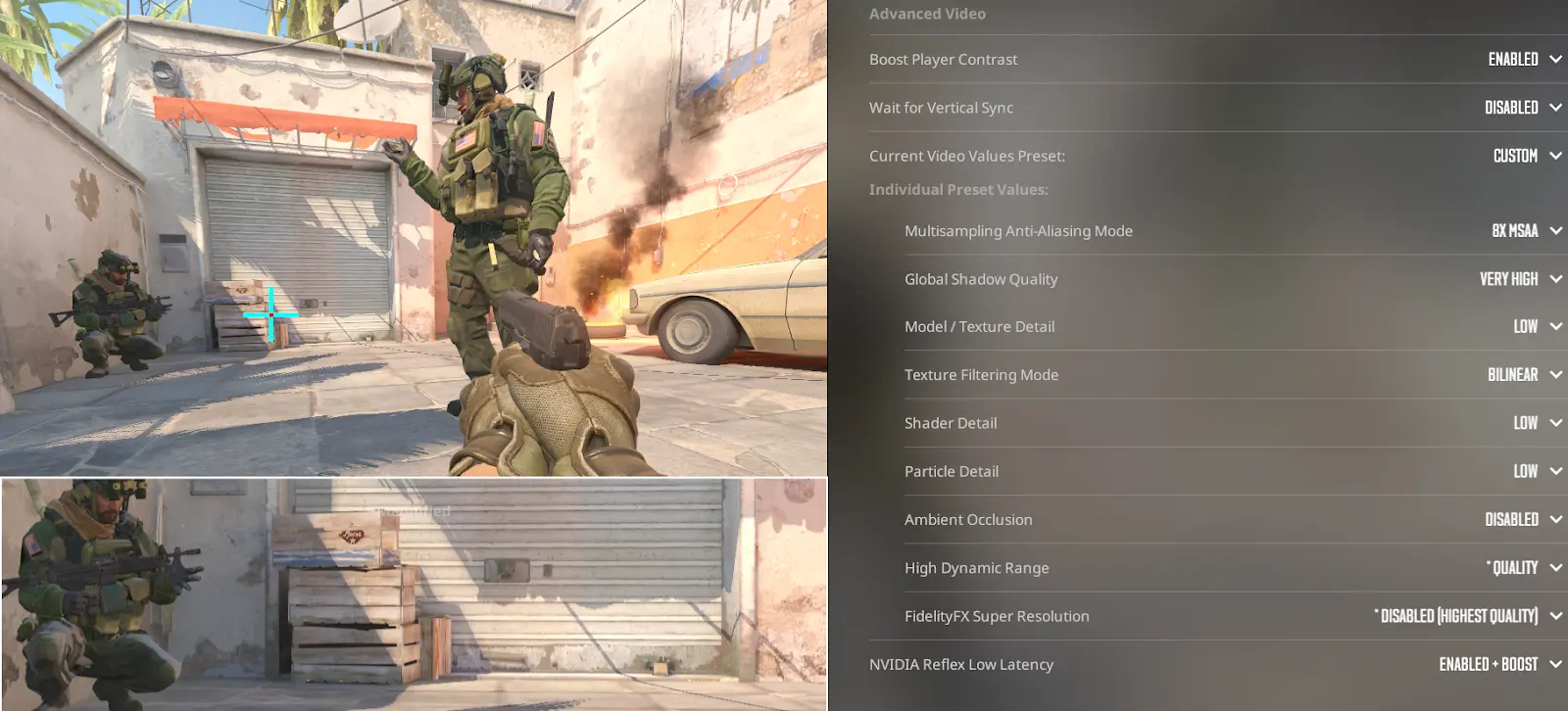
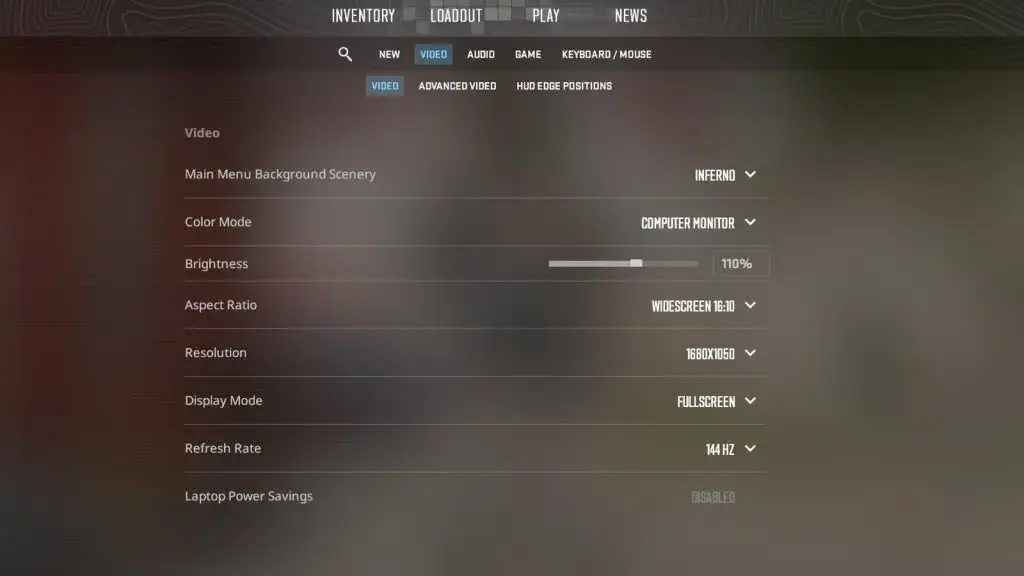
Below, we have listed the ideal CS2 video settings that you should use to maximize your FPS while also being able to easily identify your enemies.

CS2 Video Settings

  • Display Mode: Fullscreen
  • Aspect Ratio: Personal Preference*
  • Resolution: Personal Preference*
  • Refresh Rate: Highest
  • Brightness: Max
    • [*The lower your resolution, the more FPS you’ll get.]

CS2 Advanced Video Settings

  • Boost Player Contrast: Enabled
  • VSync: Disabled
  • Multisampling Anti-Aliasing Mode: None
  • Global Shadow Quality: High/Very High
  • Model / Texture Detail: Low
  • Texture Filtering Mode: Anisotropic 16x
  • Shader Detail: Low
  • Particle Detail: Low
  • Ambient Occlusion: Disabled
  • High Dynamic Range: Quality
  • FidelityFX Super Resolution: Disabled (Highest Quality)
  • NVIDIA Reflex Low Latency: Enabled

These CS2 video settings are aimed at finding the ideal balance between having good performance and consistent FPS in the game while also getting good visual clarity. If you’re still having performance issues when playing CS2, you can try lowering some of the settings even further to maximize your FPS.

Aleksib Claims CSGO Was More Responsive

NAVI IGL, Aleksi ‘Aleksib’ Virolainen has claimed that the latest iteration of Counter-Strike, i.e. CS2 is way less responsive in a head-to-head comparison with his predecessor.

CS2 met with tons of resentment during its launch. The community found the game riddled with bugs and optimization issues that caused it to be unplayable. CS2’s poor optimization was especially put under a microscope because of how long it took for the developers to release the game. Responsiveness was an issue highlighted by the players at the time of its release but as time passed, players got used to the difference in gameplay.

It can be argued at this point CSGO was a better game than what CS2 is right now. The plethora of issues that still plague the game and the poor mechanics that ruin the experience at times. The improvement in-game visuals isn’t enough to make up for the unsatisfying gameplay. Aleksib has joined the long list of professional players who voiced their concerns over the poor performance of CS2.

“Go to CSGO and just kill the bot, it will make you cry, how responsive the game was,” said Aleksib.

CSGO in its later days was built on tons and tons of updates and even though CS2 has received a ton of them by now, issues seem to persist. What Aleksib pointed out was an issue of perceived performance which is generally categorized under subjective issues. Not all players might find the game too slow when comparing it to CSGO but some players definitely do. This has more to do with the mechanics of the game rather than any bugs or optimization issues so fixing it might not be as straightforward.

Cloud9 Announces Partnership With Nvidia

0

Cloud9 is one of the most successful teams in esports, and they’ve just announced a strategic partnership with industry giant NVIDIA. This move is supposed to bring about a quantum leap in the organization’s technological capabilities.

Though the financial details of the deal have not been disclosed, the deal will see Cloud9’s teams get access to the most recent NVIDIA GPUs and state-of-the-art technological solutions.  

This collaboration will take the Cloud9 training environment to the next level. Teams will most definitely appreciate the great performance from NVIDIA’s latest GeForce RTX 4080 SUPER GPUs, enabling lag-free practice sessions of their games. But that’s not all concerning the partnership.

Cloud9, along with NVIDIA, also aims at creating new and customized artificial intelligence models. These AI tools are about to revolutionize how an organization implements competitive strategy, optimizes player performance, and finally creates content at a higher quality.

Cloud9 is a Los Angeles, California-based organization with one of the most stacked rosters in League of Legends, VALORANT, and Counter-Strike 2. They recently restarted their competitive efforts in Rocket League via the North American RLCS 2024 circuit.

This deal with NVIDIA underlines Cloud9’s commitment to constant growth despite struggles within the industry.