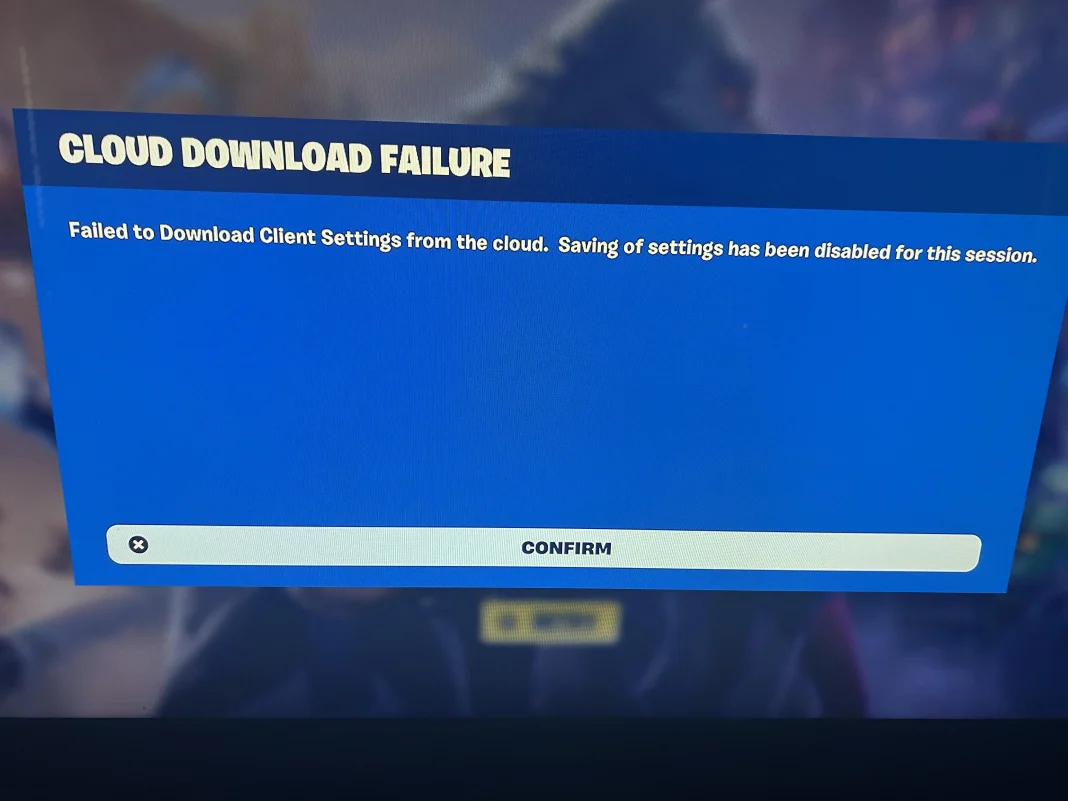
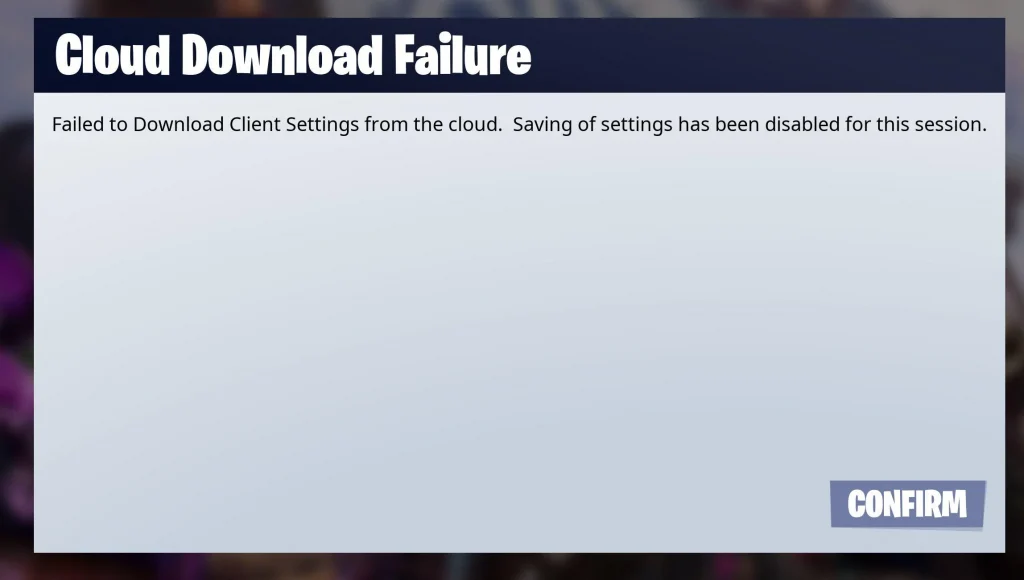
Winning a Victory Royale in Fortnite requires accuracy, personalized settings, and flawless gameplay. However, the persistent “Cloud Download Failure” error can suddenly ruin your experience, resetting your keyboard/controller settings, or even stop you from opening the game. On the following pages, you will learn a detailed, step-by-step process to eliminate the problem and achieve smooth gameplay.
Before delving into detailed fixes, knowing the causes will assist you in diagnosing and solving the issue more accurately:
- Server-side outages: Transient problems with Epic Games’ cloud servers.
- Network interruptions: Disruption in sync processing.
- Corrupted local config/cache files: Trashed files that hinder successful downloads.
- Antivirus or firewall conflicts: Programs blocking cloud service access.
- Platform-specific quirks: Problems on PC, Xbox, PlayStation, or Switch specific to their platforms.
How to Fix Cloud Download Failure Error in Fortnite?
- Verify Fortnite’s Server Status
- Start by ensuring there are no current outages. Go to the Epic Games Status page or check their official Twitter/X support handle to see if server maintenance or downtime is occurring. If servers are offline, waiting is the only choice until service resumes.
- Restart the Device and Game
- Quick and simple, a full shutdown and restart can remove temporary system errors:
- Fully quit Fortnite, ensuring no lingering processes remain active (via PC’s Task Manager).
- Restart your platform.
- Launch Fortnite and reconnect.
- Quick and simple, a full shutdown and restart can remove temporary system errors:
- Verify Your Internet Connection
- Glamorous network problems can prevent your system from talking to Epic’s servers. To test and enhance reliability:
- Switch to wired Ethernet instead of Wi-Fi (PC/console) for a less glitchy link.
- Power cycle your router: Unplug it for a minute, then reconnect.
- Run a speed test: A stable upload speed of at least 5 Mbps is ideal for seamless cloud syncing.
- Glamorous network problems can prevent your system from talking to Epic’s servers. To test and enhance reliability:
- Inspect Cloud Save and Local Config Files
- Sometimes local settings get corrupted. On PC, you can manually reset configurations:
- Navigate to C:\Users\\AppData\Local\FortniteGame\Saved\Config\WindowsClient.
- Backup and delete the GameUserSettings.ini and GameUserSettings_backup.ini files.
- Restarting the game will regenerate clean config files and retrieve your settings afresh.
- On consoles, reset local saved data or cache (e.g., from console settings) and then start Fortnite to trigger a new cloud sync.
- Sometimes local settings get corrupted. On PC, you can manually reset configurations:
- Check Antivirus, Firewall & Security Settings
- Security programs can interfere with cloud sync functionality. To fix:
- Temporarily turn off antivirus or firewall (on the computer), and then start Fortnite.
- If it solves the issue, include Fortnite and Epic Games Launcher as exceptions in your security program.
- Then, turn on protection again to ensure system security.
- Security programs can interfere with cloud sync functionality. To fix:
- Update All Game & Platform Components
- Make sure everything engaged is completely updated:
- Fortnite (through Epic Games Launcher, PlayStation Store, Xbox Store, or Nintendo eShop).
- Epic Games Launcher itself, if played on PC.
- Your platform’s operating system and system firmware, including drivers on the PC.
- Outdated versions can interfere with cloud-based functionality.
- Make sure everything engaged is completely updated:
- Contact Epic Games Support
- If nothing works above, it’s time to call in the experts. Go to Epic Games Support, create a ticket in the “Cloud Download Failure” category, and include:
- Clear screenshot of the error message.
- Full system/platform information (model, OS version, etc.).
- Overview of the troubleshooting steps that have been attempted.
- If nothing works above, it’s time to call in the experts. Go to Epic Games Support, create a ticket in the “Cloud Download Failure” category, and include:
- Reinstall Fortnite
- As a last resort, a clean install can remove lingering corruption:
- Completely remove Fortnite (on PC, console, or Switch).
- Restart your device.
- Reinstall through the official launcher/store.
- Start the game once to allow complete cloud sync.
- As a last resort, a clean install can remove lingering corruption:
If you still have any queries regarding the Cloud Download Failure error, let us know in the comments below.
- Advertisement -