Sonic Speed Simulator Codes: Experience the thrill of racing as the iconic blue hedgehog and his friends in Sonic Speed Simulator, the exhilarating MMO platformer on Roblox. Developed by Gamefam Studios and officially licensed by Sega, this game takes you on a whirlwind adventure through multiple worlds, leaving your competitors in the dust.
What makes this game even more exciting are the redeem codes that offer exclusive rewards, power-ups, and enhancements. In this article, we will dive into the world of Sonic Speed Simulator redeem codes, revealing some highly sought-after codes to elevate your gaming experience.
A_Team_, the creator of Sonic Speed Simulator, generously provides players with coupons to enhance their spinning and dashing journey. These codes unlock a treasure trove of amazing products, including fantastic costumes, powerful boosters, and more. As the game reaches significant milestones, such as achieving a specific number of likes, A_Team_ often distributes additional codes. To stay in the loop, make sure to bookmark the game and regularly check for new Sonic Speed Simulator codes.
Active Sonic Speed Simulator codes
GottaGetRedRings – 500 red star rings
ILive4Adventure – Adventure Sonic
MyValentines – Valentine’s themed gift
thefinalfanspt2 – free Chao
thefinalfanspt1 – free Chao
1morefanpt2 – free Chao
1morefanpt1 – free Chao
forthefans – free premium Chao
Hooray50k – 30-minute speed boost
thankyouchao – free Chao
40kThankYou – free rewards
thumbsup – Bloxian Chao
Amazing35 – free rewards
25k – free boost
Expired Codes
sonic central – army chao
ILive4Adventure—Redeem for Adventure Sonic (New)
MyValentines—Redeem for Valentines Amy
soniccentral—Redeem for the Amy Chao
RIDERS—Redeem for the Sonic Riders Skin
How to Claim Your Rewards: Sonic Speed Simulator Codes
Launch Sonic Speed Simulator and navigate to the bottom of the screen, where you’ll find the Shop button.
Within the Shop window, locate the Redeem Codes tab on the left-hand side.
Enter the code exactly as it appears from the provided list into the text box.
Press the Redeem! button to claim your well-deserved reward!
Are you eager to excel in the vibrant world of Restaurant Tycoon 2? Look no further! As a leading authority on Roblox game strategies, we bring you the ultimate guide to unlocking the most coveted advantages in Restaurant Tycoon 2. Brace yourself for a thrilling journey of gastronomic delight and entrepreneurial triumph.
In the realm of gaming, Roblox codes have become the go-to method for securing in-game advantages, whether it’s an abundance of resources or exclusive cosmetic items. Restaurant Tycoon 2 gracefully follows this trend by offering a plethora of codes that can elevate your gaming experience. These codes empower you to unleash your creativity and turn your restaurant dreams into a reality. Without further ado, here is a comprehensive list of active codes, along with step-by-step instructions on how to redeem them.
From the main screen, select the “Store” icon (middle bottom of the screen).
Type or paste your code into the text box near the top of the Store menu.
Hit the “Claim” button below to receive your reward.
Restaurant Tycoon 2, the possibilities are limitless, and with these codes at your disposal, triumph is within your grasp. Embark on your gastronomic adventure today, armed with the knowledge of these exclusive codes. Unleash your inner culinary virtuoso and let your restaurant reign supreme!
Note: Remember to regularly check for updates and new codes, as the Restaurant Tycoon 2 universe is constantly evolving, offering fresh opportunities for aspiring restaurateurs like yourself.
Are you ready to unlock the full potential of CS:GO’s demo mode? Welcome to our comprehensive guide on CSGO replay controls, where we’ll dive deep into the various features and functionalities available. Whether you’re a newcomer seeking to grasp the basics or a seasoned player looking to refine your skills, this guide will empower you with the knowledge to navigate CS:GO demos like a pro.
CS:GO Replay Controls: Explained
Despite its somewhat outdated nature, CS:GO replay controls remain widely embraced by countless players. Serving as an integral part of the CS:GO Demo Viewer, these controls bear witness to the longevity of both the Source Engine and the iconic Counter-Strike franchise. While mastering these video replay controls may pose a challenge, they are designed to aid players in seamlessly traversing the demo viewer. CS:GO replay controls enable players to create captivating video highlights, analyze individual performance, revisit past games, and scrutinize gameplay dynamics. Despite their occasional sluggishness during fast-forwards and finicky rewinds, these in-built systems provided by Valve are still heavily utilized by the CS:GO community.
So, for all avid users of this built-in gameplay review system, let’s delve into an in-depth exploration of CS:GO replay controls and learn how to utilize them effectively.
CS:GO Replay Controls: A Comprehensive Guide Loading a CS:GO Game in the Demo Viewer
Before we embark on our journey, let’s first enable the CS:GO demo viewer through the command console. To check if your in-game console is already enabled, simply press the tilde (~) key. If a console appears, you’re all set. Otherwise, you’ll need to enable it.
If you’re unfamiliar with the process of enabling the command console, click here for a detailed guide. Once you’ve enabled it, follow the steps below to access the demo viewer:
Launch CS:GO and navigate to the “Watch Matches and Tournaments” section.
Click on “Your Matches” and select the match you wish to watch or review.
At the bottom of the selected match, click on “Download.”
By default, these files are usually stored in ‘C:\Games\Steam\steamapps\common\Counter-Strike Global Offensive\csgo\replays’. If this folder doesn’t exist, you can create it manually by selecting ‘File > New Folder’. Alternatively, you can right-click CS:GO within Steam, choose “Properties,” go to the “Local Files” tab, and select “CSGO” to locate the file.
Once you have the match file, extract it from the zip file using an extraction tool. Finally, open the CS:GO command console and enter the command ‘demoui’.
CS:GO Demo Viewer: Unveiling the Interface
After inputting the console command, a small Demo UI window will appear. Click on “Load” and select the extracted match file you obtained earlier from the downloaded match folder.
Mastering CS:GO Replay Controls: Taking Charge of Your Demo
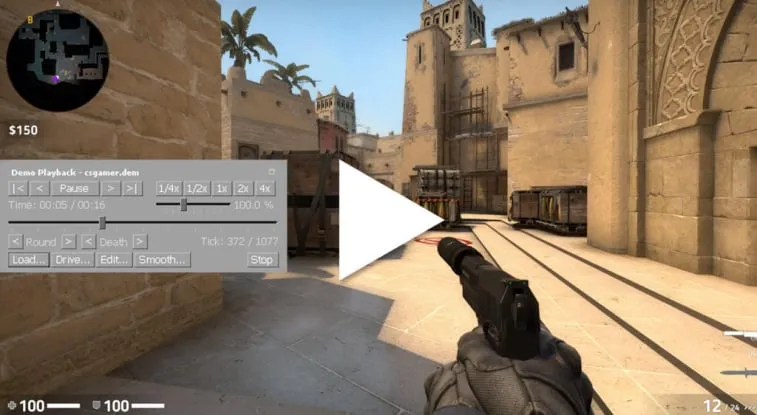
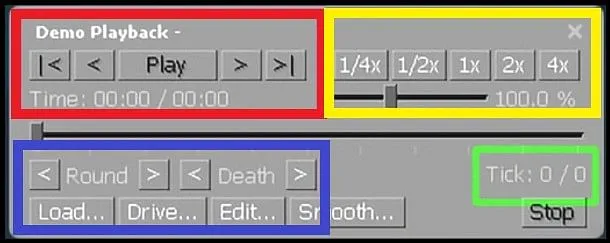
Once you’ve successfully loaded your desired match within the demo viewer, you’ll gain full control over the CS:GO replay controls, also known as the CS:GO demo viewer UI. Refer to the image below to familiarize yourself with the available controls and learn how to utilize them effectively.
Normal Controls (Red Square):
The arrows with a line serve as the ‘Restart’ and ‘End’ demo keys.
The plain arrows function as the ‘Forward’ and ‘Rewind’ keys, allowing you to increase or decrease the frame by 1 tick.
The numerical values represent the playback speed of the CS:GO demo, indicating whether it should run faster or slower.
The slider beneath the numbers offers precise control over the playback speed.
Specific Demo Monitoring Controls (Blue Square):
The ‘Round Arrows’ enable players to skip the demo by one round, either forwards or backwards.
The ‘Death Arrows’ allow players to navigate to the next closest death within the match timeline.
‘Load’ allows users to load another game link.
‘Edit’ empowers users to edit the gameplay as desired.
Tick Monitoring Control (Green Square):
This control allows players to instantly jump to a specific point in the game using ticks.
These are the fundamental CS:GO replay controls that every player should be acquainted with when viewing or analyzing a match through the CS:GO demo viewer. While the system can be frustrating at times, its accessibility and utility ensure that many users continue to rely on it for their daily gameplay needs.
Unlock the power of CS:GO replay controls, and elevate your game to new heights. Happy reviewing!
Frequently Asked Questions (FAQs) For CSGO Replay Controls
Q1: Can I use CSGO replay controls to create video highlights of my gameplay?
Yes, CSGO replay controls allow you to create captivating video highlights by utilizing the demo viewer’s functionalities.
Are CS:GO replay controls only available for downloaded matches?
No, CS:GO replay controls can also be used for live matches by utilizing the “Watch” tab in CS:GO.
Q3: Can I share my demos with others using the CS:GO demo viewer?
Yes, you can share your demos by providing them with the match file, which they can load into their own CS:GO demo viewer.
Q4: Are there any limitations to the CS:GO demo viewer’s playback speed?
The CS:GO demo viewer offers a wide range of playback speeds, allowing you to adjust the speed according to your preference.
Q5: Can I edit the gameplay within the CS:GO demo viewer?
Yes, the CS:GO demo viewer provides editing capabilities, enabling you to modify the gameplay as desired.
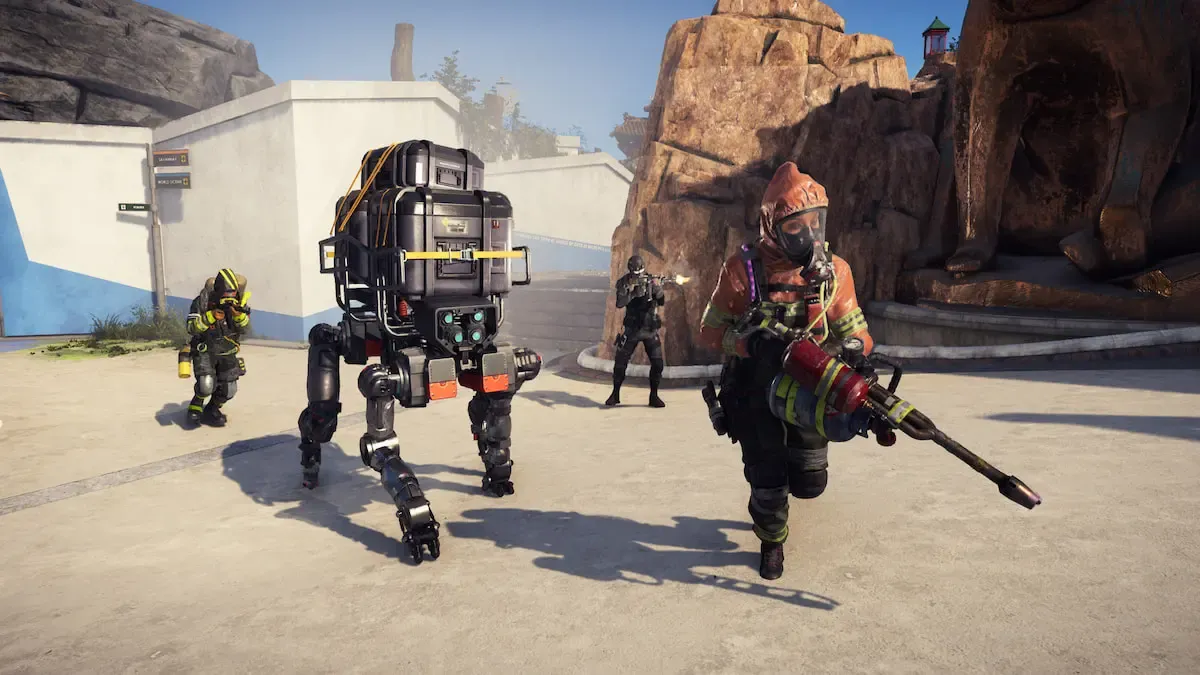
Ubisoft’s highly anticipated free-to-play arena shooter, XDefiant, is on the horizon, poised to make its mark in the gaming world. As players eagerly await its release, the burning question on their minds is whether XDefiant has what it takes to rival the mighty Call of Duty. One key aspect that sets XDefiant apart is its vast arsenal of powerful weaponry, capable of inflicting devastating damage throughout each match. In this article, we will delve into the diverse XDefiant weapons list, exploring the various weapon categories and their suitability for different play styles. But before we dive into the details, let’s first explore our comprehensive guide on the best guns to wield in XDefiant.
XDefiant Weapon Categories
XDefiant boasts an impressive selection of seven weapon categories, offering a wide range of options to cater to every player’s preferred style of engagement. Whether you thrive on the exhilarating rush of run-and-gun tactics or prefer to take down enemies from a distance, XDefiant has something to suit your play style. Let’s explore each XDefiant weapon category in detail:
Assault rifles
SMGs
Shotguns
LMGs
Marksman rifles
Sniper rifles
Pistols
As XDefiant continues to evolve, Ubisoft plans to introduce new weapon categories through regular seasonal updates. We will keep this guide up to date with the latest information on any additions to the XDefiant arsenal.
XDefiant gun list
The XDefiant open beta is anticipated to feature an identical assortment of guns and weapons in the loadout selection menu, as observed during the closed beta. Below is the comprehensive list of available weaponry:
Are you ready to dive into the thrilling world of XDefiant? Whether you’re a novice or a seasoned player seeking to refine your skills, adjusting your settings to align with your playstyle is crucial. Finding the perfect XDefiant controller settings can be a complex task, given the myriad of options available to fine-tune every aspect of your in-game firearm experience.
To spare you the hassle of endless experimentation during public matches, we have curated an excellent starting point for an optimal controller setup in XDefiant. In this comprehensive guide, we will delve into these settings, explaining the rationale behind each change and how they enhance your gameplay across different XDefiant maps.
Best XDefiant controller settings
The best XDefiant controller settings are:
Button layout: Skill Thumb Brawler
Stick layout: Default
Aim assist: Standard
Aim assist strength adjustment: 0
Aim assist follow adjustment: 0
Aim response curve type: Reverse S-Curve
ADS sensitivity multiplier (Low Zoom): 0.90x
ADS sensitivity multiplier (High Zoom): 0.90x
Invert horizontal Axis: Personal preference
Invert vertical axis: Personal preference
Horizontal Sensitivity: 30-40
Vertical Sensitivity: 30-40
Acceleration Speed Multiplier: 1.00x
Dead Zone – Left Stick: Personal preference
Dead Zone – Right stick: Personal preference
Unlocking Enhanced Movement Options with Button Layout In XDefiant
The next crucial modification to your controller settings involves the button layout. To unleash the full potential of your core movement capabilities, such as jumping and utilizing abilities seamlessly, we recommend opting for the Skill Thumb Brawler layout.
By choosing Skill Thumb Brawler, you position the jump button conveniently next to the aim down sight button. This arrangement enables effortless transitioning from a jump shot to aiming down sight, empowering you with fluid and swift control. Additionally, the crouch button receives priority as a stick press rather than a melee attack.
However, some of the remaining options depend on personal preference and aligning with your unique gameplay style. For instance, if you prefer inverted axes, make sure to activate the corresponding setting.
By adopting these XDefiant controller settings, you’ll soar to the top of the leaderboard, basking in the spotlight of victory. You’ll become a formidable force, capable of turning the tide of any match and securing numerous triumphant moments. If you crave even more in-depth information before immersing yourself in the game, be sure to explore our comprehensive roundup of all the announcements leading up to the highly anticipated XDefiant release later this year.
Investing time in optimizing your controller settings is a wise strategy, ensuring you have an edge over your opponents from the very beginning. Remember, mastery comes with practice and fine-tuning, so seize this opportunity to elevate your XDefiant experience to new heights.
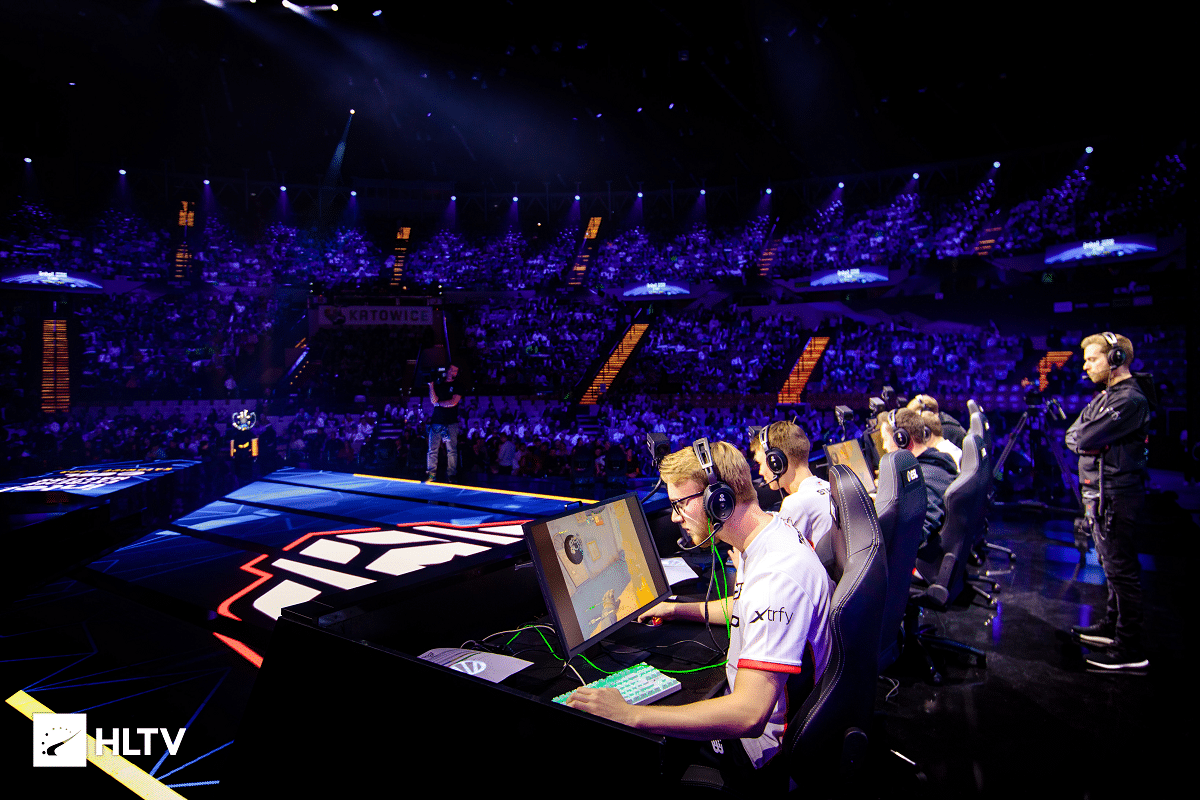
IEM, the renowned Counter-Strike tournament, is set to make a triumphant return to Sydney with the upcoming Fall Masters event in 2023. This marks four years since the last visit, and anticipation is building among CSGO enthusiasts worldwide.
After a long wait, the highly anticipated IEM Sydney is finally making its way back to the land down under. The Fall Masters of 2023 will gather the best CSGO teams from around the globe to compete for ultimate glory on Sydney’s prestigious stage.
Much like the successful association between IEM Dallas and Dreamhack Dallas, IEM Sydney will be held in conjunction with another major event in the city: SXSW Sydney. This strategic partnership, as revealed in our exclusive interview with Graeme Du Toit, ESL’s Head of Sales and Marketing, has been met with great excitement. Du Toit emphasized the remarkable opportunity presented by the Aware Super Theatre at ICC, capable of accommodating up to 9,000 spectators.
While the return of IEM Sydney is cause for celebration, there is no guarantee of future editions in the city. Currently, the primary focus for ESL is to make this event exceptional, delivering an unforgettable experience for attendees. Du Toit expressed his hopes, stating, “Hopefully, this will be the best IEM Sydney we have ever had.”
The fate of future IEM Sydney events lies in the hands of the passionate Australian audience. Du Toit eagerly awaits their enthusiastic support, urging them to fill the arena and demonstrate their unwavering dedication. The demand and response from the crowd will play a significant role in determining the future of IEM Sydney in the APAC region.
ESL has not yet disclosed whether other tournaments will coincide with IEM Sydney. In the previous edition in 2019, the Overwatch Contenders 2019 Season 1 added an extra layer of excitement and diversity to the event. The potential inclusion of concurrent tournaments would further enhance the experience for attendees.
As the countdown begins for IEM Sydney 2023, the global CSGO community eagerly awaits the return of this prestigious tournament to the APAC region. The partnership between IEM Sydney and SXSW Sydney, combined with the unwavering support and enthusiasm of Australian esports fans, sets the stage for an event that has the potential to exceed all expectations.
FAQ
When did IEM Sydney last take place?
IEM Sydney was last held in 2019, and now, after a four-year break, it is returning in 2023.
What is the significance of IEM Sydney’s partnership with SXSW Sydney?
The partnership with SXSW Sydney allows IEM Sydney to be part of a larger event, providing a unique and enhanced experience for attendees.
What determines the future of IEM Sydney in the city?
The future of IEM Sydney events relies on the demand and response from the Australian audience. Their support and enthusiasm play a crucial role in determining whether the tournament will continue in the region.
Will there be concurrent tournaments alongside IEM Sydney?
ESL has not yet announced whether there will be concurrent tournaments. However, in the past, IEM Sydney has seen the inclusion of other exciting tournaments, adding to the overall experience.
Why is the return of IEM Sydney highly anticipated?
The return of IEM Sydney is eagerly awaited by the global CSGO community due to its prestigious status and the potential for intense competition among top teams from around the world.
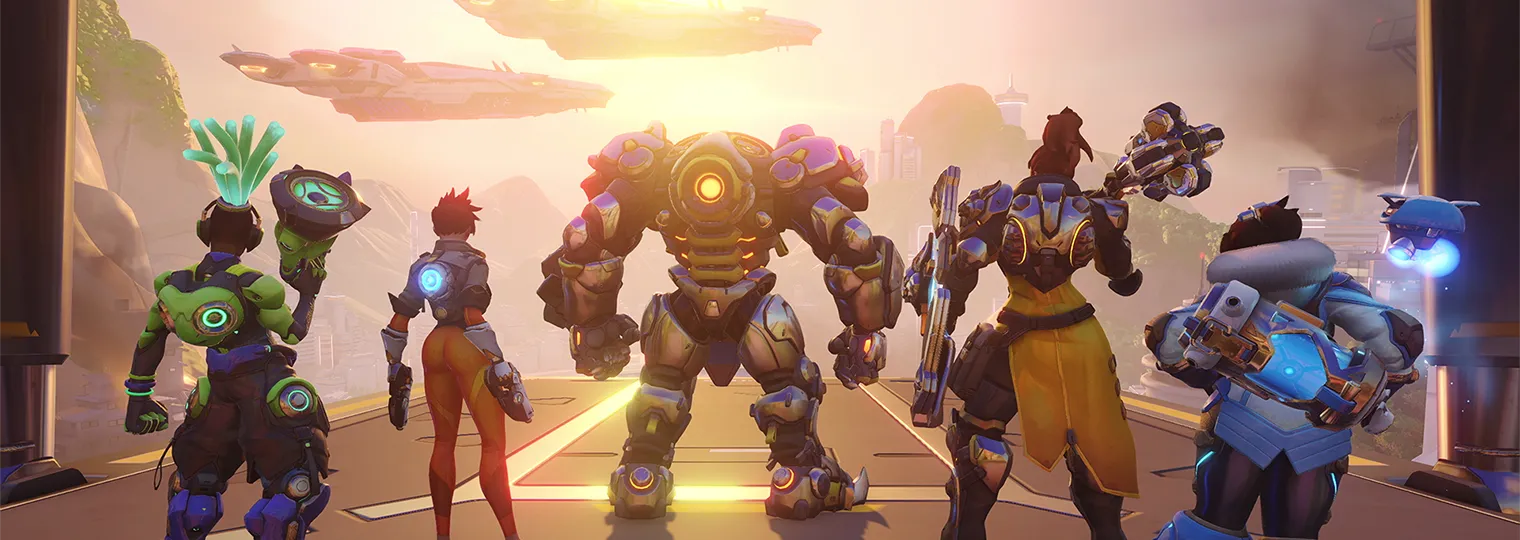
Only a week has passed since the launch of the fifth season of Overwatch 2 on June 13, and fans are already hyped up about the release of Season 6 of the competitive shooter, which is expected to be released around August 10, 2023.
The upcoming Overwatch 2 season has already been termed as the game’s biggest season so far, and its trailer has also been revealed by Blizzard Entertainment, giving players a sneak peek at what Season 6 will bring to the title.
The contents of Overwatch 2 Invasion will be showcased in an upcoming livestream featuring esports commentator Matt “Mr X” Morello and other Overwatch 2 developers.
Let’s take a look at everything you need to know about the Overwatch 2 Invasion reveal livestream, its date, time, and other details that you need to know.
Overwatch 2 Invasion Livestream: Date & Time
As mentioned earlier, Overwatch 2 Invasion is expected to go live around August 10th. However, fans won’t have to wait that long to see what the developers have in store for the fans.
The Overwatch 2 Invasion reveal livestream is scheduled to take place on 21st June 2023, and it will reveal everything new that the update will bring to the game.
Here are the specific timings for the livestream, converted to several local timezones for your convenience:
11:00 AM PDT
01:00 PM CDT
02:00 PM EDT
06:00 PM UTC
11:30 PM IST
Overwatch 2 Invasion Livestream: Where To Watch?
Fans can check out the reveal livestream of Overwatch 2 Invasion by tuning into the official Twitch and YouTube handles of the game.
My Hero Battlegrounds, the thrilling Roblox game inspired by My Hero Academia, has a special treat for you: free stuff! Brace yourself for an epic journey as we unveil a comprehensive list of My Hero Battlegrounds codes that will unlock an abundance of exciting rewards.
Boost Your Progress with My Hero Battlegrounds Codes
Imagine the exhilaration of progressing swiftly through the game with the aid of exclusive rewards. These codes serve as a gateway to enhancing your gameplay experience. To ensure you don’t miss out, we’ve meticulously curated all the active My Hero Battlegrounds codes for June 2023, along with instructions on how to use them. Get ready for an adventure like no other!
Currently Active My Hero Battlegrounds Codes (June 2023)
Code
Reward
1400LIKES
Redeem this code for free rewards
SORRYFORANOTHERSHUTDOWN1
Redeem this code for free rewards
CODESRELEASE!
Redeem this code for free rewards
Unlock the power of these codes while they’re still hot! At present, My Hero Battlegrounds boasts three active codes that will provide you with incredible advantages. Waste no time and seize the opportunity to utilize them before their expiration date.
Below are the currently active My Hero Battlegrounds codes:
Expired My Hero Battlegrounds Codes (June 2023)
Fortunately, there are no expired codes for My Hero Battlegrounds this month. Rest assured that once a code reaches its expiration date, it will be moved to this section. This ensures you have the most up-to-date information on the availability of codes.
Looking for even more excitement? Consider exploring Project Slayers codes to further enhance your gaming experience.
How to Redeem My Hero Battlegrounds Codes
Knowledge is power, and knowing how to effectively utilize these codes is paramount. Follow the step-by-step directions below to unlock a world of rewards and optimize your progress:
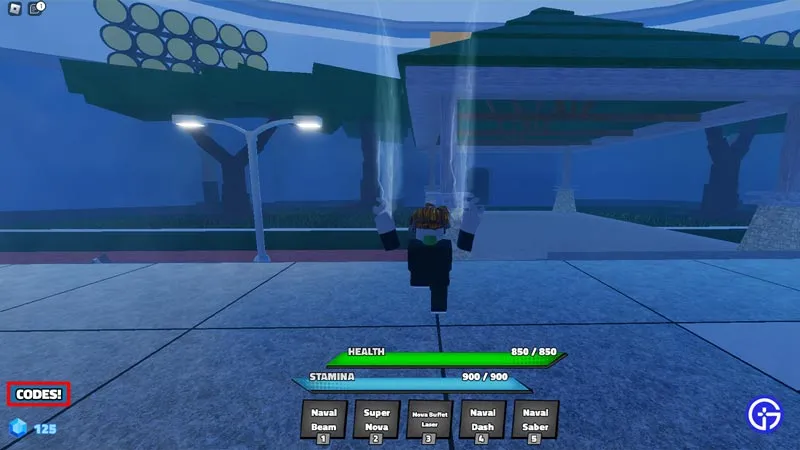
Locate the “Codes” button situated in the bottom left corner of the screen.
Click on the “Codes” button to proceed.
A text box will appear. Enter any active code into the text box.
Once you’ve entered the code, press “Enter” to redeem your well-deserved rewards.
And that’s it! You’re now armed with the knowledge to redeem My Hero Battlegrounds codes seamlessly. Remember, we’ll keep you updated whenever new codes are introduced, ensuring you never miss out on exciting opportunities.
Embark on a thrilling journey through My Hero Battlegrounds with these codes as your guiding light. Embrace the power they unlock, and let victory become your constant companion. Good luck, hero!
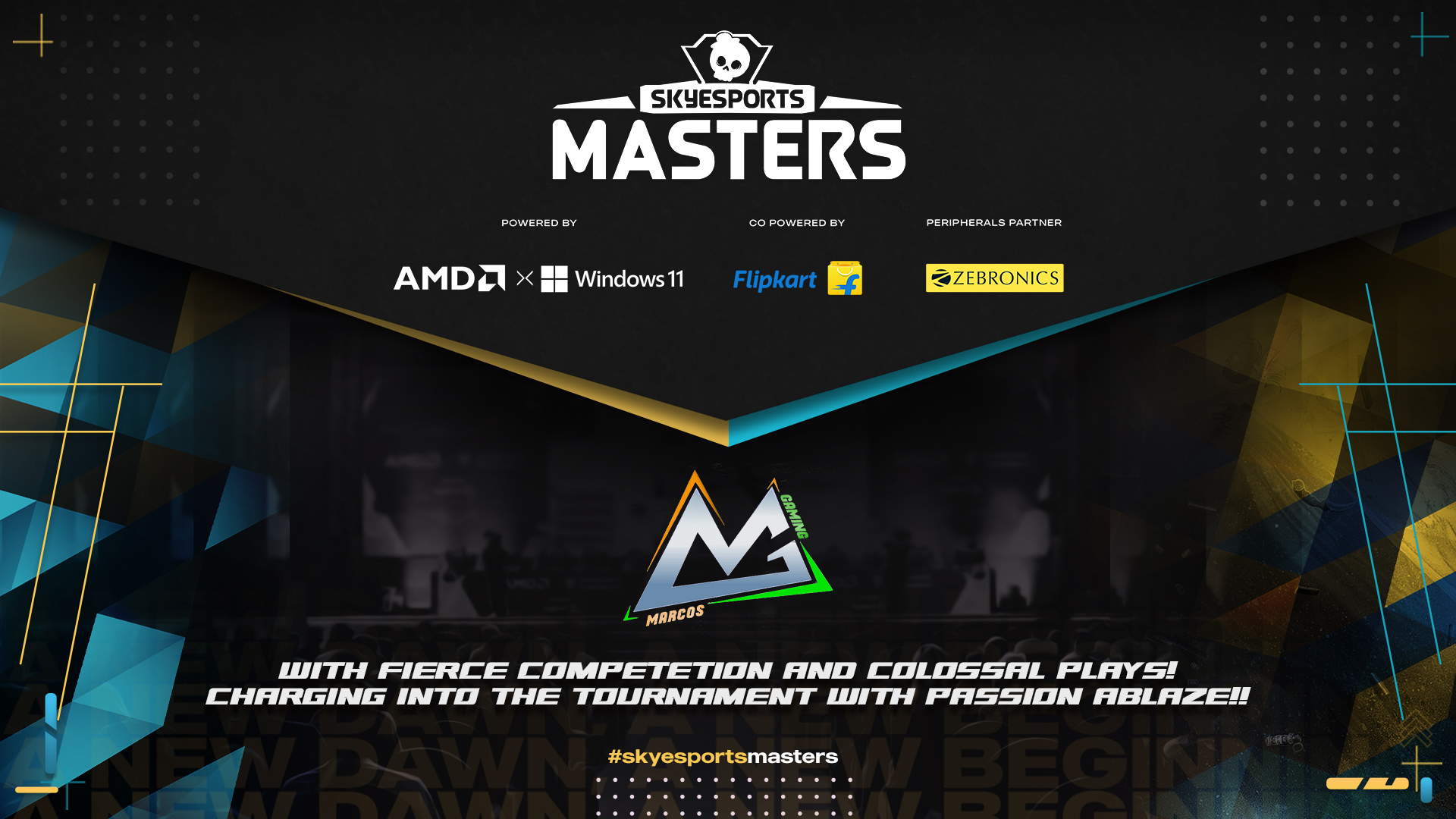
Marcos Gaming, India’s homegrown esports brand, has been confirmed as a franchise in India’s biggest gaming tournament, the Skyesports Masters. The organization will soon be unveiling its CSGO roster, which will fight for a share of the Rs. 2,00,00,000 prize pool.
The Skyesports Masters is set to kick off with the League Stage on July 8. Eight franchised teams will lock horns across several weeks with the top four teams advancing to the Playoffs. Set to happen on Aug. 26 and 27 as an on-ground LAN event, the Skyesports Masters Playoffs are set to be an affair like never before in Indian esports, setting a benchmark for the industry.
Marcos Gaming is set to sign a five-man roster for CSGO to compete in the Skyesports Masters. Additionally, the organization will be adding two players from the cafe qualifiers. The Skyesports Masters cafe qualifiers are happening across two weekends on June 17 and 18; and June 24 and 25, are a grassroots effort which aims to recognize and uplift the best talent from 20 different cities across the country.
Commenting on entering the Skyesports Masters, Sudhir Kumar, Founder, Marcos Gaming, said, “I am thrilled to be entering India’s first franchised esports league. We believe in the vision of Shiva and Skyesports which was one of our primary motivations to enter the league. The franchise model is important in esports as it brings structure to the industry with a fixed set of deliverables, allowing us to close brand deals easier. There is still work to be done for reviving Counter-Strike in India, and we are here for the long run with the Skyesports Masters and are looking forward to growing this promising title.”
Marcos Gaming is an organization focused on bringing a family culture to its esports roster and will be signing and nurturing a roster with the same goal. The organization has strived to commit to Counter-Strike in the long run and hopes to go on to represent the country internationally..
Commenting on the joining of Marcos Gaming into the esports tournament, Shiva Nandy, Founder and CEO, Skyesports, said, “We are delighted to welcome Marcos Gaming as one of the franchised teams in the Skyesports Masters. The tournament will serve as a gateway for the revival of Counter-Strike in India and we need organizations who are committed to being the catalyst for this. Akhil’s and Marcos’ long-term commitment is aligned with our goals for the league and the game.”
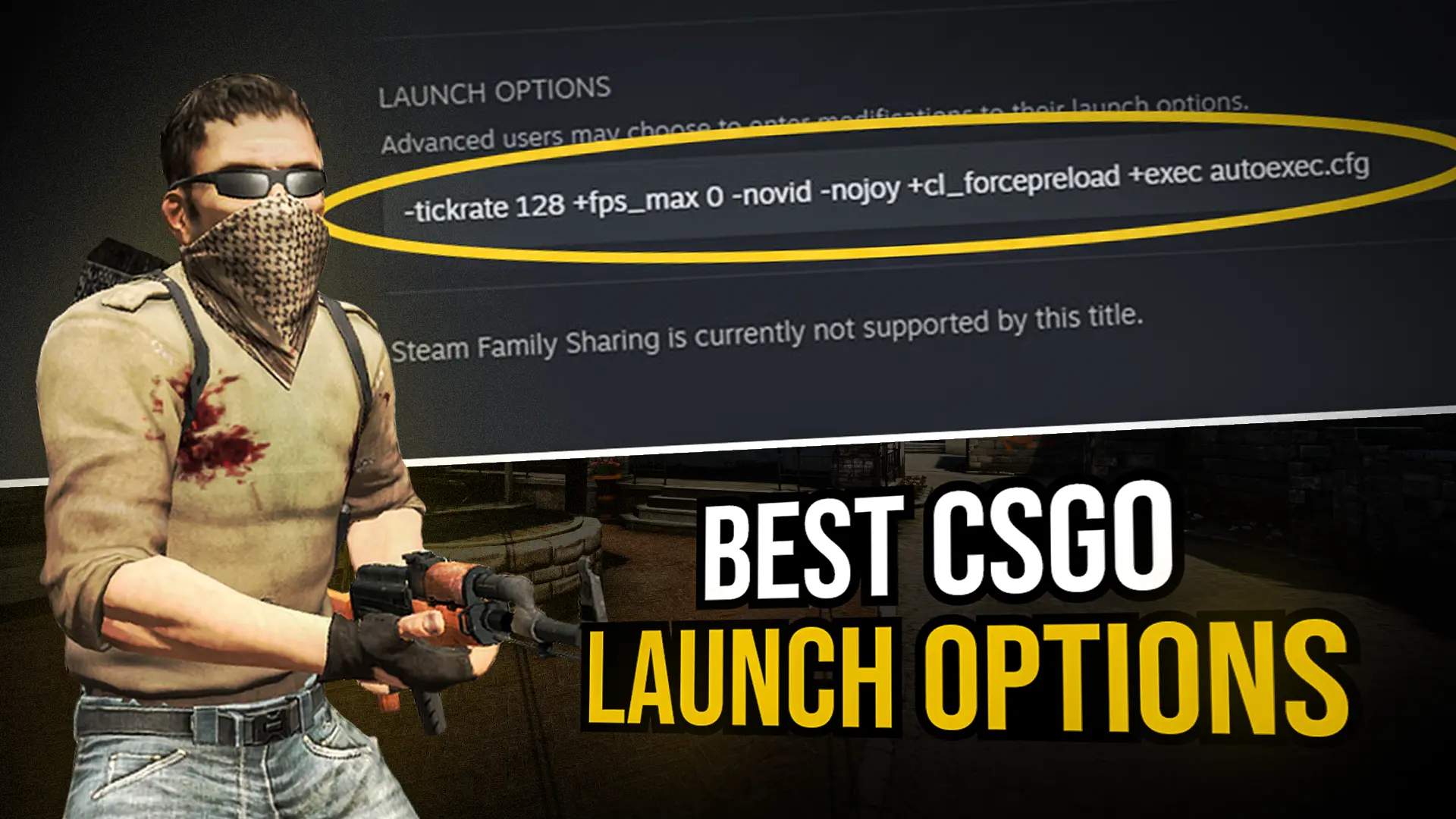
CSGO launch options are powerful console commands that can be executed right after starting the game. These launch options allow users to personalize various system-oriented actions such as tickrate, monitor frequency, CPU management, and more.
The primary objective of these settings is to improve the overall gameplay experience, enabling players to utilize their systems more efficiently while enjoying a smoother CS:GO performance. Since these commands take precedence over other settings, gamers are eager to discover and employ the most optimal combination of launch options.
Why Use CSGO Launch Options?
By default, Valve’s game settings for CS:GO are not ideal for most players, considering the unique configuration of each gaming setup. Given the multitude of factors influencing system performance, here are some of the best CS:GO launch options to try out in 2023.
How To Set CSGO Launch Options
Before delving into the best launch options, it’s important to know where and how to input them. Here’s a step-by-step guide to help you set your preferred console commands:
Open ‘Steam’ and navigate to the ‘Library’ section.
Right-click on the ‘CS:GO’ game title and select ‘Properties’.
In the ‘Properties’ window that appears, click on the ‘General’ tab.
Under the ‘General’ tab, click on ‘Set Launch Options’.
A new window titled ‘Set Launch Options’ will pop up, allowing you to input your desired CS:GO launch options. Ensure that each individual setting is separated by a space.
Once you have entered all the desired launch options, click ‘OK’.
Close the ‘Properties’ window, and now CS:GO will automatically implement the registered settings every time you launch the game.
Essential CSGO Launch Options
Here are some of the most effective CS:GO launch options that can significantly enhance your gaming experience:
-console: This launch option opens the console in CS:GO upon startup.
-novid: Skip the Valve intro video and launch CS:GO directly.
-tickrate: Set the tickrate of any offline server you run to 128. For instance, if you create an offline game with bots along with this launch option, the server will run at tickrate 128.
-refresh: Force your monitor to run at a specific refresh rate. If you have a 144Hz or 240Hz monitor, place the respective refresh rate within brackets [] after the command.
-high: Run CS:GO with high priority, prioritizing it over other system processes. Exercise caution while using this option and remove it if it doesn’t result in performance improvements.
-threads: Determine the number of processor threads CS:GO utilizes during gameplay. Not recommended unless you have a solid understanding of how it works and the ability to troubleshoot any potential issues.
+fps_max: Set the maximum FPS limit for CS:GO. Specify the desired limit within brackets [] after the command. It’s recommended to set this value to [0] to remove all limits and allow CS:GO to run at its highest FPS potential.
+exec: Execute a personal config file. Place your config file in the “Steam\SteamApps\common\Counter-Strike Global Offensive\csgo\cfg” folder, and enclose the file name within brackets [] in front of the command (e.g., autoexec.cfg).
+violence_hblood 0: This launch option, which also functions as a console command, removes the blood effect from CS:GO. It serves as an alternative to the ‘low violence’ launch option (-lv) that has been removed by Valve.
The Optimal CSGO Launch Option for 2023
The following launch option combination, which might seem too good to be true, has been thoroughly tested and proven effective for the majority of systems:
-novid -tickrate 128 +fps_max 0 -nojoy
Contrary to the belief that more launch options result in a better user experience, this combination provides optimal settings without the risk of encountering problems. Adding additional launch options may introduce complications and further issues rather than improve performance.
Additional CSGO Launch Options to Boost FPS
If you experience FPS below 120 and desire a noticeable difference, these launch options can enhance your FPS:
Remember, players already achieving high FPS may not experience a significant or any noticeable difference.
CS:GO Launch Options to Improve Performance & FPS
For users seeking performance improvements even after boosting FPS, the following launch options can be implemented. Note that some of these settings are highly unstable, so proceed with caution and test each option individually:
Here’s a brief description of these launch options:
mat_disable_fancy_blending: Disable fancy blending in CS:GO. Specify a value within brackets [] after the command, with [1] significantly improving performance but potentially making textures appear less detailed.
+cl_forcepreload: Force CS:GO to load all textures, graphics, and sound effects before joining a server. Specify a value within brackets [] after the command, with [1] providing a performance boost during gameplay but extending the connection time and occasionally leading to game crashes.
-disable_d3d9ex: Disable the d3d9ex mode for CS:GO, which is enabled by default. This option helps resolve certain graphic errors but increases the time taken to minimize and reopen the game, consequently increasing CPU consumption.
CS:GO Launch Options Used by Pro Players
Professional players typically utilize a few basic launch options, as they often play on high-end systems. Here are some of the most common launch options used by pros:
These launch options enable quick game startup, force the game to run at a 240Hz monitor refresh rate, and automatically apply their preferred config settings.
Utilizing CS:GO launch options effectively can greatly enhance your gaming experience. Experiment with different options to find the settings that work best for your system, keeping in mind the potential risks associated with certain commands. Enjoy improved performance and maximize your CS:GO gameplay!
CSGO Launch Options Related FAQ
Can I use multiple csgo launch options simultaneously?
Yes, you can use multiple launch options simultaneously by separating each command with a space. However, it’s important to note that adding too many launch options may introduce complications and potential issues.
How can I reset my CS:GO launch options to default?
To reset your CS:GO launch options to default, follow these steps: Open ‘Steam’ and navigate to the ‘Library’ section. Right-click on the ‘CS:GO’ game title and select ‘Properties’. In the ‘Properties’ window, click on the ‘Set Launch Options’ button. Delete all existing launch options and click ‘OK’. Close the ‘Properties’ window.
Do CS:GO launch options affect network latency?
CS:GO launch options primarily focus on system-oriented actions and performance optimizations. They do not directly affect network latency. However, certain launch options, such as adjusting tickrate, can impact server performance, indirectly affecting network latency.
Are CS:GO launch options the only way to improve performance?
No, CS:GO launch options are just one aspect of optimizing performance. Other factors, such as hardware upgrades, driver updates, and in-game graphics settings, can also contribute to improved performance. It’s recommended to consider a holistic approach to maximize your gaming experience.
Can I use launch options on any CS:GO server?
Most launch options can be used on any CS:GO server, whether it’s an official matchmaking server or a community server. However, certain launch options related to server settings may only have an impact on local offline servers or community servers where you have administrative privileges. Remember to use launch options responsibly, and always monitor the impact on your system and gameplay performance.



![Restaurant Tycoon 2 codes [June 2023]](https://www.talkesport.com/wp-content/uploads/Restaurant-Tycoon-2.webp "Restaurant Tycoon 2 codes [June 2023]")