Home Blog Page 628

What Is FC IQ in EA FC 25?

0

Although AI has been the latest marketing buzzword only a few games do justice to that tag. Gameplaying AI has always been one of the most interesting applications of said technology and EA has always done their best to implement it with their football simulation titles and now with EA FC, they are back with something called FC IQ.

Before we write off FC IQ as another marketing buzzword, let us take our time to understand how this works and how its implementation affects the player AIs in the game. This article will discuss everything that FC IQ brings to the game.

In modern-day football, players do more than their position implies on paper. Evolving football tactics have become very demanding, especially for the players. Each position comes with a set of responsibilities and with the help of FC IQ, you can fine-tune what each position does for each player. For example, the position that offers the most versatility is that of a midfielder. For a proper center-mid, you can have the player drop back and help with the defense or go forward and join the attack. You can set the player to take a free role or play as a wide player.

All FC IQ player roles and focuses in EA FC 25

Goalkeeper (GK)

  • Goalkeeper — Defend and Balanced
  • Sweeper Keeper — Balanced

Full-Back (RB/LB)

  • Fullback — Defend and Balanced
  • Wingback — Balanced
  • Falseback — Defend and Balanced
  • Attacking Wingback — Balanced and Attack

Centre-Back (CB)

  • Defender — Defend and Balanced
  • Stopper — Balanced
  • Ball-Playing Defender — Defend and Build-Up

Defensive Midfielder (CDM)

  • Holding — Defend and Roaming
  • Centre-Half — Defend
  • Deep-Lying Playmaker — Defend and Roaming

Centre Midfielder (CM)

  • Box-to-Box — Balanced
  • Holding — Defend
  • Deep-Lying Playmaker — Defend
  • Playmaker — Attack and Roaming
  • Half-Winger — Balanced and Attack
  • Wide Midfielder — Defend and Balanced
  • Wide Playmaker — Attack
  • Inside Forward — Balanced and Attack

Attacking Midfielder (CAM)

  • Playmaker — Balanced and Roaming
  • Shadow Striker — Attack
  • Half-Winger — Balanced and Attack

Winger (RW/LW)

  • Winger — Balanced and Attack
  • Inside Forward — Balanced, Attack, Roaming
  • Wide Playmaker — Attack

Striker (ST)

  • Advance Forward — Attack and Complete
  • Poacher — Attack
  • False 9 — Build-Up
  • Target Forward — Balanced, Attack, and Wide

Stay updated with the latest news in gaming and esports by signing up for early access to TalkEsport’s Mobile App. Follow us on Twitter and Google News to ensure you never miss the exciting updates.

Valorant Champions 2024 Skin Bundle: Release Date, Price, Contents & More

0

With Valorant Champions 2024 being just around the corner, Riot Games has finally unveiled the contents of the official skin bundle for the event. 

The Valorant Champions 2024 bundle features exclusive skins for the Phantom and Melee weapons. Notably, 50% of the proceeds from the bundle will be directly allocated to the participating teams.

In this article, we take a look at everything you need to know about the Valorant Champions 2024 skin bundle, including its contents, price, release date, and more.

Valorant Champions 2024 Skin Bundle: All Skins

As mentioned earlier, the Valorant Champions 2024 bundle includes cosmetic finishes for the Phantom and the Melee.

Alongside the skins, the Champions 2024 bundle is also expected to include a Player Card, Spray, and a Gun Buddy.

Valorant Champions 2024 Skin Bundle katana

Valorant Champions 2024 Bundle Price

Below, we have included the expected price of the Champions 2024 skins:

  • Champions 2024 Phantom: 2,675 VP
  • Champions 2024 Knife: 5,350 VP
  • Champions 2024 Spray: 325 VP
  • Champions 2024 Player Card: 375 VP
  • Champions 2024 Gun Buddy: 475 VP

If you’re looking to grab the entire bundle, you’ll have to spend around 6167 VP, which roughly equates to $60 USD.

Valorant Champions 2024 Bundle Release Date

The Valorant Champions 2024 bundle is anticipated to hit the in-game store on August 1, 2024, coinciding with the start of Valorant Champions 2024.

Valorant Champions 2024 Rewards: Twitch Drops, Pick’Ems, & How to Get Them

0

The highly anticipated Valorant Champions 2024 is just around the corner, and fans of the shooter from throughout the world are eagerly looking forward to seeing their favorite teams fight it out in front of a live audience for a shot at the championship trophy alongside a gigantic prize pool.

With just a few days left until the biggest annual Valorant tournament begins, Riot Games has announced a variety of in-game rewards available for fans through Twitch Drops and Valorant Champions 2024 Pick’Ems.

These rewards include Sprays, Gun Buddies, Player Cards, and Titles, all of which can be obtained for free by simply participating in the upcoming events.

Valorant Champions 2024 Twitch Drops

As with previous years, this year’s Champions event will feature Twitch Drops. To obtain these drops, you have to ensure that your Twitch and Valorant accounts are linked. Once you have linked your accounts, simply head over to the official Twitch or YouTube handle of Valorant esports and tune into the Champions 2024 streams.

Here are the rewards you can obtain for watching Valorant Champions 2024 streams:

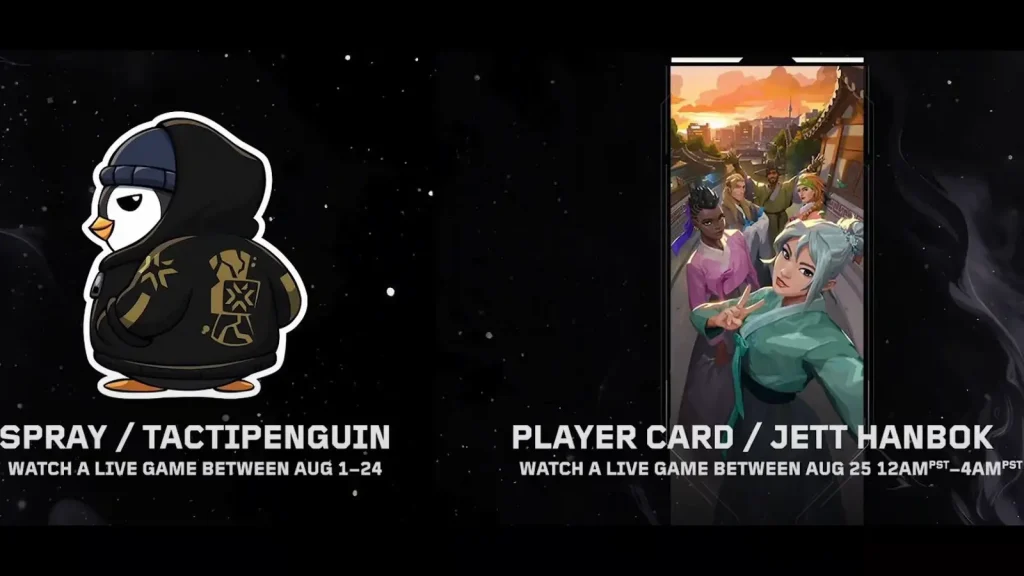
  • Spray / Tacticpenguin: Watch a game between August 1 – August 24
  • Player Card / Jett Hanbok: Watch a game on August 25
Valorant Champions 2024 Rewards

Valorant Champions 2024 Pick’Ems

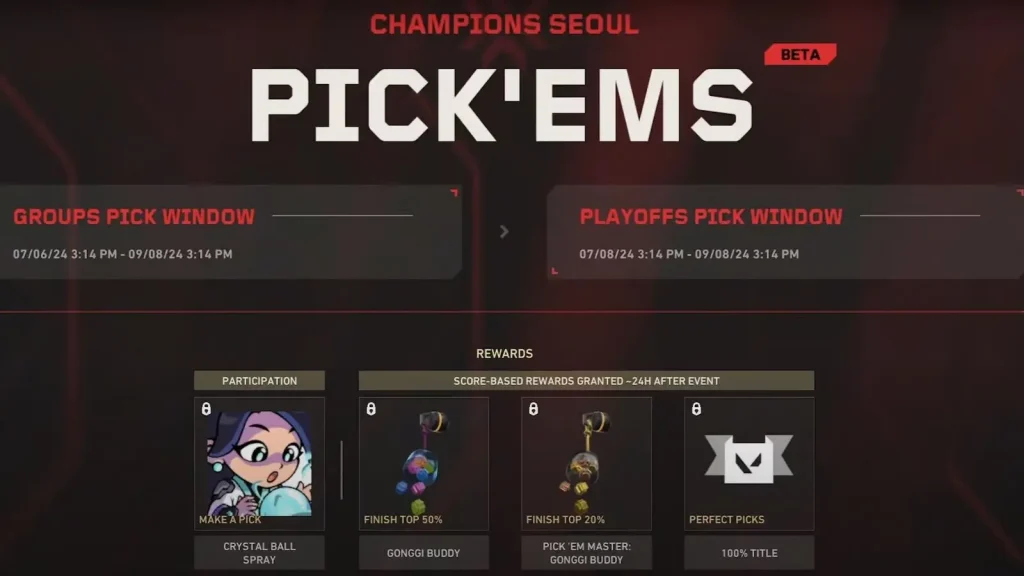
Valorant Champions 2024 marks the official introduction of Pick’Ems in Valorant. These Pick’Ems can be accessed via the game client and the official Valorant esports website, and players can earn various rewards based on how many correct predictions they make.

Below, we have listed the rewards that players can get by participating in the Valorant Champions 2024 Pick’Ems:

  • Crystal Ball Spray: Participating in Pick’Ems
  • Gonggi Buddy: Finish Top 50% in Pick’Ems
  • Pick’Em Master Gonggi Buddy: Finish Top 20% in Pick’Ems
  • 100% Title: Perfect Pick’Em Picks
Valorant Champions 2024 Rewards

How to BHOP in CS2?

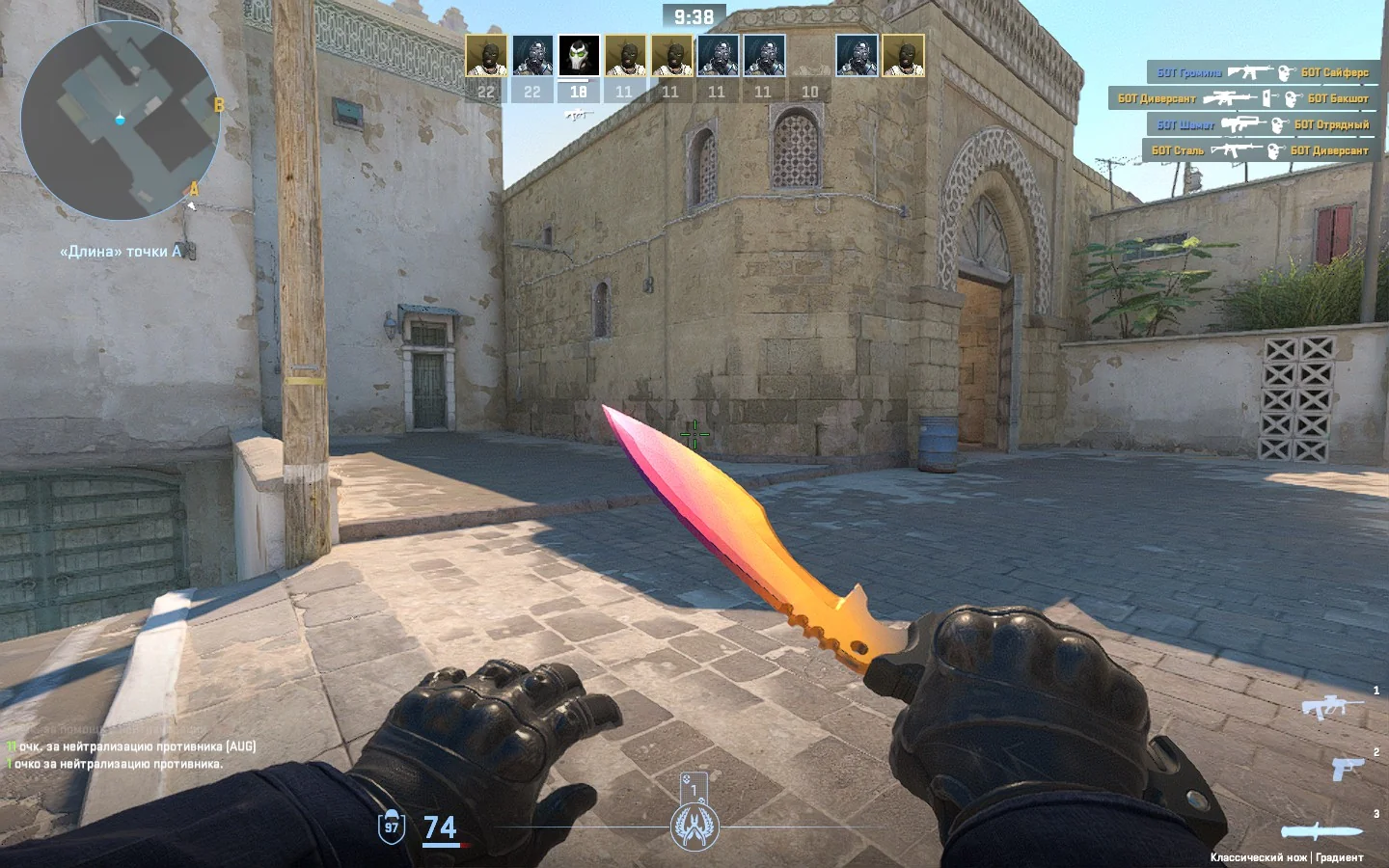
Bunnyhopping refers to the skill of continuously jumping in a criss-cross pattern which increases your speed with each hop because of the game mechanics.

CS2’s release introduced a plethora of changes within the game mechanics and the new “sub-tick” system implemented to get a smooth gameplay has made it next to impossible for players to Bhop. While you can still put together a few steps of Bhop it is too unreliable to use in a competitive match and you might get yourself killed before you can do anything productive with it.

Professional CS2 players using Bhop in professional matches are hard to find given the aforementioned problem but that doesn’t mean that Bhop has completely left the game. Yes, you cannot Bhop on official servers but you are a few commands away from Bhopping on offline or custom servers.

Fire up an offline game mode or a custom server and punch in the following commands.

  • sv_autobunnyhopping true
  • sv_enablebunnyhopping true
  • sv_staminamax 0
  • sv_staminajumpcost 0
  • sv_staminalandcost 0

Using these commands will grant you the ability to Bhop in your own private servers or in offline game modes. Unfortunately, Bhopping takes a lot of practice and patience to learn, and for players who have put in the effort to master it, Valve leveling the playing field by removing it from the competitive matches might not have been in everyone’s best interest.

Stay updated with the latest news in gaming and esports by signing up for early access to TalkEsport’s Mobile App. Follow us on Twitter and Google News to ensure you never miss the exciting updates.

How to Get the 2024 Pokémon World Championship Pikachu TCG Card

0

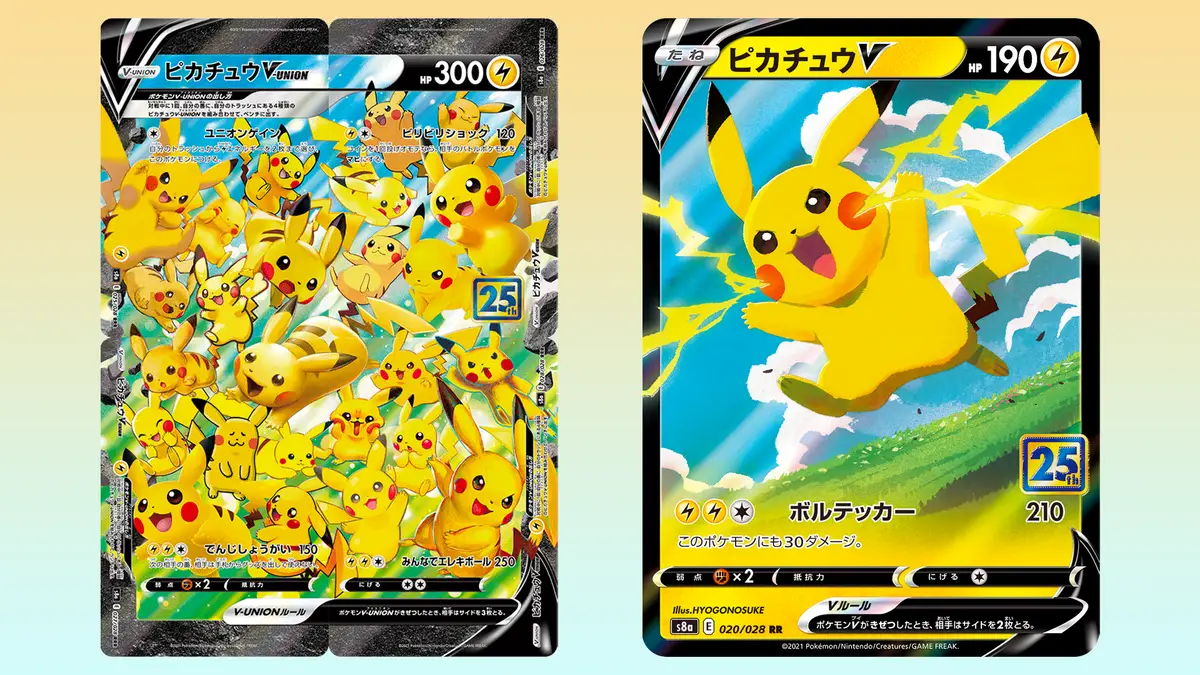
To commemorate the 2024 World Championships, The Pokémon Company is releasing a special Pikachu card that is available to everyone but in limited regions only.

Given the card will be released in limited quantity, time is of the essence and during the Pokémon World Championships between August 2 to August 18, players can purchase the Pikachu card. The cards are limited in quantity, so once they’re gone, they’re gone forever.

Unless you are looking to purchase it, the card can be obtained by attending the aforementioned event in person where a competition will be hosted and the top 100 players in the leaderboards will get the rare card.

For those who are looking to buy it purchasing it from the Pokémon Center Online, which is presently only accessible in a few countries, including the US, Canada, and the UK sounds like the best option.

Stay updated with the latest news in gaming and esports by signing up for early access to TalkEsport’s Mobile App. Follow us on Twitter and Google News to ensure you never miss the exciting updates.

How to Enable Cross-Progression in Dead by Daylight?

0

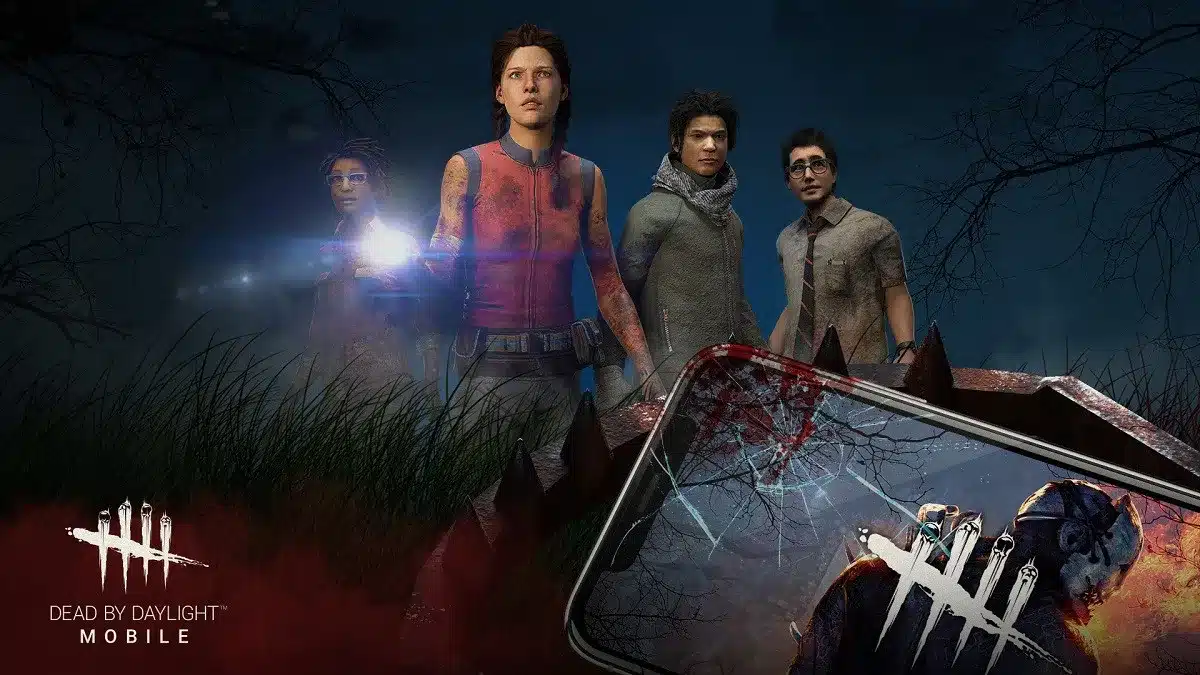
Cross-progression is finally available in Dead by Daylight, enabling you to transfer your in-game progress between various platforms. The process may not be as simple as one would like so we will guide you through the process in this article.

How to enable cross-progression?

  • Visit the Behaviour Interactive website and log in.
  • There’s a Link Gaming Accounts button under Your Games. Choose this.
  • You are redirected to the Connections page where you can find an Available Platforms section below.
  • To enable cross-progression for a platform, select the Link button under that platform.
  • After that, you must log into each platform’s account that you wish to link to.
  • All the platforms will show up in the Linked Accounts area.
  • To make sure the game data is connected to your Behaviour account, click the Sync button on each of the platforms listed below in this section.
  • Return to the Game Library by selecting it from the sidebar on the left.
  • You should see a DBD listing under Your Games. On it, click the “Discover More” button.
  • Choose Enable Cross-Progression after swiping down to the Cross-Progression area. Choose the platform for which cross-progression is to be permitted.
  • The three steps in this section are to link your game account confirm your game status on the platform, and then enable cross-progression.
  • Simply click “continue” on the link screen since we have already linked the accounts you require.
  • Launch DBD on the device you’re syncing with, go to the main campfire screen, close the game, and choose Check Status to confirm the current state of the game.
  • Select Sync Your Progress.
  • Your sync is now in progress. When you get an email saying it’s finished log into the platforms’ accounts that you wish to use.
  • After that, the platform ought to show up in the Linked Accounts area.
  • To make sure the game data is connected to your Behaviour account, click the Sync button on each of the platforms listed below in this section.
  • Return to the Game Library by selecting it from the sidebar on the left.
  • You should see a DBD listing under Your Games. On it, click the “Discover More” button.
  • Choose Enable Cross-Progression after swiping down to the Cross-Progression area. Choose the platform for which cross-progression is to be permitted.
  • The three steps in this section are to link your game account (which you have already done), confirm your game status on the platform, and then enable cross-progression.
  • Simply click “continue” on the link screen since we have already linked the accounts you require.
  • Launch DBD on the device you’re syncing with, navigate to the main campfire screen, end the game, and choose Check Status to confirm the current state of the game.
  • In the last section, select Sync Your Progress.
  • You get an email saying it’s finished and then you can continue enjoying the game.

This long and tiring process can be a bit of a drag but if you have that level of commitment towards the game and seek to play it on more than one platform then this is what you have to go through.

Stay updated with the latest news in gaming and esports by signing up for early access to TalkEsport’s Mobile App. Follow us on Twitter and Google News to ensure you never miss the exciting updates.
How To Fix VAN 79 Error Code in Valorant

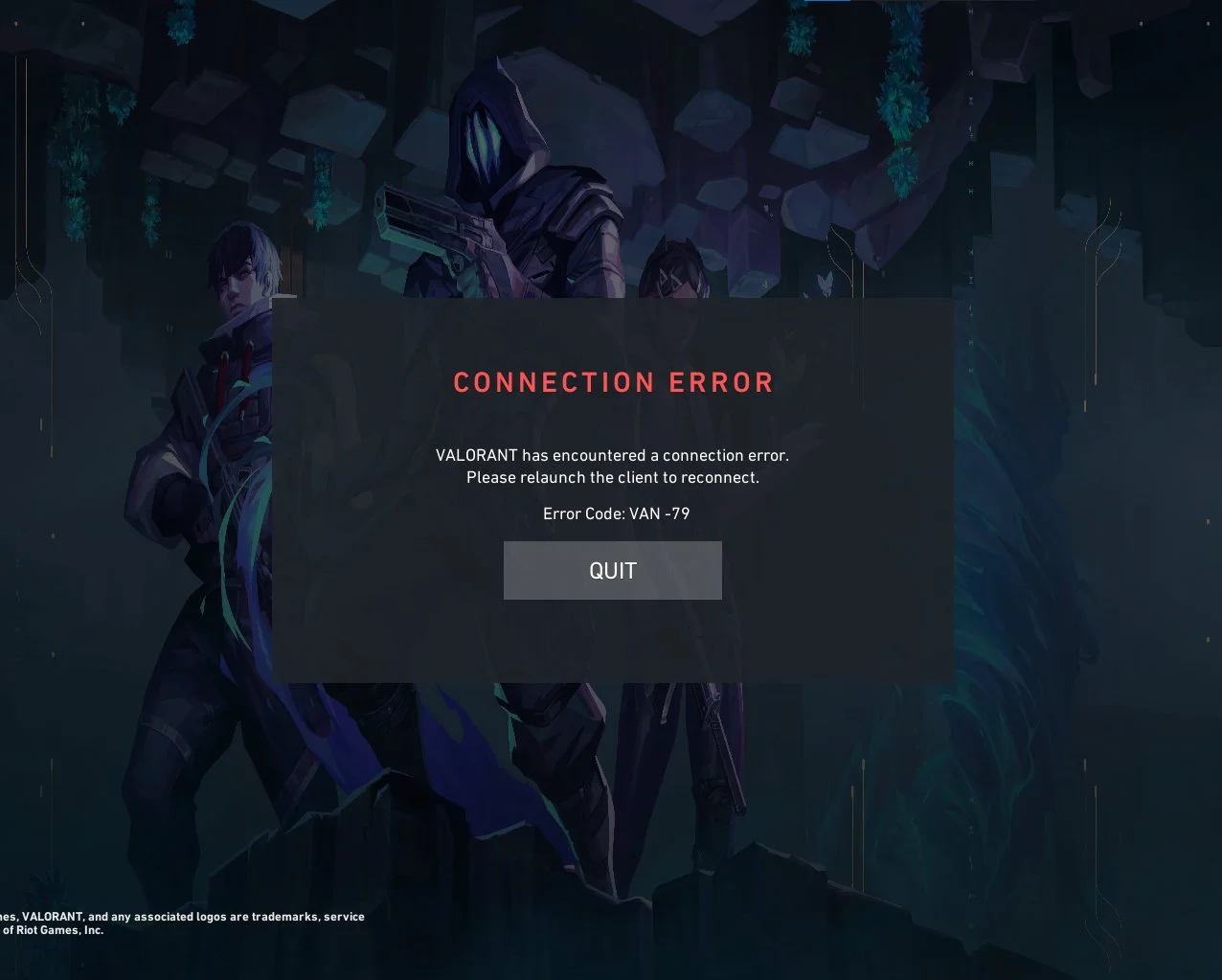
The VAN 79 error code in Valorant is one of the rarer, yet extremely frustrating problems that you can encounter when trying to play the shooter.

When you face the VAN 79 error code in Valorant, you’ll be greeted with the message “Connection error. Please relaunch the client to reconnect” when trying to play the shooter.

The VAN 79 error in Valorant can stem from various sources, making it challenging to identify the exact cause. Luckily, this issue can often be resolved by following a few straightforward steps.

Valorant VAN 79 Error Code Fix

The Valorant VAN 79 error code can be caused by your PC having an outdated version of Windows, problems with your network connection, or an issue with the ‘VGC’ service.

Below, we’ve included fixes to all of the aforementioned problems:

  • Update Windows: The first step you should take when trying to solve the VAN 79 error in Valorant is to make sure that you have an updated Windows version on your PC. You can verify if you have any pending updates by going to your system settings and clicking on the ‘Windows Updates’ tab.
  • VGC service: Hit ‘win + r’ on your keyboard, type in services.msc, and hit enter. From the list of services, scroll down till you find the service named ‘vgc’. Right-click on the service, go to ‘startup type’, and change it to ‘automatic’. Once done, hit ‘apply’ and ‘ok’ on the bottom of the window. If the service status says ‘stopped,’ be sure to click on the ‘start’ button.
  • Flush DNS: Go to your start menu, type in ‘CMD’. Right-click ‘Command Prompt’ and select ‘run as administrator’. Once done, type in the following lines to your command prompt:
    • netsh winsock reset
    • ipconfig /flushdns

After following these steps, you have to restart your PC before trying to launch Valorant. Now, you can tune into Valorant once again and your error code VAN 79 should likely have been fixed.

PUBG Dev Krafton Reportedly Working on New Gacha Game ‘Project C3’

Krafton, the developers behind the popular battle royale title PlayerUnknown’s Battlegrounds, are reportedly working on a new 2D Gacha game named ‘Project C3’.

The news was revealed through a job posting on their website, looking for candidates to work on a game named “Project C3,” suggesting that the company is working on a new title.

According to the job description, “Project C3” will introduce a distinctive strategic battle system and offer players the opportunity to collect a variety of characters.

A rough translation of the job posting reads, “Project C3 is a multi-platform 2D collectible RPG, a first for Krafton, designed with collaboration between Korea and Japan in mind. We are seeking team members to embark on this new challenge with Project C3, promising unprecedented fun through innovative gameplay and unique characters.”

These roles are located in Seoul and demand candidates with proficiency in Spine animation, along with a minimum of two years experience in 2D game animation.

The exact release date of Project C3 remains uncertain at the time of writing. However,  given that the project is still in its early stages, a release in the near future is unlikely.

PC Crashing on Exiting Valorant: How To Fix?

If you’ve been playing Valorant recently, then chances are you may have come across an extremely annoying error that crashes your PC when you exit the game.

The PC crashing on exiting Valorant error is rapidly becoming a cause of concern in the Valorant community as many players have reported facing this issue after the 9.01 patch dropped last week.

The error was first brought to light by Reddit user ‘trippingrainbow’ on the ’ValorantTechSupport’ subreddit. The user mentioned that their PC was crashing ‘75% of the time’ when they closed Valorant.

They further claimed that the issue persists even though they’ve reinstalled the game and Vanguard, Valorant’s official anti-cheat client.

Many other players echoed this sentiment in the comments section, with several reporting that they have encountered this issue repeatedly over the past week.

According to most users, the problem occurs regardless of whether you exit the game to the desktop directly or use Alt+F4 to exit.

How To Fix PC Crashing on Exiting Valorant Error

At the time of writing, there’s no known fix for the PC crashing on exiting Valorant error. For now, your only option is to restart your PC entirely if you encounter this problem.

Activision Sold AI-Generated Cosmetics for Modern Warfare 3

0

According to a freshly minted report, Activision has sold AI-generated cosmetics in one of their bundles in Modern Warfare 3.

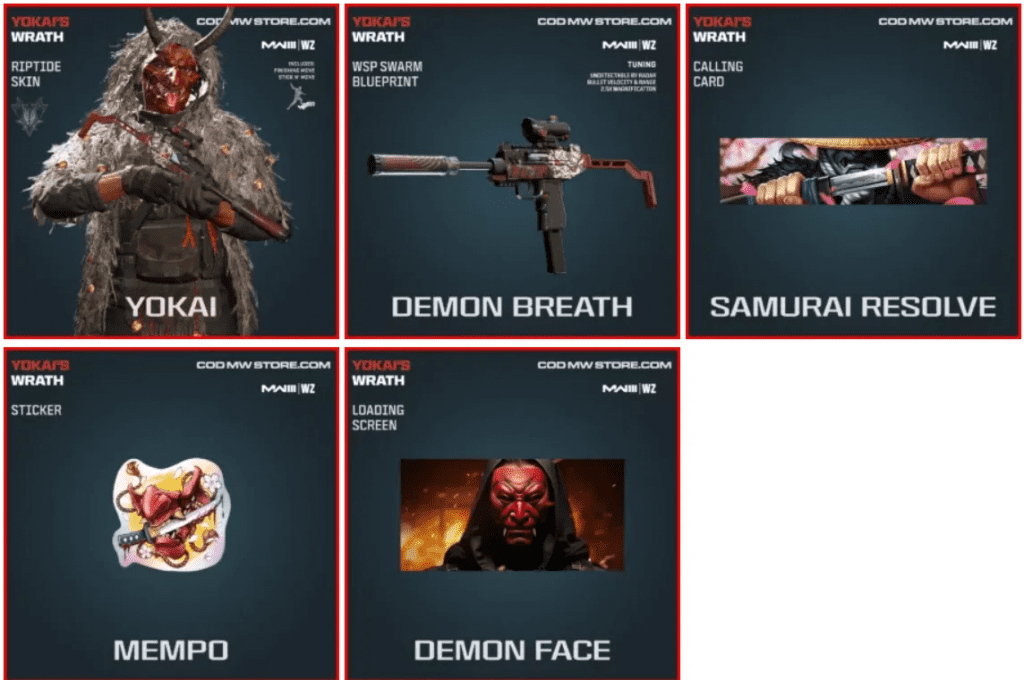
The article mentions the Yokai’s Wrath bundle that was released in December 2023 for Modern Warfare 3 which was released a month before the release of the bundle. Although we cannot point out which item in question is the work of a generative AI, sources indicate that they were used.

The use of generative AI has taken away tons of jobs from the gaming industry alone but using it for creating unique designs is something that can be debated over. However, one insider said the artists were forced to do this due to the lack of manpower.

Yokai’s Wrath bundle.

“A lot of 2D artists were laid off,” an anonymous Activision artist claimed. “Remaining concept artists were then forced to use AI to aid in their work.”

Said person further claims that Activison has promoted the use of AI throughout their business and has been cutting down manpower. Players and creators have criticized generative AI thus far for a variety of reasons, including legal concerns and Activision is yet to speak out on this.

Stay updated with the latest news in gaming and esports by signing up for early access to TalkEsport’s Mobile App. Follow us on Twitter and Google News to ensure you never miss the exciting updates.