Wednesday, May 13, 2026
Home Blog Page 580

Moonton and Riot Games End Years-Long Mobile Legends Copyright Dispute

0

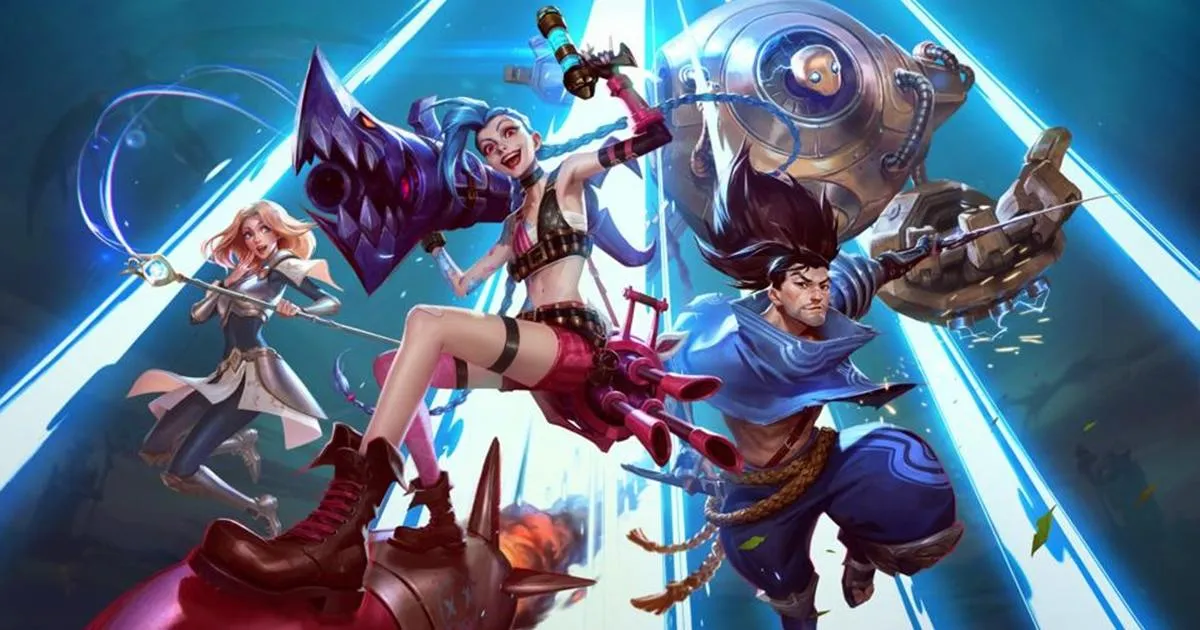
The years-long copyright battle between Moonton Games and Riot Games has reached a surprise conclusion. Both companies have settled their disputes, resulting in Riot dropping its lawsuits against Moonton. While the exact terms are hushed, this has major implications for the future of mobile gaming.

Mobile Legends copyright dispute

The Story So Far

Riot Games, creator of the PC phenomenon “League of Legends,” accused Moonton’s hit “Mobile Legends: Bang Bang” of copying key elements – from character designs to gameplay mechanics. The case bounced between US and Chinese courts, sparking heated debates among fans and industry watchers alike.

The Settlement’s Potential Impact

The Moonton-Riot settlement raises a number of questions about the future of mobile game development. One key question is how much inspiration mobile games can take from established titles without crossing a line into copyright infringement. This settlement, while lacking detailed rulings, suggests there may be limits, especially when it comes to directly copying core aspects of another game.

Another potential consequence is that the settlement could encourage mobile game developers to focus more on creating unique experiences. The mobile gaming market is fast-paced and highly competitive. This case may serve as an impetus for developers to prioritize innovative ideas rather than relying heavily on designs heavily inspired by successful titles.

Finally, with the legal battle over, both companies can now refocus their resources on what matters most: making great games. For Riot, this could mean a renewed push for “League of Legends: Wild Rift,” while Moonton may work to further differentiate its titles from competitors.
Fix Fallout 76 Account Linking Error: It’s Easier Than You Think!

0

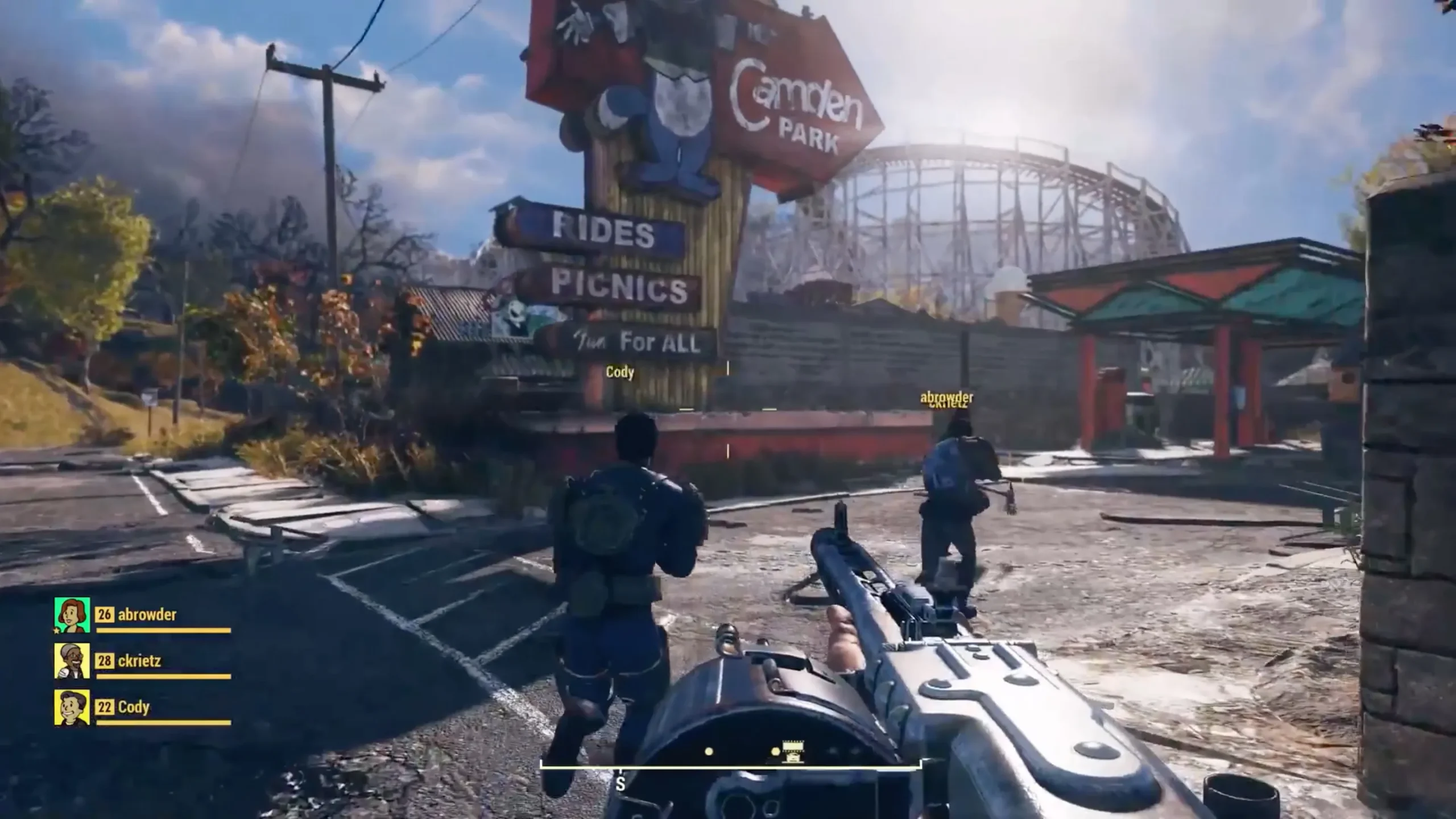
Getting that frustrating “Failed to Link Bethesda Account” error in Fallout 76? It can stop you from exploring the wasteland, so let’s get this sorted! This guide explains the common cause and walks you through the steps to get your account connected and get back into the game.

Fix Fallout 76 Account Linking Error

Why It Happens

Most of the time, this error pops up because you’ve already linked Fallout 76 to a different Bethesda account. Maybe you made a secondary account ages ago, or used a different email. The game can only be linked to one account at a time.

How to Fix Fallout 76 Failed to Link Bethesda Account Error

  1. Check Your Linked Accounts: Sign into your Bethesda account on their website. Go to your profile and click “Linked Accounts.” This shows you everything already connected.
  2. Spot the Old Fallout 76 Link: Look for Fallout 76 or Steam there (you often link through Steam). Found it on an old account? Click the trash icon to unlink.
  3. Retry on Your Main Account: Now, log into the Bethesda account you DO want to use. Try linking Fallout 76 again. It should work smoothly now!

Still No Luck? If you check ALL your Bethesda accounts and don’t see the game linked anywhere, it’s time to contact Bethesda Customer Support. Explain the situation, and they’ll get things sorted.

Can You Play Content Warning on Steam Deck? | Here’s the Answer

0

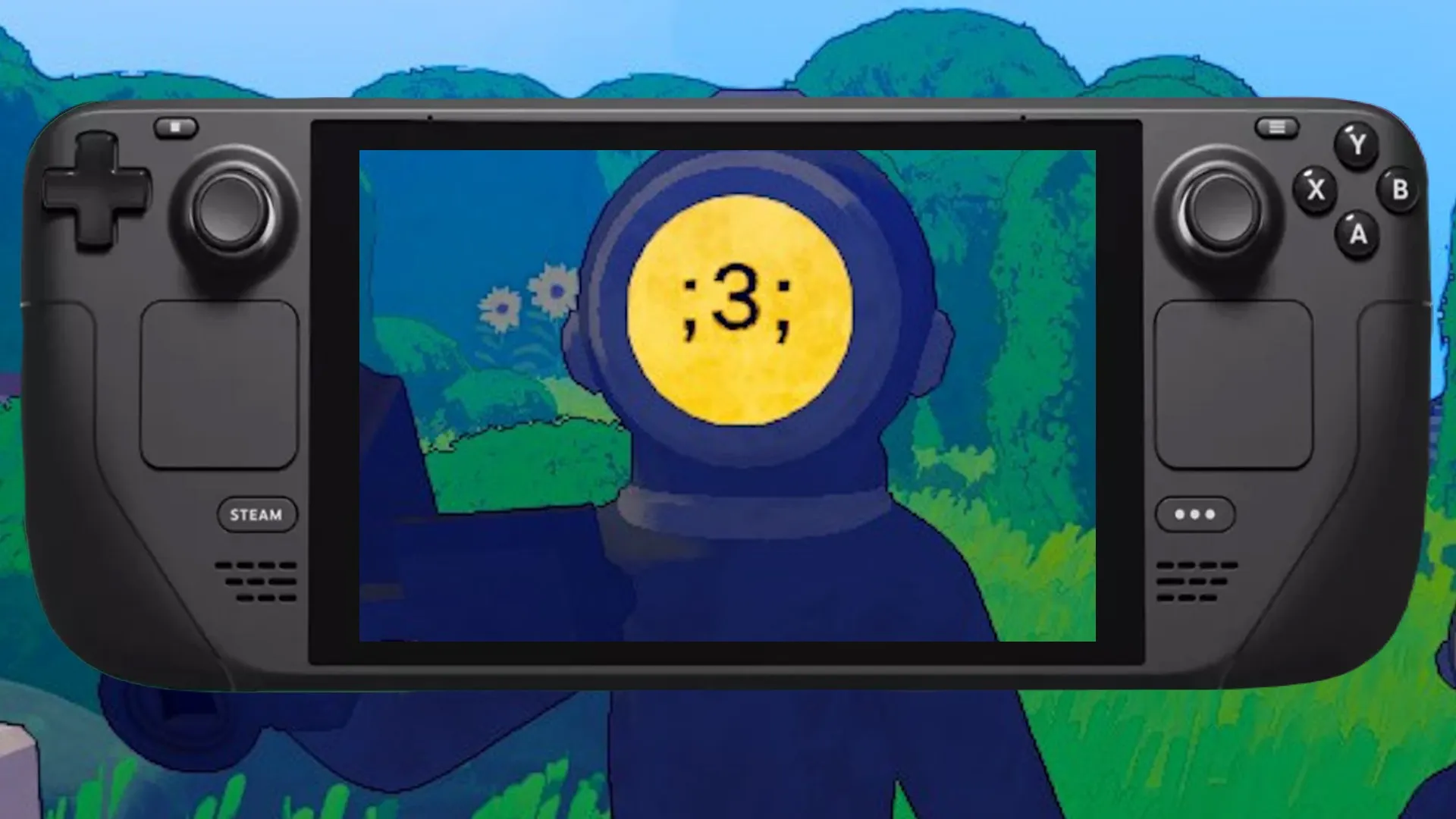
‘Content Warning’ seems like a natural fit for the Steam Deck with its fun co-op gameplay and modest specs. But is it a smooth match for Valve’s handheld? Let’s break down the good news, the challenges, and whether you should dive into those viral scares on the go.

Content Warning Steam Deck

The great news: ‘Content Warning’ currently runs well on the Steam Deck. Players report a smooth 60 FPS experience, vital for a game where reaction time is key. Its small file size is another plus, taking up minimal storage space on your Deck.

The Caveats (and How to Work Around Them)

  • Unverified = Controls Quirks: While functional, ‘Content Warning’ hasn’t gone through Valve’s official Steam Deck verification. Some menu navigation currently relies on the trackpad, which can be a little awkward. Hopefully, the devs will update for better Deck compatibility, but for now, be prepared for some control oddities.
  • Online Only = WiFi Woes: ‘Content Warning’ needs a constant internet connection. This limits where and when you can play effectively. If you primarily use your Deck for offline gaming or on-the-go adventures, this might be a dealbreaker.

Can You Play Content Warning on Steam Deck?

Can you play it? Absolutely! Is it the ideal Steam Deck experience? Not yet. Here’s the bottom line:

  • At home with good WiFi: If you’re chilling with a strong connection, those control quirks will be minor. Enjoy co-op chaos on the couch!
  • On the road or spotty WiFi: You might want to save ‘Content Warning’ for when you have a more stable connection.

Bonus Tip: Even with official Steam Deck support, online-only games will always be less convenient on the handheld.

How to Get More SpookTube Views in Content Warning: Pro Tips

0

Getting those “SpookTube” views rolling in “Content Warning” takes more than just pointing the camera at creepy stuff. To become a horror sensation, you need strategy! This guide offers tips to level up your content, rack up those views, and leave your friends screaming (with laughter and envy).

Get More SpookTube Views: Level Up Your Content

Upgrade Your Game (And Your Videos)

Your basic camera is just the start. “Content Warning” lets you invest in upgrades that seriously boost video quality. Remember, better production value = more eyeballs glued to your footage. Think spooky lighting, fancy lenses, and maybe even a drone for epic shots! That extra investment pays off in those sweet, sweet “SpookTube” views.

Squad Up for Maximum Mayhem

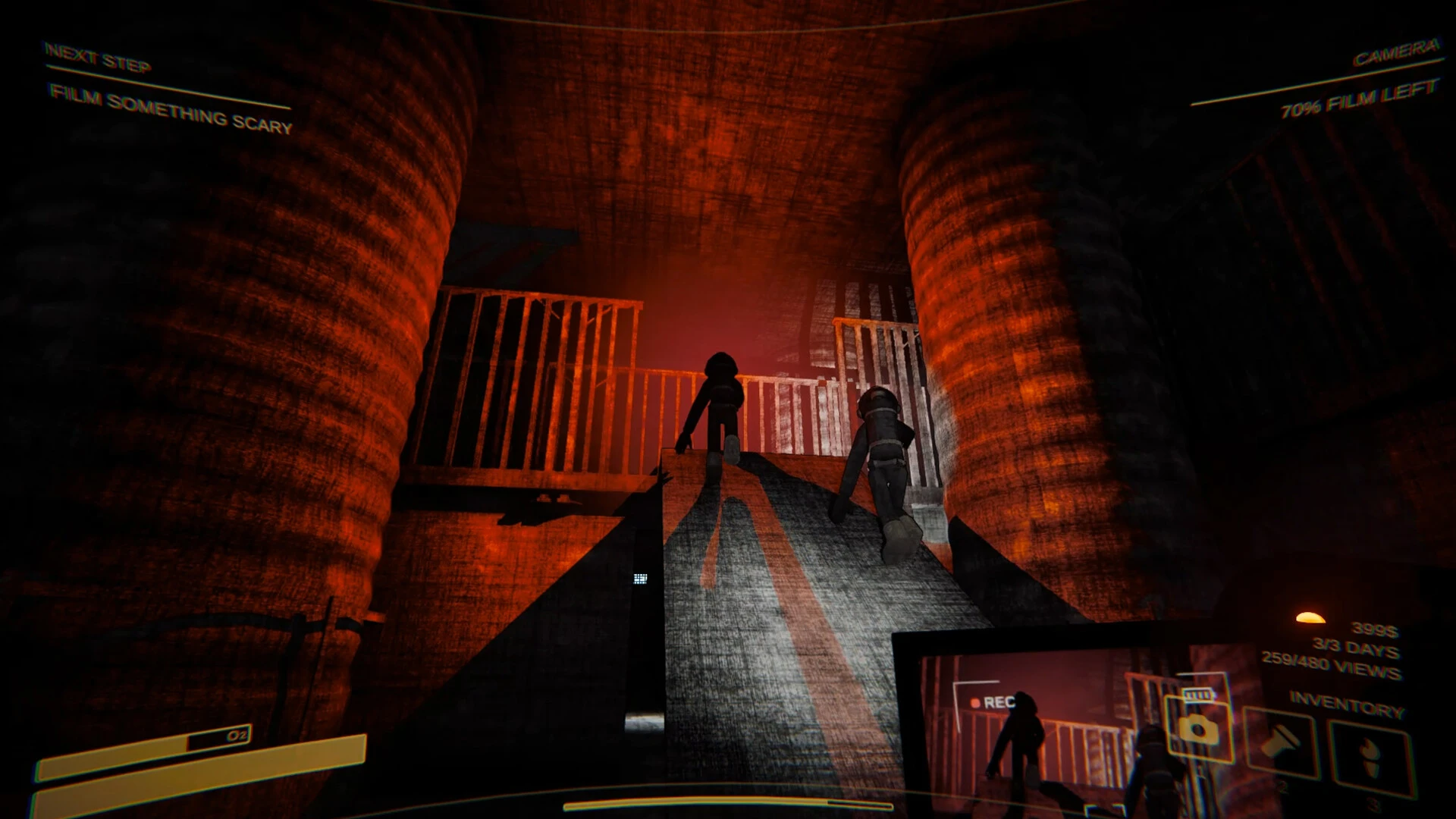
Sure, solo scares work, but “SpookTube” loves chaotic energy! Grab your friends and turn your explorations into hilarious horror films. Plan coordinated reactions, set up pranks on each other, and capture those genuine jumps and giggles. That kind of organic energy is way more engaging than another solo flashlight tour.

Go Beyond the Jumpscares

Think like a horror filmmaker! Build suspense with slow pans, eerie silence, and glimpses of lurking monsters. Get creative with emotes; a well-timed facepalm or dance move can make a scary moment oddly hilarious, doubling your potential audience. The more entertaining and unique your “SpookTube” videos, the faster those views will skyrocket.

Monster Mash-Up

Multiple creatures in one video? Heck yes! But variety is key. Don’t just film the same spider six times. Seek out the full range of “Content Warning” horrors, from creepy crawlies to hulking brutes. A well-edited compilation of your scariest encounters is “SpookTube” gold!

“Content Warning” is more than just scares. Horror and humor can be best friends! A well-placed joke or goofy reaction can break the tension and make your video even more memorable. Just remember, timing is key. Don’t crack a joke when your friend is about to get mauled by a giant centipede (unless, of course, that’s your thing).

Content Warning Monsters List | Tips to Survive

0

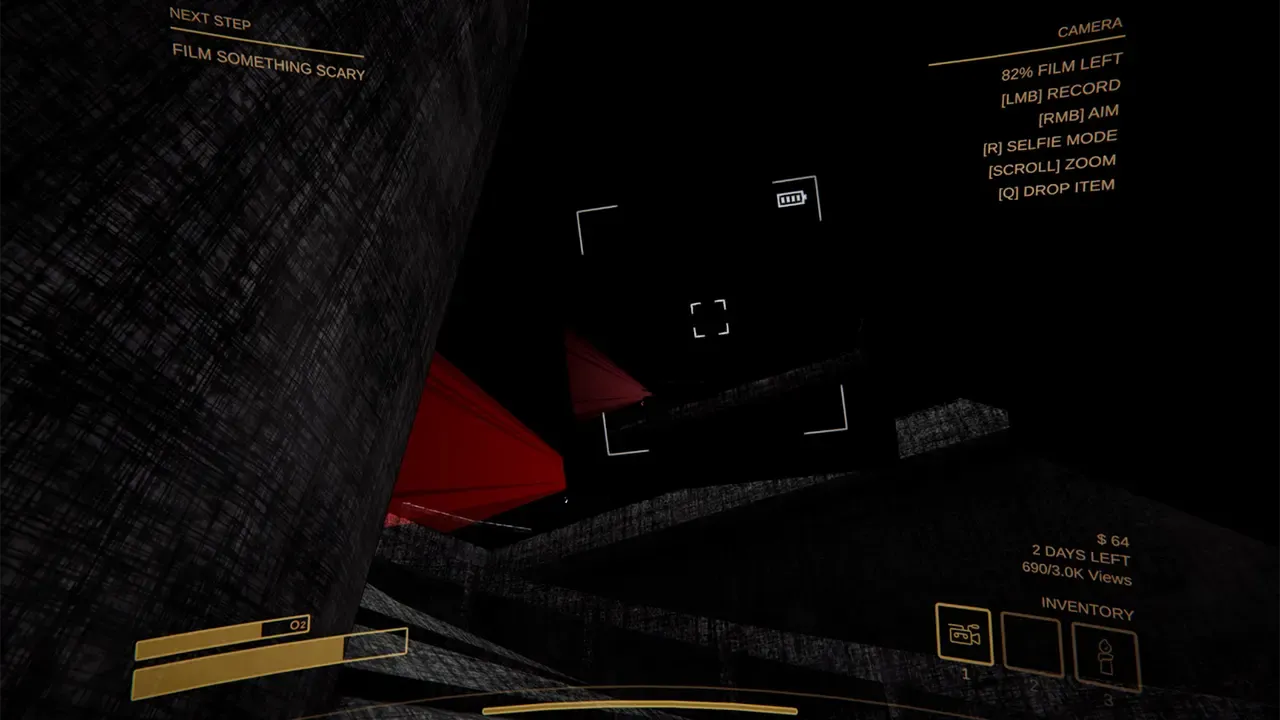
‘Content Warning’ throws you into a creepy world packed with creatures that want to ruin your shot – and your life. To become a ‘SpookTube’ sensation, you’ll need to survive those encounters and get the perfect footage. This guide breaks down the horrors you’ll face, with survival tips and strategies to help you outsmart the monsters and get those viral views.

Read Next | Content Warning: Failed to Extract Fix (Easy Workaround Inside)

All Monster Types in Content Warning Game

Remember, these aren’t official names, but ones we’ve coined to help you keep them straight!

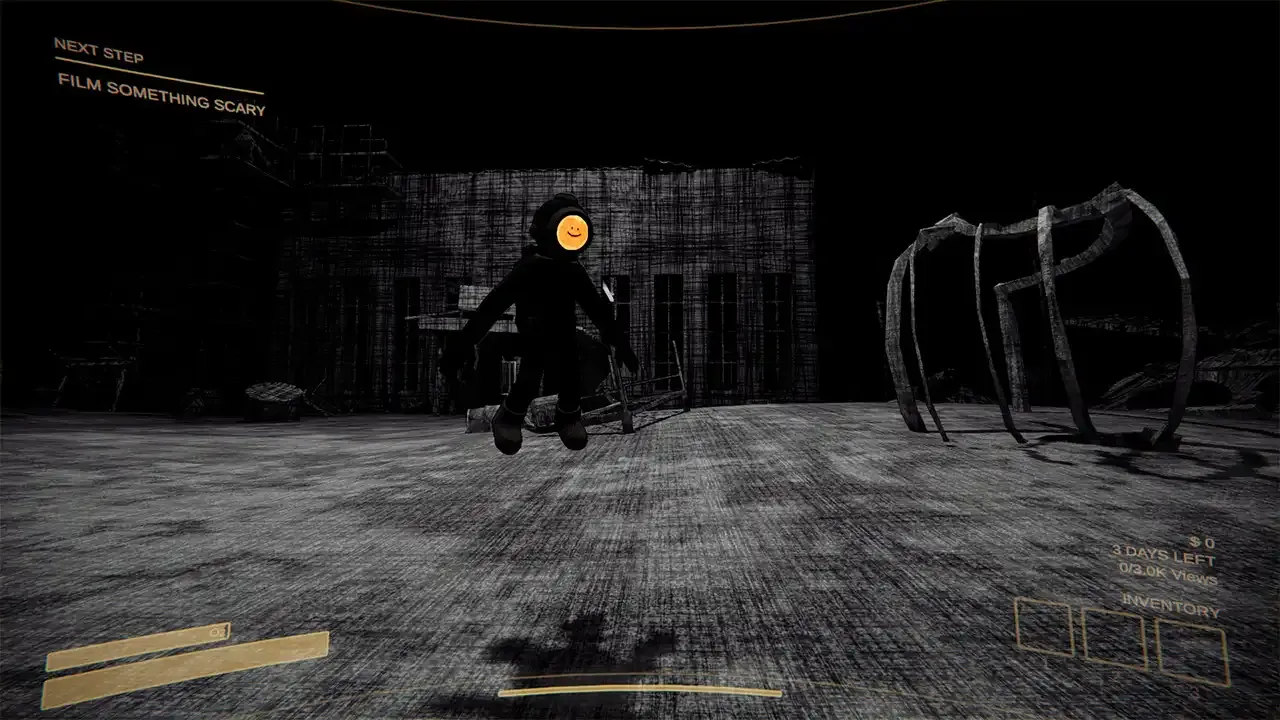
  • Spider: Web-slinging ambush predator. Watch for webs and clear areas before setting up shots.
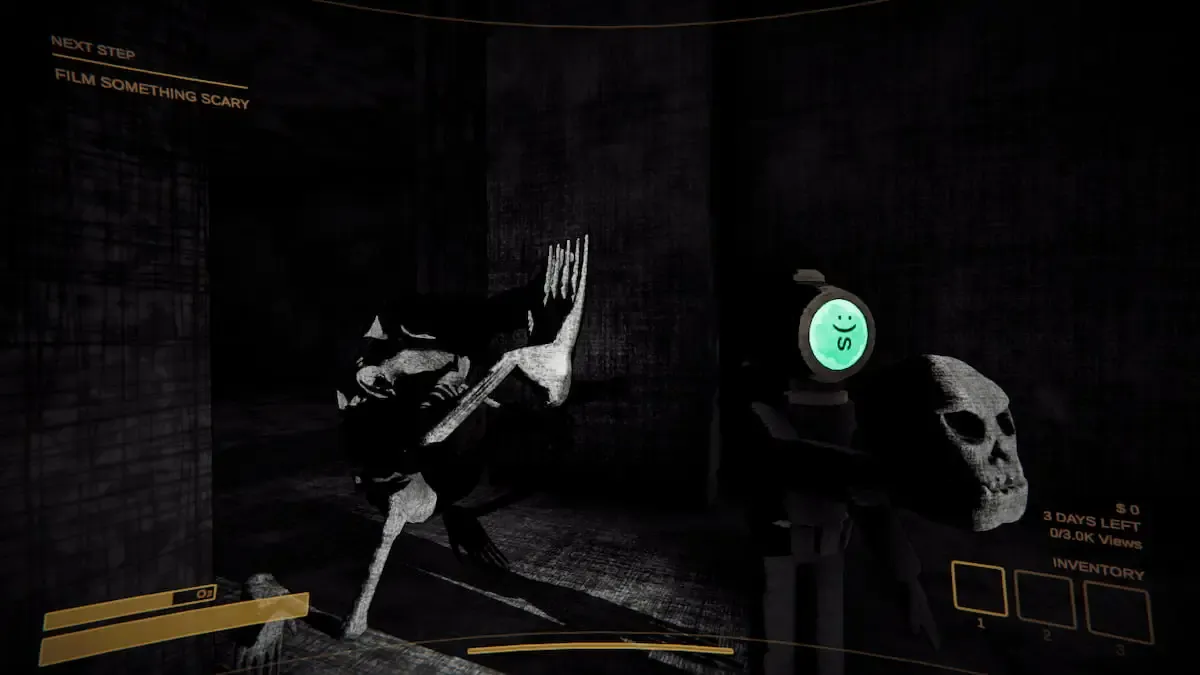
  • Ghost: Knife-wielding phantom, slow but persistent. Use speed and terrain to break line of sight.
  • Crawler: Hates light, weak but fast. Your flashlight is your best friend against this one.
  • Whisker: Odd mixer-headed menace. Be aware of your surroundings, as it only attacks in straight lines.
  • Slimes: Harmless but deceptive. Avoid getting dragged into danger zones!
  • War Robot: Deadly robotic foe with machine gun. Use cover and break its line of sight ASAP.
  • Bomber Frog: Explosive amphibian. Retreat is the best strategy until it’s out of ammo.
  • Iron Maiden: Painful environmental trap. Teamwork is key to free trapped players quickly.
  • Big Tooth: Hulking brute. Avoid confrontation at all costs, it’ll pursue relentlessly.
  • Centipede: Grabs and throws players. Don’t get cornered, maintain open space for dodging.

Don’t forget, your goal is viral footage. Sometimes, getting close (but not TOO close) and capturing the monster’s creepy behavior can be just as valuable as surviving!

Content Warning: Failed to Extract Fix (Easy Workaround Inside)

0

The release of Content Warning has been a thrilling experience for horror game enthusiasts. While the game delivers on its spooky promise, some pesky bugs can dampen the fun. One particularly frustrating issue is the ‘Failed to Extract’ error, which can pop up when you’re ready to reap the rewards of your terrifying footage.

Don’t despair! The developers at Landfall Games are on the case, and there are ways to sidestep this bug until a permanent fix rolls out. In this guide, we’ll dive into the world of the failed extraction error, provide handy troubleshooting tips, and offer insights the other article may have missed—all while keeping your gaming experience authentically eerie.

Content Warning Failed to Extract Error

The ‘Failed to Extract’ error can emerge for several reasons. Here’s a breakdown to help you pinpoint the trigger and take preventive action:

  • Rapid Camera Toggling: Switching your camera on and off like a flickering flashlight? That could be the culprit. Minimize unnecessary toggling. When you sense something truly view-worthy, then hit record.
  • Multiplayer Mayhem: Are multiple players juggling the camera? While collaboration is cool, pick one designated videographer per round. This minimizes the risk of the error occurring.
  • The F3 Key: Your Secret Weapon: The developers revealed a vital tip: when the error strikes, press F3 to access a debugging menu and potentially save your footage!
  • Proactive Prevention: Patience is a virtue in the horror genre. Limiting camera time and streamlining the recording process can reduce the chances of the error rearing its ugly head.

Going Beyond: Value-Added Insights

  • Save Your Spook-tacular Moments: Even if the error persists, there’s hope. Your recordings may still be stored locally (accessible via the F3 menu). Salvage those spine-chilling clips for sharing scares later!
  • The Power of Community: Landfall Games is incredibly responsive on social media. Reach out on their Twitter for direct support. A tailored solution might just be a tweet away.

Is Content Warning on PS5 & Xbox?

0

Content Warning is the talk of the town among fans of the horror genre on PC and everyone is looking to get a piece of it.

The game recently went live on Steam and will be free for some time now but what about consoles? In this article, we discuss whether the viral co-op horror game is available to play on the PlayStation 5 or Xbox.

Content Warning is an interesting concept where you have to record other players getting spooked and upload it on SpookTube to win. While this is a refreshing concept that takes you away from the likes of Phasmophobia, the unique take has gotten a mixed reaction from the community. Though the majority love the game, critics think it can get boring for some.

Is Content Warning coming to PS5 & Xbox?

As of now, there is no official word on whether the game will grace the PS5 or Xbox.

Game Watcher‘s report had the developers cite this “We don’t know yet! Currently, some technical bits would make the console versions difficult but we will look into it.”.

A console version is far from development and expecting it anytime soon would be an unwise decision. As the game enjoys immense success on PC, the developers do not require a console version to keep the game afloat at the time. When the game amasses a healthy amount of DAU, talks of a console version might reignite among the developers.

Stay updated with the latest news in gaming and esports by signing up for early access to TalkEsport’s Mobile App. Follow us on Twitter and Google News to ensure you never miss the exciting updates.

Riot Games and Moonton Reach Global Settlement, Resolving Legal Disputes

0

Riot Games, the developer behind the popular MOBA title League of Legends, has finally dropped their lawsuit with Moonton, the developers behind the mobile game Mobile Legends: Bang Bang, following a lengthy legal dispute that has been ongoing since mid-2017.

As per a recent statement from Moonton, a global settlement has been achieved following extensive rounds of communication, with both parties officially signing the settlement agreement, bringing the matter to a close.

The dispute between the two gaming giants initially started when Riot Games reached out to Google and Apple and claimed that the Moonton title, which was then called ‘Mobile Legends: 5v5 MOBA’, should be taken down from the respective app stores for copyright infringement. In response, Moonton removed the game and later reintroduced it under the name ‘Mobile Legends: Bang Bang’.

After this incident, Riot filed a lawsuit against Moonton in July 2017, alleging that Mobile Legends had replicated elements from their flagship MOBA.

The US court dismissed this case, asserting that the dispute should be addressed in a Chinese court instead.

In May 2022, Riot Games resumed legal action against Moonton, alleging that MLBB contains content that closely resembled elements from both League of Legends and Wild Rift. However, this case was also dismissed by the US court.

In April 2024, a statement from Moonton confirmed that the prolonged legal disputes had come to an end following a global settlement. However, the specific details of the settlement have not yet been disclosed.

Stalker Anomaly “Shaders Compilation Failed” Error: Easy Fixes

0

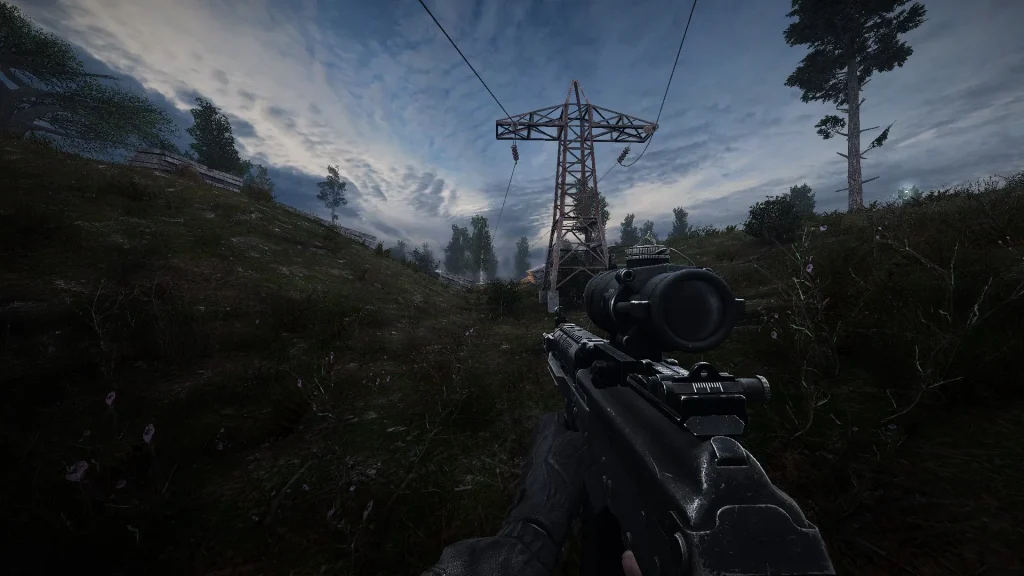
That dreaded “Shaders Compilation Failed” error can bring your Stalker Anomaly adventures to a screeching halt. While there’s no single magic fix, don’t throw in the towel just yet. Here’s a deeper dive into potential solutions, going beyond the basics to help you get back into the Zone.

What Is Stalker Anomaly Shaders Compilation Error?

Before we dive into solutions, let’s clarify. Shaders are small programs that tell your graphics card how to render lighting, textures, and effects. When they fail to compile, your game may crash. This can be caused by anything from outdated graphics drivers to conflicting mods.

How to Fix Stalker Anomaly Shaders Compilation Failed

  1. The Starter Kit: Yes, try the essentials first:
    • Delete Cache: Wipe your shader cache through the launcher.
    • Lower Settings: Tone down graphics, especially if you’ve recently upgraded visuals.
    • Update DirectX: An old version can trigger issues.
  2. Deeper Dive: If basics don’t work, try these:
    • Mod Check: Disable mods one by one to pinpoint conflicts. Recent updates can break compatibility.
    • Verify Files: Steam has a built-in tool to repair corrupted game files.
    • Clean Reinstall: Last resort, but it can fix deeper issues in the game install.
  3. The Tech Side:
    • Driver Deep Dive: Check your GPU manufacturer’s website for updates. Sometimes the latest isn’t the best for Stalker!
    • Overclocking?: If you’re overclocking your GPU, revert to default to see if it helps.

Bonus Tip: Always keep your graphics drivers up to date, even when not facing errors!

Can You Play Content Warning Offline?

0

Unless you’ve been living under a rock for the past day, chances are that you’ve already heard of Content Warning, the newest talk of the town.

The co-op horror video game brings a unique take on the genre, where up to four players can party up and record themselves doing spooky stuff in hopes of going viral on SpookTube.

With developers deciding to offer the game for free during its first 24 hours after launch, Content Warning has skyrocketed in popularity overnight, reaching an impressive peak of over 200,000 active players, with numbers still growing steadily

With Content Warning constantly rising in popularity over time, more and more players are tuning in to the game than ever. While the game is primarily a co-op title to play with friends, new players might be curious to know whether the game can be played offline.

If you’re eager to know more about whether Content Warning can be played offline, you have come to the right place.

Can Content Warning Be Played Offline?

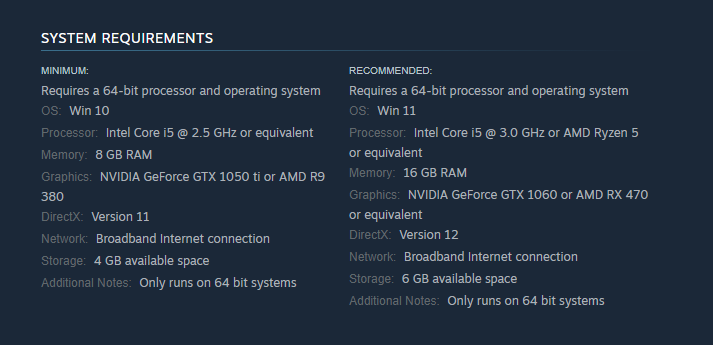
Unfortunately, there’s no way to play Content Warning offline at the time of writing. Taking a glance at the Steam page of Content Warning shows that a Broadband Internet connection is required to play the game.

content warning

It’s important to note that you are still able to play Content Warning solo without any friends. However, to get the best experience out of this game, it’s strongly recommended for players to play with their friends.