You click Play, the Riot Client closes, and Valorant opens to a black screen. No menu, no agent select, sometimes just a spinning cursor.
The good news is that a Valorant black screen on startup is almost never a hardware problem. In most cases it comes down to Riot Vanguard, a graphics driver, or another app getting in the way. This guide covers every fix that works in 2026, starting with the quickest.
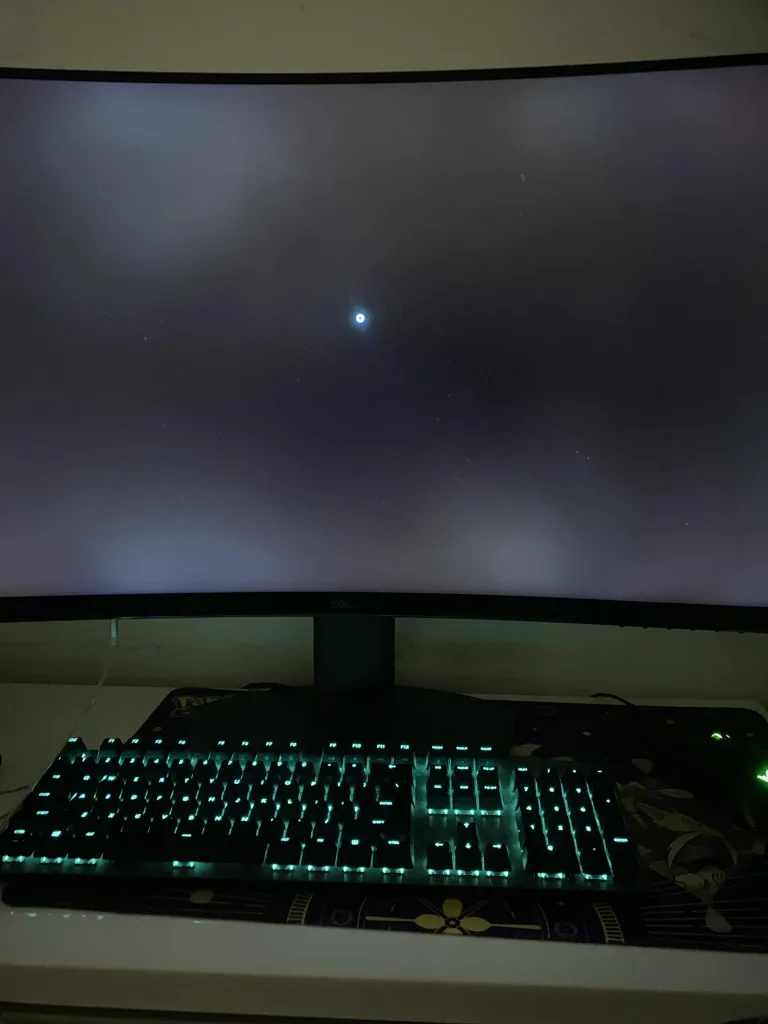
Quick answer: how to fix Valorant black screen on startup
Press Alt + Enter to switch Valorant to windowed mode. If that doesn’t work, restart your PC, check that the Riot Vanguard vgc service is running, turn off overlays and Nahimic, and update your graphics driver. On Windows 11, Secure Boot and TPM 2.0 must also be turned on.
Use this table to start with the fix most likely to work for you:
| What you see | Most likely cause | Try first |
|---|---|---|
| Black screen, but you can hear game audio | Display mode or resolution problem | Fix 1 (Alt + Enter) |
| Black screen with a spinning blue cursor | Vanguard or Nahimic conflict | Fix 4 and Fix 5 |
| Started after a GPU driver update | Driver bug | Fix 7 (roll back) |
| Started after a Windows update | Vanguard or security settings changed | Fix 4 and Fix 10 |
| Only on a gaming laptop | Game running on the integrated GPU | Fix 9 |
| Happens on patch day | Server maintenance | Fix 2 |
Why does Valorant open to a black screen?
Valorant can’t show anything until Riot Vanguard, its anti-cheat, has started and checked your system. If Vanguard fails to load, the game sits on a black screen while it waits. That’s the most common cause.
Other causes include an outdated or buggy graphics driver, overlays from apps like Discord or MSI Afterburner, audio software like Nahimic, a display mode your monitor can’t handle, and missing Windows security settings like Secure Boot.
How to fix Valorant black screen on startup
Work through these in order. Test Valorant after each one.
Fix 1: Switch to windowed mode with Alt + Enter
If you can hear the menu music but see nothing, Valorant has loaded but can’t draw to your screen. This often happens when the game tries to start in a resolution or refresh rate your monitor doesn’t support.
- While the black screen is showing, press Alt + Enter. This switches the game to windowed mode.
- If the menu appears, open Settings > Video > General and set the display mode and resolution to match your monitor.
- If nothing happens, press Windows + Ctrl + Shift + B. This restarts your graphics driver, and the screen will flicker for a second.
Fix 2: Check if Valorant servers are down
Riot runs maintenance before most patches, and the game can hang at launch while servers are offline. Check the Riot Games service status page for Valorant in your region. If there’s an issue listed, wait for it to clear. No setting on your PC will fix a server outage.
Fix 3: Close every Riot process and restart your PC
Clicking Play over and over can start several copies of the game in the background, which makes things worse.
- Press Ctrl + Shift + Esc to open Task Manager.
- End VALORANT, VALORANT-Win64-Shipping.exe and Riot Client if you see them.
- Restart your PC, then open the Riot Client and launch Valorant once.
Fix 4: Make sure Riot Vanguard is running
This is the fix that solves the most black screens, but there’s an important 2026 change to know first.
In June 2026, Riot added Vanguard On-Demand, an optional mode where Vanguard starts with the game instead of with Windows. It only works on PCs that pass Riot’s Vanguard Pre-Check (Windows 11 25H2 with Secure Boot, TPM 2.0, VBS, HVCI and IOMMU turned on). If you use On-Demand, Vanguard is meant to stay off until you launch the game, so you should not change the steps below.
If you haven’t turned on On-Demand, Riot says the vgc service must be set to start with Windows:
- Press Windows + R, type services.msc and press Enter.
- Find vgc in the list and double-click it.
- Set Startup type to Automatic.
- If Service status says Stopped, click Start.
- Click Apply, then OK, and restart your PC.
If you see a VAN error code instead of a black screen, check our guide to the VAN 84 error in Valorant, which is also tied to the Vanguard service.
Fix 5: Stop the Nahimic audio service
Nahimic is audio software that comes preinstalled on many MSI, Dell, Lenovo and other gaming laptops and motherboards. Since mid-September 2026, troubleshooting reports have linked certain Nahimic versions to Valorant hanging on a black screen at launch.
- Press Windows + R, type services.msc and press Enter.
- Find Nahimic service (it may be named slightly differently).
- Right-click it and choose Stop.
- Double-click it and set Startup type to Disabled, then click Apply.
- Launch Valorant.
If that fixes it but the problem returns later, uninstall Nahimic from Settings > Apps and restart your PC. You may lose some audio effects, but your sound will still work.
Fix 6: Turn off overlays and overclocking tools
Vanguard can block overlays and monitoring tools when the game starts, and that can leave you on a black screen. Close or disable these before launching Valorant:
- Discord overlay
- NVIDIA App or GeForce Experience overlay
- AMD Software overlay
- Xbox Game Bar
- MSI Afterburner and RivaTuner
- RGB and fan control apps
- Screen recorders like Medal or OBS
If you overclock your GPU or CPU, reset it to default clocks too. Once Valorant reaches the main menu, you can turn your overlays back on one at a time to find the one causing trouble.
Fix 7: Update or roll back your graphics driver
An old driver can stop Valorant from rendering at all. A brand-new driver can do the same if it has a bug.
- If you haven’t updated in a while: download the latest driver from NVIDIA, AMD or Intel. During install, pick the clean install or factory reset option so old settings are removed.
- If the black screen started right after a driver update: roll back. Open Device Manager, expand Display adapters, right-click your GPU, choose Properties > Driver > Roll Back Driver.
Fix 8: Disable fullscreen optimizations and run as administrator
Windows fullscreen optimizations can clash with Valorant’s fullscreen mode.
- Go to C:\Riot Games\VALORANT\live\ShooterGame\Binaries\Win64 (this is the default location).
- Right-click VALORANT-Win64-Shipping.exe and choose Properties.
- Open the Compatibility tab.
- Tick Disable fullscreen optimizations and Run this program as an administrator.
- Click Apply, then OK.
Fix 9: Force Valorant to use your dedicated GPU (laptops)
Gaming laptops have two graphics chips. If Valorant starts on the weaker integrated one, it can freeze on a black screen.
- Open Settings > System > Display > Graphics.
- Click Browse and select VALORANT-Win64-Shipping.exe from the folder in Fix 8.
- Click on Valorant in the list, choose Options, and select High performance.
- Click Save and restart the game.
Fix 10: Check Secure Boot, TPM 2.0 and HVCI
On Windows 11, Vanguard won’t run without Secure Boot and TPM 2.0. A Windows update or BIOS reset can turn these off without you noticing. Usually you’ll get a VAN 9001 or VAN 9003 error, but some players only see a black screen.
To check quickly, press Windows + R, type msinfo32 and press Enter. Look for BIOS Mode: UEFI and Secure Boot State: On. If either is wrong, follow our step-by-step guide on how to enable UEFI Secure Boot for Valorant.
If Valorant mentions HVCI or Memory Integrity, our guide on fixing the HVCI enabled error in Valorant walks you through turning it on.
Fix 11: Repair or reinstall Valorant and Vanguard
If nothing else works, a game or anti-cheat file may be damaged.
Repair first (faster):
- Open the Riot Client.
- Go to Settings, select VALORANT, and click Repair.
- Launch the game when it’s done.
Reinstall Vanguard if repair doesn’t help:
- Open Settings > Apps and uninstall Riot Vanguard.
- Restart your PC.
- Open the Riot Client and launch Valorant. It will reinstall Vanguard.
- Restart again when asked.
Reinstall the full game only as a last step. Uninstall Valorant, Riot Vanguard and the Riot Client, restart, then download the game again from the official Valorant website.
Still stuck on a black screen?
If you’ve tried every fix and Valorant still won’t load, contact Riot Support through the official Valorant support site and submit a ticket. Mention which fixes you’ve already tried, your Windows version and your graphics card. That saves time going back and forth.
Frequently asked questions
Why is Valorant a black screen but I can hear sound?
The game has loaded but can’t display on your monitor. Press Alt + Enter to switch to windowed mode, then fix your resolution and display mode in the video settings.
Can Vanguard cause a black screen in Valorant?
Yes. It’s the most common cause. If the vgc service isn’t running, Valorant waits on a black screen. Check Fix 4, and keep in mind the On-Demand mode added in June 2026.
Why did Valorant start showing a black screen after a Windows update?
Windows updates can change Vanguard’s service settings or turn off security features like Secure Boot. Check the vgc service (Fix 4) and your Secure Boot and TPM status (Fix 10).
Does Nahimic cause Valorant black screen?
Troubleshooting reports since mid-September 2026 have linked some Nahimic versions to Valorant black screens at launch. Stopping or uninstalling the Nahimic service fixes it for many players.
Will reinstalling Valorant fix the black screen?
Sometimes, but try the other fixes first. If the cause is Vanguard, Secure Boot, a driver or another app, reinstalling the game won’t help.