BGMI Air is KRAFTON India’s lighter version of Battlegrounds Mobile India, built to run on budget phones with less storage and memory. For many players, the first question is how smooth it can run, because frame rate decides how responsive aiming, recoil control and movement feel in a fight.
The answer depends on your phone. BGMI Air keeps the same frame rate ladder as the main game, but which options you can select is decided by your device’s chipset, RAM and display refresh rate.
How much FPS does BGMI Air support?
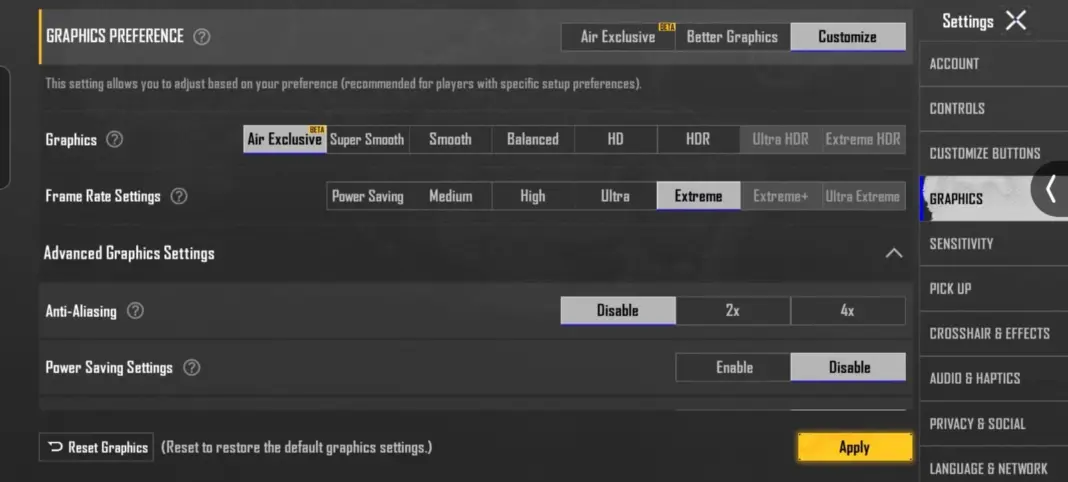
BGMI Air lists frame rate options from 20 FPS up to 120 FPS. Its Frame Rate Settings menu shows seven levels: Power Saving, Medium, High, Ultra, Extreme, Extreme+ and Ultra Extreme. On most budget and mid range phones, the highest option available is Extreme, which runs the game at 60 FPS.
The two highest settings, Extreme+ (90 FPS) and Ultra Extreme (120 FPS), appear greyed out on phones that do not support them. These options only unlock on devices with a high refresh rate display and a chipset strong enough to hold that frame rate, the same rule KRAFTON India applies in the main game.
All BGMI Air frame rate options
Each frame rate level in BGMI Air matches a target number of frames per second. Higher settings feel smoother but use more battery and produce more heat.
1. Power Saving: 20 FPS
The lowest setting caps the game at 20 FPS. It is meant for very old phones or for saving battery, but the low frame rate makes fast fights and aiming noticeably harder.
2. Medium: 25 FPS
Medium raises the cap slightly to 25 FPS. It suits entry level phones that struggle to hold higher frame rates without stuttering.
3. High: 30 FPS
High runs BGMI Air at 30 FPS, which is the minimum many players consider comfortable. It is a safe choice for phones with 3GB to 4GB of RAM.
4. Ultra: 40 FPS
Ultra lifts the target to 40 FPS. Movement and camera panning feel clearly smoother than at 30 FPS, and most mid range phones can hold it.
5. Extreme: 60 FPS
Extreme runs the game at 60 FPS and is the highest option most players will see in BGMI Air. It is the recommended setting for competitive play on any phone that can sustain it without overheating.
6. Extreme+: 90 FPS
Extreme+ targets 90 FPS and needs a phone with a 90Hz or higher display. It only appears as selectable on supported devices.
7. Ultra Extreme: 120 FPS
Ultra Extreme is the top setting at 120 FPS. It requires a 120Hz display and a flagship class chipset, and in the main game it is limited to a list of supported devices, as explained in our guide to BGMI 120 FPS supported devices.
BGMI Air graphics presets explained
BGMI Air pairs its frame rate settings with eight graphics presets: Air Exclusive, Super Smooth, Smooth, Balanced, HD, HDR, Ultra HDR and Extreme HDR. Air Exclusive is a new preset marked as beta and is unique to BGMI Air, while the others match the main game.
At the top of the menu, a Graphics Preference option offers three modes: Air Exclusive, Better Graphics and Customize. Customize lets players set graphics and frame rate separately, along with advanced settings such as anti aliasing and power saving.
Lower graphics presets free up power for higher frame rates. Players who want the highest FPS should pick Super Smooth or Smooth, while HD and HDR presets focus on visual quality and can limit the frame rate options available.
Best BGMI Air settings for high FPS
For the smoothest gameplay on a budget phone, keep graphics low and push the frame rate as high as your device allows. These settings work well on most phones.
- Open BGMI Air and tap Settings, then Graphics
- Under Graphics Preference, select Customize
- Set Graphics to Super Smooth or Smooth
- Set Frame Rate Settings to the highest option available, usually Extreme (60 FPS)
- Set Anti Aliasing to Disable
- Keep Power Saving Settings on Disable for the best performance
- Tap Apply to save your settings
If the game stutters or the phone heats up, drop one frame rate level. A steady 40 FPS feels better than a 60 FPS setting that keeps dipping, and the same advice applies across BGMI, as covered in our BGMI FPS drop fix guide.
Why you cannot select 90 or 120 FPS in BGMI Air
If Extreme+ and Ultra Extreme are greyed out, your phone is not on the supported list for those frame rates. Most budget phones that BGMI Air targets have 60Hz screens, which cannot physically show more than 60 frames per second.
Players with high refresh rate phones should set their display to 90Hz or 120Hz in system settings, turn off battery saver and restart the game. If the option still does not appear, the phone does not support it, and third party FPS unlockers can break KRAFTON’s terms of service. Our guide on how to unlock 120 FPS in BGMI explains the official steps for supported phones.
BGMI Air release and availability
BGMI Air is set to launch on 10 December 2026. It passed 14 million pre-registrations on Google Play before release, according to KRAFTON, and the BGMI Air open beta is now live for Android players.
KRAFTON India has highlighted BGMI Air as a key part of its plans, as covered in our report on Krafton’s Q3 2026 results. Official updates and support are posted on the Battlegrounds Mobile India website.