The first half of 2026 has delivered unforgettable moments across the biggest esports titles. With international tournaments, regional leagues, and roster changes shaping the competitive landscape, July marks an ideal time to assess which organizations have consistently performed at the highest level.
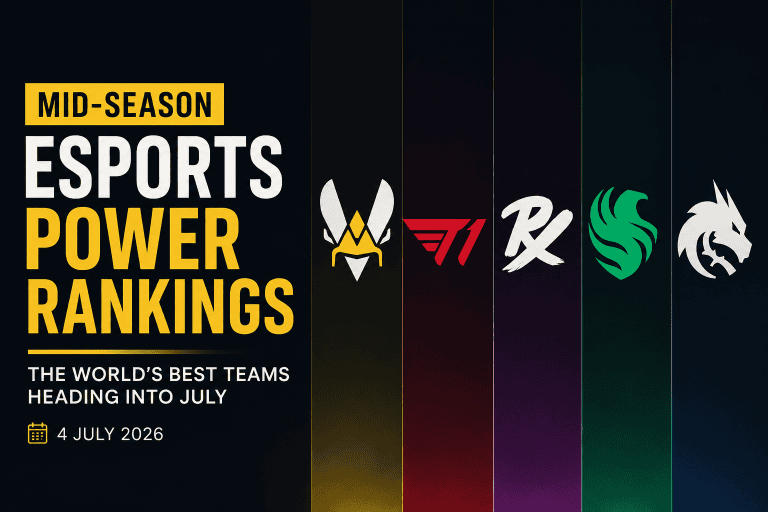
Here are our mid-season esports power rankings based on tournament performances, consistency, player form, and momentum as of 4 July 2026.
1. Team Vitality (Counter-Strike 2)
Team Vitality remains one of the strongest Counter-Strike 2 teams in the world. Their disciplined gameplay, championship pedigree, and ability to perform under pressure have kept them among the favorites at every premier event in 2026. With a balanced roster and proven leadership, Vitality enters the second half of the year as the team to beat.
2. T1 (League of Legends)
T1 once again finds itself competing at the highest level of League of Legends. Strong domestic performances and another deep run in the Mid-Season Invitational have reinforced the team’s reputation as one of the most consistent organizations in esports. Their experience on the international stage makes them a serious title contender for the remainder of the season.
3. Paper Rex (VALORANT)
Paper Rex has carried its aggressive playstyle into another successful campaign. The Pacific powerhouse continues to rank among the world’s elite, backed by impressive international performances and one of the highest-rated squads in Riot’s Global Power Rankings.
4. Team Falcons (Dota 2)
Team Falcons has remained a consistent force throughout the Dota 2 season. Excellent drafting, disciplined execution, and strong tournament finishes have helped the squad establish itself as one of the leading contenders ahead of the year’s biggest events.
5. Team Spirit (Mobile Legends & Multi-title Success)
Beyond individual titles, Team Spirit continues to demonstrate its strength across multiple esports divisions. The organization’s commitment to developing world-class talent has resulted in competitive performances throughout 2026, making it one of the industry’s most successful esports brands.
Looking Ahead
The second half of 2026 promises even more excitement with regional playoffs, world championship qualification races, and blockbuster international tournaments on the horizon. While today’s rankings reflect current form, esports changes quickly. A single championship victory, roster move, or breakout performance could reshape the global hierarchy before the season reaches its conclusion.
For fans, July represents the perfect time to follow the world’s best teams as they begin their push toward the biggest trophies of the year.
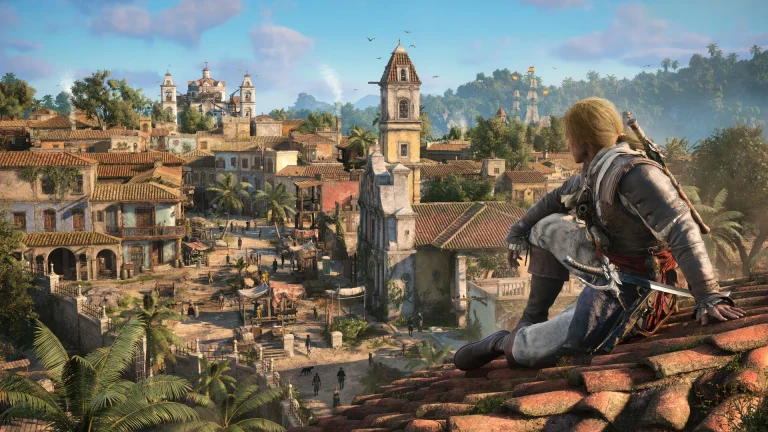
Ubisoft has officially confirmed the release date and time for Assassin’s Creed Black Flag Resynced throughout the world, alongside its detailed preload schedule.
The pirate-themed remake, which reimagines Edward Kenway’s journey through the Caribbean, is set to launch globally next week. With the devs finally dropping the final release and preload times, fans across all major platforms can now have a clearer picture of when exactly they can start playing, as well as when to begin downloading ahead of launch.
If you’re here to know more about the Assassin’s Creed Black Flag Resynced release date, times, and preload start time, we’ve got you covered.
Assassin’s Creed Black Flag Resynced Release Date and Time
Through an official blog post earlier today, Ubisoft has confirmed that Assassin’s Creed Black Flag Resynced will see its global release on July 9, 2026.
That same window also applies to those streaming the title through Nvidia’s GeForce Now service, meaning cloud players won’t be left behind on day one.
The Console release of Black Flag Resynced will follow a slightly different pattern. Both PS5 and Xbox Series X|S versions will unlock at midnight local time in each respective region, rather than a single synchronized global moment.
Assassin’s Creed Black Flag Resynced Preload Times
Preloads for Assassin’s Creed Black Flag Resynced are already live for one platform: Xbox Series X|S owners have had access to preload files since June 22, 2026.
PlayStation and PC users have had to wait a little longer to start preloading the game, though. PS5 and PC players won’t be able to begin preloading until July 7, just two days shy of launch.
The exact preload start time on PC has also been confirmed by the devs. Assassin’s Creed Black Flag Resynced preloads are scheduled to open on PC at 2 PM UTC on July 7, while PS5 preloads will go live at midnight local time on the same day.
Be sure to download the game ahead of its official launch to be able to dive into the action as soon as the servers go live.
The Honkai Star Rail 4.4 livestream aired on July 3, 2026, and it did not go the way fans expected. Along with the usual reveals and redeem codes, Hoyoverse used the broadcast to pull off a surprise twist involving the Lord Ravager Asat Pramad. Here is everything that happened, plus the codes and schedule details from the stream.
Honkai Star Rail 4.4 marks the final update in the Planarcadia trailblazing saga. The livestream covered the major content coming in this version, but the broadcast itself became the story.
Asat Pramad is one of the Lord Ravagers in Honkai Star Rail, tied to the Emanators of Destruction. This character is trying to destroy the Aeon of Elation and has a habit of impersonating other people. Players already saw this in the Planarcadia storyline, when Asat Pramad falsely posed as Himeko’s father and set off a wave of fan theories.
During the 4.4 livestream, Asat Pramad took things further. The show opened with the Lord Ravager capturing Owlbert and taking his place as host, appearing next to Himeko and Pom-Pom. When asked why the appearance had changed, Asat Pramad only gave partial answers.
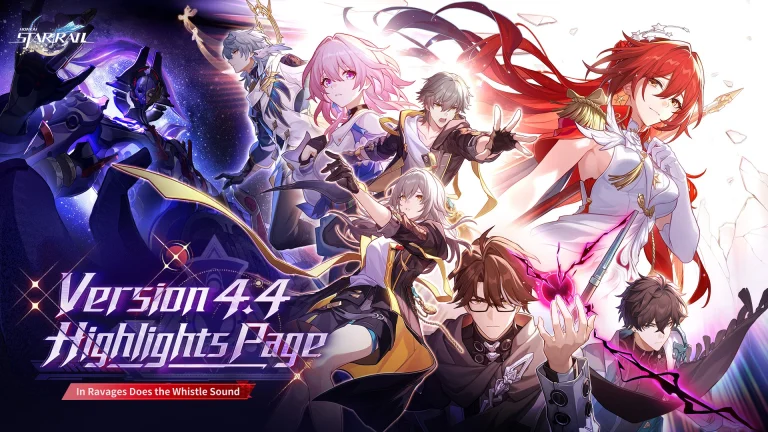
The Version 4.4 "In Ravages Does the Whistle Sound" highlights page is now available. The Navigator charts a course to the apocalypse. A mournful whistle howls, and only those of the Trailblaze can find a path to survival across the realm of death…
— Honkai: Star Rail (@honkaistarrail) July 3, 2026
Himeko and the disguised Owlbert bantered for a while, and most viewers read it as normal back and forth between the two.
Then came the real twist. Himeko and Pom-Pom were also being controlled by Asat Pramad from the start of the stream. Almost nobody caught it in the moment, even though Himeko had said earlier that Asat Pramad could be impersonating “anyone.”
That line is now getting a second look from fans, since it doubled as a hint they missed while watching live.
Where the Story Might Go Next
The doppelganger stunt raises questions about how much of the Planarcadia story fans have actually understood so far. It also opens the door to more impersonation twists later in the update, with characters like Welt and Pom-Pom now under suspicion among fans.
Hoyoverse has not confirmed anything beyond the livestream reveal itself, so this remains a theory for now rather than confirmed story content.
HSR 4.4 Livestream Codes
The stream also came with three redeem codes, worth 300 Stellar Jades in total.
HSR 4.4 Livestream Code
Reward
WAK84U29VLYP
100 Stellar Jades, 50k Credits
HT3QMCJ9U4JB
100 Stellar Jades, 5 Traveler’s Guide
XTJ9MV38DL3X
100 Stellar Jades, 4 Refined Aether
Players can redeem these on the official Honkai Star Rail redemption page before they expire.
HSR 4.4 Livestream Date and Time
The livestream aired on July 3, 2026, at 7:30 AM ET. Here is how that lined up across other regions:
Location
Time Zone
Livestream Time
Los Angeles
PT (UTC-7)
July 3, 2026, 4:30 AM
Mexico City
CT (UTC-5)
July 3, 2026, 6:30 AM
New York
ET (UTC-4)
July 3, 2026, 7:30 AM
London
BST (UTC+1)
July 3, 2026, 12:30 PM
Moscow
MSK (UTC+3)
July 3, 2026, 2:30 PM
New Delhi
IST (UTC+5:30)
July 3, 2026, 5:00 PM
Singapore
SGT (UTC+8)
July 3, 2026, 7:30 PM
Tokyo
JST (UTC+9)
July 3, 2026, 8:30 PM
Sydney
AEST (UTC+10)
July 3, 2026, 9:30 PM
The broadcast also covered Himeko SP, Himeko Nova, and the new Fate/Stay Night collaboration characters, Rin Tohsaka and Gilgamesh. Gilgamesh is available for free as part of the 4.4 update.
Fans who missed the live broadcast can still catch it on the Honkai Star Rail YouTube channel or the game’s official Twitch channel.
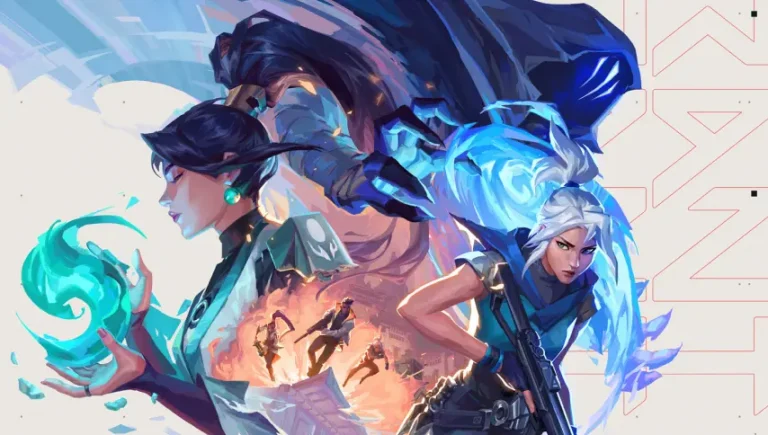
Valorant has officially entered the classrooms of Philippine schools, with teachers reportedly using the tactical shooter to demonstrate teamwork, communication, and strategy skills among students.
The unusual crossover between gaming and education recently caught widespread attention online after reports surfaced of a middle school lesson centered around Riot Games’ popular FPS.
On July 2nd, X user Justin Banusing shared a picture of the pages from the Philippines Department of Education’s Matatag Curriculum, showing a lesson on “promotion of digital wellness through Valorant” in a Grade 10 lesson.
While we’ve seen teachers demonstrating lessons on subjects like history with the help of video games in the past, Valorant becoming a part of an official classroom lesson still comes as a surprise to the gaming community, given its competitive nature and strong association with the esports scene.
Through the aforementioned lesson on Valorant and its game mechanics, students are taught to “demonstrate respect and fairness during online matches and tournaments,” “practice teamwork, communication, and time management in facilitating an esports event,” and “manage an esports event applying its concepts and principles.”
Valorant isn’t the only game on the syllabus, either. Students have to go through a wider module on e-sports and e-health tied to promoting wellness through active living, and educators have the freedom to choose from popular gaming titles such as Dota 2, LoL, and Minecraft. This particular school picked Valorant, which could be due to the game’s rising popularity among Filipino teens.
Over the past few years, we’ve seen esports and gaming in general rapidly shift from a niche hobby to a mainstream part of everyday life. Now, with games like Valorant being implemented in schools’ official coursework, that influence is clearly extending beyond entertainment and potentially as a tool for positive change.
Sony has suggested that PlayStation Plus prices might see a hike in the near future, as the company is banking on the service to drive growth in the future. This news comes in light of a recent business discussion held at Sony, where executives highlighted the steady growth of the service, as they continue to see growth in the number of active subscribers.
According to the released notes from the company meeting, more players are seen upgrading to PlayStation Plus Extra and Premium primarily for the extensive range of benefits, including an attractive gaming catalogue, cloud streaming service, monthly free games and exclusive discounts. As users continued to find value in this pass, it has been one of the hottest-selling commodities that has come out of Sony, therefore making it a key service for the organisation to continue banking on to drive profit.
Sony further doubled down on the fact that previous PlayStation Plus price hikes have had little to no impact on subscriber count, which goes to show that the value they are offering is on par with the cost. A calculated future hike has been placed in the cards; unless they can keep up in terms of value offered, there is a possibility that retention will suffer.
The company remains committed to making PS Plus a high-value service, offering more in terms of games, discounts, and other benefits, and while competitors are adopting the same model, Sony’s exclusive game library safeguards some of the titles that fans are willing to pay for with this subscription. As things stand, Sony has only discussed the possibility of a future hike, and it is very unlikely that anything will change at the moment, leaving little worry for now.
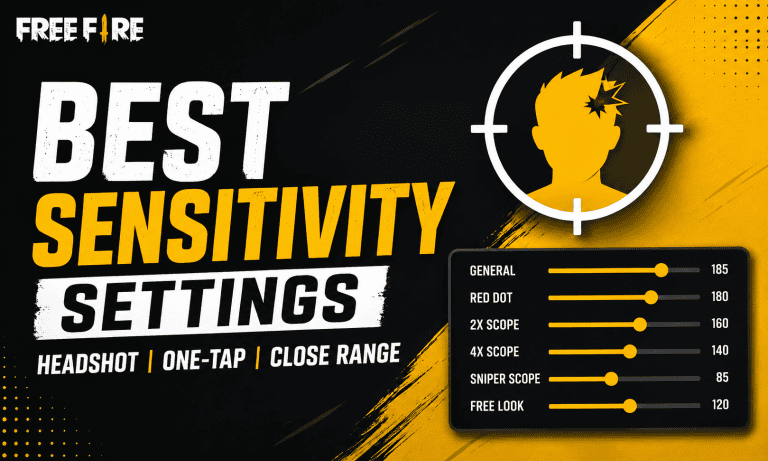
Free Fire best sensitivity settings can make a big difference when you are trying to land headshots, one-tap enemies, or win close-range fights. With the sensitivity scale now reaching 0-200, older settings may no longer feel the same after recent updates. There is also no single sensitivity that guarantees headshots, as your phone’s touch response, refresh rate, screen size, FPS and playstyle all affect aim. In this guide, we cover recommended Free Fire sensitivity settings for low-end, mid-range and high-end devices, along with separate setups for headshots, one-taps and close-range combat.
Free Fire Best Sensitivity Settings for Headshots
The Free Fire best sensitivity settings for headshots should make it easy to move your crosshair from the body toward the head without losing control. A good starting point on the current 0-200 scale is General 185, Red Dot 180, 2x Scope 160, 4x Scope 140, Sniper Scope 85 and Free Look 120. These values favor quick drag movements while keeping scoped aim relatively stable.
Setting
Recommended Value
General
185
Red Dot
180
2x Scope
160
4x Scope
140
Sniper Scope
85
Free Look
120
General sensitivity has the biggest effect on how quickly your aim moves. Red Dot sensitivity is especially important for close and medium-range fights where players frequently use drag shots.
If your crosshair consistently goes above the enemy’s head, lower General and Red Dot by around 3-5 points. If your crosshair stops around the chest and does not reach the head, increase them gradually.
Free Fire Sensitivity for One-Tap Headshots
One-tap headshots require fast but controlled crosshair movement. You should avoid simply putting every setting at 200 because extremely high sensitivity can make your aim overshoot the target.
For one-tap gameplay, try:
Setting
One-Tap Value
General
185
Red Dot
180
2x Scope
160
4x Scope
138
Sniper Scope
85
Free Look
120
This setup works well as a starting point for weapons that rely on quick flicks and short upward drags.
The most important part is your General and Red Dot sensitivity. Keep your crosshair around the upper chest area, then make a short upward movement while firing. Do not make an extremely long drag, as this can send the crosshair above the target.
There is no guaranteed “100% headshot” sensitivity. Community discussions also point out that players often need to adjust their settings based on their individual phone and touch response.
Free Fire Sensitivity for Close-Range Fights
Close-range combat requires faster camera movement because enemies can move across your screen very quickly. A slightly higher General and Red Dot sensitivity can help with quick turns and drag shots.
Try these Free Fire close-range sensitivity settings:
Setting
Close-Range Value
General
188
Red Dot
182
2x Scope
155
4x Scope
140
Sniper Scope
85
Free Look
120
General sensitivity should remain high enough for quick 180-degree turns and close-range tracking. Red Dot should also be high because many close-range fights involve rapid aim adjustments.
For weapons such as shotguns and SMGs, focus on short, controlled movements instead of trying to drag the crosshair across the entire screen.
Free Fire Sensitivity for Low-End Devices
Low-end phones can have lower frame rates and slower touch response, especially when the device heats up. Higher sensitivity can help compensate for some of that slower-feeling input, but it should not be pushed to the maximum automatically.
For devices with around 2GB-3GB RAM, start with:
Setting
Low-End Device
General
195
Red Dot
190
2x Scope
180
4x Scope
165
Sniper Scope
95
Free Look
155
These settings are a starting point rather than a universal configuration. Current 0-200 sensitivity guides similarly recommend higher General and Red Dot values for lower-end devices.
If your aim feels too fast, reduce General first instead of changing every setting at once.
Free Fire Sensitivity for Mid-Range Devices
Phones with 4GB-6GB RAM generally provide a good balance between performance and touch response. You can use slightly lower values than a low-end phone while maintaining quick movement.
Try:
Setting
Mid-Range Device
General
185
Red Dot
175
2x Scope
160
4x Scope
145
Sniper Scope
90
Free Look
130
This setup is suitable for players who regularly switch between close-range fights, AR sprays and medium-range engagements.
If your device has a high refresh-rate display, you may find that slightly lower sensitivity gives you better control.
Free Fire Sensitivity for High-End Devices
High-end phones generally have faster processors, higher frame rates and better touch response. Because your input can feel more responsive, extremely high sensitivity may make precise aiming harder.
A good starting setup for 6GB+ flagship devices is:
Setting
High-End Device
General
170
Red Dot
165
2x Scope
150
4x Scope
130
Sniper Scope
80
Free Look
110
Recent 0-200 sensitivity recommendations also suggest moderating sensitivity on higher-end and high-refresh-rate devices rather than automatically using maximum values.
If you play on a 90Hz or 120Hz phone, start with these lower values and increase them only when your aim feels too slow.
Free Fire Sensitivity for iPhone
iPhone players should not blindly copy Android sensitivity settings. Different display sizes, refresh rates and touch responses can change how a particular sensitivity value feels.
A good starting point for iPhone is:
Setting
iPhone Starting Value
General
175
Red Dot
170
2x Scope
150
4x Scope
130
Sniper Scope
80
Free Look
105
Use these values as a baseline and test them in Training Grounds. Current device-specific guides also recommend higher General and Red Dot sensitivity with lower scoped values for steadier long-range aim.
Older iPhones may need a different setup because hardware performance and touch response can vary significantly between generations.
How to Find the Best Free Fire Sensitivity for Your Device
Instead of changing all 6 sensitivity settings together, adjust them one at a time. This makes it easier to understand which setting is affecting your aim.
Follow these steps:
Open Free Fire and enter Training Grounds.
Start with the recommended settings for your device.
Use the same weapon for several tests.
Aim around the enemy’s upper chest.
Fire while making a short upward drag.
If the crosshair goes over the head, lower General by 3-5 points.
If it stays around the chest, increase General by 3-5 points.
Test Red Dot separately for close-range fights.
Repeat until your movement feels consistent.
Small changes are better than completely changing your sensitivity every match. Community players commonly recommend testing and adjusting sensitivity gradually because the best value varies from device to device.
Best Free Fire Sensitivity for Headshot, One-Tap and Close Range
If you want a quick setup, use these three presets:
Playstyle
General
Red Dot
2x
4x
Sniper
Headshot
185
180
160
140
85
One-Tap
185
180
160
138
85
Close Range
188
182
155
140
85
The Headshot preset provides a balanced setup for drag shots. The One-Tap preset focuses on quick crosshair movement, while the Close-Range preset gives General and Red Dot slightly more speed.
You can use any of these as your starting point and then make small adjustments based on your device.
Does DPI Matter for Free Fire Sensitivity?
DPI can change how touch movement feels on some Android devices, but changing DPI is not necessary to get good headshots. Players should avoid blindly using extreme DPI values just because a sensitivity guide recommends them.
Your first priority should be the in-game sensitivity, HUD and your own aim control. If your phone already feels responsive, there is little reason to make aggressive system-level changes.
A stable FPS and comfortable touch response are more useful than constantly switching between DPI and sensitivity combinations.
Tips to Improve Headshots in Free Fire
Sensitivity alone will not make every shot a headshot. Use these tips along with your preferred settings:
Keep your crosshair near the upper chest before firing.
Use short upward drags instead of large movements.
Practice the same weapon repeatedly in Training Grounds.
Do not change sensitivity after every bad match.
Lower General if your aim repeatedly goes above the head.
Increase General slightly if your drag stops below the head.
Use lower scope sensitivity for better long-range control.
Keep your HUD comfortable so your fire button is easy to reach.
Prioritize stable FPS and avoid playing while the phone is heavily overheating.
The goal is to build muscle memory. Once your sensitivity feels comfortable, keep it unchanged for several sessions so your hand can adapt.
The Free Fire best sensitivity settings depend on your device, refresh rate, touch response and playstyle. For most players using the current 0-200 scale, General 185 and Red Dot 180 are strong starting points for headshots and one-tap gameplay. Close-range players can increase General and Red Dot slightly, while high-end or high-refresh-rate phones may perform better with more controlled values.
Most importantly, do not expect one setting to work perfectly on every phone. Use the recommended values as a baseline, test them in Training Grounds and make small 3-5 point adjustments until your aim feels natural.
FAQs
What is the best Free Fire sensitivity for headshots? A strong starting point is General 185, Red Dot 180, 2x Scope 160, 4x Scope 140, Sniper Scope 85 and Free Look 120 on the current 0-200 scale.
What sensitivity is best for one-tap headshots? Try General 185 and Red Dot 180 first. If the crosshair goes above the head, reduce the values gradually.
What is the best sensitivity for close-range fights? For close-range combat, start with General 188 and Red Dot 182. Higher values can help with fast turns and short drag movements.
Should I set every Free Fire sensitivity option to 200? No. Maximum sensitivity is not automatically the best sensitivity. It can make aiming too fast and reduce control, particularly on responsive high-end devices.
Is there a 100% headshot sensitivity in Free Fire? No. There is no universal sensitivity that guarantees headshots. Your device, touch response, FPS, HUD and aiming technique all affect performance.
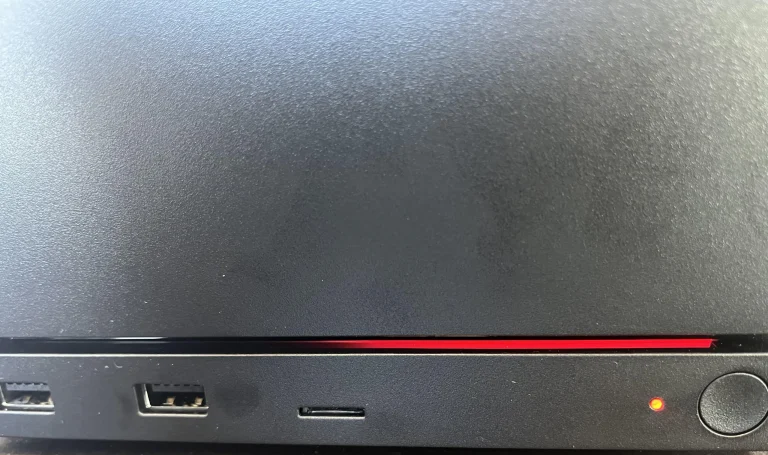
A Steam Machine owner says their unit failed within 20 minutes of use, displaying a solid red line on screen. Valve’s own support documentation lists this as a sign of GPU failure.
The report is the first known case of the fault on the newly released device. Gamers online have already given it a name: the “red line of death,” or RLOD.
The user posted photos on the Steam Machine subreddit showing a solid red line running across the screen. According to the post, the system stopped working after about 20 minutes of use and would not boot again.
The title of the post read: “Well, the Steam Machine was pretty cool for the 20 minutes that it worked.”
The thread picked up traction fast. It passed 3,000 upvotes and 500 comments within a short window.
The nickname is a nod to the Xbox 360’s “red ring of death,” a hardware failure that plagued that console during its early years and eventually forced Microsoft into a costly redesign. The PS3 had its own version too, known as the “yellow light of death.”
Steam Machine runs on PC hardware rather than a console chipset, but Valve built in a similar visual system to flag failures. According to Steam’s support page on RLOD patterns, the position of the red line on screen points to different problems. A line running from the middle to the right side signals a GPU failure specifically.
Why a GPU Failure Is a Bigger Deal Here
On a normal desktop PC, a dead graphics card is annoying but fixable. You pull it out and slot in a new one.
Steam Machine doesn’t work that way. Its GPU is soldered directly to the board. That means a failure like this one likely requires sending the unit in for repair or filing a warranty claim, rather than a simple part swap.
Given how new the device is and how limited the first batch has been, getting a replacement quickly may not be easy.
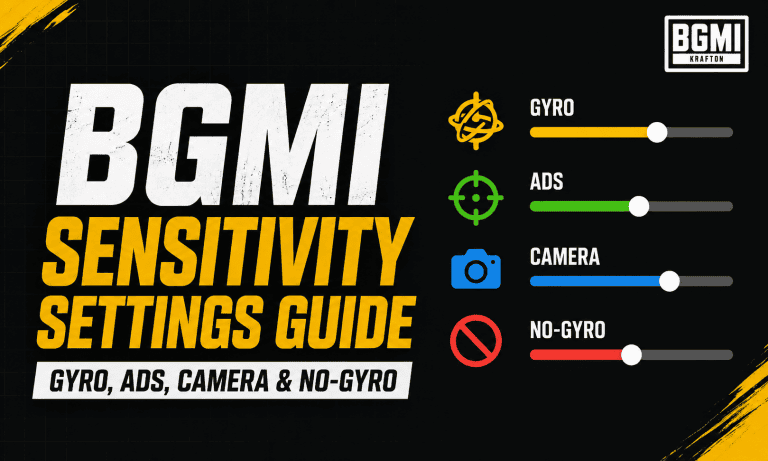
BGMI Sensitivity Settings can make a major difference in aim, recoil control, and overall gunplay. However, there is no single sensitivity setup that works perfectly for every player because your device, FPS, finger setup, and playstyle all affect how the controls feel. In this guide, we have listed balanced Gyro, ADS, Camera, and No-Gyro sensitivity settings that you can use as a starting point in BGMI. We will also explain what each setting does, how to choose between gyro and no-gyro, and how to fine-tune your sensitivity for better sprays and tracking.
BGMI Sensitivity Settings for Gyro, ADS, Camera and No-Gyro
The best approach is to use the values below as a starting point and then make small adjustments in Training Grounds. Recent BGMI sensitivity guides generally recommend higher values for close-range scopes and lower values for higher magnification scopes.
Best Camera Sensitivity
Camera Sensitivity controls how quickly your view moves when you swipe the screen without firing. Higher values make it easier to turn quickly and track enemies, while lower values provide more controlled movement.
Camera Setting
Recommended
TPP No Scope
120%
FPP No Scope
110%
Red Dot, Holographic
55%
2x Scope
40%
3x Scope, Win94
28%
4x Scope, VSS
23%
6x Scope
16%
8x Scope
11%
For most players, these values provide a balanced starting point. If your camera feels too slow when tracking enemies, increase the relevant value by 5-10%.
Best ADS Sensitivity
ADS Sensitivity affects your camera movement while firing. It is especially important for players who do not use the gyroscope because they rely more heavily on finger movement to control recoil.
ADS Setting
Recommended
TPP No Scope
110%
FPP No Scope
100%
Red Dot, Holographic
60%
2x Scope
40%
3x Scope, Win94
28%
4x Scope, VSS
24%
6x Scope
18%
8x Scope
13%
If your weapon pulls upward during a spray, gradually increase the ADS sensitivity. If the crosshair becomes difficult to control or moves too quickly, lower it slightly.
Best Gyroscope Sensitivity Settings
Gyroscope is one of the most useful tools for recoil control in BGMI. Instead of relying completely on your thumb, you can tilt your device to make small aiming and recoil adjustments.
BGMI has supported dedicated gyroscope sensitivity controls for years, allowing players to customize gyro movement according to their preference.
For players using Always On Gyroscope, this is a good starting setup:
Gyroscope Setting
Recommended
TPP No Scope
350%
FPP No Scope
350%
Red Dot, Holographic
300%
2x Scope
280%
3x Scope, Win94
240%
4x Scope, VSS
200%
6x Scope
120%
8x Scope
80%
Higher sensitivity on lower scopes helps with close-range tracking and quick recoil corrections. Higher magnification scopes use lower values because even small phone movements can move the crosshair significantly.
Some experienced players use gyro values around 300% or higher for Red Dot and lower scopes, while 4x and 6x values are usually reduced for better stability.
Best No-Gyro Sensitivity Settings
If you do not use the gyroscope, your thumbs have to handle aiming, tracking, and recoil control. As a result, your Camera and ADS settings become more important.
A balanced No-Gyro Sensitivity setup is:
Setting
Recommended
TPP No Scope Camera
130%
FPP No Scope Camera
120%
Red Dot Camera
65%
2x Camera
45%
3x Camera
30%
4x Camera
25%
6x Camera
18%
8x Camera
12%
TPP No Scope ADS
120%
FPP No Scope ADS
110%
Red Dot ADS
65%
2x ADS
40%
3x ADS
28%
4x ADS
25%
6x ADS
18%
8x ADS
13%
No-Gyro players should avoid copying extremely high sensitivity settings without testing them. Community discussions also highlight that sensitivity depends heavily on the device, FPS, controls, and personal preference.
Gyro vs No-Gyro: Which Is Better?
For players who want stronger recoil control, Gyroscope is generally the better option to learn. It allows you to make small aiming adjustments by physically moving your device instead of depending entirely on your thumb.
However, No-Gyro is still completely viable. Players who are comfortable with thumb-based recoil control can perform well with properly tuned ADS sensitivity.
Choose Gyro if:
You want easier recoil control.
You play aggressive close-range fights.
You want more precise micro-adjustments.
You are willing to spend time learning a new control method.
Choose No-Gyro if:
You prefer traditional touch controls.
You find phone movement uncomfortable.
You already have strong thumb-based recoil control.
You want a simpler setup.
How to Find Your Perfect BGMI Sensitivity
Do not immediately use a new sensitivity in ranked matches. Start in the Training Grounds and test one setting at a time.
Take an M416 and test your Red Dot, 3x, and 4x sprays first. These scopes are commonly used for close- and mid-range fights, making them good indicators of whether your sensitivity is working.
If your crosshair moves too slowly, increase the sensitivity by around 5%. If it feels too fast or shaky, reduce it by 5%. Keep testing until you can control a full magazine comfortably.
You should also test your sensitivity at the FPS you normally play. BGMI supports different frame-rate options depending on the device, and KRAFTON has previously noted that higher FPS options are limited to supported devices.
Best Sensitivity for Different Playstyles
Aggressive players: Use slightly higher Red Dot and No Scope sensitivity for faster tracking and close-range fights.
Balanced players: Use the recommended values in this guide and adjust only the scopes that feel uncomfortable.
Long-range players: Keep 4x, 6x, and 8x sensitivity lower to make small adjustments more controlled.
Gyro players: Keep higher sensitivity for Red Dot and 2x, then gradually reduce it as scope magnification increases.
Tips to Improve BGMI Recoil Control
Sensitivity alone will not automatically give you zero recoil. Your aim, movement, weapon attachments, and recoil-control technique still matter.
Follow these tips:
Test sensitivity in Training Grounds before ranked matches.
Change only one or two settings at a time.
Practice M416 sprays with Red Dot, 3x, and 4x.
Use lower sensitivity for high-magnification scopes.
Give yourself time to adjust when switching to Gyro.
Keep your FPS stable whenever possible.
Do not copy another player’s sensitivity blindly.
BGMI also allows players to customize several gameplay settings, including firearm-specific sensitivity options, giving experienced players more control over their setup.
The best BGMI Sensitivity Settings are the ones that match your device and playstyle. The values above provide a balanced starting point for Gyro, ADS, Camera, and No-Gyro players, but you should still fine-tune them in Training Grounds.
If your sprays feel inconsistent, avoid changing every setting at once. Focus on Red Dot, 3x, and 4x first, then adjust the remaining scopes after you become comfortable with the setup.
The highly anticipated Marvel Rivals Season 9 update is just around the corner, and fans of the hero shooter are excited to know more about what the new season will bring to the game.
While NetEase has remained pretty tight-lipped about the contents of the upcoming Marvel Rivals Season 9 update so far, we’ve seen plenty of leaks hinting at what the devs might have in store for the players.
In this article, we’ll go through everything you need to know about Marvel Rivals Season 9, including leaks regarding the new heroes coming to the game, its release date, and more.
Marvel Rivals Season 9 Leaks: New Heroes
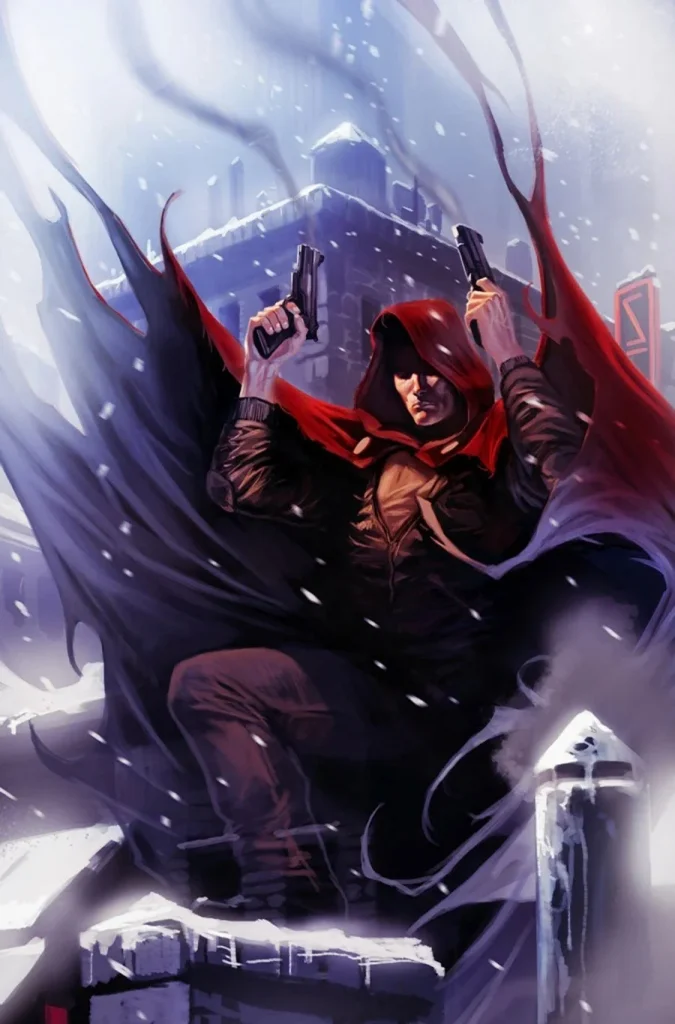
The clearest hints so far regarding the next set of new heroes come from the final Gallery Card of Marvel Rivals Season 8.5.
The text of the Gallery Card describes a mysterious figure wrapped in “the cloak of Oblivion,” alongside a former foe desperately searching for a cure for her son, even if it means turning her fireworks against her old allies.
Fans didn’t take long to connect these descriptions to The Hood and Jubilee, who are expected to be the new heroes coming to Marvel Rivals with Season 9.
Dataminers have also weighed in, suggesting both characters’ files have been sitting in the game for quite some time now, further adding fuel to the speculations.
As for roles, current leaks point to The Hood slotting in as a Vanguard, while Jubilee is likely to join the roster as a Strategist.
Several reports claim that The Hood will first join the roster of playable heroes with the Marvel Rivals Season 9 update, while Jubilee will be added later on in the mid-season update.
Marvel Rivals Season 9 Release Date
As NetEase has already confirmed, the Marvel Rivals Season 9 update will go live on July 10, 2026.
The devs will shed further light on the new season as we approach closer to its release date.
Alongside the new heroes, fans can also expect a fresh Battle Pass, new events, cosmetics, and a lot more with the upcoming season.
Counter-Strike 2 introduced a Seasonal Ranking system with its new Premier mode, where every season offers a fresh opportunity to climb ranks, moving away from the stagnating traditional systems. The competitive reset at the end of each season keeps the game fresh for players, maintaining their competitive mindset engaged in grinding.
What happens when a Season ends?
Once a Premier Season comes to an end, Valve disables matchmaking and recalibrates rankings based on the player’s previous rank and the number of matches played. With ranks taken away, a player must win matches in the new season to get their new rank, which helps in making the new Season more balanced and fair for the competitive landscape.
When is the current Season Ending?
Valve has established a more predictable schedule with the Counter-Strike 2 Seasons by aligning them with the esports season and major esports tournaments. The current Premier Season 4 is expected to end on July 6, 2026, and players who have won at least 25 matches and maintained their competitive rating will get to don the Season 4 medal at the end of it.
Season Four of Premier ends on July 6th.
You must have 25 Season Four Premier wins and a visible CSR when the Season concludes to earn your Premier Season Four medal.
While Valve tried to pull in the hyper-competitive player base from platforms like FACEIT into the game with the Premier Mode, that has not yielded the success they hoped for primarily due to cheating, poor community engagement, and a lack of a career path for players wanting to go pro. As it stands, Premier has turned more into a game mode for players looking for something casual without trying hard.
Despite all that, Premier remains at the heart of the game as a highlight game mode for players. Whether you are looking for a medal or just pushing ranks, understanding the Season cycle helps to plan for both and remain on top of the game’s competitive landscape.