
Friday, December 19, 2025
Home Blog Page 84

BLAST.tv Austin Major Playoff Matchups Revealed

While we got to enjoy a plethora of matches thanks to the new format of the Major, we have finally reached the big stage, the playoffs of the BLAST.tv Austin Major.

Travelling through a series of surprises and upsets, we have our final 8 teams facing each other at the Arena with a loud Texas crowd cheering for them. Unfortunately, none of the NA teams made it to the playoffs, but we have all the biggest names, bar some, waiting to light up the stage.

DateTime (IST)Team 1vsTeam 2
20/06/202500:30FURIAvspaiN
20/06/202505:00SpiritvsMOUZ
20/06/202523:30FaZevsThe MongolZ
21/06/202504:00Natus VincerevsVitality

As we walk into the playoffs, every team comes with its exciting storyline. While the glory is obvious but there is more than that for every team. FURIA and paiN, coming in from Brazil, have struggled to keep up with the EU giants, leading the region to lose its once-revered status. Vitality, on the other hand, is looking to seal their era by bringing home the Major and cementing ZyWoo as the undisputed number 1.

FaZe Clan arguably boasts the most interesting storyline, almost written off by most pundits, signing s1mple was a hail marry that seemed like the last shot at revival but as they progressed from tournament to tournament, FaZe has been dropping jaws and s1mple looks like he never left the game but only time will tell what happens at the big stage.

The MongolZ were a team that has truly turned heads at several points in the tournament, but they have always come close enough to not write them off, and while the odds are against them, they are the underdogs coming into the playoffs.

The Quarter-Finals start next Friday, so tune in on the official BLAST YouTube and Twitch channels to get a piece of the biggest festival of Counter-Strike live from Austin, Texas.

How to Get Flour Sand in Dune Awakening?

0

Flour Sand is a scarce but essential material after finishing the second Trial of Aql, providing the blueprint for the Static Compactor. Flour Sand is a vital material, used to craft Silicone Blocks for mid- to end-game crafting. But collecting it is a high-risk task: traveling into the dunes unprepared can result in you losing all of your gear to Sandworms.

Flour Sand usually occurs in discrete patches of white sand scattered over the desert dunes. They are easiest to detect by observing thin plumes of white smoke rising from the surface. These visual indicators mark Flour Sand deposits in Dune Awakening.

The optimal spot to farm this resource is Vermilius Gap, where it regularly spawns in both the eastern and western parts of it. Flour Sand deposits will move locations after Coriolis Storms, so it’s a good idea to continue checking various spots. Some of the most consistent patches are close to rocky outcroppings or on the borders of open deserts, where Sandworm danger is typically lower.

How to Get Flour Sand in Dune Awakening?

Although it is technically possible to harvest Flour Sand manually, the process is excessively time-consuming and inefficient. After you unlock the Static Comprometer in the second Trial, harvesting is much simpler. Using this Fremen device, loose Flour Sand clusters are rapidly compressed into solid masses in mere seconds that can be harvested.

To craft the Static Compactor, you’ll need 10 Iron Ingots, 7 EMF Generators, and a power pack. EMF Generators are widely available in chests scattered across scavenger camps, caves, and outposts.

When gathering, target Flour Sand clumps along rocky borders, which provide safer collection sites since Sandworm sightings are less frequent there. During multiplayer playthroughs, all but one player can send thumpers to distract Sandworms as others safely farm resources. This diversion technique can make a big difference when doing extensive farming runs.

It is strongly advised to bring a Sandbike or Ornithopter to facilitate rapid departures in case a Sandworm comes. Also, remove equipment such as Suspensor Belts and disable Holtzman Shields, as they make noise and tend to attract Sandworms quicker. In players equipped with Bene Gesserit powers, the dash skill will create much-needed mobility when attacked.

A shrewd tactic is to employ a hit-and-run strategy: fire the Static Compactor for only a few seconds, pick up the Flour Sand promptly, and immediately vacate to a secure area. Staying in one place for so long significantly raises the threat level of Sandworm attacks.

How to Pre-order Rematch?

0

The long-awaited arcade football game Rematch of Sifu and Absolver maker Sloclap launches on June 19, 2025, on PC (Windows), PlayStation 5, and Xbox Series X|S, with Xbox Game Pass support on console and PC. But die-hard competitors can get a head start of three days from June 16 on certain editions.

In contrast to old 11-a-side simulations such as EA FC, Rematch provides quick-paced, human-scoped action in 3v3, 4v4, and its premier 5v5 variants. Games are arena-style, six minutes, third-person, and feature no fouls, offsides, throw-ins, or goal kicks.

Sloclap brings its impact, precision, and responsive controls into every move, emphasizing stamina management, manual aiming, and creative attacks such as volleys or overhead passes. The levels offer colorful, renewable-energy-based stadiums (wind turbines, hydro dams, etc.) in an optimistic 2065 future world.

During the launch, Rematch won’t allow crossplay between PC, PlayStation, and Xbox. However, Sloclap has vowed it’s one of its top priority updates.

How to Pre-order Rematch?

You can pre-order on every major platform:

  • Steam / Epic: look for Rematch, press “Add to Cart”, and check out.
  • PlayStation Store: choose your edition, then pre-order—it will add automatically to your library.
  • Xbox Store: search and pre-order; when paid, the game is reserved in your library.
  • Game Pass members may also buy Pro/Elite upgrades through the Xbox Store; the Standard edition is included with Game Pass on June 19
EditionPrice (USD/GBP)Launch AccessEarly AccessExtras
Standard$29.99 / £19.99June 19NoFull game + Adopter Hat
Pro$39.99 / £29.99June 19June 16Standard contents PLUS Captain Pass Ticket, Blazon cosmetics, extra Patterns & Jewel Set
Elite$49.99 / £39.99June 19June 16All Pro extras ×2 Captain Pass Tickets, AR Cage skin

Buyers of Pro or Elite Editions receive 72-hour head starts, getting the game early on June 16, usually around 6 AM EST (which is 3:30 PM IST in India). The Early Access officially substantiates that there’s no size-laden patch—only small fixes such as restoring the rainbow-flick “feel” and aim adjustments.

Fortnite ‘Failed to Download Asset Keychain’ Error: How To Fix

If you’ve been playing Fortnite recently, chances are you may have come across the infamous ‘Failed to Download Asset Keychain’ error when trying to log into the game.

The ‘Failed to Download Asset Keychain’ error is one of the most annoying errors that you can face when playing Fortnite, and while it is predominantly affecting Xbox players, it’s not uncommon for other platforms to face it, either.

Upon encountering this error message, your Fortnite loading screen will freeze, and you’ll be kicked from the game shortly afterward.

In this guide, we’ll take a look at how to fix the ‘Failed to Download Asset Keychain’ error in Fortnite.

Fortnite ‘Failed to Download Asset Keychain’ Error Fix

Fortnite ‘Failed to Download Asset Keychain’ Error

The Fortnite ‘Failed to Download Asset Keychain’ error is primarily caused when the server fails to get information from your player profile. It may be caused by corrupted game files, a bad internet connection, or various other reasons.

Luckily, in most cases, the Fortnite ‘Failed to Download Asset Keychain’ error isn’t a major cause of concern and can often be fixed in just a few simple steps.

Here’s how you can fix the ‘Failed to Download Asset Keychain’ error in Fortnite:

  • Restart Router: The first thing you should do upon facing the ‘Failed to Download Asset Keychain’ error in Fortnite is to restart your router. If your internet is causing the issue, a restart might be able to solve it. Otherwise, look into the next steps.
  • Update Fortnite: Exit Fortnite and check if you have any pending updates. If you don’t see any updates for Fortnite, try relaunching your Epic Games Client.
  • Reinstall Fortnite: If everything else fails, and the issue doesn’t resolve itself after a few hours, then your best bet is to reinstall Fortnite from scratch.

That’s everything you need to know about how to fix the ‘Failed to Download Asset Keychain’ Error in Fortnite.

ESL Pro League S22 Asian Qualifiers: Dates, Format & How To Register

ESL has recently opened up registrations for the upcoming ESL Pro League S22 Qualifiers.

The qualifiers for the upcoming event have been split into four regions: Europe, North America, South America, and Asia. In this article, we’ll focus on the Asian Qualifiers for ESL Pro League S22.

Whether you’re interested in catching the event online or eager to participate in the open qualifiers alongside your team, you should make yourself familiar with the dates and format of the upcoming regional qualifiers.

ESL Pro League S22 Asian Qualifiers Dates & Format

The open qualifiers for the ESL Pro League S22 are scheduled to kick off on July 8, 2025, and will run for two days, determining which teams advance to the closed qualifiers.

All games in the open qualifiers will be BO1s, except for the qualification games, which will be BO3s.

The ESL Pro League S22 Closed Qualifiers will take place from July 11th-14th, with the winning team securing a slot at Stage 1 of the event.

ESL Pro League S22 Asian Qualifiers: How To Register

Interested teams can register for the event by heading to the FACEIT page for the qualifiers here.

CS2 Esports World Cup 2025: Teams, Schedule & Where To Watch

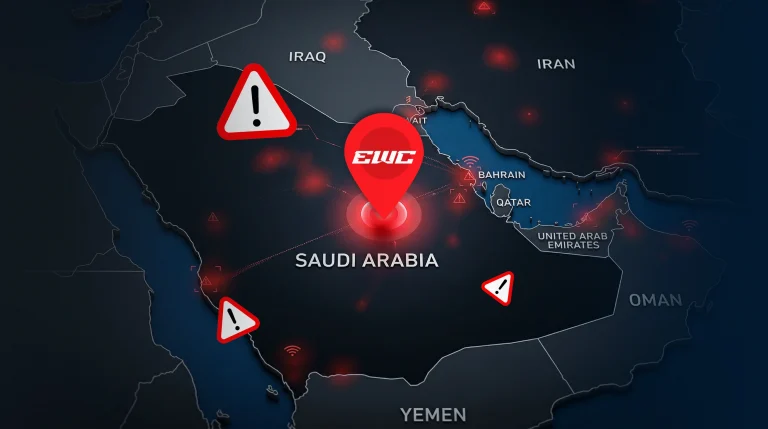
With the Esports World Cup 2025 being just around the corner, Counter-Strike 2 fans from throughout the world are eagerly looking forward to seeing their favorite CS2 teams battle it out for a shot at the prestigious trophy.

For the uninitiated, the upcoming EWC 2025 is set to feature separate tournaments for 21 prominent esports titles, with CS2 being one of the highlights. Featuring a total prize pool of $1,250,000 USD, the CS2 Esports World Cup 2025 is certain to feature high-stakes competition among the best teams in the world, with the winner walking away with a whopping $500,000 USD.

In this article, we’ll take a look at everything you need to know about the CS2 Esports World Cup 2025, including its participating teams, schedule, and where you can watch the event live.

CS2 Esports World Cup 2025 Teams

The CS2 Esports World Cup 2025 will feature sixteen elite teams from throughout the globe, with fifteen of them being picked as per the June 2025 Valve Regional Standings. The last slot is reserved for the winners of the Asian Champions League 2025.

Here’s the list of teams participating in the CS2 Esports World Cup 2025:

  • Team Vitality
  • MOUZ
  • Team Spirit
  • Team Falcons
  • The MongolZ
  • Aurora Gaming
  • G2 Esports
  • Natus Vincere
  • GamerLegion
  • FaZe Clan
  • Astralis
  • 3DMAX
  • HEROIC
  • Team Liquid
  • Virtus.pro
  • TYLOO

CS2 Esports World Cup 2025 Schedule

The detailed schedule of the CS2 Esports World Cup 2025 has not been revealed at the time of writing. However, the event is set to kick off on August 20, 2025, and will run for five days before a winner is crowned on August 24th. The playoff games will take place in a single-elimination format.

Where To Watch CS2 Esports World Cup 2025

Fans looking to watch the CS2 Esports World Cup 2025 live can do so by tuning into the official streams of the event on Twitch or YouTube.

​How to Get Bob Belcher Skin in Fortnite?

Fortnite is serving up a new blend of gaming and nostalgia this week as part of its Father’s Day festivities. Partnering with FOX Animation, Epic Games has introduced one of television’s favorite burger-flipping fathers, Bob Belcher from Bob’s Burgers, to the battle royale scene.

Bob Belcher is now genuinely exploring the Fortnite island as the newest member of the “Animated Dads” cast. With his reputation for tenacity and comedic frustration, Bob adds a special something to the cast of Fortnite.

While it’s probably hoped by fans that the rest of the Belcher family would follow, this first drop centers Bob alone, to great enjoyment by players who simply want to flip patties during a match.

What’s included in the Bob Belcher Bundle?

Through its part in the FOX-branded bundle release, Bob’s pack offers a fully themed set of cosmetics:

  • Bob Belcher Outfit (1,500 V‑Bucks)
  • Bob’s Burger Turner Pickaxe (500 V‑Bucks)
  • Burger of the Day Loading Screen (400 V‑Bucks)
  • Bob’s Happy Dance Emote (400 V‑Bucks)
  • Wing Burger Back Bling (400 V‑Bucks)

The added loading screen is a nice touch, indicating Fortnite’s desire to create an immersive scene for this crossover.

Release Date & Pricing

Leaks and confirmations through solid Fortnite sources such as ShiinaBR reveal an open window of three days around Father’s Day. While there is a reported shop arrival on June 13, others mention an official launch as early as June 14.

This aligns perfectly with Fortnite’s global shop reset times: midnight GMT or 8 p.m. EDT the day before. Let’s take a look at the pricing:

  • Bob Belcher bundle: 2,000 V‑Bucks (discounted from full price, combining all items)
  • Hank Hill & Cleveland Brown bundles: Also priced around 2,000 V‑Bucks each

Standalone skins are available at 1,500 V‑Bucks, while individual accessories range from 400 V‑Bucks (emotes/loading screens) to 800 V‑Bucks (pro pickaxes and back blings). If

How to Fix Cloud Download Failure Error in Fortnite?

Winning a Victory Royale in Fortnite requires accuracy, personalized settings, and flawless gameplay. However, the persistent “Cloud Download Failure” error can suddenly ruin your experience, resetting your keyboard/controller settings, or even stop you from opening the game. On the following pages, you will learn a detailed, step-by-step process to eliminate the problem and achieve smooth gameplay.

Before delving into detailed fixes, knowing the causes will assist you in diagnosing and solving the issue more accurately:

  • Server-side outages: Transient problems with Epic Games’ cloud servers.
  • Network interruptions: Disruption in sync processing.
  • Corrupted local config/cache files: Trashed files that hinder successful downloads.
  • Antivirus or firewall conflicts: Programs blocking cloud service access.
  • Platform-specific quirks: Problems on PC, Xbox, PlayStation, or Switch specific to their platforms.

How to Fix Cloud Download Failure Error in Fortnite?

Cloud Download Failure Error in Fortnite
  • Verify Fortnite’s Server Status
    • Start by ensuring there are no current outages. Go to the Epic Games Status page or check their official Twitter/X support handle to see if server maintenance or downtime is occurring. If servers are offline, waiting is the only choice until service resumes.
  • Restart the Device and Game
    • Quick and simple, a full shutdown and restart can remove temporary system errors:
      • Fully quit Fortnite, ensuring no lingering processes remain active (via PC’s Task Manager).
      • Restart your platform.
      • Launch Fortnite and reconnect.
  • Verify Your Internet Connection
    • Glamorous network problems can prevent your system from talking to Epic’s servers. To test and enhance reliability:
      • Switch to wired Ethernet instead of Wi-Fi (PC/console) for a less glitchy link.
      • Power cycle your router: Unplug it for a minute, then reconnect.
      • Run a speed test: A stable upload speed of at least 5 Mbps is ideal for seamless cloud syncing.
  • Inspect Cloud Save and Local Config Files
    • Sometimes local settings get corrupted. On PC, you can manually reset configurations:
      • Navigate to C:\Users\\AppData\Local\FortniteGame\Saved\Config\WindowsClient.
      • Backup and delete the GameUserSettings.ini and GameUserSettings_backup.ini files.
      • Restarting the game will regenerate clean config files and retrieve your settings afresh.
      • On consoles, reset local saved data or cache (e.g., from console settings) and then start Fortnite to trigger a new cloud sync.
  • Check Antivirus, Firewall & Security Settings
    • Security programs can interfere with cloud sync functionality. To fix:
      • Temporarily turn off antivirus or firewall (on the computer), and then start Fortnite.
      • If it solves the issue, include Fortnite and Epic Games Launcher as exceptions in your security program.
      • Then, turn on protection again to ensure system security.
  • Update All Game & Platform Components
    • Make sure everything engaged is completely updated:
      • Fortnite (through Epic Games Launcher, PlayStation Store, Xbox Store, or Nintendo eShop).
      • Epic Games Launcher itself, if played on PC.
      • Your platform’s operating system and system firmware, including drivers on the PC.
      • Outdated versions can interfere with cloud-based functionality.
  • Contact Epic Games Support
    • If nothing works above, it’s time to call in the experts. Go to Epic Games Support, create a ticket in the “Cloud Download Failure” category, and include:
      • Clear screenshot of the error message.
      • Full system/platform information (model, OS version, etc.).
      • Overview of the troubleshooting steps that have been attempted.
  • Reinstall Fortnite
    • As a last resort, a clean install can remove lingering corruption:
      • Completely remove Fortnite (on PC, console, or Switch).
      • Restart your device.
      • Reinstall through the official launcher/store.
      • Start the game once to allow complete cloud sync.

            If you still have any queries regarding the Cloud Download Failure error, let us know in the comments below.

            G2 Dominate Aurora in BLAST.tv Austin Major Stage 3

            G2 Esports have destroyed Aurora, one of the best teams in Stage 3, and now find themselves a win away from securing playoffs in BLAST.tv Austin Major.

            VETO

            • G2 removed Train
            • G2 removed Anubis
            • Aurora removed Ancient
            • Aurora removed Dust2
            • Aurora removed Mirage
            • G2 removed Nuke
            • Inferno was left over

            Map: Inferno; Winner: G2; Score: 13-4

            Despite coming into the match as the underdogs, G2 started strong, going 4-0 up before the Turkish side could see their first round. Trading rounds back and forth, G2 managed to end the half with a stellar 8-4 scoreline.

            While it was a surprise start for G2, they went on to post a perfect defence, not letting Aurora have a single piece of the pie. Despite huNter topping the scoreboard, it was a strong team performance from every piece of the G2 puzzle that saw them outclass Aurora.

            Aurora is coming into Stage 3 as a strong side, but surprisingly fell to a G2 that performed very poorly in the events leading up to the Major. Having lost two games, Aurora will need to win all of their remaining games if they are to make it to the playoffs, but it looks like, given their form in the event.

            FaZe Beat Legacy in BLAST.tv Austin Major Stage 3

            FaZe Clan find themselves a win away from making it to the playoffs of the BLAST.tv Austin Major after beating Legacy with a 13-8 scoreline, thus putting them in the 2-1 bracket, but tougher competition awaits. As s1mple continues to perform better and better with every game, it would be foolish to write them off at this stage of the Major.

            VETO

            • FaZe removed Inferno
            • FaZe removed Mirage
            • Legacy removed Train
            • Legacy removed Ancient
            • Legacy removed Dust2
            • FaZe removed Nuke
            • Anubis was left over

            Map: Anubis; Winner: FaZe;Score:13-8

            4-0 start for Legacy saw FaZe struggle early on, but s1mple getting to warmup as the match progressed shifted the momentum. While FaZe pulled a few rounds back, it wasn’t until the first half’s final round that they leveled the scoreline before switching sides. Despite the first half giving us a close contest, FaZe took charge of the game on the offense, leading to Legacy losing a big chunk of rounds that saw the CS2 heavyweight land on match point. The Brazilian side did manage to delay their win, but that wasn’t enough as FaZe pushed the game over the line, having lost two rounds. s1mple stood out as the best player on the server, not only by stats but pure dominance over both halves that put FaZe in the 2-1 bracket.

            Legacy pulled off the biggest upset of the event so far, beating Vitality with a brutally one-sided scoreline to open up Stage 3, but now they are closer to elimination than making it to the next stage. It is either a win in their next game or they are on a flight back home.