Home Blog Page 239

HEROIC’s Primary AWPer Alkaren Faces Visa Issues Again

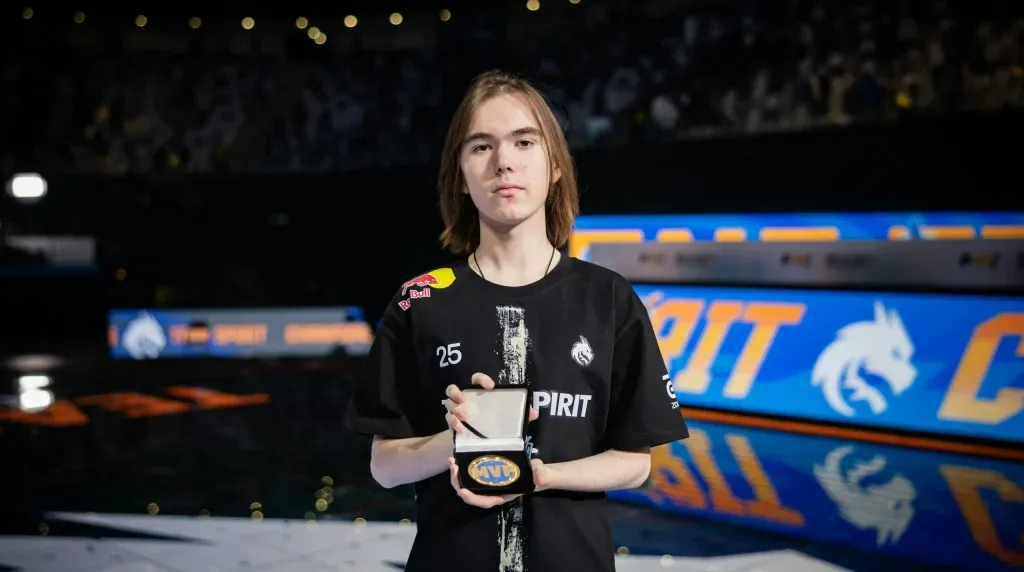
HEROIC will once again be attending a LAN without their initial AWPer, as Kazakh sniper Alimzhan “alkaren” Bitimbai has been forced to sit out the upcoming DraculaN tournament due to visa complications. This is the latest in a string of travel-related issues that are quickly turning a promising signing into a nightmare for the Danish organization.

In his place will be Simon “yxngstxr” Boije, the benched rifler who has already been called upon several times as a last resort stand-in and will once again be tasked with carrying the AWP. This forces yet another role change within a roster that had been spending the early stages of the season practicing with Alkaren as the key component of their big green, only to have that strategy blown apart by red tape.

This is not a one-off occurrence but rather a pattern. Alkaren had also previously sat out of BLAST Bounty Winter 2026 and IEM Krakow 2026 due to visa issues, which meant that HEROIC had to go to the tournament short-handed, with yxngstxr covering for him in both instances. Rumors surrounding PGL Cluj-Napoca 2026 suggested that this was already the third Tier-1 event that he has sat out since joining the team, which further emphasizes the severity of the situation for both the player and the team.

On the surface, HEROIC has continued to express its support for its sniper, reiterating that his absence is in no way related to his performance and that the long-term strategy remains the same, which is to fully integrate him into the team once the paperwork is finally in order. However, the reality is that with each LAN that he misses, the situation becomes increasingly frustrating from a competitive standpoint, as practice reps are now divided between two different rosters, on-server chemistry is constantly being disrupted, and a young, rebuilding team is now forced to redefine itself even at the LAN level.

Arc Raiders Shrouded Sky Update: Release Date, What to Expect, and More

The Arc Raiders Shrouded Sky update is the next major patch coming to the Embark Studios extraction shooter, and it’s fast approaching on the horizon.

As revealed in the Arc Raiders roadmap earlier this year, Embark is sticking to its schedule of one major update per month for the first quarter of 2026. The first month of the year saw the devs shipping out the Headwinds update, introducing the Bird City map condition, the Trophy Display project, and the Solo vs Squads matchmaking option to the game.

February 2026 is about to see another major Arc Raiders patch in the form of the Shrouded Sky update. While the detailed patch notes of the update have not been revealed at the time of writing, the aforementioned roadmap sheds light on what the new patch will bring to the game.

In this article, we’ll go through everything you need to know about the Arc Raiders Shrouded Sky update before it hits the live servers next week.

Arc Raiders Shrouded Sky Update Release Date

As already confirmed by Embark, the Arc Raiders Shrouded Sky update will officially launch on February 24, 2026.

However, the devs have shared that there will be “no major game update or a store rotation” this week as the team focuses on preparing for the upcoming release.

Arc Raiders Shrouded Sky Update Details: What to Expect?

The Arc Raiders Shrouded Sky update is expected to introduce the following new content to the game:

  • A brand-new Map Condition
  • New kind of Arc
  • New Player Project
  • New Raider Deck
  • Map Updates

Alongside these new additions, the Expedition Departure window for this season will also go live with the Arc Raiders Shrouded Sky update. Be sure to finish your Expedition Project while you still can and before the Expedition departs.
In case you aren’t done with your Expedition yet, here’s everything you’ll need to finish your Caravan in this Arc Raiders Expedition.

Marvel Rivals Season 6.5 Hotfix Nerfs Elsa Bloodstone

Elsa Bloodstone’s terror run in Marvel Rivals is already being addressed, as NetEase aims to nerf the monster hunter in the upcoming Season 6.5 emergency hotfix on February 19 at 9 AM UTC, with no server downtime.

Elsa was released in Season 6.5 as a high-pressure Duelist, and she quickly rose to become one of the best damage dealers in the game due to her excellent mobility, constant poke, and an incredibly reliable ultimate that could turn around team fights single-handedly. Her playstyle reaches its peak around Glartrox, the summoned creature that charged through teams, isolating enemies and clearing backlines with little to no resistance.

The hotfix will directly target this playstyle. Glartrox’s health will be reduced from 500 to 400, making the creature much more vulnerable to being destroyed before it one-shots a team. The dash cooldown will also be reduced from 6 seconds to 3.5 seconds, and the grab hitbox will be reduced, eliminating the “no way that grabbed me” feeling. The ult’s timing will also be tightened by increasing the bar to cast Glartrox and reducing the suppression duration, making Elsa players think twice before auto-winning team fights.

Elsa is not the only victim of this hotfix, as the patch is presented as a reaction to community feedback about the oppressive long-range and burst meta. Hawkeye’s Piercing Arrows are losing potency, with base damage reduced from 34 to 28 and fully charged attacks reduced from 85 to 70, while even Archer’s Focus-enhanced volleys will now top out at 160 instead of 175. Hela’s legendary long-range Nightsword Thorn has its damage falloff extended, so she can’t two-hit a 250 HP enemy from across the map anymore, and Gambit’s reign is tempered by a reduction in base health from 275 to 250, and his Breaking Spades damage bonus is reduced from 15% to 10%.
​
Despite the hotfixes, Elsa is still expected to be a top DPS option due to her excellent mobility, reliable damage, and still-disruptive ultimate. Let us know your opinion in the comments below.

BGMI 4.3 Update Release Date, M1 Garand, Racing Mode and New Features Explained

0

The BGMI 4.3 Update is set to introduce major gameplay improvements, a brand-new weapon, racing-themed events, and nostalgic features for long-time players. Krafton is preparing to roll out this update soon, and it is expected to bring fresh mechanics that will change how players rotate, loot, and fight across the map. Here is a complete breakdown of the BGMI 4.3 update release date details, new weapon, and all confirmed features.

BGMI 4.3 Update Release Date

Based on the recent update pattern followed by Krafton and new reports, the BGMI 4.3 Update release date is expected on March 16, 2026.

Krafton usually rolls out updates in phases. Android users typically receive the update first around 6:30 AM IST, followed by iOS users at 9:30 AM IST. Players should keep checking the Google Play Store and Apple App Store for availability once the rollout begins.

As always, minor delays are possible depending on server maintenance and technical adjustments.

Read More: BGIS 2026 Round 4: Teams, Schedule, and Format Explained

New Weapon in BGMI New Update: M1 Garand

One of the biggest highlights of the update is the addition of the M1 Garand.

The M1 Garand is a semi-automatic rifle. However, players with fast tapping speed can fire it rapidly, making it feel almost like an automatic weapon. Unlike heavy sniper rifles, it does not force a pause between shots.

Key points about the M1 Garand:

  • Semi-auto firing mechanism
  • No forced recoil delay between shots
  • Strong mid-range and long-range performance
  • Rewards skilled players with fast tapping ability

This weapon could change long-range fights and add a fresh option to the current meta in Battlegrounds Mobile India.

Tiered Loot Houses with Letter Matching System

BGMI 4.3 introduces a new Tiered Loot House system across the map. Special houses are marked with letters: C, B, A, and S.

Here’s how it works:

  • Every player starts at Tier C.
  • Driving vehicles or getting eliminations upgrades your tier.
  • Tier progression follows C → B → A → S.
  • You can only open houses if your tier matches or exceeds the letter shown.

Higher-tier houses provide significantly better loot. This system encourages aggressive gameplay and smart rotations.

Nostalgia “Easter Egg” Rooms

Some higher-tier houses contain special nostalgia-themed rooms.

These rooms celebrate older BGMI updates from previous years. Players can find references to:

  • Ancient Secret-themed items
  • Early Recall Towers
  • Classic event elements from 2022 onwards

These Easter Egg rooms act as a tribute to the game’s history and add emotional value for long-time players.

Racing and Drag Race Events

The BGMI new Update 4.3 strongly focuses on racing.

Certain map locations now feature drag race zones marked with a flag icon. When players cross the starting line in a vehicle, a timed race begins.

To complete a drag race:

  • Pass all marked checkpoints
  • Finish within the time limit
  • Earn loot boxes and rewards

This adds a fun side objective apart from traditional combat.

Movement and Utility Upgrades

Pochinki Gliding Rails

New gliding rails have been added in Pochinki. Players can jump onto these rails to move quickly across rooftops and streets.

This allows:

  • Faster rotations
  • Quick flanking
  • Easier escape during fights

Urban battles will now feel more dynamic.

Upgraded Human Launchers

The human launchers have received a graphical and functional upgrade. They now show a charging animation before launching players.

Once activated, they send players toward specific landing spots, often containing valuable loot. This improves mobility and adds a strategic element.

Water City Drone Event

A new drone feature appears in Water City.

When activated:

  • A 150-second timer begins
  • Rewards are granted after completion
  • Final reward tuning is still being adjusted during testing

This adds another objective-based interaction within matches.

The BGMI next Update 4.3 is shaping up to be one of the most exciting updates in recent times. With the M1 Garand, tiered loot houses, racing events, nostalgia rooms, and upgraded movement systems, players can expect faster gameplay and more strategic depth.

Free Fire OB53 Advance Server Registration 2026 Expected to Open Soon: Check Dates, Download Details and Activation Code Info

Garena is expected to open the Free Fire OB53 Advance Server Registration 2026 in the last week of February 2026, giving players early access to test the upcoming Free Fire OB53 Update. The Advance Server download is likely to begin in March 2026, while the main update is expected to be released on April 8, 2026. Here is everything you need to know about the FF Advance Server, registration process, and activation code details.

Free Fire OB53 Advance Server Registration 2026 Expected Date

According to early reports and update patterns, the Free Fire Advance Server Registration 2026 for OB53 is expected to start in the last week of February 2026.

Once registration opens, players can sign up on the official Advance Server website using their game-linked account (usually Facebook or Google). After successful registration, selected users will receive a Advance Server Activation Code.

Without this activation code, players will not be able to access the server.

Free Fire Advance Server Download Date

The FF OB53 Advance Server download is expected to begin in March 2026. After registration closes, Garena will release the APK file for selected players. Users will need to:

  • Download the FF Advance Server APK from the official website
  • Install it on their Android device
  • Enter the activation code to log in

It is important to note that the Advance Server has limited slots. Once the slots are full, no new registrations will be accepted.

Free Fire OB53 Update Release Date

The official Free Fire OB53 Update is expected to be released on April 8, 2026. After the testing phase ends, Garena will roll out the final update globally. The OB53 update is likely to include:

  • New character or character rework
  • Weapon balance changes
  • New in-game events
  • Gameplay improvements and bug fixes
  • Possible new mode or map adjustments

The Advance Server helps ensure that the final version of the update runs smoothly.

Read More: BGIS 2026 Round 4: Teams, Schedule, and Format Explained

How to Register for FF Advance Server

Here is how players can complete the Free Fire Advance Server Registration 2026:

  • Visit the official Free Fire Advance Server website.
  • Log in using your linked Free Fire account.
  • Fill in the required details.
  • Submit the registration form.
  • Wait for confirmation and activation code approval.

Only registered players with a valid Free Fire Activation Code will be able to access the test server.

The Free Fire Advance Server download plays a major role in improving the game’s overall experience. It allows Garena to test new features before the global release. Players also get a chance to explore upcoming content early.

For competitive players and content creators, this server provides early insights into meta changes and gameplay adjustments in the Free Fire OB53 Update.

The Advance Server is expected to open for registration in the last week of February 2026. The download will likely begin in March 2026, and the main OB53 update is expected to be released on April 8, 2026. Players who want early access should complete their FF Advance Server Registration 2026 as soon as it goes live and secure their activation code quickly.

How to Reduce Battery Drain While Playing Mobile Games in 2026

0

Your phone dies mid-match. Battery drain. Again. One minute you’re clutching a ranked game, the next you’re looking for a charger with 3% battery and an angry team. Mobile gaming has never been more demanding. 2026’s titles push 120FPS, ray tracing, and haptic feedback that sucks power like a vacuum. But you don’t need to tape a power bank to your phone to survive a three-hour session.

Here are the specific settings and habits that actually move the needle on battery life, without turning your game into a slideshow.

Top Ways to Reduce Battery Drain While Playing Mobile Games in 2026

Drop Your Refresh Rate:

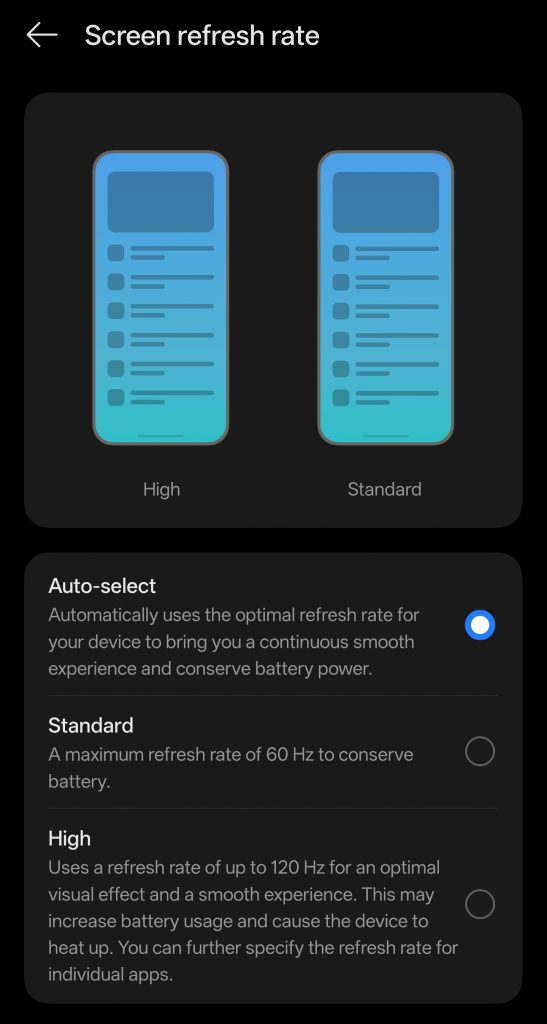
That 144Hz display looks buttery smooth, but it’s the prime cause of battery drain. Most competitive mobile games don’t even render above 60FPS consistently.

Go to Display Settings > Motion Smoothness (Android) or Settings > Accessibility > Motion (iOS). Toggle from Adaptive/ProMotion to Standard (60Hz). You’ll sacrifice some visual fluidity, but gain 20-30% extra playtime. For turn-based games like Genshin Impact or strategy titles, you won’t notice the difference. For FPS games, try 90Hz as a middle ground if your device supports it.

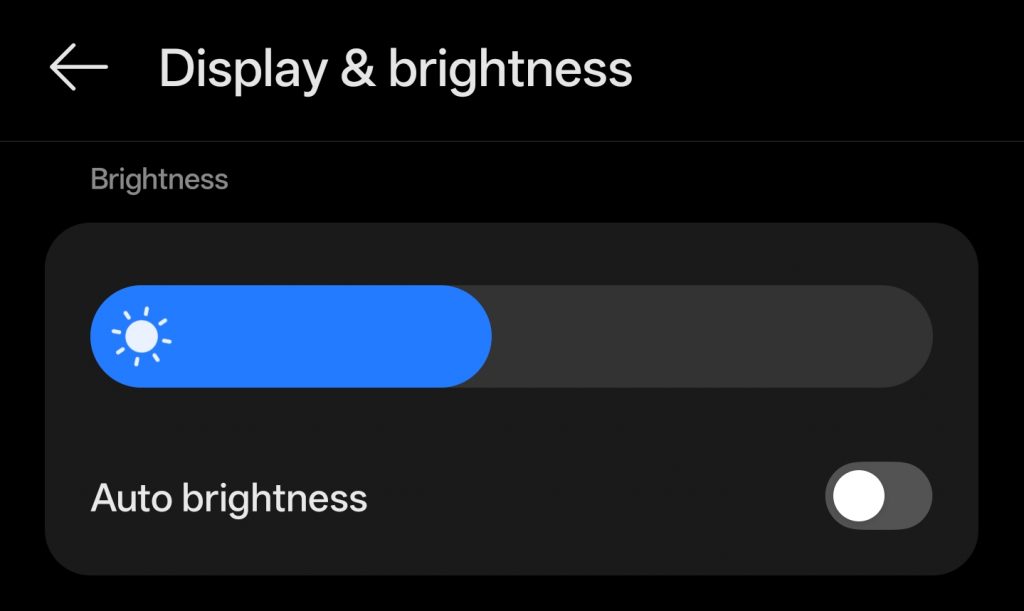
Turn Off Auto Brightness

Auto-brightness is aggressive when gaming. It sees dark game scenes and cranks brightness to 100%, draining 40% of your battery on the display alone.

Lock your brightness at 40-50% before launching. If you’re indoors, go lower. OLED screens (iPhone 15 Pro, Galaxy S25 Ultra, etc.) save additional power displaying dark modes, so enable dark themes in games that support them.

Turn Off Auto Brightness

Prevent Overheating

Thermal throttling is a hidden performance killer and one of the primary cause of Battery drain. Most smartphones have no fans. they manage heat entirely through software by reducing CPU and GPU clock speeds when temperatures climb. When your phone gets hot (typically above 40–45°C / 104–113°F), the processor throttles down to shed heat, which degrades performance. On top of that, lithium-ion batteries discharge faster at high temperatures and lose long-term capacity with repeated heat exposure.

Remove your case before serious sessions. If you’re charging while playing (which heats both the battery and the chip), limit frame rates to 60 FPS temporarily to cut CPU/GPU load. Charging also slows automatically above ~35–45°C, as the device limits current to protect the battery. The long-term damage from sustained heat outweighs any performance gain from running high FPS on a phone with a degrading battery.

Use Airplane Mode

Cellular data, 5G especially, can consume significantly more battery than Wi-Fi, sometimes over twice as much depending on signal strength. But simply turning off mobile data isn’t enough; your phone’s radio stays active searching for towers to handle calls and texts. Only Airplane Mode fully cuts that drain.

Enable Airplane Mode, then manually toggle WiFi back on. This stops the radio from hunting for cell signals while keeping you connected. For online games, this eliminates ping spikes from network switching too. If you need to receive calls, use WiFi Calling (available on most carriers in 2026) instead of maintaining that power-hungry cellular connection.

Low Graphics Settings

“Ultra” graphics presets are marketing tools, not gameplay necessities.

In your game’s settings:

  • Shadow Quality: Drop to Low. Shadows are GPU-intensive and barely visible on 6-inch screens during action.
  • Anti-aliasing: Disable or use 2x instead of 8x. You lose marginal edge smoothness but save significant GPU cycles.
  • Frame Rate Cap: Match your screen’s current refresh rate. Uncapped FPS burns battery rendering frames you can’t see.

Honkai: Star Rail and similar Unity-based games often hide “Power Saving Mode” in advanced graphics settings. This usually locks 30FPS but extends playtime by 20-40%.

Restrict Background Activity

iOS and Android have gotten better at memory management, but background refresh is still responsible for 5-10% battery drain per hour.

Before gaming:

  • iOS: Settings > General > Background App Refresh > Off (or WiFi only)
  • Android: Settings > Apps > Special Access > Battery Optimization > select “All apps” and set non-essentials to “Restricted”

Specifically kill social media apps (Instagram, TikTok) and navigation apps; they’re notorious for GPS polling and camera access even when “closed.”

Disable Haptics and Controller Vibration

Modern phones have precision haptic engines that feel great but consume surprising power. Each rumble during gunfire or hits drains the battery.

Turn off Touch Feedback in system settings and disable controller vibration in Bluetooth gamepad settings. For competitive play, this has the added benefit of eliminating distractions anyway.

Also read: Mobile Gaming Optimization Guide Android: Zero Lag Settings for BGMI, Free Fire & COD Mobile

You don’t need all eight changes. Start with refresh rate (biggest impact), brightness control, and airplane mode + WiFi. These three adjustments alone typically extend gaming sessions from 1 hours to over 2 hours on modern flagships.

Battery technology isn’t keeping pace with mobile gaming demands in 2026. But software optimization bridges that gap better than any external battery pack.

59 Year Old Chinese Gamer Defeats Top Counter-Strike Professionals in Viral Match

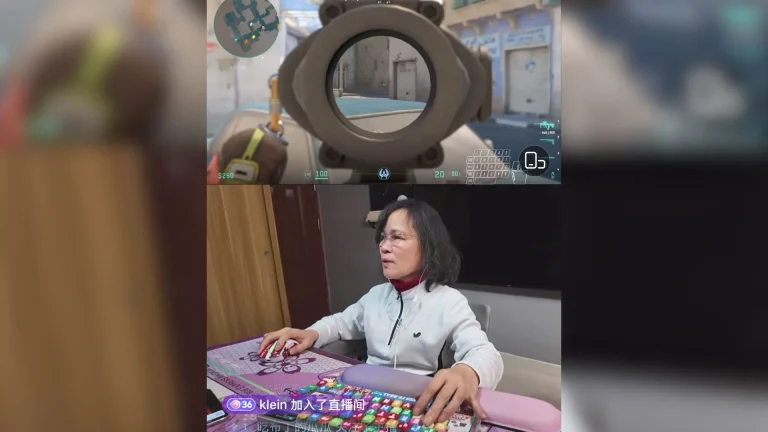
A 59-year-old Chinese streamer has captured global attention after defeating two of the world’s best Counter-Strike players during a friendly exhibition match. Zhong Juanjuan, known online as Auntie Juan, has become an internet sensation for her skills in the competitive shooter game.

From Complete Beginner to Viral Gaming Star

Zhong Juanjuan had no interest in video games before turning 50. Her gaming journey began during the global pandemic when she asked her son to teach her how to play.

The early days were challenging. Juanjuan admitted that when she first started, she would walk straight into walls and look up at the sky while moving her character. These basic mistakes are common for new players learning keyboard and mouse controls.

Streaming her entire learning process, Auntie Juan has logged 8,057 hours in Counter-Strike as of January 2026. This dedication has transformed her from a complete novice into a skilled player who can compete with professional gamers.

While Counter-Strike remains her main focus, the streamer also plays other popular titles including GTA 5 and Elden Ring. Her streaming content has gained massive popularity in China.

Auntie Juan’s skills earned her an invitation to a friendly exhibition match featuring popular streamers and professional Counter-Strike players. Among her opponents were two of the game’s biggest stars.

Donk, a 19-year-old phenom, held the title of best Counter-Strike player in the world in 2024. Her other opponent, 24-year-old Sh1ro, has earned over $1 million in prize winnings from competitive events.

During the exhibition match, Juanjuan managed to eliminate both professional players. Her quick reactions allowed her to score kills on both Donk and Sh1ro, a remarkable achievement given their elite status in the esports world.

The moment exploded across Chinese social media platforms. Videos of the 59-year-old streamer outplaying world champions spread rapidly online.

Success has brought scrutiny. Auntie Juan’s chat fills with viewers who question the authenticity of her gameplay.

Speaking in a Sixth Tone video from reporter Lü Xiao, Juanjuan addressed the accusations. Some viewers claim she uses “elderly CGI” technology. Others believe she employs a voice changer to disguise her identity. Recent comments have even suggested she might be an AI program rather than a real person.

Juanjuan’s path to gaming success stands out in the esports community. She acknowledged that her “life before had nothing to do with gaming.”

The exhibition match victory demonstrated her ability to compete against the very best players in the world. While it was just one round in a longer match, the achievement showcased how far she has come from those early days of walking into walls.

Her story has resonated with audiences who see her as proof that age is not a barrier to learning new skills and excelling at competitive gaming. For those interested in understanding how the competitive Counter-Strike scene has evolved, or learning more about the top Counter-Strike records and achievements, Auntie Juan’s journey serves as an inspiring example of dedication transcending traditional barriers in esports.


Cute Valorant Crosshair Codes 2026: Adorable Designs with Import Codes

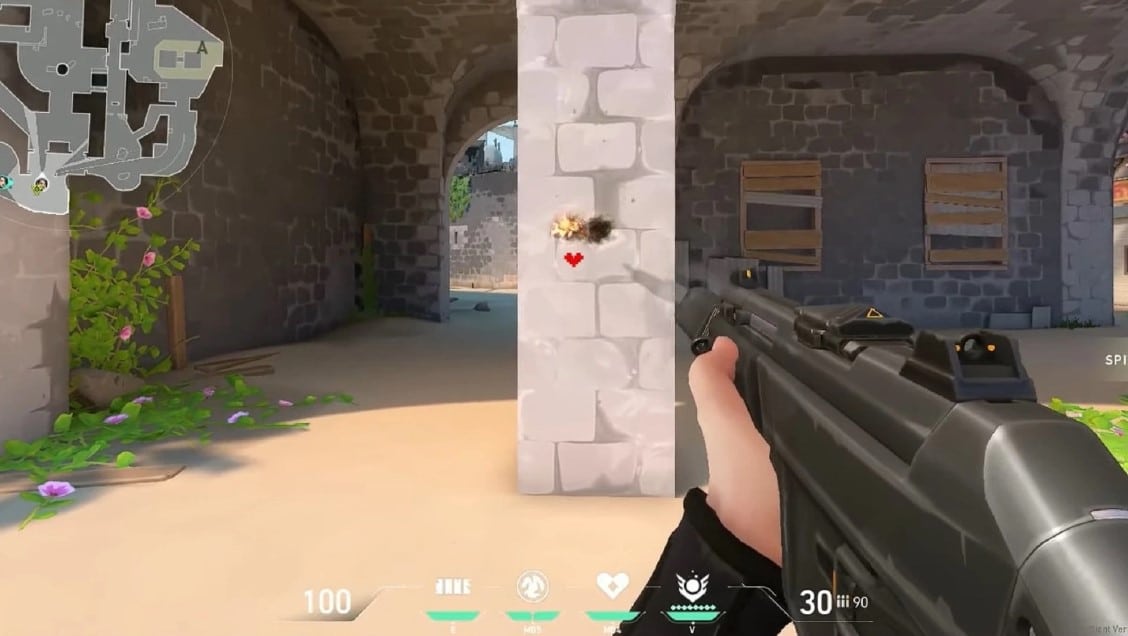
Valorant players looking to add charm and personality to their matches can use cute crosshair designs that stand out from standard competitive setups. These adorable crosshair codes transform the traditional aiming reticle into playful shapes and characters, bringing fun to the tactical shooter in 2026.

How to Use Cute Crosshair Codes in Valorant

Importing cute crosshair designs into Valorant requires just a few simple steps. Players can paste crosshair codes directly in the Crosshair section of the settings menu. Alternatively, manual input of individual values works for those who prefer customization. To disable the middle chain icon for crosshairs with different vertical and horizontal line lengths, go to settings.

Custom crosshairs often include dynamic elements that move during gameplay. The Range mode offers the perfect testing environment to see how cute crosshairs perform when shooting before using them in ranked or unranked matches.

Duck Crosshair Code (Baby Chick Design)

The duck crosshair ranks among the most popular cute designs in Valorant. This adorable crosshair features two eyes and a mouth that opens and closes based on firing accuracy. Players can change the mouth color to yellow to create a baby bird or chick appearance, adding extra cuteness to every match.

Import Code: 0;P;0t;10;0l;0;0v;2;0g;1;0o;0;0e;0.168;1t;8;1l;10;1v;0;1g;1;1o;17;1a;1;1m;0;1f;0

Smiley Face Crosshair Code

This cheerful design transforms standard crosshair lines into a lopsided smiley face. The smiley crosshair brings positive vibes to casual gameplay and makes every match more enjoyable.

Import Code: 0;P;c;7;t;2;o;1;d;1;z;3;a;0;f;0;0t;10;0l;2;0o;2;0a;1;0f;0;1b;0

Pink Heart Crosshair Code

Heart crosshairs offer one of the cutest options for Valorant players in 2026. The pink heart design works beautifully on screen while maintaining its distinctive shape. Players can customize the color while keeping the heart form intact.

Import Code: 0;c;1;s;1;P;c;8;u;F97AC0FF;h;0;d;1;b;1;z;3;f;0;m;1;0t;4;0l;1;0o;2;0a;1;0f;0;1t;3;1l;1;1o;2;1a;1;1m;0;1f;0;S;b;1;c;8;t;F97AC0FF;s;0.823;o;1

Alternative heart crosshair code: 0;P;c;8;u;F97AC0FF;h;0;d;1;b;1;z;3;f;0;m;1;0t;10;0l;0;0v;3;0g;1;0o;1;0a;1;0f;0;1t;9;1v;0;1g;1;1o;3;1a;1;1m;0;1f;0

Flower Crosshair Code

The flower crosshair provides a delicate and decorative alternative to traditional designs. This flowery option adds natural beauty to the competitive shooter environment.

Import Code: 0;P;c;6;o;1;d;1;z;4;f;0;m;1;0t;8;0l;3;0o;2;0a;0;0f;0;1l;3;1o;3;1a;0;1m;0;1f;0

Googly Eyes Crosshair Code

The googly eyes design creates an animated and playful look on screen. This variation brings character and personality to every aim, making it perfect for players who want cute crosshairs with movement.

Import Code: 0;c;1;s;1;P;t;4;o;1;d;1;z;5;a;0.556;0t;10;0l;20;0v;0;0g;1;0o;13;0a;1;0f;0;1t;1;1l;1;1v;0;1g;1;1o;14;1a;1;1s;0.064;1e;0.375;S;c;0;s;0.628;o;1

Among Us Character Crosshair Code

This crosshair references the popular game Among Us, creating a recognizable and cute character shape on screen that players will instantly identify.

Import Code: 0;P;c;7;t;3;o;1;0t;4;0l;5;0o;0;0a;1;0f;0;1t;8;1l;3;1o;0;1a;1;1m;0;1f;0

Food Themed Crosshair Codes

Hamburger Crosshair

Food-themed crosshairs add a playful touch to Valorant gameplay. The hamburger design brings cute food imagery directly to your aiming reticle.

Import Code: 0;P;c;8;b;1;t;2;o;1;z;2;a;1;0t;10;0l;3;0v;3;0o;3;0a;1;0s;1;0e;1;1t;2;1l;2;1v;2;1o;10;1a;0.35;1s;1;1e;1;u;FFFFFF;d;1;h;1;0g;0;1g;0;0f;0;1f;1;0m;0;1m;1;0b;1;1b;0;m;0;f;0

Additional Fun Crosshair Designs for 2026

Instagram Logo Crosshair

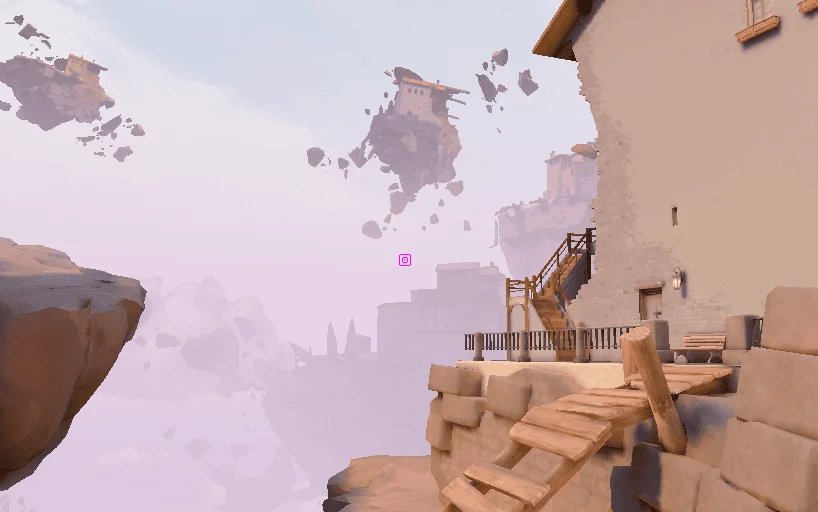
The social media platform logo design brings recognizable branding into Valorant with a clean and modern look.

Import Code: 0;P;c;6;h;0;d;1;z;1;f;0;s;0;0t;4;0l;1;0o;2;0a;1;0f;0;1t;10;1l;1;1o;5;1a;1;1m;0;1f;0

Medkit Crosshair

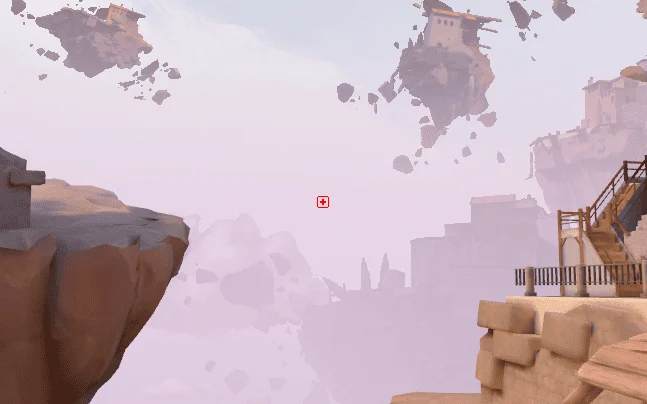
The medkit crosshair offers a unique healthcare-themed design option.

Import Code: 0;P;c;7;h;0;f;0;0t;6;0l;1;0o;0;0a;1;0f;0;1t;10;1l;1;1o;5;1a;1;1m;0;1f;0

Xbox Logo Crosshair

This crosshair displays the Xbox logo, suited for console players using Valorant.

Import Code: 0;P;c;1;h;0;0t;1;0l;2;0o;1;0a;1;0f;0;1t;3;1l;1;1o;2;1a;1;1m;0;1f;0

Reyna Vision Crosshair

This purple crosshair serves as a reminder for Reyna players to use abilities before entering bombsites.

Import Code: 0;P;c;6;t;6;o;0.3;f;0;0t;1;0l;5;0o;5;0a;1;0f;0;1t;10;1l;4;1o;5;1a;0.5;1m;0;1f;0

Windmill Crosshair

The windmill crosshair stands out with its large size and movement that highlights firing errors. This design works best for casual matches.

Import Code: 0;P;c;7;t;2;o;1;d;1;z;3;f;0;0t;10;0l;2;0o;2;0a;1;0f;0;1b;0

Simple Cute Crosshair Alternatives

Plus Sign Crosshair

A simple cross design that remains clean and minimal while offering an alternative to standard setups.

Import Code: 0;P;c;7;h;0;f;0;0l;4;0o;2;0a;1;0f;0;1t;8;1l;1;1o;1;1a;1;1m;0;1f;0

Smooth Aim Crosshair

This design focuses on providing clean aiming lines with a smooth appearance.

Import Code: 0;P;h;0;f;0;m;1;0l;3;0o;2;0a;1;0f;0;1t;8;1l;1;1o;2;1a;1;1m;0;1f;0

Why Use Cute Crosshairs in Valorant 2026

Cute crosshair codes allow players to express personality and stand out in lobbies. While professional players typically use minimalistic designs for competitive advantage, casual players can enjoy these adorable alternatives without sacrificing too much accuracy. The extensive customization options in Valorant make it easy to switch between cute designs for fun matches and standard crosshairs for ranked games.

Best Practices for Cute Crosshairs

Players should test cute crosshairs in the Range before using them in competitive matches. Many cute designs include dynamic elements that change during shooting, which standard screenshots cannot fully capture. This testing helps players understand how the crosshair performs during actual gameplay and whether it suits their playstyle.

The Valorant crosshair system in 2026 continues to offer players creative freedom. Whether choosing a duck crosshair for its animated mouth, a heart for romance, or a smiley face for positivity, these cute codes bring joy to every match.

Nintendo Switch Fortnite Not Working: How to Fix Connection Errors, Loading Issues, and Login Problems

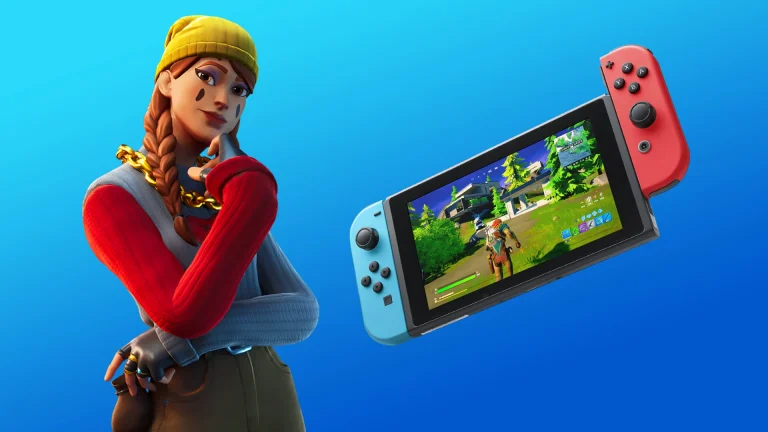
Players across the Nintendo Switch platform have reported ongoing issues with Fortnite refusing to load, connect to servers, or launch properly. These problems range from server connection failures and error codes to slow loading times and matchmaking errors.

If you are experiencing Fortnite not working on your Nintendo Switch, this guide covers every confirmed fix and troubleshooting step based on official support documentation from Nintendo and Epic Games.

Common Fortnite Errors on Nintendo Switch

Before jumping into solutions, it helps to identify which specific error you are facing. The most commonly reported Fortnite errors on Nintendo Switch include the following.

  • ESP-DIST-001 Error Code: This error indicates a communication failure between your Switch and the Fortnite servers. It typically appears when trying to connect to a match or when launching the game.
  • Matchmaker Error: The message “That wasn’t supposed to happen – trouble talking to the match maker” suggests a problem with your connection to Epic’s matchmaking servers or an issue with your console’s time and date settings.
  • Server Connection Failed: A generic error message that appears when the Switch cannot establish a stable connection to Fortnite’s online services.
  • Game Loads But Won’t Let You Enter: The game opens, allows you to press start, logs you in, but then freezes or refuses to load into matches.
  • Slow Loading Times: Textures fail to load, the game stutters, or matches take an extremely long time to start.

Update Fortnite to the Latest Version First

Before attempting any other fix, confirm that your copy of Fortnite is running the most recent version. Epic Games releases frequent patches to address bugs, server issues, and compatibility problems. An outdated version of the game is one of the most common causes of connection and login failures.

From the Nintendo Switch HOME Menu, highlight the Fortnite icon, but do not launch it. Press the Plus Button or Minus Button on your controller. Select Software Update, then choose Via the Internet. The console will check for updates and download them automatically if a new version is available.

Nintendo Switch and Nintendo Switch 2 each have their own separate version of Fortnite. If you recently upgraded consoles, make sure you have downloaded the correct version for your system.

Restart Your Nintendo Switch Console

A full console restart clears temporary data and resets your connection to the Fortnite servers. This step resolves a large percentage of minor connection and loading issues.

Press and hold the POWER Button on your Switch for at least three seconds. Select Power Options from the menu that appears. Choose Restart and confirm. Wait for the console to shut down completely and reboot. Once the system restarts, launch Fortnite from the HOME Menu.

For persistent issues, perform a hard power cycle. Hold the POWER Button for 12 to 15 seconds until the console shuts down completely. Wait 30 seconds before turning it back on. This method fully resets the system’s network connections.

Clear the Cache on Your Nintendo Switch

Clearing the cache removes stored temporary files that can become corrupted and cause Fortnite to malfunction. This is one of the most effective fixes for the ESP-DIST-001 error and matchmaking problems.

From the HOME Menu, select System Settings. Scroll down and choose System. Select Formatting Options. Choose Clear Cache. Select your user profile and confirm the action. Restart your console after clearing the cache.

This process does not delete your save data, downloaded games, or user accounts. It only removes temporary system files.

Check and Fix Your Console’s Time and Date Settings

Incorrect time and date settings can prevent Fortnite from connecting to Epic’s servers. The matchmaker error specifically has been linked to this issue in official Nintendo support documentation.

Go to System Settings from the HOME Menu. Select System, then scroll down to Date and Time. Turn on the option labeled Synchronize Clock via Internet. If the option is already enabled, toggle it off and back on to force a refresh. Exit the settings and relaunch Fortnite.

Reinstall Fortnite on Your Nintendo Switch

If clearing the cache and restarting the console did not resolve the issue, a full reinstall may be necessary. Corrupted game files can cause a wide range of errors that are not fixed by updates or cache clearing.

From the HOME Menu, highlight Fortnite. Press the Plus Button to open the options menu. Select Manage Software, then choose Delete Software. Confirm the deletion. Go to the Nintendo eShop and redownload Fortnite. Once the download completes, launch the game and attempt to connect.

Reinstalling the game does not affect your Epic Games account, skins, progress, or purchased content. All of that data is stored on Epic’s servers, not on your Switch.

Install Fortnite on Internal Storage Instead of an SD Card

Players using an SD card to store Fortnite have reported slower loading times and occasional crashes. Installing the game on the Switch’s internal storage can improve performance and stability.

Delete Fortnite from your SD card using the steps listed above. Go to System Settings, then Data Management. Select Manage Software and check where Fortnite is currently installed. Redownload the game from the eShop. During installation, ensure it downloads to internal storage rather than the SD card.

Verify Your Internet Connection Stability

Fortnite requires a stable internet connection to function. If your connection is weak, unstable, or experiencing packet loss, you will encounter frequent disconnects and server errors.

From the HOME Menu, select System Settings. Choose Internet, then Test Connection. Review the connection speed and NAT type. If the NAT type is listed as D or F, you may need to adjust your router settings or contact your internet service provider. Try switching from wireless to a wired connection using a USB Ethernet adapter if possible. Restart your router and modem, then test the connection again.

Check for Cabined Account Restrictions

If you are unable to use voice chat, send text messages, or purchase V-Bucks in-game, your account may be set as a Cabined Account. This is a restricted account type intended for younger players and requires parental consent to unlock full functionality.

Cabined Accounts can also prevent you from changing your display name or accessing certain online features. Epic Games provides a parental consent process to lift these restrictions. Visit Epic Player Support’s FAQ section for instructions on how to adjust the Cabined Account settings.

Account linking issues between your Nintendo Account and your Epic Games account can prevent Fortnite from loading properly. Unlinking and relinking the accounts has been confirmed to resolve certain login errors.

Visit the Epic Games website and log in to your account. Navigate to the Connections section under Account Settings. Find your Nintendo Account in the list of linked accounts and select Unlink. Confirm the action. Restart your Nintendo Switch. Launch Fortnite and follow the prompts to relink your Nintendo Account to your Epic Games account.

Contact Epic Games Support for Server-Side Issues

If you have tried every troubleshooting step listed above and Fortnite still refuses to work on your Nintendo Switch, the issue may be on Epic’s end. Server outages, maintenance periods, and backend problems can prevent players from connecting even when their console and internet connection are functioning correctly.

Check Epic Games’ official status page or social media accounts for announcements about server downtime or known issues. Visit the Epic Games support website and submit a ticket describing your problem in detail. Include your console model, error codes, and the steps you have already attempted.

Epic Games support can investigate account-specific issues, verify server status for your region, and provide additional troubleshooting steps not covered in general support documentation.
Marteen Valorant Settings: Complete Guide to Sensitivity, Crosshair, and Gear Setup

Martin “marteen” Pátek has emerged as one of the most mechanically gifted players in the Valorant Champions Tour. The Czech professional currently plays for Gentle Mates and has made headlines by breaking the all-time VCT kill record during the EMEA region kickoff. His exceptional aim and aggressive duelist playstyle have made his settings a topic of interest for players looking to improve their own game. Here is a complete breakdown of marteen’s Valorant settings, including his mouse sensitivity, crosshair, resolution, and full hardware setup.

Who Is Marteen?

Martin “marteen” Pátek is a professional Valorant player from the Czech Republic who currently represents Gentle Mates in the VCT circuit. He previously played for regional teams including eco chalks, GMT Esports, and eSubha before breaking through on the international stage. Marteen established himself as a top-tier duelist during the VCT 2024 EMEA Kickoff, where his team secured first place by defeating top organizations including Fnatic, Navi, and Team Heretics. His most recent achievement includes setting a new all-time VCT kill record while helping Gentle Mates qualify for the Masters Santiago.

Marteen Mouse Settings

Marteen uses a relatively low sensitivity compared to many other professional Valorant players. His settings prioritize precision and consistency over fast flicks.

  • DPI: 800
  • In-Game Sensitivity: 0.39
  • eDPI: 312 (calculated by multiplying DPI by sensitivity)
  • Scoped Sensitivity: 1.587
  • Polling Rate: 1000Hz
  • Windows Sensitivity: 6

His eDPI of 312 places him on the lower end of professional Valorant sensitivities. This allows for extremely precise crosshair placement and controlled spray patterns, which are essential for a duelist player who needs to win aim duels consistently. Players attempting to replicate marteen’s settings should be aware that this sensitivity requires a large mousepad and full arm movements for wider turns.

Marteen Crosshair Settings

Marteen uses a clean and minimal crosshair with no distractions. The crosshair is designed for maximum visibility without clutter.

  • Color: White
  • Outlines: Off
  • Center Dot: Off
  • Inner Line Opacity: 1
  • Inner Line Length: 3
  • Inner Line Thickness: 2
  • Inner Line Offset: 0
  • Outer Lines: Off
  • Movement Error: Off
  • Firing Error: Off

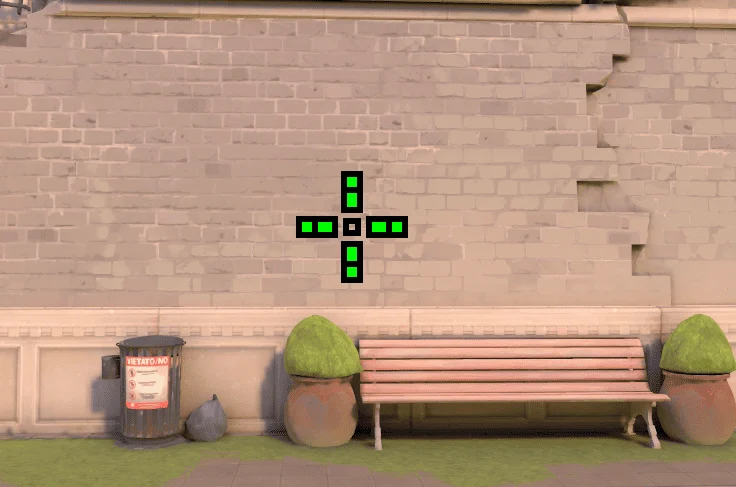
This crosshair is a simple white cross with no center dot and no outer lines. The lack of movement or firing error indicators keeps the crosshair static during movement and shooting, allowing marteen to focus purely on enemy positions rather than crosshair animations. Players who prefer a clean visual setup will find this crosshair effective for tracking heads across all ranges.

Marteen Video Settings

Marteen plays on settings optimized for competitive performance rather than visual quality. His resolution and graphics settings are focused on maximizing frame rate and reducing input delay.

  • Resolution: 1920×1080 (16:9 aspect ratio)
  • Display Mode: Fullscreen
  • Frame Rate Limit: Unlocked

Professional players are now required to use resolutions provided in-game for official matches, which means marteen plays on the standard 1920×1080 resolution. This gives him the widest field of view available in Valorant while maintaining a high refresh rate on his monitor.

Marteen Gaming Gear and Hardware

Marteen’s hardware setup is built around responsiveness and consistency. Each piece of equipment is a popular choice among professional players.

  • Mouse: Logitech G PRO X Superlight 2 (White/Magenta)
  • Keyboard: Wooting 60HE
  • Headset: Logitech G PRO X 2 LIGHTSPEED
  • Monitor: Alienware AW2518H
  • Mousepad: Logitech G640 or G740

The Logitech G PRO X Superlight 2 is one of the lightest and most responsive wireless mice available, weighing under 60 grams. The Wooting 60HE is a mechanical keyboard with analog input technology, allowing for faster actuation and more control over key presses. His Alienware AW2518H monitor offers a 240Hz refresh rate, which is essential for competitive play at the highest level.

Why Players Copy Marteen’s Settings

Marteen’s settings have gained popularity because they reflect a balance between precision and competitive performance. His low sensitivity allows for highly accurate aim, while his minimal crosshair keeps the screen uncluttered during fights. Players who prioritize consistency over flashy flicks will find marteen’s setup effective for ranking up in competitive mode.

However, it is important to note that settings alone do not make a professional player. Marteen’s success comes from thousands of hours of practice, game sense, positioning, and teamwork. Players should use professional settings as a starting point and adjust based on their own comfort and playstyle.

How to Import Marteen’s Settings

To replicate marteen’s crosshair in Valorant, players can manually input the values listed above in the crosshair settings menu. Valorant also allows players to copy crosshair codes directly, though marteen’s specific crosshair code was not provided in available sources. Players can recreate it by setting the color to white, turning off outlines and center dot, and adjusting inner line length to 3, thickness to 2, and offset to 0.

For mouse settings, players should adjust their DPI to 800 in their mouse software and set in-game sensitivity to 0.39. This will result in the same eDPI that marteen uses.