



If you have tried to uninstall Riot Client from your PC, you might have noticed that it does not completely disappear. Even after uninstalling, some files and folders stay hidden in your system. These leftover files are often called “ghost files” and can take up space or cause issues later. Because Riot Games installs files in multiple locations on Windows, a normal uninstall is usually not enough. This complete guide will help you fully remove the Riot Games Client and all related data from your PC. Check out how to uninstall Riot Games Client completely.
How to Uninstall Riot Client Completely: Check all Step
Follow the steps below to uninstall the Riot Games Client:
Step 1: Close the Riot Games Client Completely
Before deleting any files, make sure the Riot Client is not running in the background. If it is active, Windows will not allow you to delete its folders.
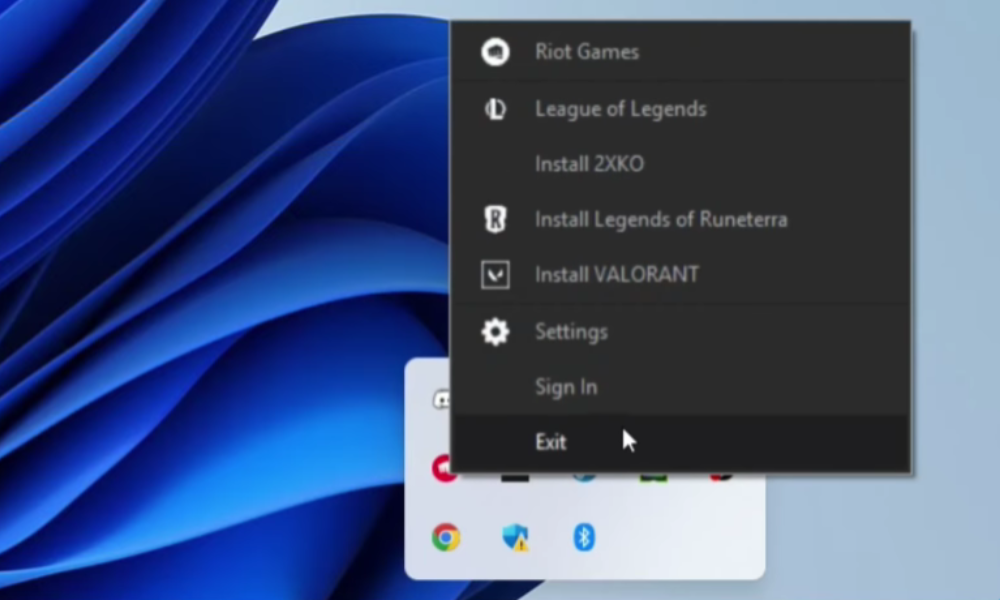
- Go to the bottom-right corner of your taskbar.
- Click on the Show hidden icons arrow.
- If you see the Riot Games logo, right-click on it and select Exit.
This ensures the client is fully closed.
Step 2: Delete the Main Riot Games Folder
The main installation files are usually stored on your primary drive.
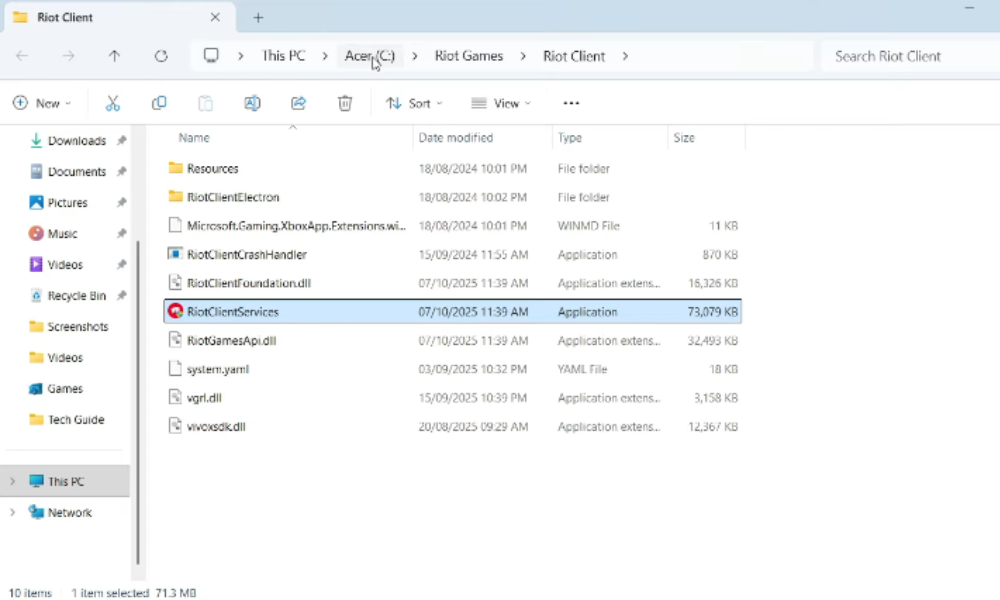
- Right-click on the Riot Client shortcut on your desktop.
- Click Open file location.
- In the address bar, click on your main drive, usually C:.
- Find the folder named Riot Games, select it, and press Delete.
This removes the core Riot Games files from your system.
Step 3: Remove Riot Games from the Program Folder
Riot Games also stores files inside Windows program directories.
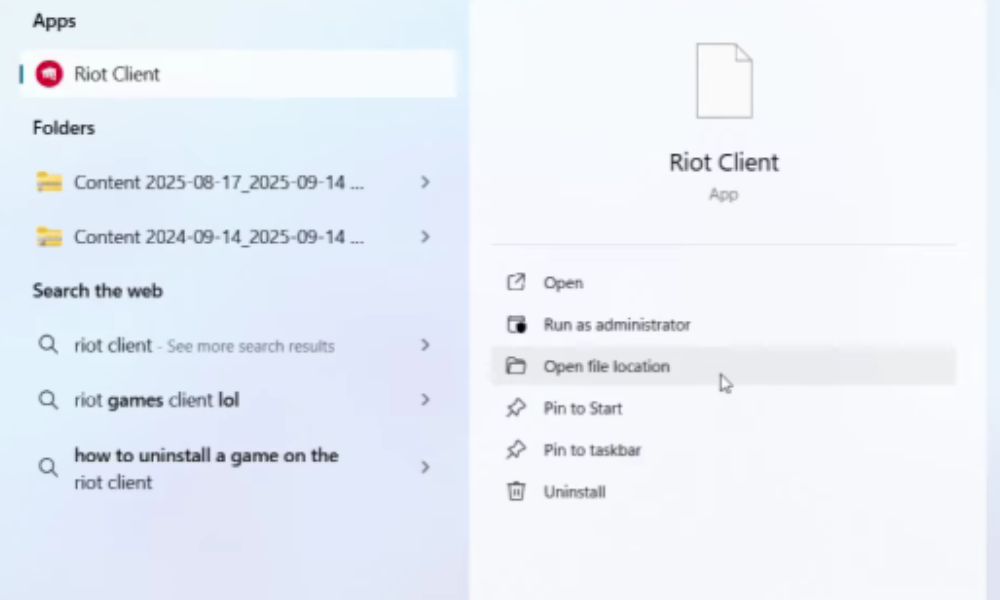
- Type Riot Client in the Windows search bar.
- Click Open file location.
- Look at the folder path shown at the top.
- Open the folder just before Riot Games, usually named Programs.
- Right-click the Riot Games folder and delete it.
This step helps remove secondary installation files.
Read More: Fortnite Steal the Brainrot Codes (December 2025): Free Gods & Luck
Step 4: Clear Riot Games from Local App Data
Many hidden configuration and cache files are stored in Local App Data.

- Press Windows key + R to open the Run dialog.
- Type “appdata” and click OK.
- Open the Local folder.
- Scroll down and find the Riot Games folder.
- Delete the folder completely.
If you have played Valorant, you may also see a Valorant folder here. Deleting it will remove all Valorant-related data from your PC.
Step 5: Uninstall Riot Games Titles from Windows Settings
To make sure individual Riot games are fully removed:
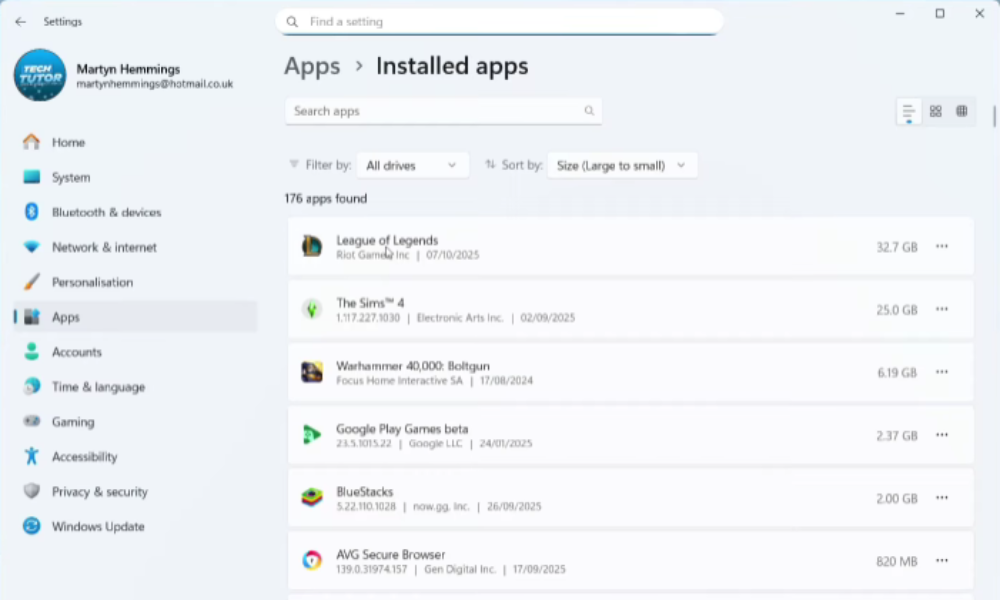
- Search for Add or remove programs in the Windows search bar.
- Scroll through the list and find Riot Games like Valorant or League of Legends.
- Click the three dots next to the game and select Uninstall.
Repeat this step for every Riot game installed on your system.
Final Cleanup Steps
Once everything is deleted, complete the process with these final steps:
- Remove the Riot Client shortcut from your desktop if it is still there.
Open the Recycle Bin and empty it to permanently delete all files.
After this, the Riot Games Client and all its related files should be fully removed from your PC.
