

The Valorant incompatible software component detected error is one of the most common issues that players run into when trying to play the Riot Games competitive shooter. Unlike most other problems that you can face in Valorant, the incompatible software component error completely prevents you from launching the game, and can be incredibly frustrating to fix accurately.
Luckily, over the years, the community has figured out a number of different methods to consistently fix the incompatible software component detected error in Valorant. If you’re finding yourself encountering the same Vanguard error when trying to launch Valorant, we’ve got you covered.
By following this guide, you should be able to fix the Valorant incompatible software component detected error and get a better understanding of what might be causing it.
Without further ado, let’s check out how you can fix the Valorant incompatible software component detected error and get back on your ranked grind.
How to Fix Valorant Incompatible Software Component Detected Error
The incompatible software component detected error in Valorant is triggered when there is one or more driver files on your PC that aren’t compatible with Vanguard, Riot Games’ kernel-level anti-cheat system.
Upon encountering this issue, you should see an error message indicating which files are incompatible with Vanguard.
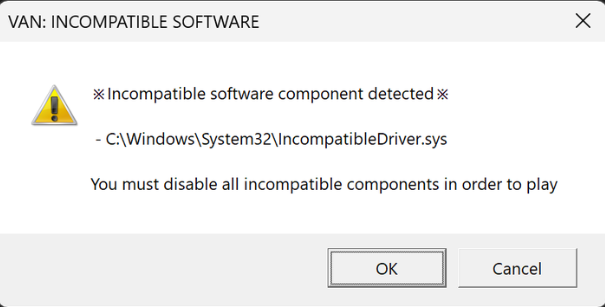
The first thing you should do is take note of which software is causing this issue and try uninstalling it from your Control Panel.
If you’re unable to uninstall the software, in some cases, you could also try manually deleting the offending .sys file. Once done, restart your PC and try launching Valorant.
If this doesn’t fix the Valorant incompatible software component detected error, then there might be a problem with Vanguard itself, which can often be fixed by restarting the vgc service.
Simply press Windows key + R on your keyboard to open the Run dialog, type in “services.msc” and hit Enter. In the Services window, locate vgc, double-click it, set the Startup type to Automatic, and then start the service.
Lastly, if none of these methods seems to work for you, then you’ll need to reinstall Riot Vanguard from scratch.
Click the system tray on your taskbar, select the Vanguard icon, then under “More,” click “Uninstall Vanguard.”
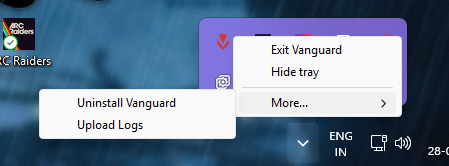
After Vanguard is successfully uninstalled, try to launch Valorant again, and you’ll automatically be prompted to re-download the infamous anti-cheat.
Once Vanguard is installed, you’ll need to restart your PC to be able to play Valorant again.
And that’s it! Follow these steps correctly, and you should be back in the action in no time.

