Friday, January 2, 2026
Home Blog Page 233

Team Spirit Wins Perfect World Shanghai Major 2024

Team Spirit has taken down FaZe Clan to win the Perfect World Shanghai Major 2024. This cements donk as the youngest player to win a Major. MVP performance at the mere age of 17, donk dismantled a supremely experienced FaZe Clan.

VETO

  • FaZe removed Vertigo
  • Spirit removed Inferno
  • FaZe picked Nuke
  • Spirit picked Ancient
  • Spirit removed Anubis
  • FaZe removed Mirage
  • Dust2 was left over

Map 1: Nuke; Picked: FaZe; Winner: Spirit

FaZe Clan’s pistol round win was quickly countered by a stellar donk double kill with the Deagle. This loss put FaZe on the back as Spirit went on to take the lead. FaZe kept fighting back, winning four more rounds in the first half, and getting closer to the scoreline as the first half concluded.

Spirit accelerated further with their lead winning the pistol round but the first gun round going the way of FaZe kept hopes for a comeback alive as FaZe Clan’s individuals failed to deliver impact, Spirit cruised their way to victory. Spirit did not let FaZe have the room to mount a comeback and closed the map with a 13-8 scoreline. magixx with a rating of 1.80 delivered to give Spirit the lead in the series.

Map 2: Ancient; Picked: Spirit; Winner: FaZe

FaZe having been able to brush off their earlier loss, got off to a stellar start on Ancient. Spirit managed to get back with a few rounds as magixx and donk were finding form late into the game but the FaZe Clan machine was able to tame the beast before things got out of hand.

Despite losing the pistol round, FaZe stabilized before Spirit could mount a comeback. Starting from the first gun round, the FaZe Clan put up a stellar T side as Spirit failed to find a single round as the Karrigan and co. cruised their way to victory. Ropz was by far the best player on the server, overshadowing Donk with 25 kills and a 1.89 IR.

Map 3: Dust 2; Picked: Decider; Winner: Spirit

donk’s 3K opened the map for Spirit and with that momentum, they sailed through FaZe Clan in the first half. karrigan failed to find a way through a Spirit defense firing on all cylinders as the CIS side went 8-1 up at one point. FaZe managed to bring a few rounds their way to close the half but Spirit looked formidable walking into the second half.

Spirit opened the second half with a pistol-round win and crushed any hopes for FaZe Clan expecting a comeback. Spirit’s T side bulldozed through the FaZe Clan’s defense. Spearheading the TS attack, donk replicated his performance from the previous half to completely stonewall FaZe Clan. FaZe started mounting a comeback as soon as Spirit hit series point. Round after round, ropz found a way to keep FaZe alive, along with the supporting cast of rain and frozen. FaZe almost pulled it off as they reached the final round of the map, as it where FaZe almost pushed it to the comeback but sh1ro beat broky in a 1v1 in the B site to close the deal. With an MVP performance along with magixx, donk reigned supreme with 30 kills which can be argued as the best individual performance of a Major.

FaZe Clan’s Cinderella run ends at the grand finals as they walk away with their heads held high. Team Spirit having come close previously, makes it to the final.

How To Change Enemy Color in Valorant?

0

Valorant is a highly competitive game, with players constantly looking to gain every possible advantage over their opponents to give themselves an edge in combat. One often-overlooked yet impactful setting is the enemy highlight color, which can dramatically enhance your visibility—making it easier to spot opponents—and improve your reaction times during critical moments.

For the same reason, a lot of players are often curious about how to change enemy color in Valorant.

Luckily, Riot Games has made it extremely easy for players to change the enemy colors in Valorant. In fact, all it takes is following a few simple steps, and you’ll be able to spice up your gameplay experience in no time.

Valorant Enemy Color Guide

When playing a fast-paced tactical shooter like Valorant, it’s crucial for you to be able to quickly spot enemies in the heat of battle, which is why finding the right enemy color can be extremely important.

When trying to switch enemy colors in Valorant, you’ll be presented with four choices that you can pick from: Red (Default), Purple (Tritanopia), Yellow (Deuteranopia), and Yellow (Protanopia).

While selecting an enemy highlight color in Valorant is largely a matter of personal preference, many players argue that some colors offer superior visibility and faster reaction times.

But how exactly do you change the enemy color in Valorant? Without further ado, let’s find out.

How To Change Enemy Color in Valorant

How To Change Enemy Colors in Valorant

Here’s how you can change the enemy color in Valorant:

  • Launch Valorant.
  • Go to the ‘Settings’ menu by clicking on the cog in the top-right corner.
  • Click on the ‘General’ tab.
  • Under ‘Accessibility’, select ‘Enemy Highlight Color’.
  • Pick your preferred enemy color.

Once done, the enemy colors in Valorant will instantly change to the one that you’ve selected.

Note that you are able to change the enemy color in Valorant even when you’re in the middle of a game. If you’re struggling to quickly identify opponents or feel like your accuracy is lacking, experimenting with a different highlight color might be a good idea.

How to Enable Shift Lock on Roblox PC – A Step-by-Step Guide

0

Shift Lock is a gameplay feature in Roblox that locks the camera’s perspective directly behind your character, allowing you to control movements more intuitively. By enabling this mode, players can maneuver using their mouse rather than traditional keyboard controls, such as the “A” and “D” keys. This enhances precision, making it particularly useful in obstacle course games, sword-fighting adventures, and driving simulations. However, it is essential to note that this feature is not universally available across all Roblox games and is not supported on mobile devices.

How to Turn on Shift Lock on Roblox PC

Enabling Shift Lock on a PC is straightforward:

  1. Log into Roblox: Access the Roblox platform through a web browser on your PC or Mac. Ensure that the Roblox application is installed.
  2. Select a Compatible Game: Not all games support Shift Lock. Check the game’s settings or developer notes to confirm compatibility.
  3. Enable Shift Lock in Settings:
    • Press the “Esc” key during gameplay to access the menu.
    • Navigate to the “Settings” tab, marked by a gear icon.
    • Locate the “Shift Lock Switch” option. Toggle it to “On” unless it reads “Set by Developer,” indicating that the game has disabled this feature.
  4. Activate Shift Lock: Press the “Shift” key on your keyboard to toggle Shift Lock on and off. Your character’s movement will now align with mouse movements, offering smoother control.

Games That Support Shift Lock

Shift Lock is particularly beneficial in games requiring precision and agility. While developers decide its availability, the feature is commonly supported in:

  • Obstacle Courses (Obbies): Navigate tight platforms and challenging jumps with better accuracy.
  • Sword Fighting Games: Enhance targeting and movement during combat.
  • Driving Simulations: Improve your control over vehicular dynamics.

Always check the game’s settings or community guidelines to confirm Shift Lock compatibility.

Troubleshooting Shift Lock Issues

If you encounter difficulties enabling or using Shift Lock, consider these troubleshooting steps:

  • Verify Game Compatibility: Some games disable Shift Lock by default. Press “Esc” and check the Settings menu for the “Shift Lock Switch.” If it reads “Set by Developer,” the game has restricted its use.
  • Change Movement Mode:
    • Access the Settings menu by pressing “Esc.”
    • Adjust the “Movement Mode” to “Keyboard + Mouse” and resume gameplay.
  • Experiment with Camera Modes: Modify the camera settings under “Camera Mode” in the same menu and test each option to find one that supports Shift Lock.
  • Adjust Display Scale:
    • On Windows: Right-click the desktop, select “Display Settings,” and set the scale and resolution to recommended values.
    • On Mac: Go to “System Preferences” > “Displays” and ensure “Default for Display” is selected.
  • Contact Roblox Support: Persistent issues may indicate technical problems requiring Roblox’s intervention.

Tips for Optimizing Your Roblox Gameplay with Shift Lock

  • Practice in Compatible Games: Familiarize yourself with Shift Lock in games where it’s most effective, such as Obbies or combat scenarios.
  • Customize Settings for Comfort: Adjust sensitivity settings to ensure smooth and responsive controls.
  • Engage with the Community: Join forums or watch tutorials for additional insights on maximizing the potential of Shift Lock in specific game genres.

Shift Lock in Roblox is a powerful tool for improving gameplay precision and efficiency. While not universally available, mastering this feature in supported games can significantly enhance your overall gaming experience. Follow the outlined steps and troubleshooting tips to ensure seamless activation and enjoy optimized control over your Roblox adventures.

What Does ADR Mean in Valorant?

0

When trying to climb the ranked ladder of Valorant, many players get fixated on their kill-death ratio, which can often backfire and lead to bad habits such as neglecting teamwork, utility usage, and map control. A more effective way to measure your performance in Valorant is by checking your ‘ADR’, as it provides a more accurate representation of your impact in games.

But what exactly is ADR in Valorant, and how does it measure your performance in games?

ADR is short for ‘Average Damage per Round’ in Valorant, and having a good ADR is crucial if you’re looking to improve your gameplay.

ADR takes into account any damage you’ve done with guns or abilities, which is why you don’t necessarily have to get kills to improve your ADR. For instance, a player with a low kill count but a high ADR has still made a significant impact on the game.

How To Increase Your ADR in Valorant?

What Does ADR Mean in Valorant

You can increase your ADR in Valorant by getting kills, or simply damaging enemies with your utility. A well-placed Raze nade or a Sova shock dart lineup that takes down a good chunk of your enemy team’s HP will give you a noticeable boost in your ADR.

Consistently dishing out damage in rounds will give you high ADR numbers at the end of a game. If you’re able to maintain an ADR above 100 in every game, then you’re unlikely to face much trouble reaching your dream rank in Valorant.

FaZe Clan Defies Odds, Books Shanghai Major Grand Final Spot

FaZe Clan secured a spot in the Shanghai Major Grand Finals after sweeping G2 Esports by 2-0. Going into this match, many had labeled them as an underdog, but all expectations have been defied as the team has provided exemplary team play and individual class. Of course, none has impressed more than “ropz” Robin Kool with his clutch plays while leading his team to victory.

While Team Spirit is generally regarded as the top favorite to win the Shanghai Major, FaZe Clan’s recent form and momentum cannot be ignored. Under the leadership of ropz, FaZe has the possibility of turning the tables against the odds and winning the Major title.

Ropz’s dominant performance against G2 was evident on both maps. He showcased his lurking skills on Ancient, racking up 22 kills, and continued his impressive form on Nuke, securing 28 kills to secure the series victory.

This Shanghai Major means a lot to the FaZe Clan. They have already suffered a disappointing defeat to NAVI in the PGL Copenhagen Major Grand Finals and had a very mediocre second half of 2024.

Meanwhile, the defeat of G2 Esports again reminded people of the elusive Major title of Nikola “NiKo” Kovač. One of the most talented players in Counter-Strike history, NiKo has yet to win that title.

How To Check Your Total Hours in Valorant: Guide

0

Over four years have passed since the release of Valorant, and players from throughout the world have invested countless hours into the shooter—whether striving to climb the competitive ladder or simply enjoying the game with friends.

If you’ve been playing Valorant for a while, you may have found yourself being curious about how many hours you have spent playing the Riot Games title.

While there’s no official way of checking your Valorant hours from within the game, there are a number of third-party websites that you can use to check the amount of time you’ve spent playing Valorant.

How To Check Your Valorant Hours

To check your Valorant hours, you’ll need to visit a reputed third-party stat-tracking website like Tracker.

Here are the steps that you need to follow to check your hours in Valorant:

  • Head over to the Tracker Valorant page.
  • Enter your Valorant ID.
  • Select ‘All Acts’ from the right-hand side of your screen.
  • Check your playtime from the overview section.
screenshot via tracker.gg

That’s the amount of hours you’ve spent in Valorant playing the game’s competitive mode. You can toggle between the tabs above to check your playtime for other modes including Unrated, Deathmatch, and more.

Spirit Advances to Perfect World Shanghai Major Grand Final

Spirit has beaten MOUZ to reach the Finals of Perfect World Shanghai Major grand finals. Upon losing in the opening map, Spirit came back winning the following maps in stellar fashion and now will face either FaZe or G2 in the Grand Finals tomorrow.

VETO

  • MOUZ removed Anubis
  • Spirit removed Inferno
  • MOUZ picked Nuke
  • Spirit picked Ancient
  • Spirit removed Vertigo
  • MOUZ removed Dust2
  • Mirage was left over

Map 1: Nuke; Picked: MOUZ; Winner: MOUZ

Having shown vulnerability on Nuke earlier, Spirit’s poor performances continued as MOUZ rolled over them. With tactical brilliance blended with individual quality, MOUZ could execute its game plan to perfection. Putting up a stellar T-side, MOUZ left little room for Spirit to start a comeback in the second half. MOUZ winning the second round pistol closed the doors for a win in Nuke for MOUZ. The highly experienced Brollan was the key piece for MOUZ to convert Nuke and go off to an early lead winning the map with a 13:7 scoreline.

Map 2: Ancient; Picked: Spirit; Winner: Spirit

Spirit brushed off their earlier loss to get off to a better start on the map. Spirit ran a well-drilled T side that did not allow MOUZ to get any shot in the game. Reversing their performance from the previous map, Spirit got donk and co. firing on all cylinders which put MOUZ on the backfoot walking to the match. The first half was enough to get Spirits fired up which reflected in their confidence walking into the second half of the game. Spirit did not let MOUZ have more than one round as they quickly shut MOUZ down with a 13-4 scoreline.

Map 3: Mirage; Picked: Decider; Winner: Spirit

With the series scoreline being even, both teams traded blows early on in the game. Neither team was able to put together a streak of a few rounds as the first half saw 6 rounds shared between them in Mirage which can be a balanced map depending on the style of the teams playing. Closing the first half with a stalemate, Spirit came into their own in the second half, starting off with a pistol round win, the Spirit T side picked MOUZ apart one by one as they only managed a single round before Spirit closed the map in dominant fashion to book a spot in the finals.

It is unlikely that this MOUZ side stays together given the interest of top teams in their players but they have shown real resilience reaching this point of the Major. For Spirit, with arguably the best player in the world, they are in the Grand Finals and a win tomorrow could silence their critiques and at the same time cement their legacy.

BGMI 3.6 Update Release Date, New Features, and More

The Battlegrounds Mobile India (BGMI) community is all hyped up for the BGMI 3.6 update as it is drawing closer to its expected release date. Following the success of the Icemire Frontier update, this highly anticipated release is set to take your battle royale experience to another level with new features, improved gameplay, and the new sand theme. So, here is everything we know about the BGMI 3.6 update so far, from the release date to its features and more.

BGMI 3.6 Update Expected Release Date

Considering the trends in the update schedule of BGMI from the past, which usually aligns with PUBG Mobile, the BGMI 3.6 update may release in mid-January 2025. Although not officially confirmed, the gaming community expects an announcement at the beginning of January 2025. If speculations prove to be true, this update could prove to be a game-changing moment for players, setting the tone for the new year.

Also Read:

New Features and Gameplay Changes

The BGMI 3.6 update is going to be monumental, featuring a number of cool features aimed at captivating players to make gaming even more awesome. Here’s a detailed look at what’s in store:

Sand-Themed Terrain

  • Immerse yourself in a breathtaking desert-inspired map that redefines the battlefield.
  • The dynamic sand-themed environment challenges players to adapt to shifting landscapes, fostering creativity and strategy in gameplay.

The Creation System

One of the standout features of this update is the Creation System, which empowers players to:

  • Customize items, game modes, and environments.
  • Share their creations with the broader BGMI community, sparking collaboration and innovation.

This feature is expected to revolutionize the way players interact with the game, encouraging a vibrant and dynamic in-game ecosystem.

Elemental Powers and New Gameplay Modes

Prepare for a whole new dimension of strategy with the unleashing of elemental powers. Players will be able to command the forces of fire, earth, water, and air in order to outmaneuver their opponents. Powers like these add depth and unpredictability to the game, requiring players to think out of the box and adjust to the new mechanics.

Sky Island and the Panda Vehicle: Quirky Additions

Sky Island: A Floating Battlefield

This rumored new map offers:

  • A mysterious and challenging floating arena.
  • Opportunities for intense combat and exploration of uncharted dynamics.

Panda Vehicle: A Fun Twist

Adding a touch of quirkiness, the Panda Vehicle will surely be the fan favorite for transportation. This will definitely add to the charm in this new way of traveling and will improve the overall gaming experience.

Community Anticipation and Upcoming Announcements

As the BGMI 3.6 update approaches, fan excitement is reaching its peak. Players eagerly await:

  • Official confirmations of features, including the highly anticipated Creation System and Sky Island.
  • Surprises the developers may unveil closer to the release date.

The first week of January 2025 is expected to bring clarity on the release schedule and more details about this landmark update.

The BGMI 3.6 update is poised to be a game-changer for Battlegrounds Mobile India. From the innovative Creation System to new maps, gameplay mechanics, and quirky features like the Panda Vehicle, this update has something for everyone.  It seems there is something for everyone in this update, and with each passing day, the wait for an official announcement is getting more exciting within the gaming community. Get ready for an unforgettable journey as BGMI steps into its next evolution.

Stay ahead in the world of esports with the TalkEsport app! Download now to get instant access to the latest news, live points tables, comprehensive esports calendars, and live streams of your favorite tournaments. Don’t miss out—get the app today

How to Get Fortnite Platinum Icons Skins: Complete Guide

0

Epic Games has introduced the Fortnite Platinum Icons skins, a star-studded addition to its in-game cosmetics lineup. This collaboration, as part of the Fortnite Festival, features iconic musicians like The Weeknd, Lady Gaga, Billie Eilish, and Karol G. Here’s a detailed breakdown of the Platinum Icons skins, their features, cost, and how to acquire them.

What Are the Fortnite Platinum Icons Skins?

The Platinum Icons collection brings a unique holographic style to Fortnite. Each skin features reactive outfits with toggles that emit visual particles when activated. In addition to their holographic appeal, musicians Karol G, Lady Gaga, and Billie Eilish also boast Lego-style variants. These skins and their cosmetics are usable across popular Fortnite modes, including Battle Royale, Rocket Racing, and Lego Fortnite Brick Life.

How to Purchase the Platinum Icons Bundle

Players can purchase the Platinum Icons bundle from the in-game shop by following these steps:

  1. Open Fortnite via the Epic Games Launcher.
  2. Navigate to the Shop tab in the top-left corner.
  3. Select the “Spotlight” category from the expandable menu.
  4. Click the Platinum Icons Bundle and view the offer.

The bundle includes seven Platinum Icons skins, which can be purchased for personal use or gifted to friends.

Cost and Discounts

The regular price of the Platinum Icons bundle is 7,200 V-Bucks (around $60 USD plus tax). However, a current promotional price of 3,800 V-Bucks (approximately $32 USD plus tax) is available. This offer lasts until December 19, 2024, at 6:59 PM EST, after which the bundle will exit Fortnite’s shop rotations.

Key Highlights:

  • Platinum Icons Skins and Modes: Available for use in Fortnite Festival, Battle Royale, and more.
  • Featured Celebrities: The Weeknd Fortnite skin, Lady Gaga Fortnite skin, Billie Eilish Fortnite cosmetics, and Karol G Lego-style skin.
  • Limited-Time Offer: Discounted price available until December 19, 2024.

With its holographic aesthetics and celebrity-packed roster, the Platinum Icons collection continues Fortnite’s legacy of delivering culturally relevant in-game experiences. Don’t miss the chance to add these exclusive cosmetics to your collection!

Marvel Rivals PC Requirements: Specs, Platforms

0

Marvel Rivals is set to revolutionize PC gaming as players dive into a universe packed with iconic and niche Marvel characters, all powered by Unreal Engine 5. The game promises immersive visuals and fast-paced esports action, but will your PC be able to keep up? Here’s a breakdown of everything you need to know.

Developed by NetEase Games in collaboration with Marvel Entertainment, Marvel Rivals offers an online-only gaming experience that blends competitive esports with beloved Marvel characters. From Thor to the quirky Jeff the Land Shark, the game aims to attract both casual fans and hardcore Marvel enthusiasts. Despite its cutting-edge graphics powered by Unreal Engine 5, the system requirements are surprisingly accessible.

PC Platforms Compatible with Marvel Rivals

Marvel Rivals will be available on two major digital storefronts: Steam and the Epic Games Store. However, the game’s reliance on online features and digital rights management (DRM) means it will not launch on platforms like GOG Galaxy, which prioritize DRM-free games.

Although some gamers have attempted to run Marvel Rivals on the Steam Deck—achieving 30 FPS by installing Windows 11—the lack of anti-cheat support for Linux systems makes official compatibility unlikely. This may change in the future, and updates will follow if any advancements are made.

Minimum System Requirements

The minimum system requirements for Marvel Rivals aim to accommodate older hardware while delivering a visually stunning experience. Here’s what you’ll need to get started:

  • OS: Windows 10 64-bit
  • Processor: Intel Core i5-6600K or AMD Ryzen 5 1600X
  • Memory: 16GB RAM
  • Graphics: NVIDIA GeForce GTX 1060 or AMD RX 580
  • DirectX: Version 12
  • Network: Broadband internet connection
  • Storage: 70GB available space

Despite being powered by Unreal Engine 5, these specs reflect a conscious effort to make the game accessible to a broader audience, leveraging hardware that’s 7–8 years old.

Recommended System Requirements

For players looking to experience the game at its best, the recommended specs are as follows:

  • OS: Windows 10 64-bit
  • Processor: Intel Core i5-10400 or AMD Ryzen 5 5600X
  • Memory: 16GB RAM
  • Graphics: NVIDIA GeForce RTX 2060 (Super) or AMD RX 5700 XT
  • DirectX: Version 12
  • Network: Broadband internet connection
  • Storage: 70GB available space

These requirements align with the hardware capabilities of current-generation consoles like the PS5 and Xbox Series X. Players can expect smooth performance at 1080p resolution with a target of 60 FPS, ensuring a highly competitive gaming experience.

Why the Specs Are Reasonable for an Unreal Engine 5 Game

The decision to keep system requirements modest reflects NetEase Games’ commitment to inclusivity. Unreal Engine 5 is known for its ability to scale performance efficiently, allowing developers to cater to both high-end and budget setups. By setting accessible requirements, Marvel Rivals can attract a large player base, vital for its free-to-play esports model.

Steam Deck Compatibility Explained

While the Steam Deck offers impressive portability for PC gaming, its Linux-based operating system creates challenges for games requiring anti-cheat features. Marvel Rivals’ current lack of support for Linux means players will need to install Windows on the device to attempt compatibility, and even then, performance may be limited to 30 FPS.

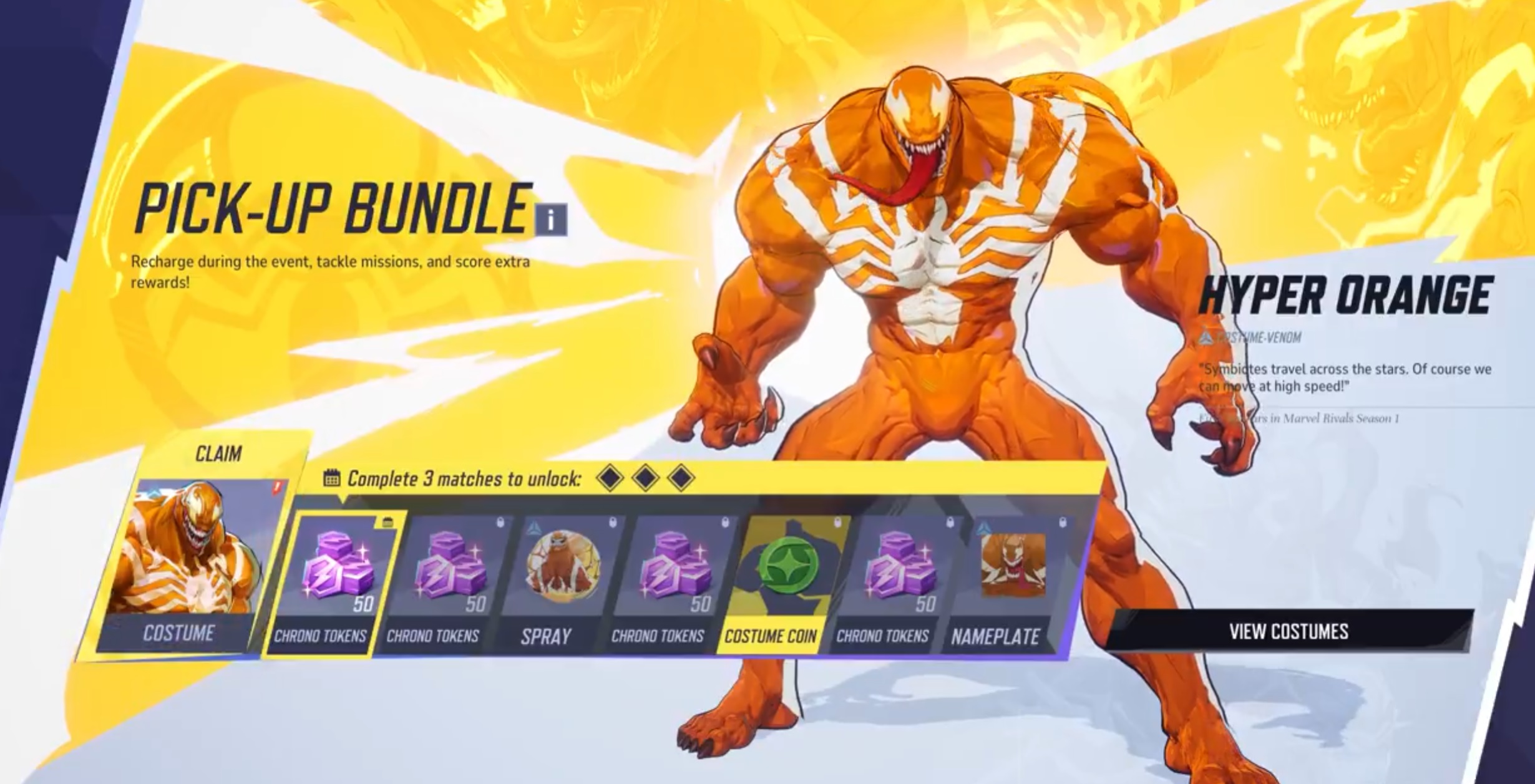
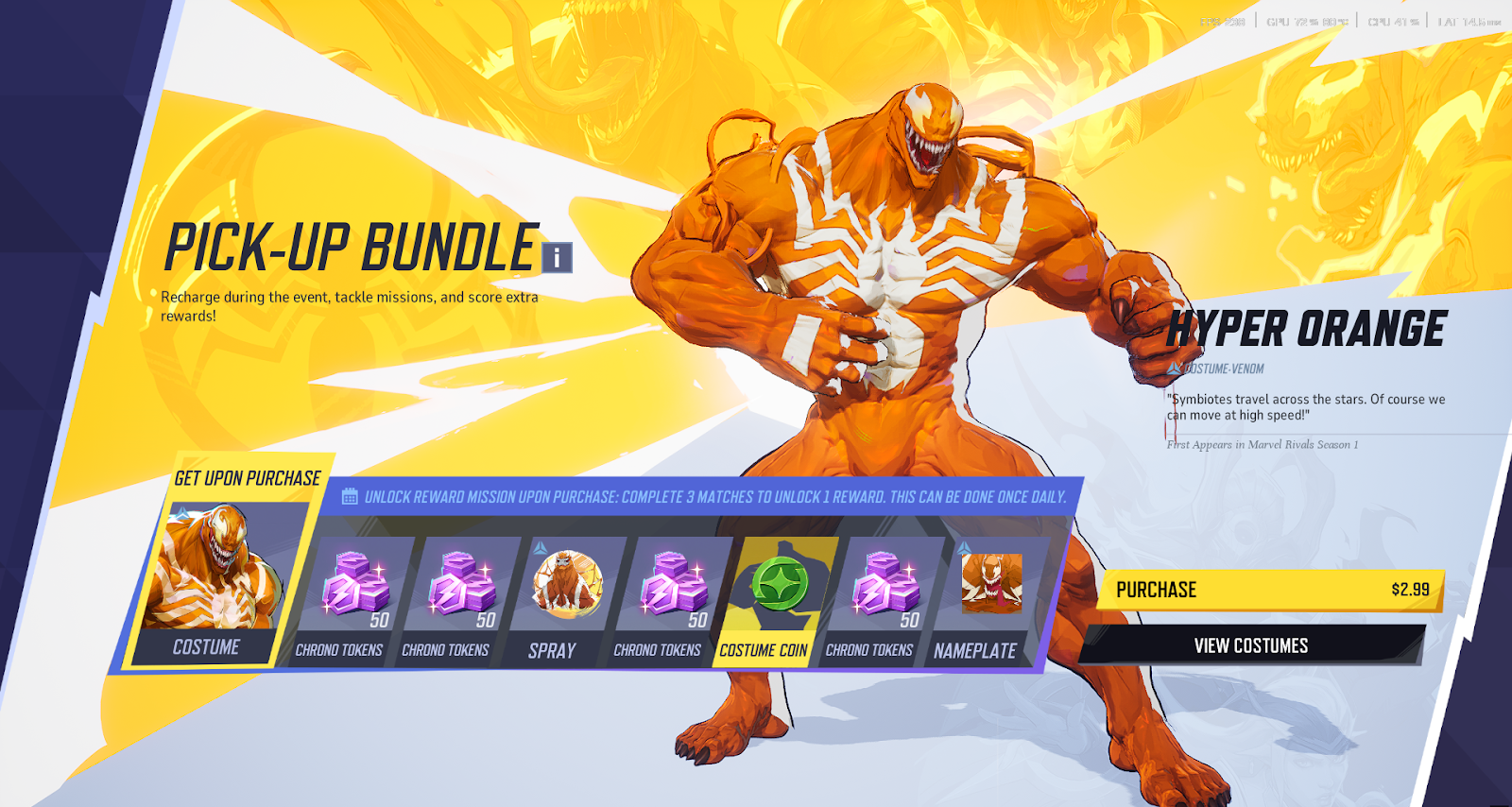
Marvel Rivals Bundle Code for December 2024

Looking for in-game bonuses to get ahead in Marvel Rivals? Check out the latest Marvel Rivals Bundle Code for December 2024 for exclusive rewards and updates.

With its modest Marvel Rivals PC requirements, innovative use of Unreal Engine 5 specs, and availability on Steam and Epic Games, this game is poised to be a hit among esports enthusiasts and Marvel fans alike. As the game launches, its ability to balance cutting-edge visuals with inclusivity could set a new standard for PC gaming. Stay tuned for updates as the competitive scene unfolds.