

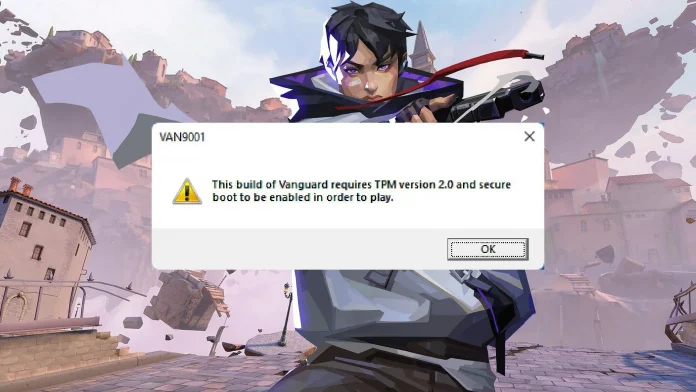

Valorant requires UEFI Secure Boot to be enabled on your PC. If it is not, the game will refuse to launch and you will see error codes like VAN 9001, VAN 9003, or VAN 9090. This is because Riot Vanguard, the game’s kernel level anti-cheat system, checks your system’s security settings before it lets you play.
Most modern PCs support Secure Boot. But on many systems, the feature is turned off by default. Enabling it takes a few minutes in your BIOS settings, though the exact steps depend on your motherboard or PC manufacturer.
This guide walks you through how to check your Secure Boot status, enable UEFI mode, convert your drive if needed, and get Valorant running without errors.
Why does Valorant need UEFI Secure Boot?
Riot Vanguard operates at the kernel level of your operating system. It starts running when your PC boots up and monitors for cheats, hacks, and tampered drivers. For Vanguard to trust that your system is clean, it needs two things: UEFI Secure Boot and TPM 2.0.
Secure Boot makes sure that only trusted, signed software runs during the startup process. This prevents modified boot components that cheaters could use to hide their tools from Vanguard. TPM 2.0 adds another layer by making it harder to spoof hardware IDs or bypass bans.
Without both features active, Vanguard blocks the game from launching. On Windows 11, this results in VAN 9001 or VAN 9003 errors. If TPM specifically fails to start, you get VAN 9090 instead.
How to check if Secure Boot is enabled
Before changing anything, check what your system is currently running.
- Press Windows Key + R to open the Run window.
- Type msinfo32 and press Enter.
- The System Information window opens. Look for two fields: BIOS Mode and Secure Boot State.
If BIOS Mode says UEFI and Secure Boot State says On, your system is already configured correctly. Valorant should work without issues.
If BIOS Mode says UEFI but Secure Boot State says Off, Secure Boot is supported but disabled. You need to enable it in your BIOS settings.
If BIOS Mode says Legacy, your system is not running in UEFI mode. You will need to switch to UEFI before you can enable Secure Boot. This may also require converting your drive from MBR to GPT.
If Secure Boot State says Unsupported, your hardware may not support the feature at all. Check your motherboard documentation to confirm.
How to check your drive partition style
Secure Boot requires your system drive to use GPT (GUID Partition Table). If your drive uses MBR (Master Boot Record), you cannot enable UEFI mode until you convert it.
- Type Disk Management in the Windows search bar and press Enter.
- Right click the drive that has your Windows installation.
- Select Properties.
- Open the Volumes tab.
- Look at Partition Style.
If it says GPT, you are good to proceed with enabling UEFI and Secure Boot.
If it says MBR, you need to convert it to GPT first. Microsoft provides a built-in tool called MBR2GPT for this. You can also use third party tools like EaseUS Partition Master. Back up your data before converting, as mistakes during the process can make your system unbootable.
Microsoft’s official guide for the MBR to GPT conversion is available on the Windows support site.
How to enable UEFI Secure Boot in BIOS
The exact BIOS menus vary by manufacturer. The steps below are a general guide. Always refer to your motherboard or PC maker’s documentation for exact instructions.
- Restart your PC.
- Press the BIOS key during startup. Common keys are Delete, F2, F10, or Esc. The correct key depends on your hardware.
- Once inside BIOS, navigate to the Boot or Boot Configuration section.
- Find Boot Mode or UEFI/Legacy Boot and set it to UEFI.
- Navigate to the Security or Boot tab.
- Find Secure Boot and set it to Enabled.
- Press the Save and Exit key, usually F10. Confirm the changes.
Your PC will restart with Secure Boot active.
For specific manufacturers:
On ASUS boards, go to Boot, then Secure Boot, and set it to Enabled.
On Dell systems, navigate to Boot Configuration, then Boot Sequence, set it to UEFI, then enable Secure Boot.
On HP systems, go to System Configuration, then Boot Options, and select Secure Boot.
You can also enter BIOS from within Windows without rebooting manually. On Windows 11, go to Settings, then System, then Recovery, then Advanced startup, and click Restart Now. Select Troubleshoot, then Advanced Options, then UEFI Firmware Settings, and Restart. On Windows 10, the path is Settings, then Update and Security, then Recovery, then Advanced startup.
How to enable TPM 2.0
Valorant also requires TPM 2.0. You can check its status by pressing Windows Key + R, typing tpm.msc, and pressing Enter. If the TPM Management window says “The TPM is ready for use,” you are set.
If TPM is not found, you need to enable it in BIOS. The setting name depends on your hardware:
On Intel systems, look for Intel PTT (Platform Trust Technology) under Security or Advanced settings.
On AMD systems, look for AMD fTPM (firmware TPM) under the same sections.
Enable the setting, save, and restart.
What to do if Secure Boot still does not work
If you have followed every step and Valorant still will not launch, try these additional fixes:
Disable CSM (Compatibility Support Module) in your BIOS. CSM allows Legacy boot support, which can conflict with Secure Boot. Turning it off forces the system to boot in pure UEFI mode.
Update your BIOS firmware. Motherboard manufacturers release updates that improve Secure Boot and TPM compatibility. Visit your manufacturer’s website, find your exact board model, and download the latest version.
Disable Fast Boot temporarily to see if it resolves the issue. Some systems have conflicts between Fast Boot and Secure Boot.
Reset Secure Boot keys to default. Some BIOS menus have an option to restore factory Secure Boot keys, which can fix issues caused by custom key configurations.
Run Windows system file checks. Open PowerShell as administrator and run: sfc /scannow followed by DISM /Online /Cleanup-Image /RestoreHealth. This repairs corrupted system files that might interfere with Vanguard.
If none of these work, the issue may be with Vanguard itself. Try uninstalling and reinstalling Vanguard through the system tray icon.
Common Valorant Secure Boot error codes
Here is a quick reference for the error codes related to Secure Boot and TPM:
VAN 9001: Secure Boot is disabled or not detected. Enable Secure Boot in BIOS.
VAN 9003: TPM 2.0 is disabled or not detected. Enable TPM in BIOS.
VAN 9005: Virtualization-Based Security (VBS) issue on Windows 10. Follow the VAN 9005 fix guide to resolve it.
VAN 9090: TPM failed to start properly. Open the TPM Management Console by typing tpm.msc, then click “Prepare the TPM” and restart.
Frequently asked questions
Does Valorant require Secure Boot?
Yes. Riot Vanguard requires both UEFI Secure Boot and TPM 2.0 to be enabled. Without them, the game will not launch on Windows 11 and will show error codes like VAN 9001 or VAN 9003.
Can I play Valorant without UEFI?
No. If your BIOS is running in Legacy mode, Secure Boot cannot be enabled, and Vanguard will block the game. You need to switch to UEFI mode, which may require converting your drive from MBR to GPT.
How do I check if Secure Boot is on?
Press Windows Key + R, type msinfo32, and press Enter. Look for the Secure Boot State field. If it says On, Secure Boot is active.
What BIOS key do I press to enable Secure Boot?
It depends on your hardware. Common keys are Delete, F2, F10, and Esc. Check your motherboard or PC manufacturer’s documentation for the correct key.
Will enabling Secure Boot delete my files?
No. Enabling Secure Boot in BIOS does not affect your files. However, if you need to convert your drive from MBR to GPT before switching to UEFI, there is a small risk if the conversion fails. Always back up important data before making partition changes.
Does Secure Boot affect other games?
Most other games do not require Secure Boot. Valorant is one of the few titles that enforces this requirement through its anti-cheat system. Enabling Secure Boot will not cause issues with other games or software.
