

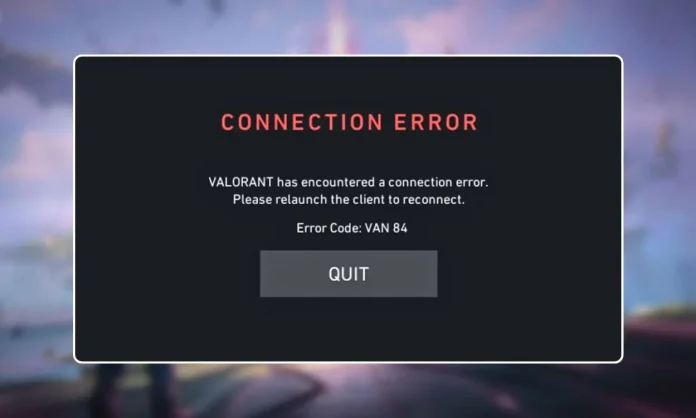

The VAN 84 error in Valorant has been appearing more frequently since the Act 2 patch. It blocks players from launching the game, joining matches, or staying connected to ongoing games. If you are seeing this error, you are not alone. Reports spiked across Reddit, Discord, and VLR.gg in March 2026.
VAN 84 is a connection error tied to Riot Vanguard. It means your client cannot establish a secure connection with Riot’s authentication servers. The good news: most causes have straightforward fixes. The bad news: sometimes the problem is on Riot’s end, and all you can do is wait.
Here is how to identify the cause and get back into the game.
What causes the VAN 84 error in Valorant?
VAN 84 falls under Valorant’s VAN error category, which covers problems related to Vanguard and the Riot Client. It is different from VAL errors, which deal with in-game server issues.
The error triggers when the Vanguard service (vgc) fails to start or loses connection, when your firewall or antivirus blocks Vanguard’s communication with Riot’s servers, when DNS records are outdated or corrupted, when Riot’s own servers are down or under maintenance, or when IPv6 routing conflicts with Riot’s network.
Players hit by this error after the Act 2 patch have reported being disconnected mid-match and then being unable to rejoin, which can result in AFK penalties and rank loss.
Check Riot’s server status first
Before you start changing settings on your PC, check whether the problem is on Riot’s side. If their servers are down, no amount of local troubleshooting will help.
Go to the Riot Games Service Status page and select your region. If there is an active incident or scheduled maintenance listed, the VAN 84 error is temporary and will resolve once Riot restores service.
You can also check Downdetector for Valorant to see if other players in your region are reporting the same issue. If thousands of reports are coming in at the same time, it is a server problem.
Fix 1: Restart your PC and network equipment
This fixes temporary network glitches and clears the Vanguard cache.
- Turn off your PC completely.
- Unplug your router and modem from power.
- Wait 30 seconds.
- Plug the modem back in first, wait for it to fully boot.
- Plug the router back in and wait for it to connect.
- Turn your PC on and launch Valorant.
Simple, but it resolves VAN 84 more often than you would expect.
Fix 2: Restart the Vanguard service (vgc)
The vgc service is what authorizes Valorant to connect with Riot’s servers. If it stops running or is set to manual startup, your game cannot authenticate.
- Press Windows Key + R, type services.msc, and press Enter.
- Scroll down and find vgc in the list.
- Right click it and select Properties.
- Set Startup type to Automatic.
- Click Apply, then click Start.
- Close the window and launch Valorant.
If vgc was stopped or set to Manual, switching it to Automatic and starting it should fix the error immediately.
Fix 3: Flush DNS and switch to Google or Cloudflare DNS
Valorant depends on accurate DNS resolution to reach Riot’s authentication servers. If cached DNS entries are outdated or corrupted, the client may try to connect to invalid routes.
Open Command Prompt as administrator and run these commands one at a time:
ipconfig /flushdns ipconfig /release ipconfig /renew netsh winsock reset netsh int ip reset
Restart your PC after running all five.
To switch your DNS servers to a faster, more reliable option:
- Open Control Panel, go to Network and Internet, then Network and Sharing Center, then Change Adapter Settings.
- Right click your active connection and select Properties.
- Select Internet Protocol Version 4 (TCP/IPv4) and click Properties.
- Choose “Use the following DNS server addresses.”
- Set Preferred to 8.8.8.8 and Alternate to 8.8.4.4 (Google DNS). Or use 1.1.1.1 and 1.0.0.1 (Cloudflare DNS).
- Click OK, close everything, and restart Valorant.
Fix 4: Disable IPv6
IPv6 can conflict with Riot’s network routing, particularly when your ISP or router does not fully support dual-stack networking. This can break the authentication handshake between Vanguard and Riot’s servers.
- Open Control Panel, go to Network and Sharing Center, then Change Adapter Settings.
- Right click your active connection and select Properties.
- Uncheck Internet Protocol Version 6 (TCP/IPv6).
- Click OK and restart your PC.
Disabling IPv6 may affect other network services on your system. If VAN 84 is fixed but something else breaks, re-enable it and try the other fixes instead.
Fix 5: Add Valorant and Vanguard to your firewall whitelist
If Windows Firewall or a third party antivirus is blocking Vanguard’s network traffic, the game cannot communicate with Riot’s servers.
- In the Windows search bar, type “Allow an app through Windows Firewall” and open it.
- Click Change Settings.
- Click Allow another app, then Browse.
- Navigate to C:\Riot Games\VALORANT\live, select VALORANT.exe, and click Add.
- Do the same for Vanguard. Its files are in C:\Program Files\Riot Vanguard.
- Make sure both Private and Public checkboxes are enabled for each entry.
- Click OK.
If you use a third party antivirus like Bitdefender, Avast, or Comodo, temporarily disable their network filtering and test whether VAN 84 goes away. If it does, add Valorant and Vanguard to that program’s exception list permanently.
Fix 6: Close Killer Prioritization Engine and similar network tools
Intel’s Killer Control Center and similar network optimization software can interfere with Riot’s packet routing. Since Valorant requires constant communication between Vanguard and the servers, any tool that reprioritizes or throttles packets may trigger VAN 84.
Open Task Manager (Ctrl + Shift + Esc), look for Killer Prioritization Engine or similar processes, right click them, and select End Task. Then relaunch Valorant.
If this fixes the error, consider uninstalling the Killer suite entirely or disabling it from startup.
Fix 7: Try a different server region
VAN 84 is sometimes region-locked. If the problem only affects your region’s servers, connecting to a different one can get you past the error.
If you can get into the Riot Client but matchmaking fails, change your server from the settings. If you cannot log in at all and you have a second account on a different region, try logging in with that account to confirm whether it is a regional issue.
Fix 8: Perform a network reset
If nothing else has worked, resetting your network stack rebuilds Windows’ TCP/IP configuration from scratch.
- Open Settings, go to Network and Internet, then Advanced Network Settings.
- Click Network Reset, then Reset Now.
- Restart your PC.
This removes all network adapters and reinstalls them with default settings. You will need to re-enter any saved Wi-Fi passwords after the reset.
Fix 9: Reinstall Valorant and Vanguard
If no network or service fix resolves the error, corrupted installation files may be the cause.
- Open Settings, go to Apps, and uninstall both Valorant and Riot Vanguard.
- Restart your PC.
- Download a fresh Valorant installer from the official Valorant website.
- Install the game and let Vanguard install automatically.
- Restart your PC one more time before launching.
This eliminates corrupted files and registry entries that may be blocking authentication.
When nothing works: submit a ticket to Riot
If you have tried every fix and VAN 84 persists, the problem may require Riot’s direct attention.
- Go to the Riot Support website.
- Click Submit a Ticket.
- Select Riot Vanguard Issue or VAN Error Message from the dropdown.
- Describe the error in the subject and description fields.
- Attach a screenshot of the error.
- Click Submit.
Document which fixes you already tried. This helps the support team skip basic troubleshooting and escalate your case faster.
Frequently asked questions
What is VAN 84 in Valorant?
VAN 84 is a connection error that occurs when your Valorant client cannot establish a secure connection with Riot’s servers through Vanguard. It can prevent you from logging in, joining matches, or staying connected during games.
Is VAN 84 a server issue or a PC issue?
It can be either. VAN 84 frequently appears during Riot server outages or maintenance. But it can also be caused by local issues like a stopped Vanguard service, firewall blocks, or corrupted DNS. Always check Riot’s server status first.
Why did VAN 84 start appearing after the Act 2 patch?
The Act 2 patch introduced server-side changes that increased the frequency of VAN 84 reports. Some players experienced the error due to temporary server instability after the patch. Others had existing configuration issues that the update exposed.
Does VAN 84 cause AFK penalties?
Yes. If VAN 84 disconnects you during a match and you cannot rejoin in time, the game may mark you as AFK. This can result in queue restrictions and rank point losses.
Can a VPN fix VAN 84?
In some cases, a VPN can bypass routing issues between your ISP and Riot’s servers. However, Vanguard may flag certain VPN services. If you try a VPN, use one that is known to work with Valorant and test in an unranked match first.
Do I need to enable Secure Boot or TPM for VAN 84?
No. VAN 84 is a connection error, not a security configuration error. Secure Boot and TPM issues produce different error codes like VAN 9001 or VAN 9003. If you are seeing those instead, check our UEFI Secure Boot Valorant guide.
