


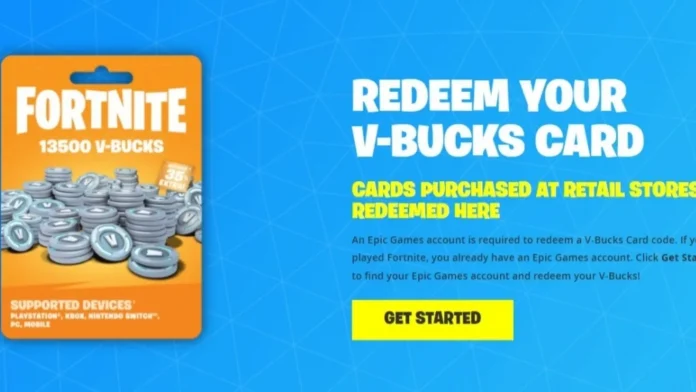

If you have a Fortnite V-Bucks gift card and are not sure how to use it, you are in the right place. Whether you play on mobile, Xbox, or PlayStation, the redemption process starts at the same place but splits into different steps depending on your platform. This guide walks you through each method clearly, so you can get your V-Bucks added to your account without any confusion.
What Are V-Bucks and Why Do You Need a Gift Card?
V-Bucks are the in-game currency used in Fortnite. Players spend them on Battle Passes, skins, emotes, pickaxes, wraps, and other items in the Item Shop. One of the most popular ways to add V-Bucks to an account is by purchasing a V-Bucks gift card from a physical or digital retailer.
V-Bucks cards are available at authorized retailers such as Walmart and Best Buy, as well as through online platforms including Amazon, the PlayStation Store, and the Microsoft Store. They come in both physical and digital formats. Physical cards have a PIN code printed on the back, while digital cards deliver a code to your email or account.
V-Bucks gift cards do not have an expiration date, so your code remains valid until you decide to use it. However, it is always recommended to redeem your card sooner rather than later, as Epic Games may update its redemption policies over time.
Important Things to Know Before You Redeem
Before starting the redemption process, keep the following in mind.
First, you must have an Epic Games account. This is the account you use to log into Fortnite. It should be linked to your email address and, ideally, have two-factor authentication enabled for security. Your Epic Games account must also be connected to your console account on Xbox or PlayStation before you can redeem V-Bucks on those platforms.
Second, some V-Bucks gift cards are locked to specific regions. If a card has a regional flag printed in the upper left corner, it can only be redeemed if your Epic Games account or platform account matches that region. For example, a card purchased in France cannot be redeemed on a Canadian account. Always make sure the card you purchase matches your account region.
Third, V-Bucks card redemption cannot be done inside the Fortnite game itself. The process must begin on the official Epic Games website.
Finally, V-Bucks cards are non-refundable. There are no returns once a card has been redeemed.
Where to Start: The Epic Games V-Bucks Redemption Page
No matter which platform you play on, every V-Bucks card redemption begins at the same place. You need to visit the official Epic Games V-Bucks card redemption page at fortnite.com/vbuckscard and log in with your Epic Games account.
Once logged in, click the yellow “Get Started” button. You will then be prompted to enter the PIN code from your V-Bucks gift card. The code is found on the back of physical cards or in your email for digital purchases. Scratch the card carefully if it has a protective coating, and enter the code without any dashes.
After entering your code, you will be asked to select the platform on which you want to use your V-Bucks. The platforms available to you will only include those you have already linked to your Epic Games account. If you do not see your platform listed, check that your console account is properly connected to your Epic account through the account settings on the Epic Games website.
How to Redeem V-Bucks Gift Cards on Mobile
Redeeming V-Bucks on a mobile device is one of the simpler processes compared to consoles. The redemption does not need to be done inside the mobile app. Instead, use a mobile browser to access the Epic Games website and follow the standard steps outlined above.
- Go to fortnite.com/vbuckscard on your mobile browser.
- Log in with your Epic Games account.
- Click “Get Started” and enter your V-Bucks card code.
- Select mobile (iPhone, iPad, or Android) as your desired platform.
- You will see a confirmation screen stating that you are about to redeem V-Bucks on your mobile account.
- Review the details, confirm your Epic Games account and new balance are correct, then click “Confirm.”
- Launch Fortnite on your mobile device and your updated V-Bucks balance will be reflected in your account.
How to Redeem V-Bucks Gift Cards on Xbox
Redeeming V-Bucks on Xbox requires an additional step after the Epic Games website process. After confirming your platform selection as Xbox on the redemption page, Epic Games will generate a 25-digit code that you must then enter directly into the Microsoft Store.
Here are the full steps:
- Go to fortnite.com/vbuckscard and log in with your Epic Games account (using your Xbox credentials or your linked Epic account).
- Click “Get Started” and enter your V-Bucks card code.
- Select Xbox as your platform and click “Next.”
- A screen will appear confirming you are about to redeem V-Bucks on your Xbox account. Review the details, then click “Confirm.”
- Epic Games will display a 25-digit code on screen.
- On your Xbox console, press the Xbox button to open the guide.
- Navigate to Store to open the Microsoft Store.
- Press the View button on your controller to open the sidebar, then select “Redeem.”
- Enter the 25-digit code and follow the on-screen instructions to complete the redemption.
- Launch Fortnite on your Xbox to confirm that the V-Bucks have been added to your account.
Alternatively, you can redeem the 25-digit code directly through Microsoft’s code redemption website. Make sure you are logged into the correct Xbox account that is linked to your Epic Games profile before entering the code.
How to Redeem V-Bucks Gift Cards on PlayStation
The process for PlayStation is similar to Xbox in that it also requires a secondary code to be entered on the console after the Epic Games website step. For PlayStation, the secondary code is a 12-digit code that must be redeemed in the PlayStation Store.
Follow these steps:
- Go to fortnite.com/vbuckscard and log in using your PlayStation account or your Epic Games account linked to PlayStation.
- Click “Get Started” and enter the code from your V-Bucks card.
- Select PlayStation as your platform and click “Next.”
- A confirmation screen will show your Epic Games account, the platform selected, and your new balance. Review everything carefully, then click “Confirm.”
- Epic Games will display a 12-digit PlayStation Store code on screen.
- On your PS4 or PS5, navigate to the PlayStation Store from the home screen.
- Select your profile icon at the top of the screen.
- Choose “Redeem Codes” from the drop-down menu.
- Enter the 12-digit code and follow the on-screen instructions.
- Launch Fortnite on your PlayStation to verify that the V-Bucks have been added to your account.
You can also redeem the code through the PlayStation Store on a web browser or through the official PlayStation mobile app. Make sure you are signed into the PlayStation account that is linked to your Fortnite and Epic Games profile before completing this step.
Understanding the Fortnite Shared Wallet
One important feature to be aware of is Fortnite’s Shared Wallet. V-Bucks redeemed on platforms that support the Shared Wallet can be used across all other supported platforms. The platforms that support the Fortnite Shared Wallet are PlayStation, Xbox, PC, mobile, and cloud gaming services.
This means that if you redeem a V-Bucks card on PlayStation, for example, those V-Bucks will also be available when you play on PC or mobile. However, V-Bucks received on Nintendo Switch by redeeming a V-Bucks card can only be used on Nintendo devices and are not part of the Shared Wallet.
What to Do If Your V-Bucks Do Not Appear After Redemption
If your V-Bucks balance does not update after successfully completing the redemption process, there are a few things you can do. First, make sure you entered all codes correctly, including any hyphens or spaces. Next, check that your Epic Games account is properly linked to your PlayStation or Xbox account. Sometimes a delay on Epic Games servers can slow down the transfer of V-Bucks into accounts, so waiting a few minutes and then restarting Fortnite may resolve the issue. Logging out of your Epic Games account within the game and logging back in can also prompt a balance refresh.
If none of these steps work and your balance still has not updated after an hour or more, contact Epic Games Support directly and provide your account details along with the code you used.
Final Notes on V-Bucks Gift Cards
V-Bucks are not considered electronic money or any other form of currency. They can only be used within Fortnite according to the game’s rules. The full face value of a gift card is applied at the time of redemption and is associated with a single account on the device you select. V-Bucks cannot be transferred between accounts, and refunds are not available once a card has been redeemed. Gift cards will not be replaced if lost, stolen, or used without the cardholder’s permission.