



Running Battlegrounds Mobile India (BGMI) at 120 FPS transforms competitive gameplay. The difference between 60fps and 120 FPS translates to roughly 8-15 milliseconds of reduced input lag, giving you faster reaction times in close-range fights and noticeably smoother recoil control during spray transfers. However, Krafton restricts this “Ultra Extreme” setting to specific flagship devices capable of sustained high-performance output. This guide covers exactly how to unlock 120 FPS in BGMI, the hardware prerequisites, and more.
Device Requirements for BGMI 120 FPS
Your device must meet three non-negotiable criteria for the Ultra Extreme option to appear: a 120Hz display refresh rate, a flagship-tier chipset, and official whitelist approval from Krafton.
Supported Chipsets
As of February 2026, the supported chipset range has expanded considerably across vendors. The Snapdragon 8 Gen 1 through Snapdragon 8 Elite family is now covered. This includes the Galaxy S22 Ultra through S26, OnePlus 11 through 15, iQOO 11 through 15, Xiaomi 13 Pro through 15 Ultra, ROG Phone 7 Ultimate through 9 Pro, Red Magic 9 Pro through 11 Pro, and the POCO F6/F7 Pro. The Dimensity 9200/9300/9400 series continues to be supported via select Xiaomi and POCO flagships. Google Tensor G3, G4, and G5 chips supports 120 fps as well, including Pixel 8 Pro, Pixel 9 Pro, and Pixel 10 Pro XL. On the Apple side, Apple A15 Bionic through A19 Pro (iPhone 13 Pro/Max through iPhone 17 Pro/Max) supoort the Ultra Extreme option. The Apple M1, M2, and M4 chips remain supported across iPad Pro models from 2020 onward, including the 11-inch (2021+) and 12.9-inch (2020+) lineups.
Display Requirements
Your phone must natively support 120Hz refresh rates. Simply having a powerful processor is insufficient. If your display maxes at 60Hz or 90Hz, the Ultra Extreme option will not appear regardless of other specifications. Gaming phones like the ASUS ROG Phone 8 and RedMagic 9 Pro offer 165Hz displays but are capped at 120 FPS in BGMI to maintain stability.
Supported Device List
Krafton maintains a whitelist of supported devices, expanded significantly across the 3.5 through 4.1 updates. However, this list is not public. Confirmed supported devices as of February 2026 include:
- Samsung: Galaxy S22 Ultra, Galaxy S23 series, Galaxy S24 series, Galaxy S25 series, Galaxy S26 Ultra; Galaxy Z Fold 5, Z Fold 6, Z Fold 7; Galaxy Tab S9 Ultra, Galaxy Tab S10 series
- OnePlus: OnePlus 11 / 11R, OnePlus 12 / 12R, OnePlus 13, OnePlus 15, OnePlus Open
- iQOO: iQOO 11, iQOO 12, iQOO 13, iQOO 15, iQOO Neo 9 Pro, iQOO Neo 10 / 10R
- Xiaomi / POCO: Xiaomi 13 Pro, Xiaomi 14 Ultra, Xiaomi 15 Ultra, Xiaomi 15T Pro; POCO F6 Pro, POCO F7 Pro, POCO X7 Pro (select regions)
- Apple: iPhone 13 Pro/Pro Max through iPhone 17 Pro/Pro Max; iPad Pro M1, M2, and M4 models; iPad Pro 11-inch (2021+), iPad Pro 12.9-inch (2020+)
- Gaming Phones: ASUS ROG Phone 7 Ultimate, ROG Phone 8 / 8 Pro, ROG Phone 9 Pro; Nubia Red Magic 9 Pro, Red Magic 10 Pro, Red Magic 11 Pro
- Others: Google Pixel 8 Pro, Pixel 9 Pro, Pixel 10 Pro XL; Infinix GT 20 Pro (special BGMI optimization).
How to Enable 120 FPS in BGMI
If your device appears on the supported list but you do not see the Ultra Extreme frame rate option, follow these specific steps:
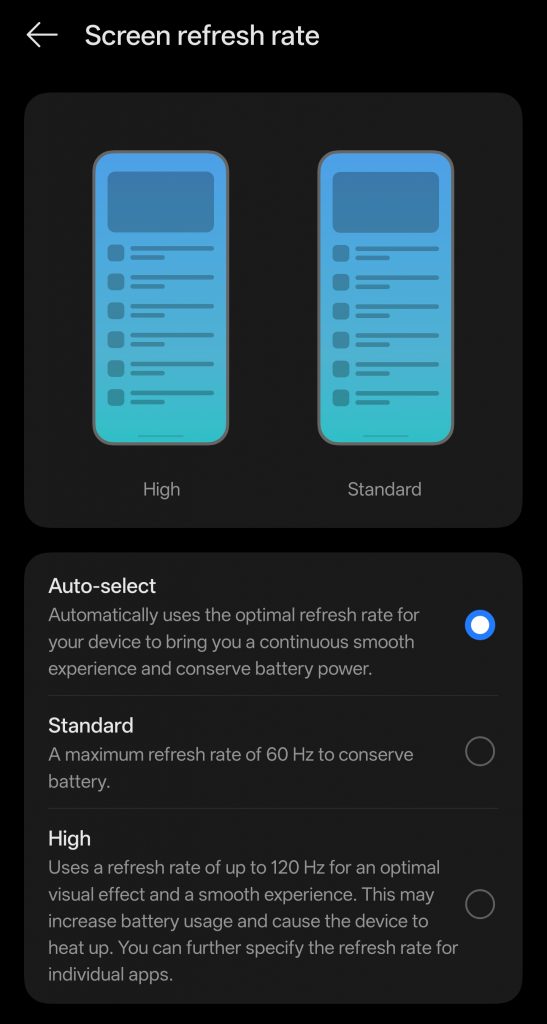
Step 1: Configure System Display Settings
Before opening BGMI, set your device refresh rate to 120Hz in system settings.
Step 2: Adjust In-Game Graphics
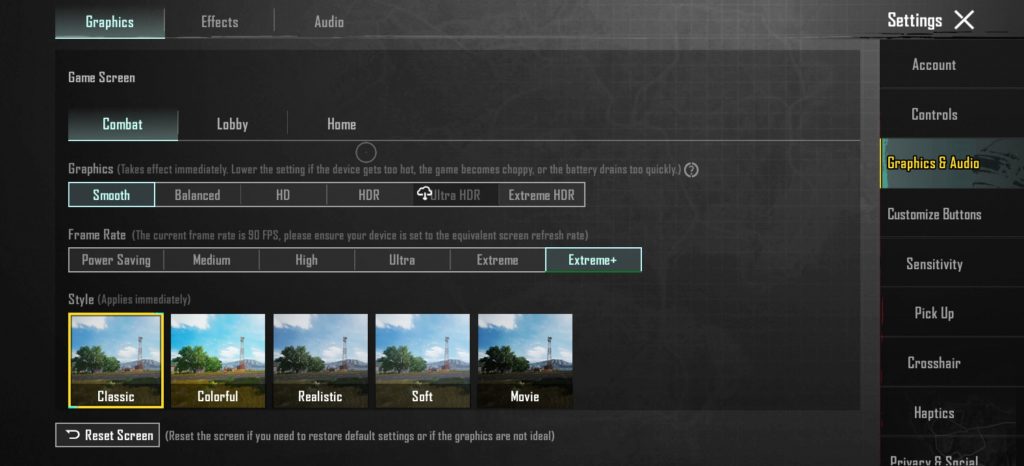
Open BGMI and navigate to Settings > Graphics & Audio. Under the Combat tab, set Graphics to “Smooth.” This is mandatory. 120 FPS is only available on the Smooth graphics preset to ensure the GPU can maintain frame times. Once Smooth is selected, the Frame Rate dropdown should display “Ultra Extreme.” Select it.
Step 3: Enable Performance Mode (Recommended. Not Mandatory)
Disable Battery Saver or Power Saving modes, which artificially limit CPU/GPU frequencies. Enable your device’s gaming mode for better performance.
Step 4: Restart the Game
Close BGMI completely from recent apps and relaunch. The game must reinitialize with new frame timing parameters. Upon re-entry, the 120 FPS mode should be active.
The Trade-off: Performance vs. Battery Life
Enabling 120 FPS noticeably increases power consumption compared to 60fps gameplay. The display alone draws approximately 20% more power at 120Hz versus 60Hz, and when accounting for the additional CPU/GPU load of rendering twice as many frames, total system power in gaming scenarios rises by an estimated 30–50%, meaning real-world battery life at 120 FPS is roughly 30–40% shorter than at 60fps, though exact figures vary by device, chipset efficiency, and graphics settings.
Thermal throttling on standard flagships typically begins within 15–25 minutes of sustained 120 FPS gameplay. Gaming phones with built-in active cooling, such as the ROG Phone and RedMagic series, handle sustained loads significantly better.
Also read: Mobile Gaming Optimization Guide Android: Zero Lag Settings for BGMI, Free Fire & COD Mobile
For competitive ranked pushes, 120 FPS provides measurable advantages in tracking moving targets and recoil stability. For casual sessions, 90fps offers a better balance of smoothness and battery preservation. If your device supports Ultra Extreme, use it during competitive matches but switch to lower frame rates for extended grinding sessions to prevent hardware degradation and excessive battery wear.
