

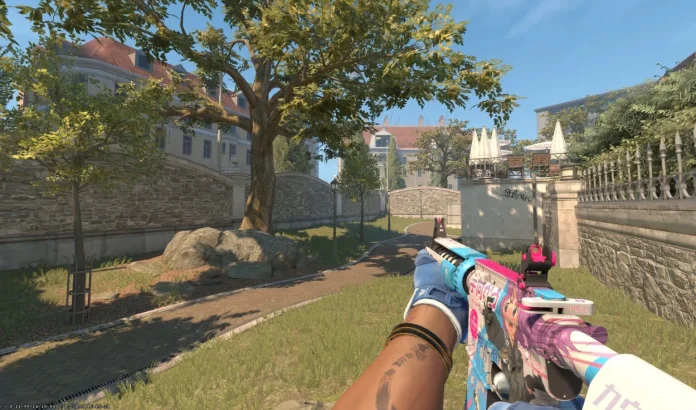
If you are a long-time Counter-Strike player, you probably know how important hand switching is. Changing hands in Counter-Strike 2 provides strategic benefits and individual comfort options that can improve your gameplay experience. Whether you are left-handed, prefer better corner vision, or just a different viewpoint, here is all you need to know about becoming a master of this valuable feature.
Let’s check out different methods to switch your hands in CS2.
How to Switch Hands in CS2?
The easiest method to toggle between hands in CS2 is using the default bind. Press the H key in-game to switch your gun instantly between left and right hands. This toggle feature, built directly into the game, functions flawlessly on all game modes, from competitive matches and practice games to casual play.
The switch happens immediately with no delay, allowing for split-second tactical adjustments mid-round. Each press of H alternates your viewmodel position, making it easy to adapt to different situations as they arise.
To replace the default H key with something more convenient, go to Settings > Keyboard/Mouse and find the “Switch Viewmodel Left/Right Hand” option. Common alternatives are mouse side buttons (Mouse4/Mouse5) for thumb access, or keys V or F if they’re not assigned to other vital functions.
When choosing a custom keybind, select an easily accessible button that will not hinder movement or other important actions. Practice your new binding during training sessions before applying it in competitive play to ensure proper muscle memory formation.
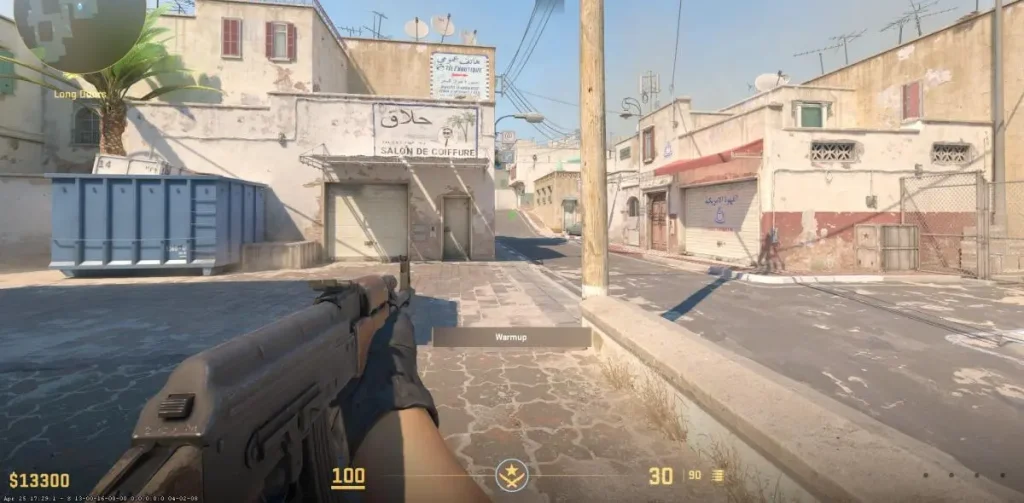
For those who like playing with console control, CS2 has a few command options. Turn on the developer console at Settings > Game > Enable Developer Console and tap the tilde key (~) to open it.
Utilize these commands:
- switchhands – Switches between left and right hand
- switchhandsleft – Forcing left-hand position
- switchhandsright – Forcing right-hand position
- cl_righthand 0 – Setting left hand
- cl_righthand 1 – Setting right hand
To bind the toggle to a key through console, use: bind “h” switchhands (substitute “h” with the key of your choice).
To set a permanent default hand position, go to Settings > Game > Item and look for the “Preferred Viewmodel Left/Right Handedness” option. Placing this on “Left” will make sure you begin matches with your weapon in the left hand, while “Right” keeps the traditional setup.
Strategic hand switching translates into tangible benefits in gameplay. Near peek-corners, a switch to the correct hand can minimize your exposed body area and enhance your viewpoint. For example, when peeking a left-side corner, switching to the left hand can provide a cleaner shot while revealing less of your character model to potential foes.
The feature assists with angle-clearing effectiveness also. Dynamic hand switching, based on map geometry and corner placement, enables you to sustain improved crosshair positioning while collecting visual data more effectively.

 with this simple, step-by-step guide. Check out the default key, custom keybinds, and console commands to swap hands for better gameplay and improved visibility.)