



Your phone dies mid-match. Battery drain. Again. One minute you’re clutching a ranked game, the next you’re looking for a charger with 3% battery and an angry team. Mobile gaming has never been more demanding. 2026’s titles push 120FPS, ray tracing, and haptic feedback that sucks power like a vacuum. But you don’t need to tape a power bank to your phone to survive a three-hour session.
Here are the specific settings and habits that actually move the needle on battery life, without turning your game into a slideshow.
Top Ways to Reduce Battery Drain While Playing Mobile Games in 2026
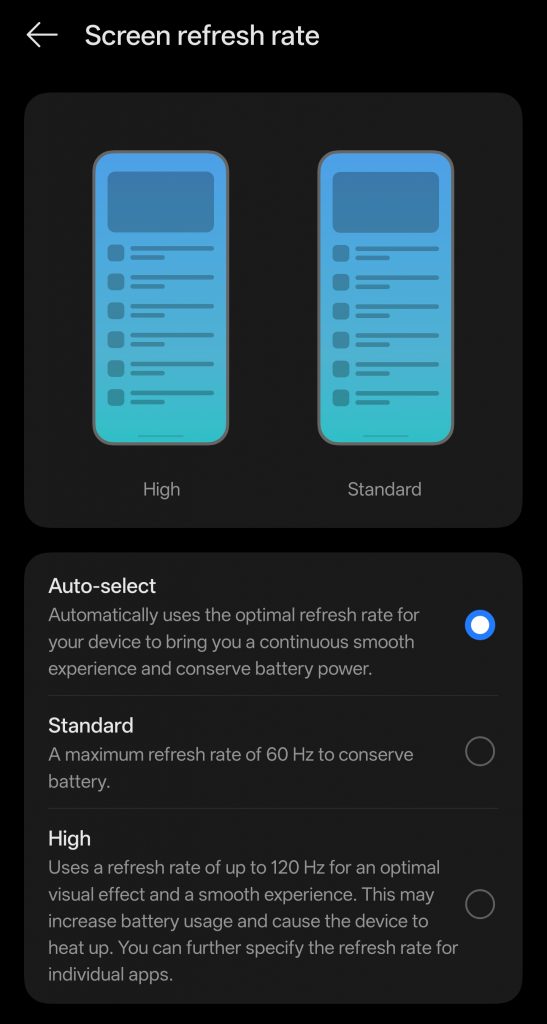
Drop Your Refresh Rate:
That 144Hz display looks buttery smooth, but it’s the prime cause of battery drain. Most competitive mobile games don’t even render above 60FPS consistently.
Go to Display Settings > Motion Smoothness (Android) or Settings > Accessibility > Motion (iOS). Toggle from Adaptive/ProMotion to Standard (60Hz). You’ll sacrifice some visual fluidity, but gain 20-30% extra playtime. For turn-based games like Genshin Impact or strategy titles, you won’t notice the difference. For FPS games, try 90Hz as a middle ground if your device supports it.
Turn Off Auto Brightness
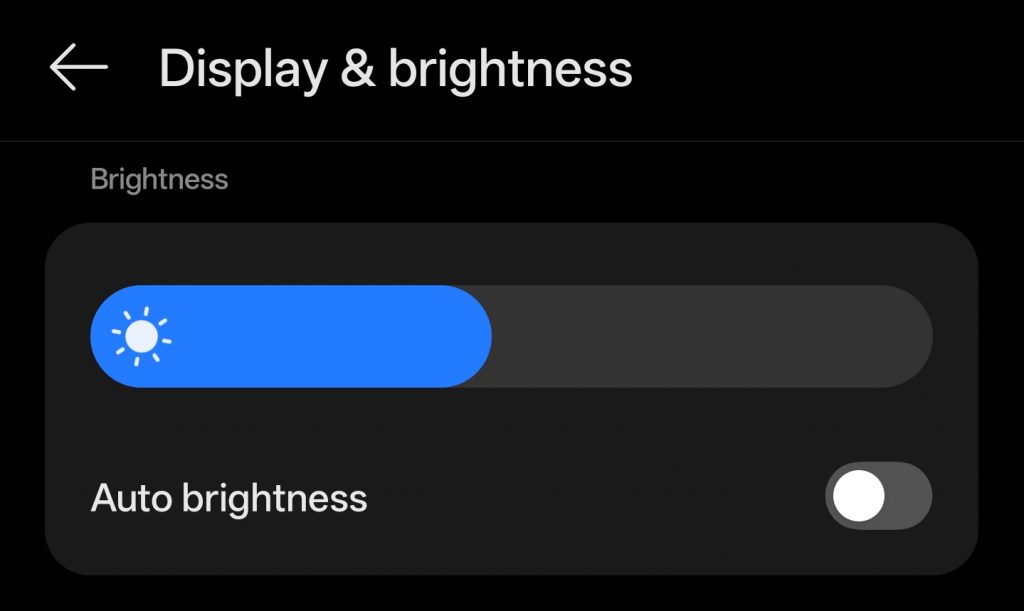
Auto-brightness is aggressive when gaming. It sees dark game scenes and cranks brightness to 100%, draining 40% of your battery on the display alone.
Lock your brightness at 40-50% before launching. If you’re indoors, go lower. OLED screens (iPhone 15 Pro, Galaxy S25 Ultra, etc.) save additional power displaying dark modes, so enable dark themes in games that support them.
Prevent Overheating
Thermal throttling is a hidden performance killer and one of the primary cause of Battery drain. Most smartphones have no fans. they manage heat entirely through software by reducing CPU and GPU clock speeds when temperatures climb. When your phone gets hot (typically above 40–45°C / 104–113°F), the processor throttles down to shed heat, which degrades performance. On top of that, lithium-ion batteries discharge faster at high temperatures and lose long-term capacity with repeated heat exposure.
Remove your case before serious sessions. If you’re charging while playing (which heats both the battery and the chip), limit frame rates to 60 FPS temporarily to cut CPU/GPU load. Charging also slows automatically above ~35–45°C, as the device limits current to protect the battery. The long-term damage from sustained heat outweighs any performance gain from running high FPS on a phone with a degrading battery.
Use Airplane Mode
Cellular data, 5G especially, can consume significantly more battery than Wi-Fi, sometimes over twice as much depending on signal strength. But simply turning off mobile data isn’t enough; your phone’s radio stays active searching for towers to handle calls and texts. Only Airplane Mode fully cuts that drain.
Enable Airplane Mode, then manually toggle WiFi back on. This stops the radio from hunting for cell signals while keeping you connected. For online games, this eliminates ping spikes from network switching too. If you need to receive calls, use WiFi Calling (available on most carriers in 2026) instead of maintaining that power-hungry cellular connection.
Low Graphics Settings
“Ultra” graphics presets are marketing tools, not gameplay necessities.
In your game’s settings:
- Shadow Quality: Drop to Low. Shadows are GPU-intensive and barely visible on 6-inch screens during action.
- Anti-aliasing: Disable or use 2x instead of 8x. You lose marginal edge smoothness but save significant GPU cycles.
- Frame Rate Cap: Match your screen’s current refresh rate. Uncapped FPS burns battery rendering frames you can’t see.
Honkai: Star Rail and similar Unity-based games often hide “Power Saving Mode” in advanced graphics settings. This usually locks 30FPS but extends playtime by 20-40%.
Restrict Background Activity
iOS and Android have gotten better at memory management, but background refresh is still responsible for 5-10% battery drain per hour.
Before gaming:
- iOS: Settings > General > Background App Refresh > Off (or WiFi only)
- Android: Settings > Apps > Special Access > Battery Optimization > select “All apps” and set non-essentials to “Restricted”
Specifically kill social media apps (Instagram, TikTok) and navigation apps; they’re notorious for GPS polling and camera access even when “closed.”
Disable Haptics and Controller Vibration
Modern phones have precision haptic engines that feel great but consume surprising power. Each rumble during gunfire or hits drains the battery.
Turn off Touch Feedback in system settings and disable controller vibration in Bluetooth gamepad settings. For competitive play, this has the added benefit of eliminating distractions anyway.
Also read: Mobile Gaming Optimization Guide Android: Zero Lag Settings for BGMI, Free Fire & COD Mobile
You don’t need all eight changes. Start with refresh rate (biggest impact), brightness control, and airplane mode + WiFi. These three adjustments alone typically extend gaming sessions from 1 hours to over 2 hours on modern flagships.
Battery technology isn’t keeping pace with mobile gaming demands in 2026. But software optimization bridges that gap better than any external battery pack.