


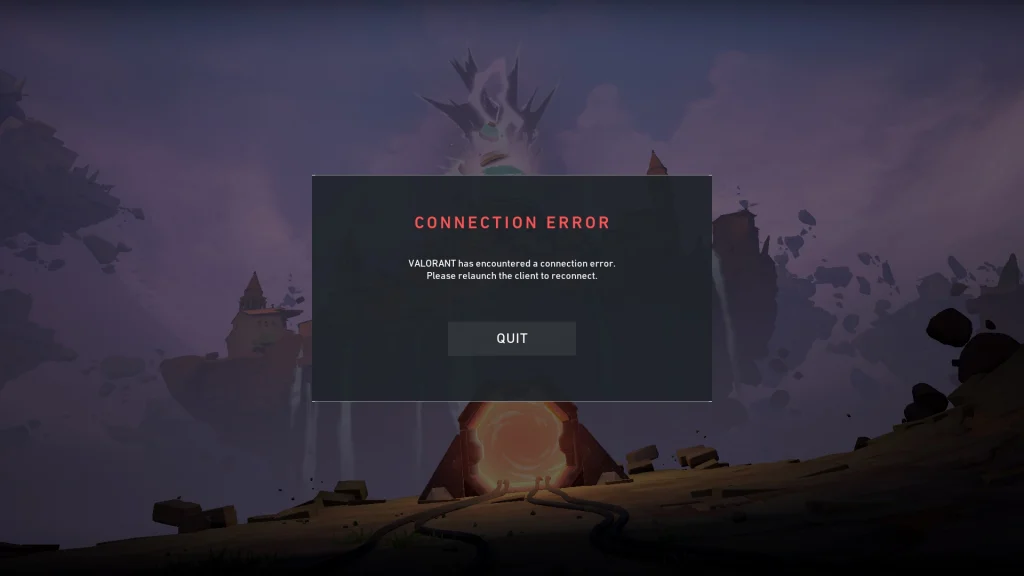
The VAN 68 error in Valorant is perhaps the most infuriating connectivity problem that players face. The error keeps you from playing matches or even getting into the game, and it shows the following message: “VALORANT has encountered a connection error. Please relaunch the client to reconnect.” Knowing the cause of this error and how to solve it will put you back into the game in no time.
VAN 68 is a network connectivity issue that results when your computer fails to communicate with Riot’s Valorant servers effectively. It is one of the errors in Riot’s Vanguard anti-cheat system and usually represents an interruption in the connection between your device and the game servers. The problem can be caused either by client issues or server issues.
Luckily, in most cases, the VAN 68 error in Valorant can be easily fixed by following a few simple steps. If you’re facing the infamous VAN 68 Valorant error yourself, keep reading to find out how you can solve it.
How to Fix Valorant VAN 68 Error?
Here are some solutions that you can try to fix your VAN68 Valorant error:
- Check Riot Games Server Status
- Before you start troubleshooting your system, check if Riot’s servers are up. Go to the official Riot Games Service Status page at status.riotgames.com or check out Riot’s Twitter feed for announcements regarding scheduled maintenance or current outages. If servers are offline, you will have to wait until Riot gets the situation under control.
- Restart Your PC and Network Equipment
- First, do a full system reboot. Close down Valorant and the Riot Client fully, then reboot your computer. This resets your computer’s network connections and removes temporary issues.
- Next, power cycle your router and modem. Unplug both devices from the power outlet, wait 30 seconds to one minute, then plug the modem back in first. Wait 1-2 minutes for the modem to fully boot up, then plug in the router. This process clears the router’s memory and reestablishes a fresh connection to your ISP.
- Disable VPN and Proxy Settings
- Disable VPN: If you have a VPN service running, turn it off entirely before starting Valorant.
- Turn Off Proxy Settings: Go to Windows Settings, then Network & Internet > Proxy, and switch both “Automatically detect settings” and “Use a proxy server” off. Click Save.
- Flush DNS Cache
- Press the Windows key and enter “cmd” into the search field. Right-click on Command Prompt and click “Run as administrator”. Click on “Yes”.
- At the Command Prompt, enter ipconfig /flushdns and hit Enter. You should obtain a message indicating “Successfully flushed the DNS Resolver Cache”.
- Restart your computer and attempt to launch Valorant again.
- Winsock Reset (Reset Network Socket)
- Open Command Prompt as an administrator (same steps as above).
- Execute netsh winsock reset and then press Enter. The command resets network socket settings to the default.
- Wait for the success message and then restart your computer. This is the most important step for changes to occur.
- DNS Server Settings Change
- Open Command Prompt and test what DNS server delivers the most stable connection by typing ping 1.1.1.1 and observing the response time. Then type ping 8.8.8.8 and compare.
- Go to Settings > Network and Internet > Ethernet (or Wi-Fi). Click “Edit DNS server assignment” and choose “Manual”.
- Enable IPv4, and then input the lowest-ping DNS server in the “Preferred DNS” section. Popular choices are Cloudflare DNS (1.1.1.1 or 1.0.0.1) and Google DNS (8.8.8.8 or 8.8.4.4). Alternatively, you can use 100.1.1.1 in place of 1.1.1.1 or 8.8.4.4 in place of 8.8.8.8.
- Save and start Valorant to check the connection.
- Permit Valorant through Windows Firewall
- Press the Windows key and type “Windows Defender Firewall” in the search bar, then click on it.
- Select “Allow an app through firewall” and then click “Change settings”.
- Remove any existing Valorant and Riot Client entries to start fresh. Then click “Allow another app” and browse to your Valorant installation directory.
- Navigate to: C:\Riot Games\VALORANT\live\ShooterGame\Binaries\Win64\
- Choose “VALORANT-Win64-Shipping.exe” and select “Add”.
- Make sure all the boxes (both Private and Public networks) are ticked for Valorant.
- Do the same for Riot Vanguard. Select “Allow another app” again and go to: C:\Program Files\Riot Vanguard\vgc.exe
- Add it and make sure all the boxes are ticked. Select “OK” to save.
- Also, add the Riot Client by going to its location and doing the same.
- Restart your computer so that changes in the firewall take place.
- Turn off IPv6
- Press the Windows key + X and choose “Network Connections” or navigate to Settings > Network & Internet > Advanced network settings > Change adapter options.
- Right-click your current network connection (Ethernet or Wi-Fi) and choose “Properties”.
- Deselect the check box next to “Internet Protocol Version 6 (TCP/IPv6)”.
- Hit “OK” to apply the changes and reboot your computer.
- Reinstall Riot Vanguard
- Hit the Windows key and enter “Add or remove programs” and press Enter.
- Scroll down and locate “Riot Vanguard” in the list. Click on it and choose “Uninstall”.
- Proceed with instructions to agree to the uninstall. You may need to hit “Uninstall” again and give the application permission to make changes to your device.
- Restart your computer.
- Open the Riot Client, which will automatically prompt you to reinstall Riot Vanguard. Follow installation instructions.
- After installation is finished, restart your computer one more time for Vanguard to run correctly.
- Check Game Files
- Open the Riot Client and click on your profile picture in the top-right corner.
- Choose “Settings” from the dropdown menu.
- Locate Valorant on the list of games and hit the “Repair” button beside it.
- The client will scan your game files and download missing or corrupted files automatically. The process might take a few minutes.
- After doing this, restart the Riot Client and attempt to launch Valorant.
If you follow all the aforementioned steps correctly, then the Valorant VAN 68 error should likely be solved.

