

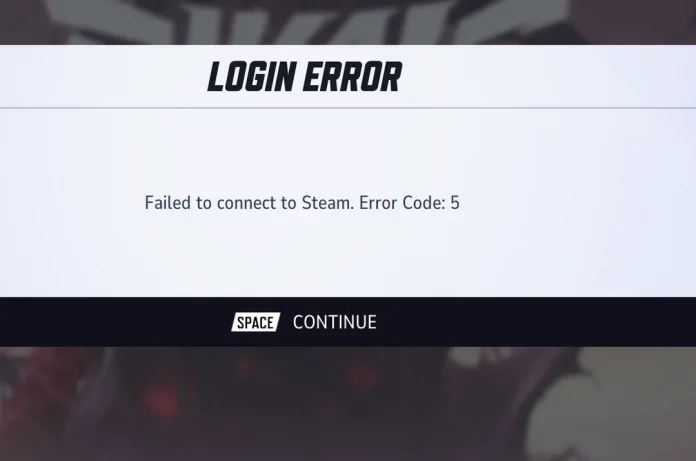
Marvel Rivals Error Code 5 is the most annoying connectivity problem players face when launching the game. This guide explains everything you need to know about error code 5 and presents verified solutions to get you back in action.
What Is Error Code 5?
Error Code 5 in Marvel Rivals usually occurs with the “Failed to connect to Steam” or “Login Error: Unknown Error (Error Code 5)” message. It is a network-related problem that bars players from accessing the game servers and can happen to users on PC (Steam, Epic Games), PlayStation 5, and Xbox.
The issue is mainly due to unreliable network connections, DNS resolution issues, game file corruption, lack of administrator rights, or firewall issues that block the game client. In certain situations, it could also be a sign of temporary server-side problems when there is heavy traffic or maintenance.
How to Fix Marvel Rivals Error Code 5?
Before going advanced with troubleshooting, try these easy solutions that have proven to work for numerous players:
- Spam the Login Button: The most commonly cited workaround is deceptively straightforward. Simply continue clicking the “Continue” or “Enter” button over and over when the error occurs. Most players have reported success after 5-20 tries, as the error is frequently the result of temporary server overload instead of an actual connection problem.
- Restart Your Device: Shut down Marvel Rivals entirely, reboot your computer or console, and restart the game. This simple step resolves temporary system issues that could interfere with connections.
- Check Server Status: Check if Marvel Rivals servers are up by checking official social media accounts, the game’s Discord server, or status services such as Downdetector. Server downtime or maintenance windows can cause Error Code 5 on every platform.
- Reset Network Configuration (DNS Flush)
- Network configuration issues often cause Error Code 5. Search for “cmd,” right-click on it, and select “Run as administrator”. Then enter these commands one at a time, pressing Enter after each:
- ipconfig /release
- ipconfig /flushdns
- ipconfig /renew
- netsh int ip reset
- netsh winsock reset
- Network configuration issues often cause Error Code 5. Search for “cmd,” right-click on it, and select “Run as administrator”. Then enter these commands one at a time, pressing Enter after each:
- Setup Firewall Settings
- Windows Firewall can block Marvel Rivals from making connections. Press Windows + S, search for “firewall,” and open Windows Defender Firewall. Hit “Allow an app or feature through Windows Defender Firewall,” then “Change settings,” and “Allow another app.” Navigate to your Marvel Rivals installation folder (usually C:\Program Files (x86)\Steam\steamapps\common\MarvelRivals), select the Marvel Rivals executable file, hit Add, and check both Private and Public checkboxes.
- Disable Antivirus/Overlay Software
- Temporarily turn off antivirus software or place Marvel Rivals in your antivirus exception list since security software may interfere with game connections. Also, turn off overlay applications such as Discord’s in-game overlay by opening Discord, navigating to User Settings > Game Overlay, and disabling “Enable in-game overlay.”.
Error Code 5 is still one of the most frequent problems among Marvel Rivals. Yet using the provided solutions, the majority of players can fix the issue and play the game again in minutes.

