

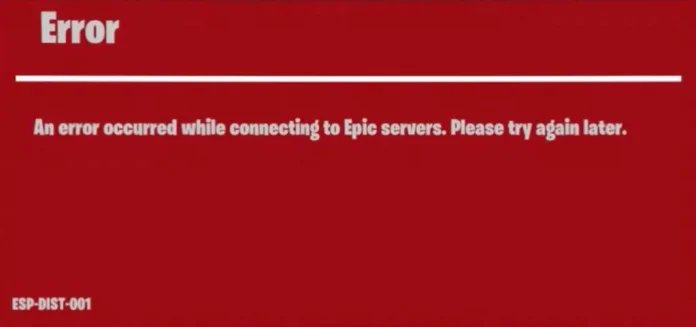
The ESP-DIST-001 error on Fortnite is perhaps the most infuriating connection problem that players face, flashing the ominous message “An error occurred while connecting to Epic servers. Please try again later.” The error can hit all platforms, including Nintendo Switch, PlayStation, Xbox, and PC, usually after game patches or during server maintenance.
Luckily, the majority of cases of this fault can be fixed by methodical troubleshooting methods that attack the core connection and cache-related problems.
What is the Fortnite ESP-DIST-001 Error?
As per Epic Games’ official support documentation, ESP errors are essentially connection error codes that show up whenever your device is unable to successfully communicate with Fortnite servers. The error would normally appear as a red screen displaying the connection failure message, effectively preventing players from accessing any game mode or feature.
The primary causes of this error include outdated cache data conflicting with recent game updates, network connectivity issues, DNS problems, and occasionally server-side maintenance that hasn’t been properly communicated to players. Understanding these root causes is crucial for implementing the correct fix for your specific situation.
How to Fix Fortnite ESP-DIST-001 Error?
For Nintendo Switch users, the most effective solution involves clearing the console’s cache through the system settings:
- Go to System Settings from your Nintendo Switch home screen and scroll down to System and click on Formatting Options. Click on Reset Cache and choose your user profile when asked. This deletes stored IDs, passwords, cookies, and cached web page data that could be interfering with Fortnite’s current server demands.
- After clearing the cache, perform a complete restart by holding the power button for three seconds and selecting Turn Off from the power options menu. Wait until the console fully powers down, then restart it normally. This two-step process ensures that all problematic cached data is purged and the system starts fresh.
PlayStation users have two primary methods for resolving the ESP-DIST-001 error, depending on their console generation:
- For PlayStation 5 users, you can access Safe Mode by pressing and holding the PS button on your controller, choosing Turn Off PS5, and allowing the power light to turn off entirely. Press and hold the power button on the console for seven seconds until you hear a second beep, then plug in your controller using a USB cable and press the PS button. Go to Clear Cache and Rebuild Database, and choose Clear System Software Cache.
- For PlayStation 4 users, it is easier but involves physically unplugging the console. Completely shut down the PS4, unplug the power cord from the wall socket, wait for 30 seconds, and plug it back in and boot up the console. This process manually clears out corrupted temporary files that can cause connection problems.
Xbox users can empty their console cache from the system settings menu without needing to physically unplug:
- Go to Settings, then System, and select Console Info. Select Reset Console and carefully choose Reset and Keep My Games and Apps to prevent loss of installed games and save data.
- This procedure eliminates redundant system files and cached data without deleting your game library or progress. The reset normally takes a few minutes and involves a restart to finish the cache-clearing operation.
PC users playing Fortnite via the Epic Games Launcher have a few troubleshooting options, starting with clearing the launcher’s cache:
- Press Windows key + R to launch the Run dialog, and in the dialogue box, enter %localappdata% and press Enter. Go to the EpicGamesLauncher folder, then Saved, and remove the webcache folder entirely. A few users might see more than one webcache folder that has numerical extensions such as webcache_4400 or webcache_4500 – remove all such folders.
- After clearing the Epic Games Launcher cache, restart your computer and relaunch the launcher. The launcher will automatically rebuild its cache with current data, potentially resolving conflicts that caused the ESP-DIST-001 error.
Occasionally, the ESP-DIST-001 error results from valid server maintenance or unplanned downtime on Epic’s side. Before spending a lot of time troubleshooting, always check the official Epic Games Status site at status.epicgames.com or the Fortnite Status X account for the latest server status.
The ESP-DIST-001 bug can usually be fixed by systematic cache flushing and network settings tweaking. Most gamers use platform-specific cache-clearing procedures to fix it, so it is the best initial approach for any ESP-DIST-001 incident.

